Sometimes the biggest things may come in the smallest packages. And Raspberry Pi 2 is no exception. I received my Pi 2 a few weeks ago and I have spent a significant amount of time with it. The hardware is decent enough considering its size and the cost (see my full RPi 2 review). I tried several operating systems on it and settled on the one that works the best.
You can also use it as a desktop PC, although the experience won’t be very good if you are coming from a dual core system with more than 8GB of RAM. However, it can be a very useful device for kids to learn computing or to have their own “expensive” PC to play with.
The fact is, there are more adults using this device than kids and they are doing amazing things with it.
The good news is, this upgraded hardware is powerful enough to do many things for you. If you are planning to order a Pi or if you just received one and are wondering what to do with it, this article will provide you with much-needed assistance.
Accessories you need
Raspberry Pi 2 comes with only the board and nothing else. To get started, you need the following hardware: power supply, HDMI cable, keyboard and mouse, ethernet cable or a supported WiFi dongle and a microSD card with minimum 8GB capacity.
Raspberry Pi 2 needs a 5-Volt power supply and the current (mA) depends on what hardware you are going to connect via the 4 USB ports; the more ports you use the more power it will draw. If you are going to use all the ports then 2.5 Amp is needed. I use Logitech’s bluetooth keyboard and mouse which could be connected with a bluetooth dongle. Since the keyboard and mouse are powered by batteries they don’t drain any juice from the Pi. If you are not using any extra components then you can also use the USB port of your PC to power the Pi. All you need is a microUSB cable.
As far as Internet connectivity is concerned, connecting the Pi using an ethernet cable is the best and safest thing. However in order to make it more mobile, you can also use a supported WiFi dongle. I have an Edimax dongle and it works out-of-the-box with the Raspbian OS. It may however need extra work to download drivers if you are using any other distro. If you are really going to use the Pi I also recommend getting a case for it. There are many cases on Amazon.com and other online stores.
Which OS To Try
I tried most of the OSes which were available for Pi 2, including Raspbian, Arch Linux, Ubuntu Snappy Core and Pidora. The experience was mixed with each distro and it heavy depends on what you really want to do with the Pi.
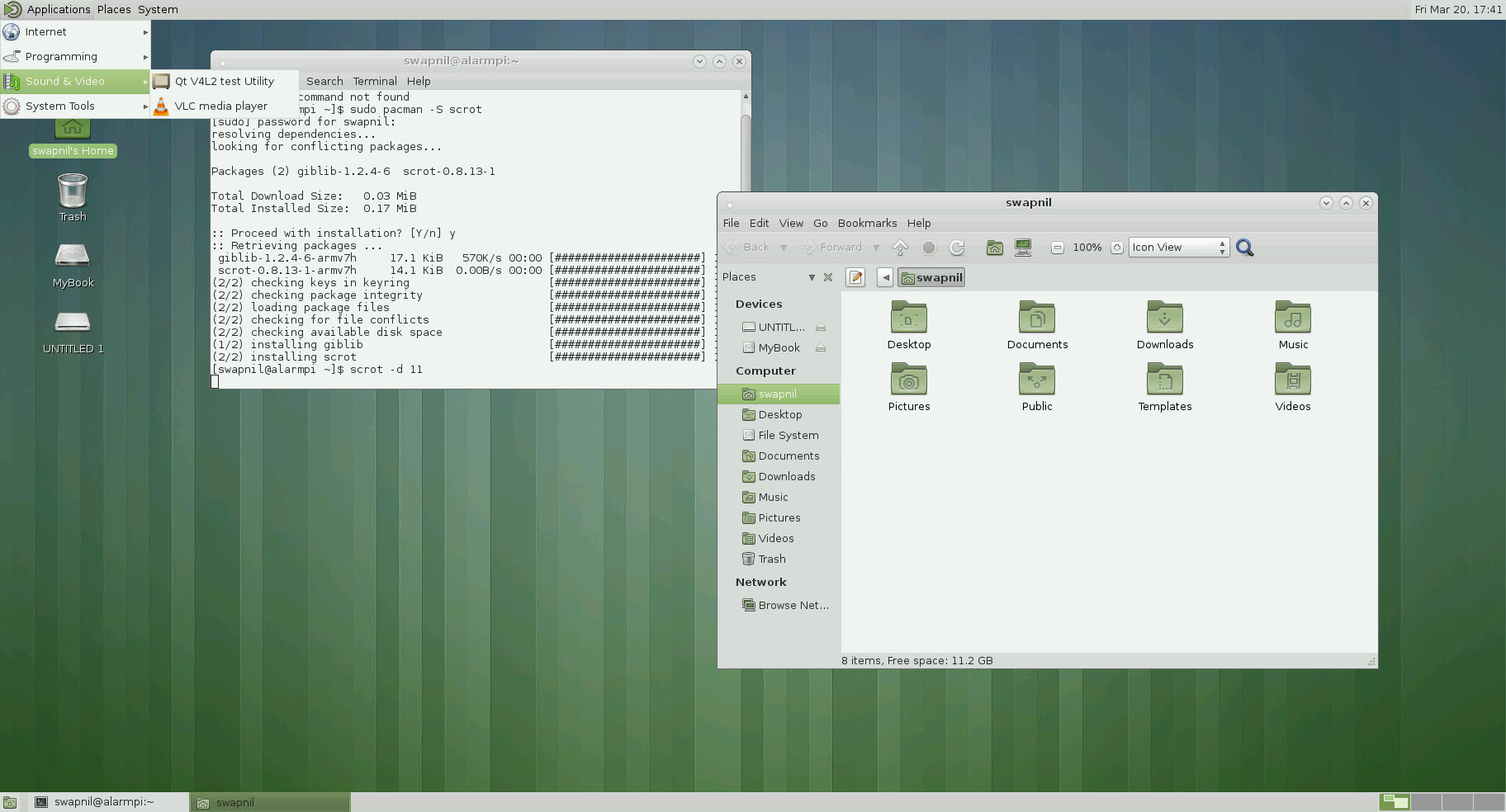
While it was fairly easy to install Arch Linux on the Pi it needed a lot of extra hours to get things to work. If you do plan to go the Arch way I suggest trying out LXDE or Mate on it. I ran Mate and was very happy with the way it works.
How to install Arch Linux?
Plug in the microSD card to the PC and run the lsblk command to find the device node for the USB drive. Carefully note it down. In this tutorial we are using the fdisk command to partition the sd card.
fdisk /dev/sdX
Here sdx is the device node. In my case it was “/dev/sdc”. You need to be extra careful at this because you might end up formatting your hard drive if you use the wrong device node.
The command will open a fdisk prompt where you can see all commands by typing ‘help’. Here we first need to format the sdcard so type ‘o’ which will delete the old partitions. Then type ‘p’ for partitioning. To create a new partition, type ‘n’. Now we need to make this partition primary so type ‘p’. Since it’s the first partition, type ‘1’ and then hit enter to choose the default first sector. Type ‘+100’ for the last sector. Now we need to set this partition as FAT 32, so type ‘t’ and then ‘c’.
We have to now create the second partition for Arch system files. Type ‘n’ again to create a new partition, then type ‘p’ to make it primary and then ‘2’ to set it as the the second partition on the SD card. For first and second sector just hit Enter to let fsdisk decide it for you. The partitions are all done. Now type ‘w’ to write these changes to the drive and exit fdisk.
Now we have to download Arch files and transfer them to the sdcard. First create a mount point for the FAT32 partition we just created:
mkfs.vfat /dev/sdX1
[Note: Be careful with the device node. If your device was /dev/sdc, two partitions were created there sdc1 and sdc2.]
Now create the boot directory:
mkdir boot
And mount the first partition:
mount /dev/sdX1 boot
We now have to create the root directory for Arch. First format the second partition on the sdcard to ext4 file system.
mkfs.ext4 /dev/sdX2
Then create the root directory:
mkdir root
Now mount the second partition
mount /dev/sdX2 root
Now it’s time to put Arch Linux on the sdcard. Become root and then run the following commands one by one:
wget http://archlinuxarm.org/os/ArchLinuxARM-rpi-2-latest.tar.gz
bsdtar -xpf ArchLinuxARM-rpi-2-latest.tar.gz -C root
sync
These files are currently downloaded on the local system, we have to move them to the sd card:
mv root/boot/* boot
Then unmount the partition and unplug the card.
umount boot root
We are done; just plug the card to your Pi 2 and start using Arch Linux. If you are going to try Arch on the Pi, I am assuming that you have tried Arch before so I won’t walk you through it.
The default password is root which you can easily change once you are booted into the Pi by running ‘passwd’ command.
I also suggest to create a system user for the Pi so you can work without being a user. Arch doesn’t come with any DEs so you do need to install other packages.
For audio support install alsa packages:
# pacman -S alsa-utils alsa-firmware alsa-lib alsa-plugins
Before you install any DE you need to install xorg drivers:
# pacman -S xf86-video-fbdev
You can then go ahead and install Mate on it.
sudo pacman -S mate mate-extra
To further customize Arch Linux, check out this detailed guide. Arch ARM comes with AUR repository already added to the pacman.conf file. So you can also install packages from AUR for ARMv7 architecture.
How to install Raspbian
It’s extremely easy to install Raspbian on the SD card. First download the latest version of Raspbian from the Raspberry Pi site. Then unzip the content as an img file. Now run the lsblk command to find the device node.
We are now going to use the dd command to copy content to the SD card:
sudo bs=4M dd if=/pi_image_path.img of=/dev/sdX
[note: don’t enter the number of the device, for example if lsblk shows /dev/sdc1 and /dev/sdc2, then type sdc instead of sdX]
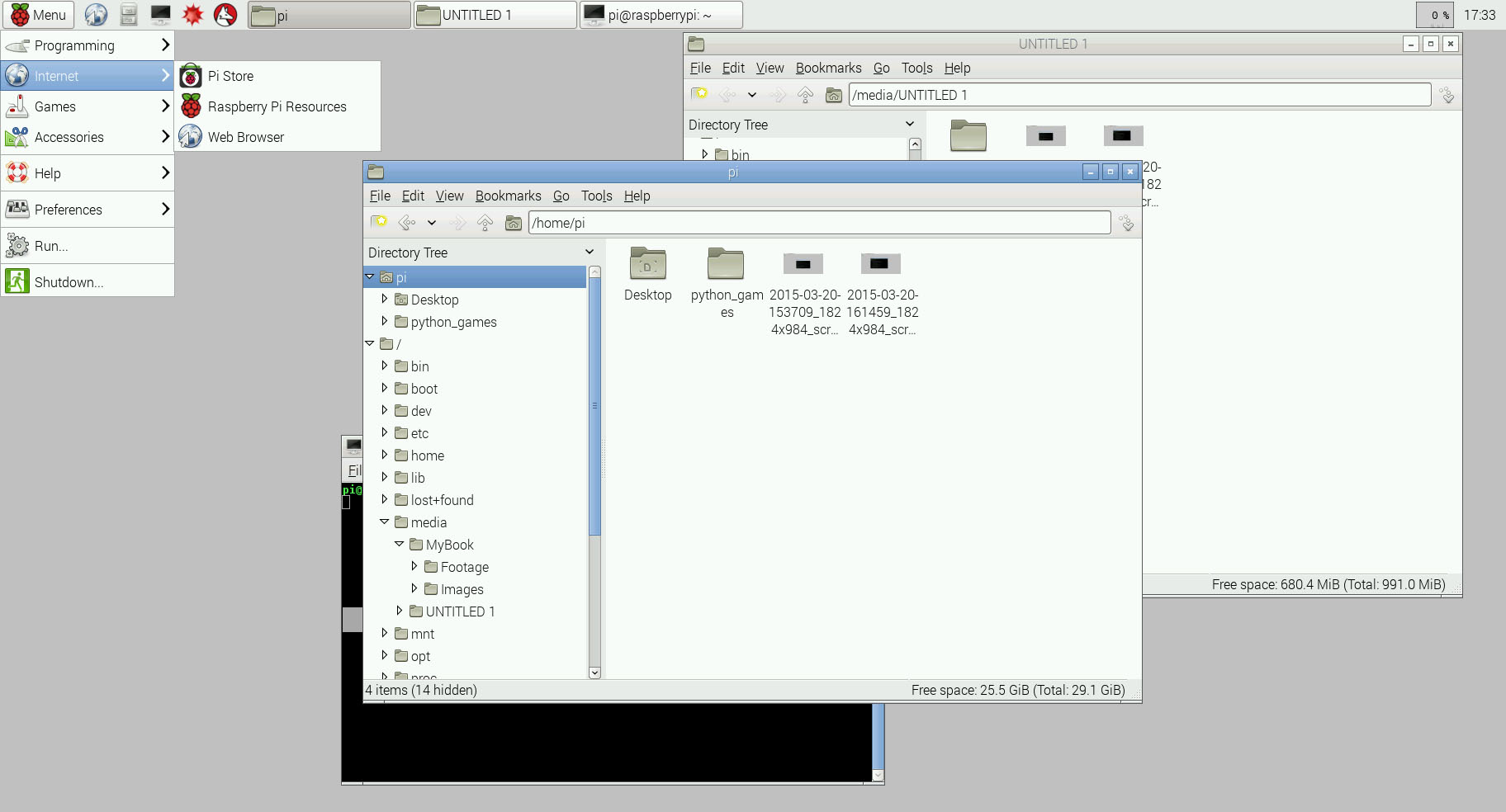
Once the image is written to the SD card, remove the card from your PC and plug it to your Pi. There is no on/off switch on the Pi, so just plug/unplug the power cable to turn it off and on. When your Pi boots into Raspbian it will open a window to optimize the OS for the device. I would suggest expanding the space on the Pi so you can use it for data. You can also change the root and user password. By default ‘Pi’ is the system user; you can easily change it just the way you create new users in a Debian-based system.
Raspbian comes with some basic applications, but you can install almost every application that’s available for ARMv7 platform. There are over 35,000 packages in the Raspbian repository. Just run apt-get and those packages are at your disposal.
I also tried Ubuntu Snappy core on my Pi. The installation was as simple as it was for Raspbian. Just download the image from the Raspberry Pi site and use the ‘dd’ method I explained above. However, keep in mind that Ubuntu Snappy Core is intended to be used in a headless manner and you won’t be getting any desktop environment (DE) for it. Also Snappy uses a different package management system so apt-get will not work there.
You can also install the ‘vanilla’ Ubuntu LTS, optimized for Raspberrry Pi 2. Download the latest images and use the Raspbian method to install it on your sd card. Just keep in mind that this image is community developed and is not supported by Canonical.
In my experience so far, Raspbian offers the best experience on the Pi; most of the hardware works out of the box; the default DE is extremely lightweight and easily to use. While Raspbian alone works great LXDE’s the UI leaves a lot to be desired and that’s where Mate shines on Pi.
Access Pi over SSH
 If you are going to use GUI tools then you definitely need a monitor and keyboard hooked to it to use the Pi as a regular desktop. However if you are planning to use it headless then you can manage the Pi over the local network via the ssh protocol.
I am using my Pi as a basic file server so using it headless makes more sense – it frees my hardware and also takes less space as I can just shove it in a corner.
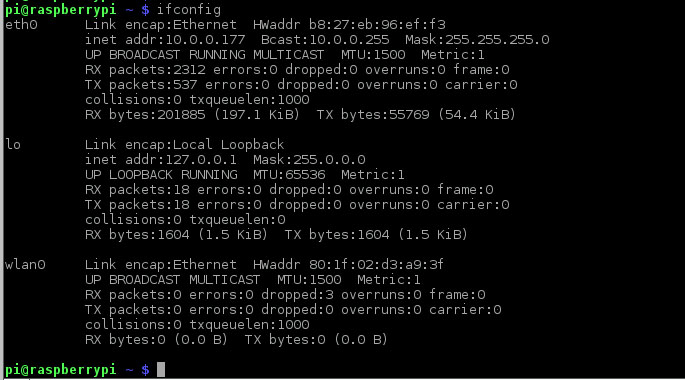
Before you remove monitor and keyboard find the IP address of your Pi:
ifconfig
You will get output for eth0 (the lan card) and wlan (or wireless), depending on which connection you are using. Note down the ‘inet addr’.
image:inet-addr.jpg
You should have openssh-client and openssh-server packages installed on the system from where you want to manage or access your Pi. To access the Pi over the network run this command:
ssh pi@IP-OF-Pi>
Here ‘pi’ is the username on pi, and IP-Of_Pi is the IP addressed we collected from the ifconfig command. It will ask for the password of the user pi. Voila, you are logged into your Pi. Now you can perform every task on Pi remotely – whether it be installing any package or upgrading the whole OS.
Raspbian Pi management
You can easily create a new user and home directories for them by running this command:
sudo useradd -d /home/swapnil -m swapnil Exchange 'swapnil' with your username.
Now create a password for the new user.
sudo passwd swapnil
Now let’s give swapnil some sudo powers:
sudo adduser swapnil sudo
Since Raspbian is based off Debian, all Debian commands will work on it.
Use Pi as media and file share server
I am using my Pi as a file and media server (which enabled me to use my chunky/huge desktop for something else other than the server and Pi was drawing much less power than the whole machine).
My primary job is writing so I am not planning to do anything crazy with Pi, but you can. Running it as a server is the most basic task you can get out of this $35 device.
Installing Samba server is the easiest way to convert it into a server. Install two packages ‘samba’ and ‘samba-common’.
sudo apt-get update
sudo apt-get install samba samba-common
Then run:
sudo smbpasswd - a pi
If you have created a new user then you must use that username instead of pi.
I have mounted some external drives to the pi and added their sections to the samba file so as to make them accessible via Samba server. Now edit the smb.conf file to tell which drives are available for sharing.
sudo nano /etc/samba/smb.conf
And create a section for each partition that you want to be shared using the following pattern. (Check out our previous article on using Samba share for media streaming.)
[4TB] -> The name of the shared directory
path = /media/4tb/ -> The path of the shared directory
read only = No -> Ensures that it’s not read only
browsable = yes -> Ensures that the subfolder of the directory are browsable
writeable = yes -> Ensures that user can write to it from networked device
valid users = swapnil -> The system user
Now you can easily use your Pi not only as a file server but also as a media server. In order to play media on other devices, install Kodi (formerly XBMC) on the PC and then browse the Pi’s samba server. Here you go: Pi is converted into your own homemade Netflix and Pandora running on Raspberry Pi 2
This is the very basic use-case of Pi 2. People are using it to do amazing things. In future articles we will cover more about the Pi 2.
Let us know what are you doing with your Pi 2!

 A few months ago, we told you LG formally introduced an OLED panel with a diagonal of 18 inches that could also be rolled into a cylinder to become a tube with a circumference of 3 cm / 1.18 inches across, taking another big step in the direction of consumer-friendly rollable electronics.
 Popular custom ROM maker Cyanogen plans to take over the world of mobile. You probably remember that a while ago, the company’s own CEO Kirt McMaster claimed the company was working towards a version of Android that’s envisioned to be Google-free.