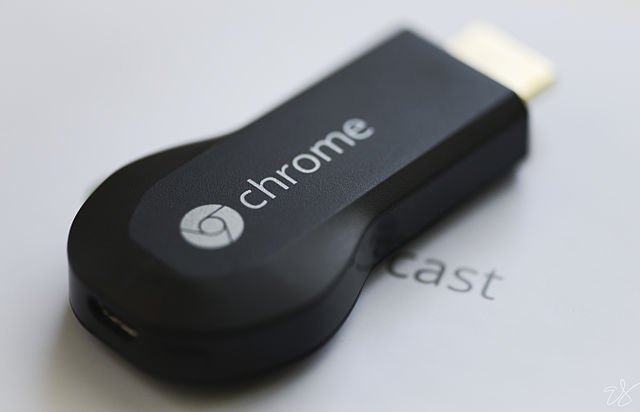
Chromecast is one of the most used devices in my household. After using it for over a year now, I believe there is no longer a market for the so-called ‘smart TV’. Inexpensive devices like Chromecast can turn any HDMI-enabled TV into a smart TV with immense possibilities to expand its features.
Google continues to add new features to Chromecast, except for one much-needed feature: native support for playback of local content. There is no _easy_ way to stream content sitting on your smart phone or desktop to Chromecast. Let me be honest, there are some Chrome apps which can play videos stored on your computer, but none offer a desirable solution.
However, nothing is impossible for a Linux user.
What’s desirable? The Chromecast is plugged into the TV in the living room whereas my PCs and hard-drives are in my office. There are three doors between these two rooms and I don’t want to shuttle in between my living room and office to play movies. I want the control to be in my hands, while I lay on the couch. The data remains on my PCs and I can use my Android devices to stream content to Chromecast, without having to get up. I am lazy!
Well, that’s exactly what I have done. I have created a local file server on my Linux box, which allows me to access movies, music and images from any device over the local network. Then I use an Android app which works as a remote to access and stream these files to the Chromecast. And I will show you how to do this, too.
Let’s get started. First things first. Let’s make our data accessible over the local network, and there is nothing better than setting up a Samba server.There are different ways of installing and configuring Samba on different distributions. Since I run openSUSE, Arch Linux and Kubuntu on my PCs, in this tutorial I will focus on openSUSE and Ubuntu families (Arch users can refer to the official wiki).
Install Samba Server
The chances are that Samba is already installed on your system; in that case skip this section and fast forward to ‘Grab File Manager’ section:
Step #1: Install Samba
openSUSE:
$ sudo zypper in samba
Kubuntu/Ubuntu family:
$ sudo apt-get install samba
 Step #2: Now we need to add a user to a Samba group so it will have the desired permissions to access the shared data. Since I don’t let guests access my file server I really don’t bother with creating a separate user. In this tutorial we are using the system user for samba share.
openSUSE:
We need to create a Samba group in openSUSE and add the user to that group.
$ sudo groupadd smbgroup
$ sudo usermod -a -G smbgroup name_of_user
$ sudo smbpasswd -a name_of_user
Ubuntu/Kubuntu:
$ sudo smbpasswd -a name_of_user
Step #3 Now we have to edit the Samba configuration files to tell Samba which directories are shared.This step is the same for all distributions:
$ sudo nano /etc/samba/smb.conf
In this file, leave the entire [global] section intact and comment everything below it. Right after the end of the [global] section add a few lines using the following pattern:
[4TB] -> The name of the shared directory
path = /media/4tb/ -> The path of the shared directory
read only = No -> Ensures that it's not read only
browsable = yes -> Ensures that the subfolder of the directory are browsable
writeable = yes -> Ensures that user can write to it from networked device
valid users = swapnil -> The system user
In my case it looks something like this:
[4TB]
path = /media/4tb/
read only = No
browsable = yes
writeable = yes
valid users = swapnil
Add a new section for each directory you want to share over the network.
Step #4 start Samba server.
Now we have to start the server and also ensure that it kicks in at system boot.
openSUSE:
Start start Samba services:
systemctl start smb.service
systemctl start nmb.service
 Then enable the services to start at system boot:
systemctl enable smb.service
systemctl enable nmb.service
Ubuntu/Kubuntu:
sudo service nmbd restart
sudo service smbd restart
You should now be able to access these directories over the local network.
Grab file manager
I use Android because I find iOS to be a sub-standard and extremely restricted OS when it comes to getting some real work done. I couldn’t find a decent free file explorer on the App Store which can compete with the ones available on Android. ES File Manager is one of the best applications out there, for our set-up.
Download and install ES File Manager and it’s Chromecast Plugin from Google Play Store.
Open the app and go to ‘network’ option from the menu.
Select LAN and run ‘scan’.
It will detect your Samba server; provide the app with the username and password (the system user for your PC where Samba is installed). (See Image 1, above.)
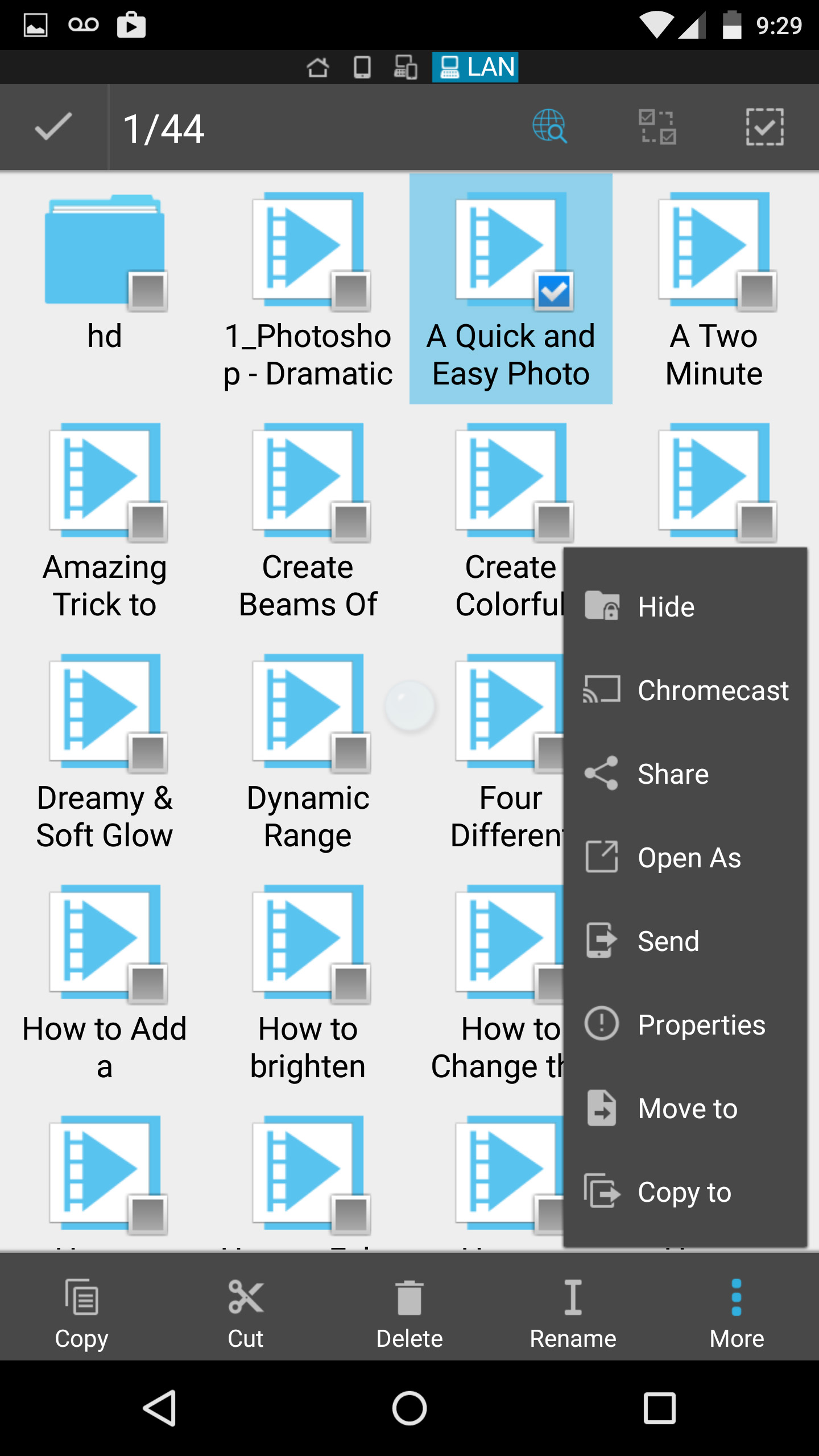
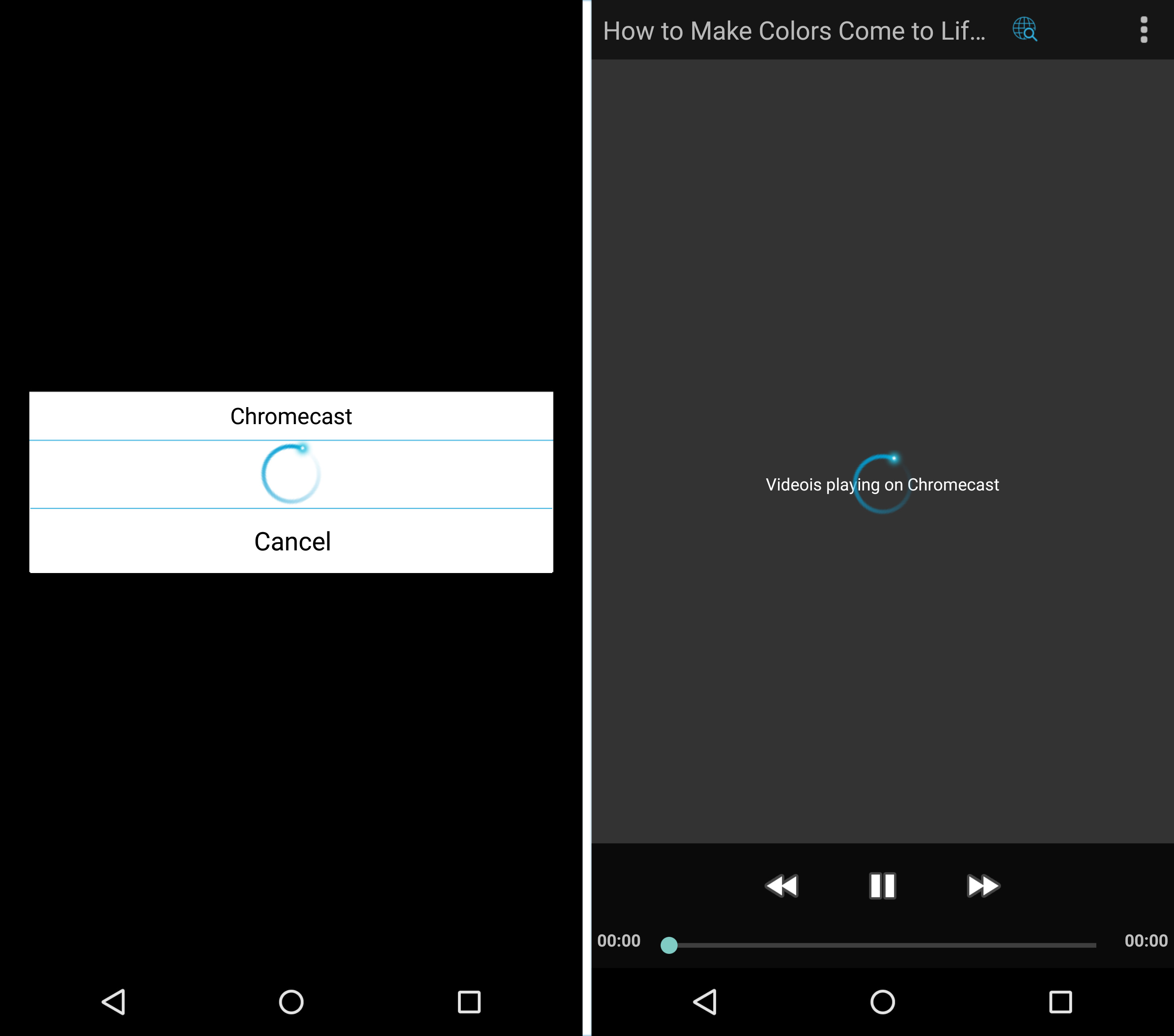
Once connected, open the network directory where the media is saved and choose the file that you want to play on Chromecast. (Image 2) Long press on the file and it will show a checkbox. Tick the ‘checkbox’ and then click on the ‘more’ option at bottom left. You will see ‘Chromecast’ in the menu. Select Chromecast and it will scan for the Chromecasts available on your network. Hit on the name of your device when it pops up and your video will start playing on the Chromecast. (Image 3)
Now you can just lay back in your couch and play movies, music and images right from your palm. Linux and open source just turned you into a couch potato.

 Bodhi is a minimalistic Linux operating system based on Ubuntu and that features low system requirements. The developers have just released a new Reloaded edition for the distro, but they decided to keep the RC tag, at least for now.
 HandyLinux, a Linux distribution based on Debian and Xfce that comes with a special kind of launcher and desktop interface, has been upgraded to version 1.8.0. The developers have made a large number of improvements and that is quite obvious from the big changelog, although many of them are not very complex.
 MakuluLinux 6 Cinnamon, a Linux distribution based on the Debian testing branch, Jessie, that provides stability, speed, and a modern desktop, has been upgraded to version 2.0 and is now ready for download.
 Valve has upgraded the Steam client and they fixed that terrible bug that would allow the application to actually delete every file that was owned by the user.
 Manjaro Linux has received a new update pack and the developers have upgraded many of the core components and applications. This particular update was made available for testing more than a week ago and now it’s ready in its stable form.