The Git distributed revision control system is a sweet step up from Subversion, CVS, Mercurial, and all those others we’ve tried and made do with. It’s great for distributed development, when you have multiple contributors working on the same project, and it is excellent for safely trying out all kinds of crazy changes. We’re going to use a free Github account for practice so we can jump right in and start doing stuff.
Conceptually Git is different from other revision control systems. Older RCS tracked changes to files, which you can see when you poke around in their configuration files. Git’s approach is more like filesystem snapshots, where each commit or saved state is a complete snapshot rather than a file full of diffs. Git is space-efficient because it stores only changes in each snapshot, and links to unchanged files. All changes are checksummed, so you are assured of data integrity, and always being able to reverse changes.
Git is very fast, because your work is all done on your local PC and then pushed to a remote repository. This makes everything you do totally safe, because nothing affects the remote repo until you push changes to it. And even then you have one more failsafe: branches. Git’s branching system is brilliant. Create a branch from your master branch, perform all manner of awful experiments, and then nuke it or push it upstream. When it’s upstream other contributors can work on it, or you can create a pull request to have it reviewed, and then after it passes muster merge it into the master branch.
So what if, after all this caution, it still blows up the master branch? No worries, because you can revert your merge.
Practice on Github
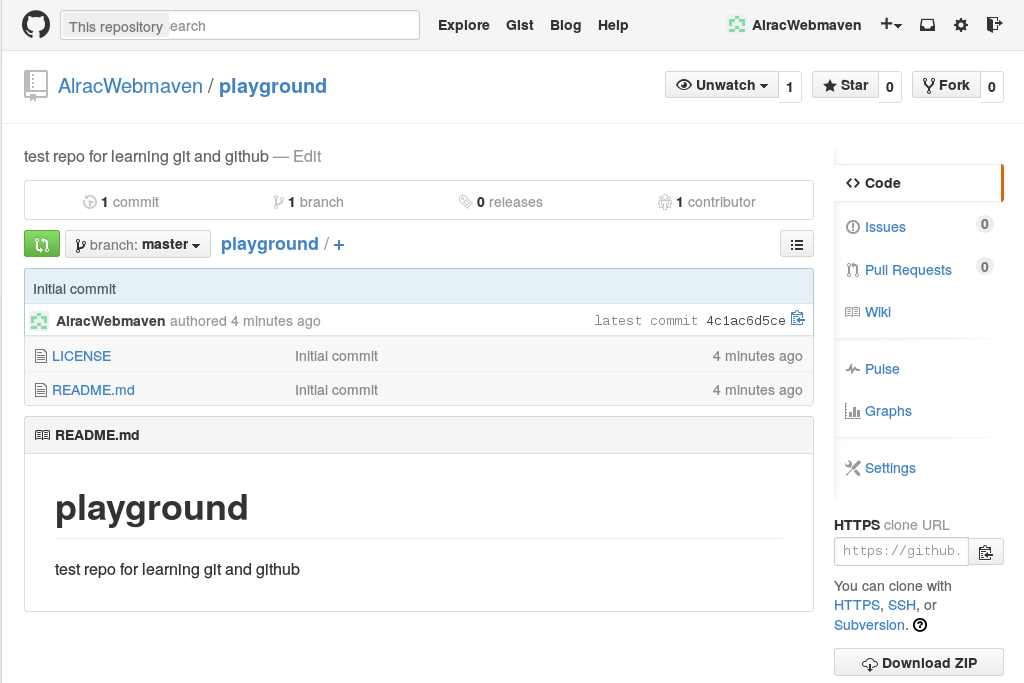
The quickest way to get some good hands-on Git practice is by opening a free Github account. Figure 1 shows my Github testbed, named playground. New Github accounts come with a prefab repo populated by a README file, license, and buttons for quickly creating bug reports, pull requests, Wikis, and other useful features.
Free Github accounts only allow public repositories. This allows anyone to see and download your files. However, no one can make commits unless they have a Github account and you have approved them as a collaborator. If you want a private repo hidden from the world you need a paid membership. Seven bucks a month gives you five private repos, and unlimited public repos with unlimited contributors.
Github kindly provides copy-and-paste URLs for cloning repositories. So you can create a directory on your computer for your repository, and then clone into it:
$ mkdir git-repos
$ cd git-repos
$ git clone https://github.com/AlracWebmaven/playground.git
Cloning into 'playground'...
remote: Counting objects: 4, done.
remote: Compressing objects: 100% (4/4), done.
remote: Total 4 (delta 0), reused 0 (delta 0)
Unpacking objects: 100% (4/4), done.
Checking connectivity... done.
$ ls playground/
LICENSE  README.md
All the files are copied to your computer, and you can read, edit, and delete them just like any other file. Let’s improve README.md and learn the wonderfulness of Git branching.
Branching
Git branches are gloriously excellent for safely making and testing changes. You can create and destroy them all you want. Let’s make one for editing README.md:
$ cd playground
$ git checkout -b test
Switched to a new branch 'test'
Run git status to see where you are:
$ git status
On branch test
nothing to commit, working directory clean
What branches have you created?
$ git branch
* test
  master
The asterisk indicates which branch you are on. master is your main branch, the one you never want to make any changes to until they have been tested in a branch. Now make some changes to README.md, and then check your status again:
$ git status
On branch test
Changes not staged for commit:
  (use "git add ..." to update what will be committed)
  (use "git checkout -- ..." to discard changes in working directory)
        modified:   README.md
no changes added to commit (use "git add" and/or "git commit -a")
Isn’t that nice, Git tells you what is going on, and gives hints. To discard your changes, run
$ git checkout README.md
Or you can delete the whole branch:
$ git checkout master
$ git branch -D test
Or you can have Git track the file:
$ git add README.md
$ git status
On branch test
Changes to be committed:
  (use "git reset HEAD ..." to unstage)
        modified:   README.md
At this stage Git is tracking README.md, and it is available to all of your branches. Git gives you a helpful hint– if you change your mind and don’t want Git to track this file, run git reset HEAD README.md. This, and all Git activity, is tracked in the .git directory in your repository. Everything is in plain text files: files, checksums, which user did what, remote and local repos– everything.
What if you have multiple files to add? You can list each one, for example git add file1 file2 file2, or add all files with git add *.
When there are deleted files, you can use git rm filename, which only un-stages them from Git and does not delete them from your system. If you have a lot of deleted files, use git add -u.
Committing Files
Now let’s commit our changed file. This adds it to our branch and it is no longer available to other branches:
$ git commit README.md
[test 5badf67] changes to readme
 1 file changed, 1 insertion(+)
You’ll be asked to supply a commit message. It is a good practice to make your commit messages detailed and specific, but for now we’re not going to be too fussy. Now your edited file has been committed to the branch test. It has not been merged with master or pushed upstream; it’s just sitting there. This is a good stopping point if you need to go do something else.
What if you have multiple files to commit? You can commit specific files, or all available files:
$ git commit file1 file2
$ git commit -a
How do you know which commits have not yet been pushed upstream, but are still sitting in branches? git status won’t tell you, so use this command:
$ git log --branches --not --remotes
commit 5badf677c55d0c53ca13d9753344a2a71de03199
Author: Carla Schroder
Date:   Thu Nov 20 10:19:38 2014 -0800
    changes to readme
This lists un-merged commits, and when it returns nothing then all commits have been pushed upstream. Now let’s push this commit upstream:
$ git push origin test
Counting objects: 7, done.
Delta compression using up to 8 threads.
Compressing objects: 100% (3/3), done.
Writing objects: 100% (3/3), 324 bytes | 0 bytes/s, done.
Total 3 (delta 1), reused 0 (delta 0)
To https://github.com/AlracWebmaven/playground.git
 * [new branch]      test -> test
You may be asked for your Github login credentials. Git caches them for 15 minutes, and you can change this. This example sets the cache at two hours:
$ git config --global credential.helper 'cache --timeout=7200'
Now go to Github and look at your new branch. Github lists all of your branches, and you can preview your files in the different branches (figure 2).
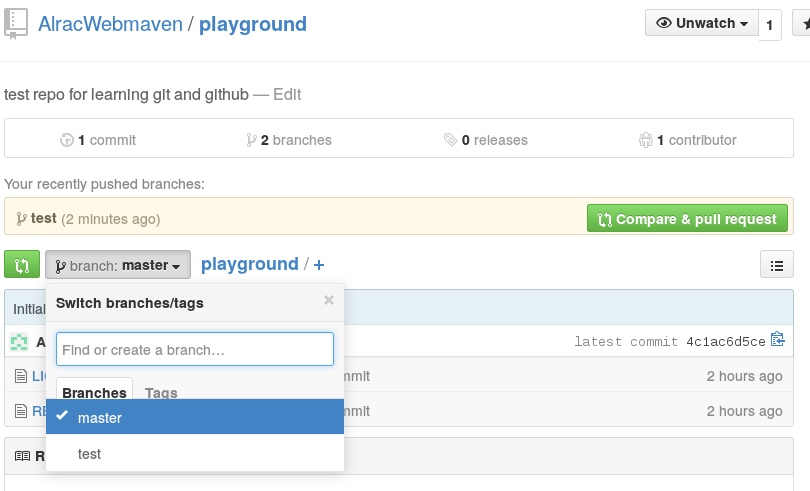
Now you can create a pull request by clicking the Compare & Pull Request button. This gives you another chance to review your changes before merging with master. You can also generate pull requests from the command line on your computer, but it’s rather a cumbersome process, to the point that you can find all kinds of tools for easing the process all over the Web. So, for now, we’ll use the nice clicky Github buttons.
Github lets you view your files in plain text, and it also supports many markup languages so you can see a generated preview. At this point you can push more changes in the same branch. You can also make edits directly on Github, but when you do this you’ll get conflicts between the online version and your local version. When you are satisfied with your changes, click the Merge pull request button. You’ll have to click twice. Github automatically examines your pull request to see if it can be merged cleanly, and if there are conflicts you’ll have to fix them.
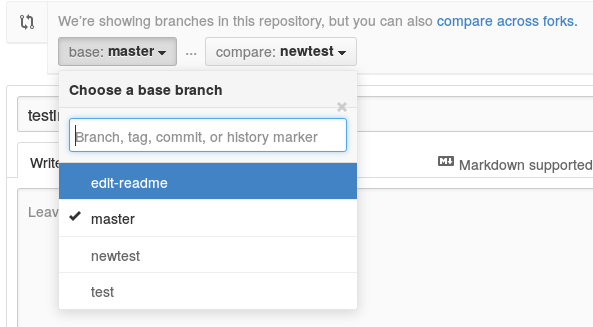
Another nice Github feature is when you have multiple branches, you can choose which one to merge into by clicking the Edit button at the right of the branches list (figure 3).
After you have merged, click the Delete Branch button to keep everything tidy. Then on your local computer, delete the branch by first pulling the changes to master, and then you can delete your branch without Git complaining:
$ git checkout master
$ git pull origin master
$ git branch -d test
You can force-delete a branch with an uppercase -D:
$ git branch -D test
Reverting Changes
Again, the Github pointy-clicky way is easiest. It shows you a list of all changes, and you can revert any of them by clicking the appropriate button. You can even restore deleted branches.
You can also do all of these tasks exclusively from your command line, which is a great topic for another day because it’s complex. For an exhaustive Git tutorial try the free Git book.



 As I
As I