
Home Blog Page 1309

Systemd Gets PPPoE Support

The latest library added to systemd is for the Point-to-point protocol over Ethernet…

Read more at Phoronix
Linux 3.16.y.z Extended Stable Support

The Ubuntu kernel team has announced that they will be providing extended support for the 3.16 kernel series. The team will pick up where Greg Kroah-Hartman left off, with 3.16.7, and will provide support until April 2016.

Read more at LWN

How to Find the Best Linux Distribution for a Specific Task

kali Linux

If you’re looking for a Linux distribution to handle a specific (even niche) task, there most certainly is a distribution ready to serve. From routers to desktops, from servers to multi-media…there’s a Linux for everything.

With such a wealth of Linux distributions available, where do you start looking when you have a specific task in mind? You start here, with this listing of some task-specific Linux distributions. This intent here isn’t to create an exhaustive list, but to get users pointed in the right direction. For an exhaustive listing of Linux distributions, check out Distrowatch.

Desktop

The task of everyday usage could easily fall to one of many Linux distributions. In fact, most every Linux distribution can handle everyday, desktop use. From internet browsing/work to desktop publishing, social networks…everything you need for getting things done. The choice made will often depend on what type of interface you want (since nearly every distribution can run the apps you need). Are you looking for a more modern, touch-friendly interface? If so, go with Ubuntu and its Unity interface or Fedora and GNOME.

Since the list of desktop distributions is so extensive, here is a list of some of the top distributions and why they should be considered:

  • Ubuntu: Hardware support, touch-friendly interface

  • Mint: One of the most user-friendly distributions available

  • Deepin: Outstanding interface and user-friendly

  • Bodhi: Unique interface, lightweight distribution (also works well on Chromebooks)

  • Arch Linux: A full-featured desktop distribution that focuses on simplicity. 

Audio/Video engineering

When people think of audio/video, they tend to immediately default to Mac. Linux also excels in that playground. With full-blown distributions dedicated specifically to audio/video engineering, you won’t miss a beat or a scene. If you work with multi-media and Linux, you already know there are plenty of tools available (Lightworks, Audacity, Ardour, etc). What you might not know is that there are distributions available that come with everything you need to rock, preinstalled.

So if you’re looking to get your audio or video ready for performance or distribution, take a look at any of these flavors of Linux:

Ubuntu Studio: This is the most widely used multimedia-oriented Linux-based operating system. What is very nice about Ubuntu Studio is that it is optimized, from the kernel up, to be perfectly suited for the high demands made by audio/video editing/creation. The distribution is based on Ubuntu and the desktop is XFCE, so you can be sure it won’t take much from memory or CPU…so it’s all there for your tasks.

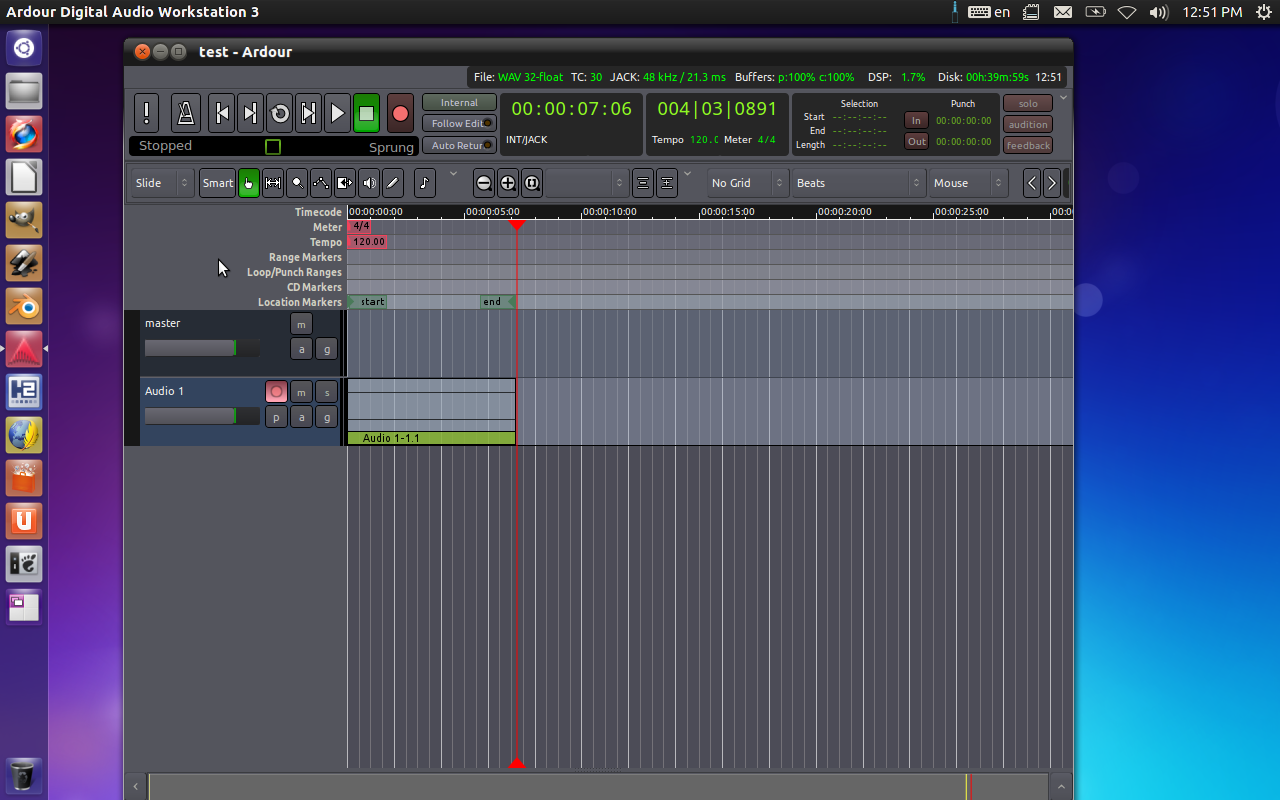
Dream Studio: Takes a very similar approach to Ubuntu Studio — with many of the same tools. The primary difference is that Dream Studio uses the Unity interface, for a more modern (and touch-friendly) look.
dream studio

Penetration testing

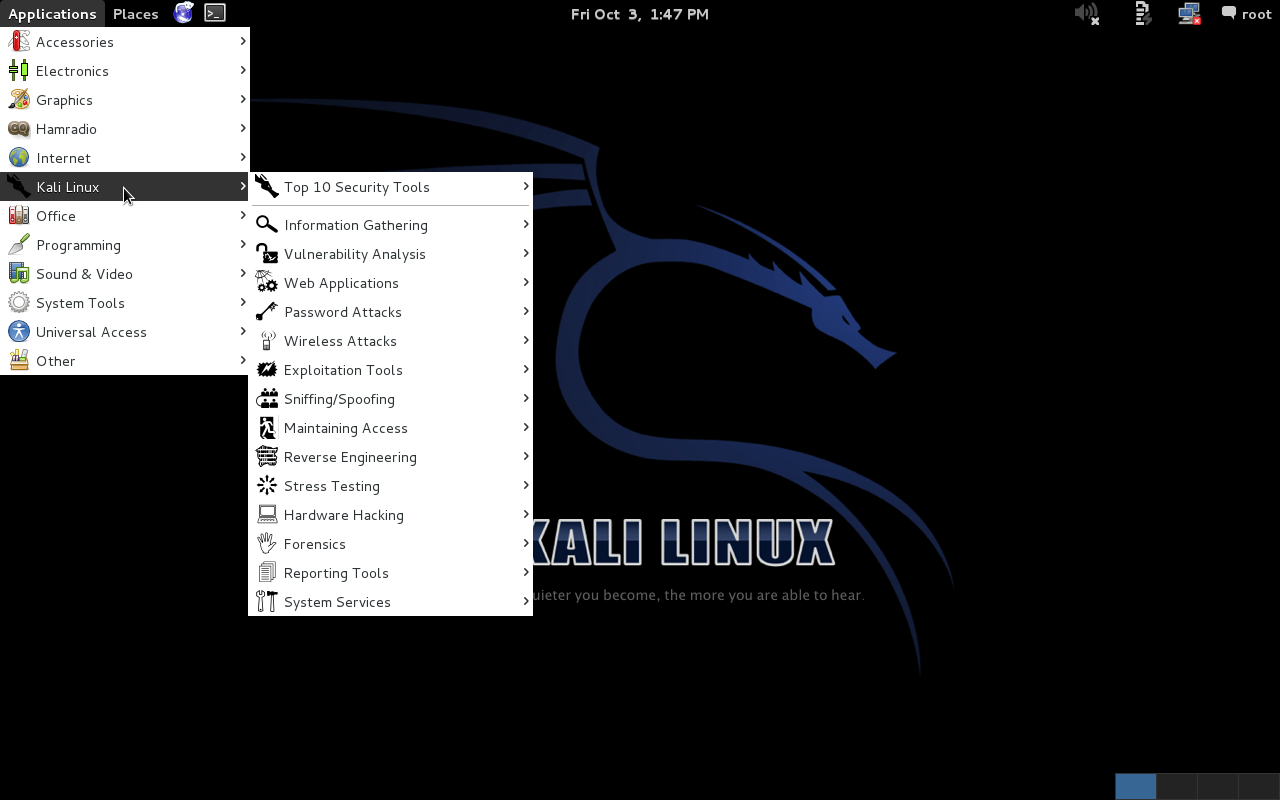
Although just about any Linux distribution can be used (or tweaked to be used) for this purpose, there are distributions specifically designed to test the security of your network through penetration testing. One of the best distributions you’ll find for this purpose is Kali Linux. This particular take on the Linux distribution incorporates more than 300 penetration testing and security tools to create one of the finest security-minded distributions available. With Kali you can simulate attacks on your network to see exactly what you need to protect your company’s precious data. You’ll find apps like Metasploit (for network penetration testing), Nmap (for port and vulnerability scanning), Wireshark (for network monitoring), and Aircrack-Ng (for testing wireless security).

Development

Most Linux distributions are well-built for development. You’ll find all of the tools available to all distributions. There is, however, one consideration you’ll want to take into account. With versioned distributions (such as Ubuntu), you’ll find updates to developer-crucial packages (such as PHP) often lag well behind rolling release distributions. The top rolling release distributions are:

Enterprise Servers

If you’re looking to serve up large, high-demand websites, or power the backend of your business, there are Linux distributions ready to serve. You can go the fully supported, somewhat proprietary route, like Red Hat Enterprise Linux, or the fully free route with CentOS. What’s important with RHEL is that, when you make your purchase, you can also count on enterprise-grade support. For some companies, that level of support is mission-critical.

Of course, Red Hat isn’t the only game when it comes to fully supported enterprise-grade Linux. There’s also SUSE Linux Enterprise — for both servers and desktops. But that’s not all. You’ll find plenty of enterprise-ready servers in these distributions:

  • CentOS: The free, open source version of Red Hat Enterprise Server

  • Zentyal: A drop-in replacement for Windows Small Business Server. 

System Troubleshooting

If you’re looking to troubleshoot a PC system, a Windows installation, a hard drive, or even retrieve data from a problematic Windows PC, Linux is what you turn to. There are plenty of Linux distributions geared toward troubleshooting a system. Some of the best include:

  • Knoppix: A bootable Live CD (or USB) distribution that offers plenty of diagnostic tools.

  • Ultimate Boot CD: This is the tool you want when you need to do serious hardware diagnosis (from memory, to CPU, to hard drive, peripherals, and more). With UBCD you can also do data recovery and partitioning.

  • SystemRescueCD: This distribution offers plenty of tools focused on system and data rescue.

Education

Linux also excels in the world of education. With tools like Moodle, ITALC, Claroline, and more — Linux has a firm grasp on the needs of education. And like every other niche, there are distributions geared specifically for the world of education. Two of the more popular distributions are:

  • Edubuntu: This is a partner project for Ubuntu Linux. The aim of Edubuntu is to help the educator with limited computer knowledge make use of Linux’ power, stability, and flexibility within the classroom or the home.

  • Uberstudent: Aimed at secondary and higher-education, Uberstudent is a complete, out of the box learning platform. Ubuerstudent was developed by a professional educator who specializes in academic success strategies, post-secondary literacy instruction, and educational technology.

Router

If you’d like to replace the firmware on your current router with a more robust and secure solution, look no further than Linux. By flashing your router with a Linux distribution, you’ll find you enjoy more features and more control over your network experience. Of course, not all routers are flashable with Linux — so you’ll need to do a bit of research on your hardware. If your router is supported, look to these two major projects as your first steps toward more freedom with your network routing.

DD-wrt: This flavor offers tons of features and a very easy interface to help you control those features. You’ll also find plenty of documentation for DD-wrt.

OpenWRT:  This is a Linux distribution for embedded devices…including routers. Like all routers, you’ll control NAT, DHCP, DNS, and more.

Firewall

If you don’t have the budget for firewall devices (such as Cisco), then a Linux firewall might just be the perfect solution. With the incredibly powerful iptables system, Linux makes for outstanding security. And there are plenty of routes to success with a Linux firewall. If you want as near an out-of-the-box solution, take a look at IP Cop. This particular firewall solution is geared toward home and SOHO usage, but offers a user-friendly, web-based interface that doesn’t require a system administrator level of understanding to use.

Of course, if you want absolute control of your firewall, you can also make use of a distribution like CentOS and learn the ins and outs of iptables.

Anonymous use

Finally, if you’re looking for a Linux distribution to use with anonymity, you want Tails.

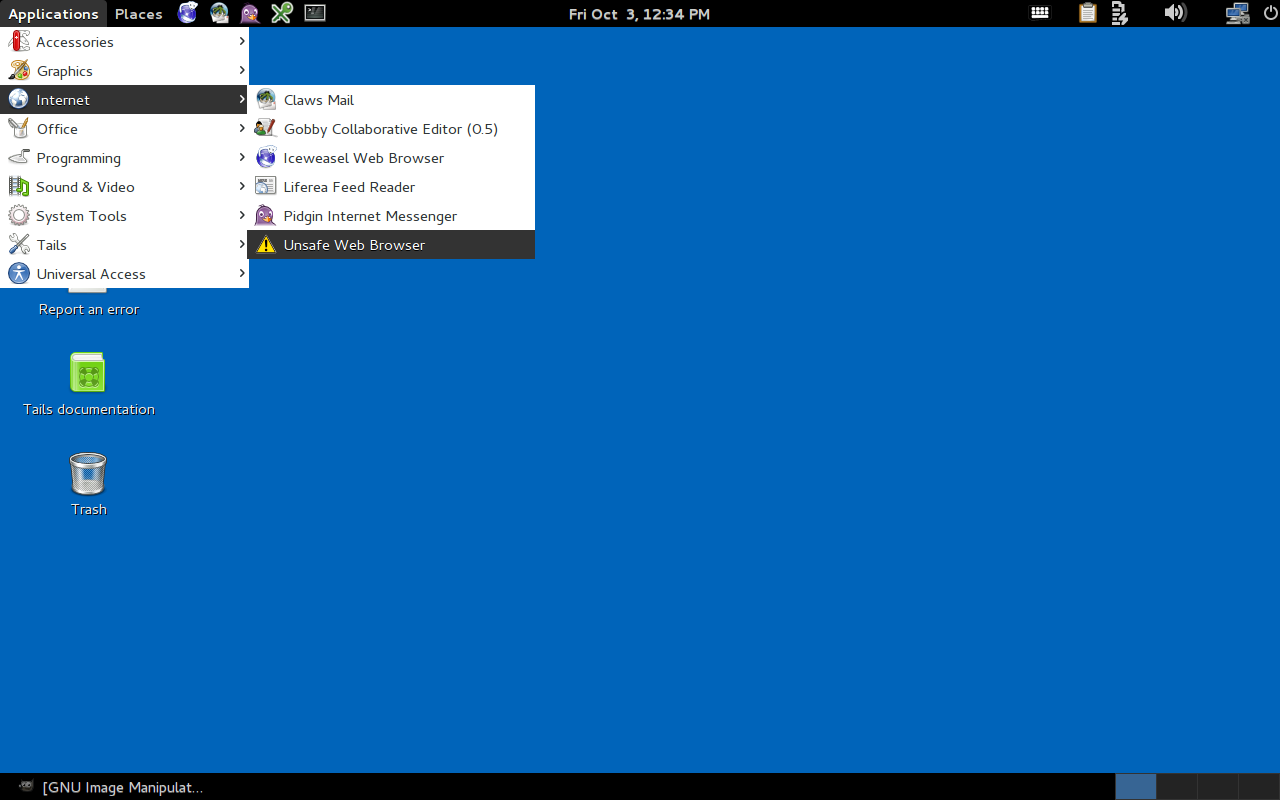
Tails is a live Linux distribution that aims to leave no trace and aims at protecting your privacy and anonymity. This particular Linux distribution takes great care to use cryptography to encrypt all data leaving the system. Tails is built on Debian and contains all free software.
tails screen capture

There you have it. A sort of guide to help you navigate the waters of use-specific Linux distributions. And as I’ve mentioned before, fundamentally Linux can be made to do whatever you want. Don’t assume you must use a niche- or task-specific distribution to get something done. With just a little know-how, you can make any distribution into exactly what you need.

For more information about Linux distributions, visit the following sites:

Microsoft ‘Loves’ Linux? Then Stop Attacking Open Source

 If Microsoft wants to show it is a member of the Linux community worthy of respect, it will take more than smiles and pink hearts.

To fix that at a stroke, it should join OIN and make its commitment concrete. The move would show not only that Microsoft needs Linux for its cloud strategy, but recognizes it is part of a community that collaborates on open source with mutual respect. With the benefits of community come obligations to behave in a manner consistent with accepted norms of behavior. I checked with Keith Bergelt, the CEO of OIN, and he said, “Microsoft would be a welcome member of OIN. They have much to gain from joining our extensive community of patent non-aggression around the Linux System.”

Read more at InfoWorld.

Has The Sky Fallen? Qualcomm Contributes To Freedreno’s DRM/KMS Driver

In an interesting change of events, Code Aurora on the behalf of the Qualcomm Innovation Center has added Adreno A4xx product support to the Freedreno-spawned DRM/KMS “MSM” driver…

Read more at Phoronix

The Benefits of Software Defined Networking

How one telecoms company benefited from Software Defined Networking (SDN)

How to Create a Cool Terminal Dashboard in Linux

Are you looking for new ways to display information in Linux? Is Conky too mainstream for you? Are you looking for something more geeky and flexible than screenFetch? Then maybe you should consider making a dashboard in your terminal. And for this, I like to use Hubble, a small application based on the Node […]
Continue reading…

    Read more at Xmodulo

    Data-protector Installation on VMware on Linux Desktops


    Data is one of the most crucial elements for security and protection. Tech market giants make investments of millions. Backup/Data Protection is a key area when we talk about data retention and data recovery. We have big giants involved who have made this possible by developing a variety of data-protection tools. These data-protection techniques have been utilised in both physical and virtual environments.


    These backup techniques are basically of two types :


    1. Image Backup

    2. Client Backup


    The earliest kind of backup configurations were client backups. Traditional backup methods work like this by storing redundant data over and over again. Because of this, client backup installation had various performance degradation issues. The below issues were rectified by a technique called Image Backups. In this technique there was improvisation in data protection by the storage of only the changed storage block, instead of everything as in the  client backup technique. Tremendous improvement in the performance of the VMS was recorded by using image backup technique. There was also less congestion in the network bandwidth.


    In Virtual Environments the Major Tools used for Image Backup Technique are as stated below


    • VMware Vsphere Data protector

    • IBM Tivoli Manager

    • Avamar Proxy Server


    Introduction to  VMware Vsphere DataProtector (VDP):


    • Robust ,Simple to deploy disk-based backup and recovery technique.

    • It enables centralised and efficient management of backup jobs while storing backups in deduplicated storage locations.

    • VMware vSphere Web Client interface is used to select, schedule, configure, and manage backups and recoveries of virtual machines.

    • The Vsphere data protector creates a snapshot quiesced snapshot of the virtual machine and deduplication is performed with every backup operation.

    • It uses Change Block Tracking (CBT) technique which is Vmkernel function, keeping a track of storage blocks of virtual machines as they change over time. VMkernel  keeps a track of block changes on virtual machines, this enhances the backup process for applications.

    • It uses VMware storage API’s used for Data Protection as well enables centralized backup of a VM machine without causing any disruption.

    • The VDP Appliance is a purpose built virtual appliance for vSphere data protection.


    Installation of Vsphere Data Protector:


    Software Requiremnets:


    VDP 5.5 requires the following software:

    • VMware vCenter Server: Version 5.1 or later

    1. vCenter Server Linux or Windows.

    NOTE: Backing up more than 2 TB VMs on Windows operating systems is not supported. This limitation does not exist on Linux operating systems.

    1. Web browsers must be enabled with Adobe Flash Player 11.3 or higher to access the vSphere Web. Client and VDP functionality


    • VMware ESX/ESXi (the following versions are supported)

    1. ESX/ESXi 4.0, 4.1,ESXi 5.0, ESXi 5.1, ESXi 5.5

    Pre-Installation Configurations:

    • “DNS Configurationâ€

    • “NTP Configurationâ€

    • “User Account Configurationâ€

    • “vSphere Data Protection Best Practicesâ€


    Installation of Vsphere Data Protector:


    The installation is basically completed in two steps :-

    • “Deploy the OVF Templateâ€

    • “Configuring the VDP Appliance System Settingsâ€


    Deploy the OVF Template:-


    Procedure

    1. From a web browser, access the vSphere Web Client.

    2. Log in with administrative privileges.

    3. Select vCenter > Datacenters.

    4. On the Objects tab, click Actions > Deploy OVF Template.

    5. If prompted, allow and install the VMware Client Integration Plug-in.

    6. Select the source where the VDP Appliance is located. By default the File name dialog is set to OVF

    Packages (*.ovf). From the drop-down box to the right of File name, select OVA Packages (*.ova).

    7. Navigate to the location of the VDP Appliance .ova file. Confirm that you select the appropriate file for

    the datastore. Click Open.

    8. After the VDP Appliance .ova file is selected, click Next.

    9. Review the template details and click Next.

    10. On the Accept EULAs screen, read the license agreement, click Accept, and then click Next.

    11. On the Select name and folder screen, enter the name for the VDP Appliance (this must match the entry configured on the DNS Server) and click on the folder or datacenter in which you want it deployed. The VDP Appliance Name should not be changed after installation. Click Next.

    12. On the Select a resource screen, select the host for the VDP Appliance and click Next.

    13. On the

    Select Storage screen, select the virtual disk format and select the location of the storage for the VDP Appliance. Click Next.

    14. On the Setup networks screen, select the Destination Network for the VDP Appliance and click Next.

    15. In the Customize template screen, specify the Default Gateway, DNS, Network 1 IP Address, and

    Network 1 Netmask. Confirm that the IP addresses are correct and match the entry in the DNS Server.

    Setting incorrect IP addresses in this dialog box will require the .ova to be redeployed. Click Next.

    NOTE: The VDP Appliance does not support DHCP; a static IP address is required.

    16. On the Ready to complete screen, confirm that all of the deployment options are correct. Check Power on after deployment and click Finish.

    vCenter deploys the VDP Appliance and boots into the install mode. You can monitor Recent Tasks to determine when the deployment is complete.


    Configuring the VDP Appliance System Settings:


    Note: That the OVF template has been deployed


    Procedure

    1. From a web browser, access the vSphere Web Client.

    2. Log in with administrative privileges.

    3. Select vCenter Home > vCenter > VMs and Templates. Expand the vCenter tree and select the VDP

    Appliance.

    4. Open a console session into the VDP Appliance by right-clicking the VDP Appliance and select Open

    Console.In the console, the URL and the steps required to configure the VDP display.

    5. Enter the required information in the console.

    6. Open a web browser and type:

    https://<IP_address_VDP_Appliance>:8543/vdp-configure/

    The VDP Welcome screen appears.

    7. Click Next.

    8. The Network settings dialog box appears by default. Specify (or confirm) the following network and

    server information for your VDP Appliance:

    a IPv4 Static address

    b Netmask

    c Gateway

    d Primary DNS

    e Secondary DNS

    f Hostname

    g Domain

    9 Click Next.

    10 The Time Zone dialog box appears. Select the appropriate time zone for your VDP Appliance, and click Next.

    11 The VDP credentials dialog box displays. For VDP credentials, type in the VDP Appliance password, and then verify the password by retyping it. This will be the universal configuration password. Specify a password that contains the following:

    Nine characters

    At least one upper case letter

    At least one lower case letter

    At least one number

    No special characters

    12. Click Next.

    13. The vCenter registration dialog box appears. Specify the following:

    a vCenter username—If the user belongs to a domain account then it should be entered in the format

    “SYSTEM-DOMAINadminâ€.

    CAUTION If an SSO admin user is specified as the vCenter username in the format <username@vsphere.local>;,

    tasks related to VDP operations do not appear in the vCenter Recent Tasks pane of the vSphere Web Client.

    For tasks to appear in the Recent Tasks pane, specify the SSO admin user in the format

    <vsphere.localusername>.

    b vCenter password

    c vCenter hostname (IP address or FQDN)

    d vCenter port

    e If disabled, click the Use vCenter for SSO authentication check box for SSO authentication.

    NOTE: Leave the Use vCenter for SSO authentication check box enabled if your vCenter has SSO embedded in the vCenter server appliance.

    14. Click Test connection.


    NOTE: If on the vCenter registration page of the wizard you receive the message “Specified user either is not a dedicated VDP user or does not have sufficient vCenter privileges to administer VDP.â€

    If you follow the steps then your installation of Vsphere Data Protector should go without a hitch.


    Six Clicks: Scariest Tech Trends of 2014

    Yes, it’s Halloween of 2014, and we’re here to revisit the technologies that are so frightening, they’ll make you evacuate from multiple “interfaces”.

    Fedora 21 Beta To Be Released Next Week

    While Fedora 21 Beta was delayed, today it received the go ahead to be released next week Tuesday…

    Read more at Phoronix