
Open-source cloud’s own openness a problem
A group established to shield Linux from patent trolls has warned OpenStack will be the next big target for intellectual property hoarders.…
Read more at The Register

What if you treated all of the configuration files and scripts which set up and control your infrastructure like an open source project in their own right? What if you put the code out there for review and allowed developers and operators to work in tandem to ensure a smooth roll out of code to production? That’s how the OpenStack Infrastructure team at HP work.
This tutorial is the second part of the introduction to Linux command-line. In the first chapter I tried to make a brief introduction to the shell and the basic ways of moving around. Here I will talk about several useful commands, which may be needed on a day to day basis if you’re working with the shell.
The command to create new directories (also called folders) is mkdir. For example, to create a directory called booksinside your home directory, you would issue the following command:
In Linux, renaming a file is done via the mvcommand, which stands for ‘move’. The general format of the command is:
So, if for example you would like to rename the directory created previously, books to mybooks2, you would issue the following command:
The command for copying files and directories is cp. For example, to copy the file /etc/network/interfaces to you home directory you could write the following:
Make sure to replace USER with your username. Or, if we keep in mind that ~is automatically expanded into the home directory of the current user:
And if your current working directory is already your home directory (e.g. /home/USER):
The character .expands into the current directory. See the first chapter to see more details on this. You could even use environment variables, which expand into a certain string. In the following example, the variable $HOME holds the path to your home directory:
You can copy more than one file at a time, the last argument being the directory where you want the files to be copied:
This command will copy myfile1, myfile2 and myfile3 from the current working directory into the booksfolder, located inside your home path.
Directories can be copied in the same fashion as files, only this time we will use the -r switch. This tells the cpcommand to copy directories recursively, meaning all the sub-folders and files of the specified directory.
This command will copy the Documents folder from the current directory inside the booksdirectory located in your home path.
To create empty files, you can use the touchcommand. In a later chapter I will discuss on how to create and edit or modify text files with various editors.
To delete a file, you would use the rmcommand:
To delete a directory, you will also need the -rswitch:
The command is adduser which is a user-friendly wrapper for the useraddcommand. More on administrating users and groups in a later chapter.
Use the datecommand for displaying the date and time:
$ date
Thu Oct  2 16:32:58 EEST 2014
In addition, you can use format specifiers to display the date and time differently. For example, you could use the %Y (year), %b (abbreviated month name), %d (number of the day, two digits), %H (hour, 24-hour format), %M (minute), %S (second):
$ date +"%Y %b %d %H:%M:%S"
2014 Oct 02 16:58:44
To change the date and time, use the –setswitch:
The above command will change the hour and minute to 16:56.
The calcommand will display an ASCII calendar of the current month, and will highlight the current day:
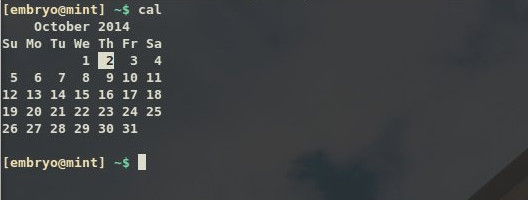
The whoami command will print the username currently logged in. Additionally, you can use the echo $USERcommand, which will use the $USER environment variable to echo (print) its value:

For this we will use the uname command with the -aswitch, to show all the information available:
$ uname -a
Linux mint 3.13.0-24-generic #47-Ubuntu SMP Fri May 2 23:31:42 UTC 2014 i686 i686 i686 GNU/Linux
This shows the kernel version, the date and processor architecture. Except for uname, there are two other commands which print hardware information, lspci which prints all the PCI devices, and inxi, which is a script usually available on Linux Mint systems.
$ inxi
CPU~Dual core Intel Celeron CPU G530 (-MCP-) clocked at 1600.000 Mhz Kernel~3.13.0-24-generic i686 Up~2 days Mem~824.3/3721.2MB HDD~500.1GB(68.9% used) Procs~189 Client~Shell inxi~1.8.4
inxidisplays extended information about the CPU, kernel, memory, hard-disk space and so on.
The uptimecommand is used to print for how long the system has been running:
$ uptime
 17:21:25 up 2 days, 21:02,  7 users,  load average: 0.28, 0.21, 0.21
The echocommand is used to output text:
$ echo "Hello, world!"
Hello, world!
You can use the echo -ecommand to interpret special characters (like in C):
$ echo -e "Hello,t world!nn"
Hello,   world!
Here we used a horizontal tab (t), and two newlines at the end (n). Notice how the !character is escaped too.
Commands and programs usually reside inside the /bin, /sbin and /usr/bin directories. To search for a command in such standard locations, use whereis:
$ whereis cal
cal: /usr/bin/cal /usr/bin/X11/cal /usr/share/man/man1/cal.1.gz
To search for a command in all the possible locations in your $PATH, use which:
$ which cfgr.sh
/floydb/debconf/scripts/cfgr.sh
Use the typecommand for this:
$ file track01.ogg
track01.ogg: Ogg data, Vorbis audio, stereo, 44100 Hz, ~192000 bps, created by: Xiph.Org libVorbis I (1.1.0 RC1)
$ file cover.png
cover.png: PNG image data, 320 x 317, 8-bit/color RGBA, non-interlaced
Usually commands have a manual page, so for any command you could use man COMMANDto read a detailed help about what it does and how to use it. The manual page lists all the parameters you can pass to the command. Once you’ve opened a manual page, you can navigate through it via the arrows, Ctrl+P or Ctrl+N to read the previous and respectively, next line, or Q to quit and close the manual page and return to the shell.
Commands usually have a -h or –help parameter, which will display a short description on what the command does and a compact list of parameters that it takes.
More on getting help in a following chapter.

The world’s favorite abortive mobile operating system, webOS, refuses to go away quietly. After being open-sourced by HP and then sold off to LG, webOS is now apparently returning to mobile devices in the form of a new LG SmartWatch. A developer website hosted by LG teases a software development kit for a webOS SmartWatch, while the familiar Bean Bird from LG’s webOS TVs also shows up, this time supporting a classically styled analog wristwatch.
LG is already an active participant in the developing smartwatch market with two Android Wear models: the G Watch that inaugurated Google’s wearable software platform and the G Watch R, which is going on sale later this month. Like fellow Korean manufacturer Samsung — who has adapted the Tizen…