Home Blog Page 1340

CLI Intro: Useful General-Purpose Commands

This tutorial is the second part of the introduction to Linux command-line. In the first chapter I tried to make a brief introduction to the shell and the basic ways of moving around. Here I will talk about several useful commands, which may be needed on a day to day basis if you’re working with the shell.


Working with Files and Directories

Creating Directories

The command to create new directories (also called folders) is mkdir. For example, to create a directory called booksinside your home directory, you would issue the following command:

mkdir books

Renaming Files

In Linux, renaming a file is done via the mvcommand, which stands for ‘move’. The general format of the command is:

mv SOURCE DESTINATION

So, if for example you would like to rename the directory created previously, books to mybooks2, you would issue the following command:

mv books mybooks2

Copying Files

The command for copying files and directories is cp. For example, to copy the file /etc/network/interfaces to you home directory you could write the following:

cp /etc/network/interfaces /home/USER

Make sure to replace USER with your username. Or, if we keep in mind that ~is automatically expanded into the home directory of the current user:

cp /etc/network/interfaces ~

And if your current working directory is already your home directory (e.g. /home/USER):

cp /etc/network/interfaces .

The character .expands into the current directory. See the first chapter to see more details on this. You could even use environment variables, which expand into a certain string. In the following example, the variable $HOME holds the path to your home directory:

cp /etc/network/interfaces $HOME
You may have noticed that if you copy a file to a path that ends in a directory (e.g. /home/USER), the file will be copied inside the respective directory, it will not delete nor replace it.

You can copy more than one file at a time, the last argument being the directory where you want the files to be copied:

cp myfile1 myfile2 myfile3 ~/books

This command will copy myfile1, myfile2 and myfile3 from the current working directory into the booksfolder, located inside your home path.

Copying Directories

Directories can be copied in the same fashion as files, only this time we will use the -r switch. This tells the cpcommand to copy directories recursively, meaning all the sub-folders and files of the specified directory.

cp -r Documents ~/books

This command will copy the Documents folder from the current directory inside the booksdirectory located in your home path.

Creating Files

To create empty files, you can use the touchcommand. In a later chapter I will discuss on how to create and edit or modify text files with various editors.

touch myfile

Removing Files

To delete a file, you would use the rmcommand:

rm myfile

To delete a directory, you will also need the -rswitch:

rm -r mybooks

Adding Users

Adding a New User

The command is adduser which is a user-friendly wrapper for the useraddcommand. More on administrating users and groups in a later chapter.

Other Commands

View the Current Date and Time

Use the datecommand for displaying the date and time:

$ date
Thu Oct  2 16:32:58 EEST 2014

In addition, you can use format specifiers to display the date and time differently. For example, you could use the %Y (year), %b (abbreviated month name), %d (number of the day, two digits), %H (hour, 24-hour format), %M (minute), %S (second):

$ date +"%Y %b %d %H:%M:%S"
2014 Oct 02 16:58:44

To change the date and time, use the –setswitch:

sudo date +”%H%M” –set=”1656″

The above command will change the hour and minute to 16:56.

Calendar

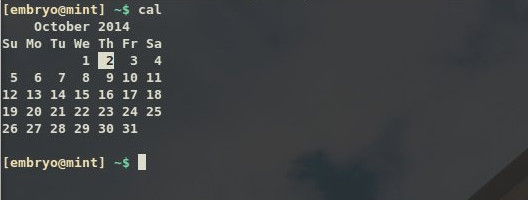
The calcommand will display an ASCII calendar of the current month, and will highlight the current day:
Show Your Username

The whoami command will print the username currently logged in. Additionally, you can use the echo $USERcommand, which will use the $USER environment variable to echo (print) its value:

Print System Information

For this we will use the uname command with the -aswitch, to show all the information available:

$ uname -a
Linux mint 3.13.0-24-generic #47-Ubuntu SMP Fri May 2 23:31:42 UTC 2014 i686 i686 i686 GNU/Linux

This shows the kernel version, the date and processor architecture. Except for uname, there are two other commands which print hardware information, lspci which prints all the PCI devices, and inxi, which is a script usually available on Linux Mint systems.

$ inxi
CPU~Dual core Intel Celeron CPU G530 (-MCP-) clocked at 1600.000 Mhz Kernel~3.13.0-24-generic i686 Up~2 days Mem~824.3/3721.2MB HDD~500.1GB(68.9% used) Procs~189 Client~Shell inxi~1.8.4

inxidisplays extended information about the CPU, kernel, memory, hard-disk space and so on.

Show Uptime

The uptimecommand is used to print for how long the system has been running:

$ uptime
 17:21:25 up 2 days, 21:02,  7 users,  load average: 0.28, 0.21, 0.21

Print Text

The echocommand is used to output text:

$ echo "Hello, world!"
Hello, world!

You can use the echo -ecommand to interpret special characters (like in C):

$ echo -e "Hello,t world!nn"
Hello,   world!

Here we used a horizontal tab (t), and two newlines at the end (n). Notice how the !character is escaped too.

Searching for Commands

Commands and programs usually reside inside the /bin, /sbin and /usr/bin directories. To search for a command in such standard locations, use whereis:

$ whereis cal
cal: /usr/bin/cal /usr/bin/X11/cal /usr/share/man/man1/cal.1.gz

To search for a command in all the possible locations in your $PATH, use which:

$ which cfgr.sh
/floydb/debconf/scripts/cfgr.sh
Environment variables such as $HOME, $USER or $PATH are variables which will be expanded (replaced) by the shell with the string that they hold. For example, the $PATH variable contains all the locations in which commands reside, separated by the : character. Try echo $PATH to see it.

Show File Types

Use the typecommand for this:

$ file track01.ogg 
track01.ogg: Ogg data, Vorbis audio, stereo, 44100 Hz, ~192000 bps, created by: Xiph.Org libVorbis I (1.1.0 RC1)
$ file cover.png 
cover.png: PNG image data, 320 x 317, 8-bit/color RGBA, non-interlaced

Getting Help

Usually commands have a manual page, so for any command you could use man COMMANDto read a detailed help about what it does and how to use it. The manual page lists all the parameters you can pass to the command. Once you’ve opened a manual page, you can navigate through it via the arrows, Ctrl+P or Ctrl+N to read the previous and respectively, next line, or Q to quit and close the manual page and return to the shell.

Commands usually have a -h or –help parameter, which will display a short description on what the command does and a compact list of parameters that it takes.

More on getting help in a following chapter.

CLI Intro: Useful General-Purpose Commands

LG is Working on a webOS SmartWatch

The world’s favorite abortive mobile operating system, webOS, refuses to go away quietly. After being open-sourced by HP and then sold off to LG, webOS is now apparently returning to mobile devices in the form of a new LG SmartWatch. A developer website hosted by LG teases a software development kit for a webOS SmartWatch, while the familiar Bean Bird from LG’s webOS TVs also shows up, this time supporting a classically styled analog wristwatch.

LG is already an active participant in the developing smartwatch market with two Android Wear models: the G Watch that inaugurated Google’s wearable software platform and the G Watch R, which is going on sale later this month. Like fellow Korean manufacturer Samsung — who has adapted the Tizen…

Continue reading…

Read more at The Verge

DARPA Joins Math-Secured Microkernel Race

Embedded systems need better security

In a discussion that will sound familiar to Australian readers, US military development agency DARPA wants to create provably-secure software.…

Read more at The Register

Cloud Security Management a Fragmented Affair

The survey revealed 59 percent of respondents feel there is lack of operational workflows to manage network security in a hybrid environment.

Read more at eWeek

Slide Show: 11 Smart Eyewear Devices Running Android or Linux

Linux and Android glassesGoogle Glass wasn’t the first eyewear computer, but it achieved several technological breakthroughs, especially in its sleek, lightweight construction. The much maligned device has spawned a growing industry of head-mounted smart eyegear. Our slide show of 11 Android and Linux eyewear devices includes simple Bluetooth accessories for notifications, full-fledged industrial headgear, sports gear for bikers and skiiers, and even a motorcycle helmet (click Gallery link below).
Like Glass, eight of the 10 other devices listed in our slide show are based on Android, while two — Laforge’s ICIS and Tobii Glasses 2 — use embedded Linux. Almost all the devices are open for pre-orders at the very least, and most are shipping, although sometimes only in beta form. Several are OEM-focused devices. Glass only recently became publicly available for $1,500, and sales are still controlled by Google, with restrictions in terms of age (18+) and a requirement that you live in the US or UK.

Only a few of these devices, such as the ICIS and GlassUp, appear to be competing directly with Google Glass as a general purpose smartphone accessory or replacement. Yet Glass is also being promoted for some of the industrial and field-service applications where most of these devices are targeted.

As with smartwatches, smart eyewear can be generally split into two groups: those, which like Google Glass, are primarily Bluetooth accessories, and those that are more fully autonomous.

Most of the devices in this slide show fall into the latter category, in large part because many of these are enterprise focused devices where fashion – and therefore size — is less of a concern. All the devices in the slide show offer Bluetooth, and most, like Glass, provide WiFi. A number of them also incorporate GPS, as well as sensors, which can be used for positioning, or in the case of the sportier devices, health and performance feedback.

Several of the bulkier, more autonomous, enterprise-focused devices replace the Google Glass like monocular displays positioned on the side of the field of view (FOV) with 3D stereoscopic displays that use transparent overlays for augmented reality applications. Two products — Epson’s Moverio BT-200 and the R-7 Glasses from Osterhout Design Group (ODG) — use Qualcomm’s Vuforia SDK for Digital Eyewear (VOD) technology for accurately mapping augmented displays to the visual field. These devices use multiple depth sensing cameras for accurately matching overlays to objects.

Gallery


View Gallery
(11)

Android and Linux lead the way again

As with most cutting-edge gadgets these days, there’s not much going on in the smart eyewear market that doesn’t involve Android or Linux. There are, however, a few low-end smart eyeglasses that don’t appear to run a formal OS such as the WeON Glasses, which do little more than flash a colored light when your phone gets a text.

Apple has built eyewear prototypes, but nothing seems to be eminent. Instead, the company is focusing on its Apple Watch. 

If smartwatches do take off, it could slow down the consumer smart eyewear market. Public backlash to Google Glass over privacy issues, and the resulting bans on “glassholes” by many communities, bars, restaurants, and public institutions, pose another obstacle. Removing the camera or microphone doesn’t necessarily solve the problem, as it may be difficult to detect what’s going on in your particular device.

Then there’s the fashion issue. Even the relatively svelte Google Glass is seen by many as embarrassingly geeky. Yet the latest lightweight devices, such as the ICIS, look almost like regular glasses. With increasing miniaturization — and the hiring of fashion designers — future devices should appear much less obtrusive.

For the near future, privacy and fashion concerns are likely to keep the eyewear revolution a mostly enterprise-focused affair. Yet, smart eyewear should find a willing audience among those who need to keep their hands free for sports, or for industrial, field service, or even some retail applications.

The idea of smart eyewear has a certain inevitability to it. Isn’t this how we always imagined we’d look in the future, except with white track suits and flying cars?

Daqri Smart Helmet — Daqri
GlassUp — GlassUp
Google Glass — Google
ICIS — Laforge Optical
Moverio BT-200 — Epson
R-7 Glasses — Osterhout Design Group (ODG)
Recon Snow 2 — Recon Instruments
Recon Jet — Recon Instruments
Skully AR1 — Skully
Tobii Glasses 2 — Tobii
Vuzix M100 Smart Glasses — Vuzix

Infographic: Three Facts About the Open Source Cloud

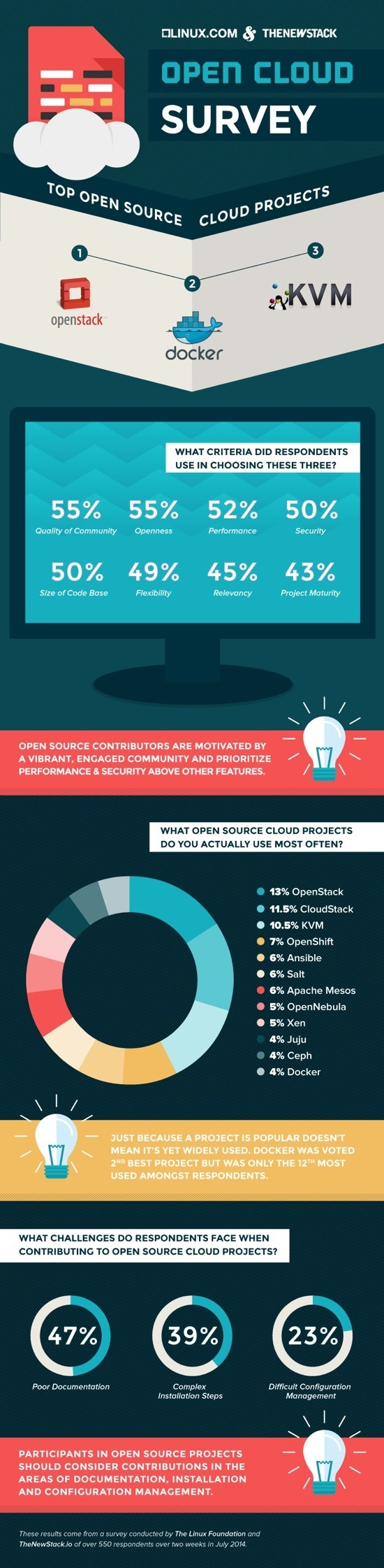
With CloudOpen Europe now less than two weeks away, we took another look at the data from the recent open cloud survey, conducted by Linux.com and The New Stack. Three surprising conclusions emerged that aren’t necessarily obvious on a quick read through the survey results.

1. Open source contributors are motivated by a vibrant, engaged community and prioritize performance and security over other features.

2. Just because a project is popular doesn’t mean it’s yet widely used.

3. Participants in open source projects should consider contributions in the areas of documentation, installation and configuration management.

The following infographic explains these findings nicely.

OpenCloud Infographic

ARM Launches IoT Platform Revolving Around mbed OS

The move, which goes along with last week’s launch of the Cortex M7 processor, is designed to create core standard functions and then let developers add value on top of the hardware.

Linux-Based Kano Ships Its First 18,000 Learn-To-Code Computer Kits

Kano Computing, a startup that plays in the learn to code space by adding a step-by-step hand-holding layer atop the Raspberry Pi single-board microcomputer to make hacking around with code and learning about computational thinking child’s play, has shipped all the hardware kits in its first batch of crowdfunded orders and pre-orders…

“Kano OS, our software stack, is really the jewel in the crown of Kano,†said Alex. “I’m really, really proud of what our team has been able to do. I would describe it as perhaps the most simple and intuitive Linux based operating system ever designed. And the fact that it’s been designed for a new and challenging platform like the Raspberry Pi I hope will get people excited. I hope people will try it out because it’s free and open source. Even if they don’t buy a Kano they can just use it on any Raspberry Pi.â€

Read more at TechCrunch.

Secure Your Linux Desktop and SSH Login Using Two Factor Google Authenticator

The algorithm used for the one time password in the Google Authenticator app is known as the Time-based One-Time Password (TOTP) algorithm. The TOTP algorithm is a standard algorithm approved by the IETF in (RFC 6238) totp-rfc.

It is a little known fact that you can use the TOTP algorithm to secure your user accounts in Linux systems. This article will walk you through the steps necessary. While the exact commands will be for Fedora 20, the TOTP algorithm can be deployed to any Linux distro with a little modification.

Read more at nixCraft.

New Linux Foundation Certification Review Guide Available for Free

Last month we announced the Linux Foundation Certified Engineer and Sys Admin exams that you can take anytime, anywhere through your computer. We created this program because we know Linux talent exists everywhere and we want everyone to be able to showcase that talent through a performance-based, challenging exam that focuses on what you do everyday as a Sys Admin.certifiably awesome

The response has been fantastic with thousands of people signing up to take the exam from all corners of the globe. We have also engaged with large companies who are buying certifications in mass as a requirement for their teams. It’s been very satisfying to see so many of you engaging with the program.

I have a few pieces of critical information I wanted to share:

  1. We now have a free exam prep guide that covers some very basic information on what is covered in the test, such as a list of the domains and competencies and the system requirements for the itself. It doesn’t list a lot of detail (we are working on more information on that) but at least it’s a start. Download it now. 

  2. When you sign up for the exam you can set the date to take it well in the future or choose your date when you’re ready. It’s not an instant process since a proctor has to be scheduled and so on. We encourage you to sign up for the exam and get your testing date scheduled so you can get your preparation underway. You have 12 months from the time you sign up to take the exam, so you can give yourself as much time as needed to prepare and you’ll be in the system for updates or changes.

  3. If you’re interested I suggest you sign up for our certification newsletter here. It will alert you when we have limited time discounts, give you prep materials and keep you up to date.

  4. For professionals who want an inside track on how to prep, we’ll be hosting a Twitter Chat on Thursday, October 9 at 9 a.m. PT/noon ET. Just follow @linuxfoundation and the #LFCertChat hashtag. We’ll be answering your questions live for an hour.

I hope you find these resources helpful and good luck with your professional development. It’s a great time to be a Linux pro and we can’t wait to see many of you certified.