In the wake of the mass NSA surveillance scandal sparked by whistleblower Edward Snowden, all sorts of hackers, academics, startups, and major corporations are working to build tools that let us more easily secure our email messages and other online communications.
Dozens of projects have emerged in recent months, ranging from the email clientMailpile to the offline messaging app Briar to the Skype replacement Tox. But although many succeed in streamlining the traditionally onerous task of encrypting personal communications, they all come with one caveat: They depend on both the sender and the recipient adopting the same technology to exchange messages.
Now, a German company called Open-Xchange wants to change this using a tool it calls OX Guard, a new addition to the company’s existing open source email server, software that individuals and businesses can use to operate their own email services.
Canonical has a new spin on its OpenStack plans. The company is rolling out BootStack, which is a managed service offering currently in private beta testing. Through BootStack, Canonical wants to help customers build, support and manage OpenStack-centric clouds for a fee of $15 per server per day.
BootStack will be available in two forms, and for the hosted version, IBM’s SoftLayer cloud division is partnering with Canonical. Notably, IBM SoftLayer already has an OpenStack-as-a-Service partnership with Mirantis.
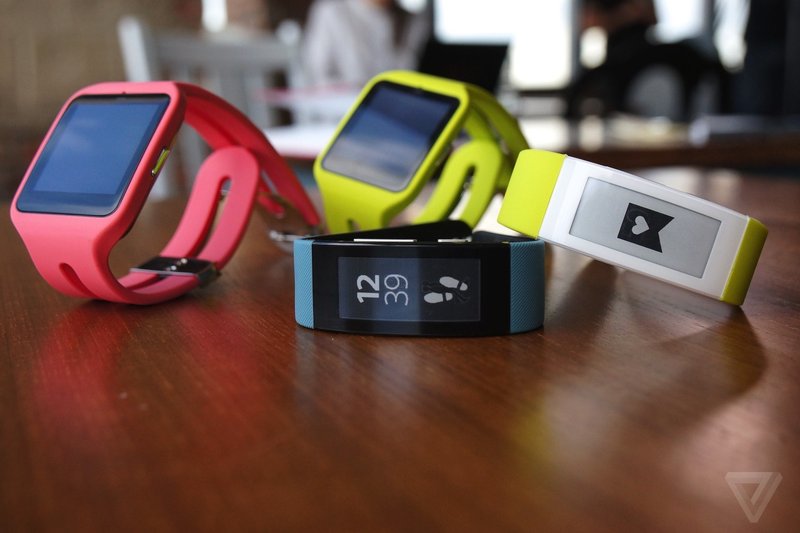
In March, Sony said it’d stick to its own smartwatch software in lieu of joining the Android Wear party with the likes of LG, Motorola, and Samsung. Today, Sony’s completely reversing that stance with the introduction of SmartWatch 3, its fifth-generation smartwatch, which has completely embraced Google’s Android Wear platform. Sony intends to add a Walkman app for music playback via a Bluetooth headset along with a remote control app for stuff you’re playing on another device. Don’t look for much more to distinguish this device on the software front.
In terms of design, the SmartWatch 3 leans toward a sporty look and seems to prioritize ruggedness with a steel-backed case, interchangeable silicon straps, and an IP68 waterproof rating….
How to limit CPU usage with CPULimit on Ubuntu Linux
This document describes how to limit CPU usage in Ubuntu 14.04. I will use CPU-limit utilty for this purpose. Cpulimit is a tool which limits the CPU usage of a process (expressed in percentage, not in CPU time). It is useful to control batch jobs, when you don’t want them to eat too many CPU cycles. The goal of cpulimit is to prevent a process from running for more than a specified time ratio. It does not change the nice value or other scheduling priority settings, but the real CPU usage. Also, it is able to adapt itself to the overall system load, dynamically and quickly. The control of the used CPU amount is done sending SIGSTOP and SIGCONT POSIX signals to processes. All the children processes and threads of the specified process will share the same percentage of CPU.
Samsung says it won’t slow down and launches a barrage of big-screen mobile devices. The big question: Is Samsung taking an innovation lead or throwing devices out there to see what sticks?
VLC is a must-have media player if you are using Linux for your entertainment needs. When it comes to PC entertainment, it’s good to have a program that handles most of your needs. VLC has multiple tools for a good video playback experience. There is something new to learn the more you use it. More importantly, it gives its all when reading removable media.
Options are big sellers and VLC lets the user choose what is best. You will soon find out that VLC does not like to be picky when it comes to using it on different operating systems. Not sure if your file will be readable on more than one system or by more than one application? Use VLC to convert any media file type to another. Instead of just playing movies, create your own movie using VLC’s “Capture Mode” method. The clearer the video that more enjoyable it is. There are options of changing video views using the “Aspect Ratio” function. Audio quality is also important. With VLC, surround sound is just a few clicks away. Another benefit of VLC is its assistance in education. You will soon learn how to recognize physical devices on your system. Like a wallet, don’t go anywhere without VLC.
I have used VLC on Windows during my days with Microsoft. As it was then as it is now, it is rock solid. I was more then pleased when VLC was available for one of my favorites of Linux operating systems, Ubuntu. When it comes to choosing a media player, I look for a program with stability, flexibility, able to read multiple media file formats, has a plethora of configuration options, and can be used on any desktop operating system. With VLC installed, I get just that, all-in-one.
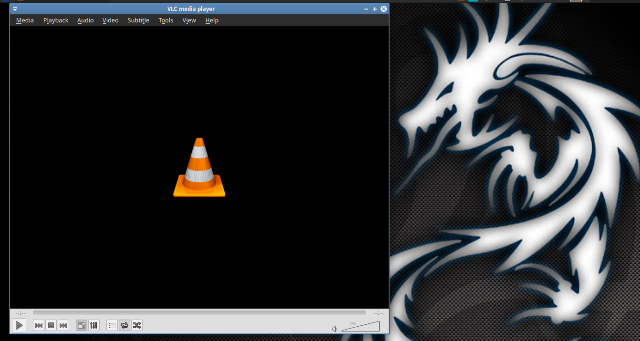
VLC installed on xubuntu 14.10 32bit
There is nothing wrong with the simple “click-n-play” method. Wish life was as simple as “yes or no”. VLC speaks two languages, the second being, “what else can I do for you?”. If your DVD or Audio CD is detected properly, all is left is a simple click of the play button and chowing down some butter soaked popcorn. If you have videos and music stored in a folder on your hard drive or a flash drive, then open the “Media” menu and navigate to their location.
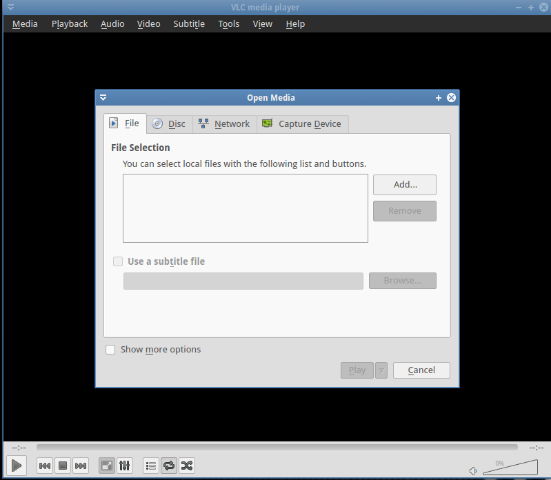
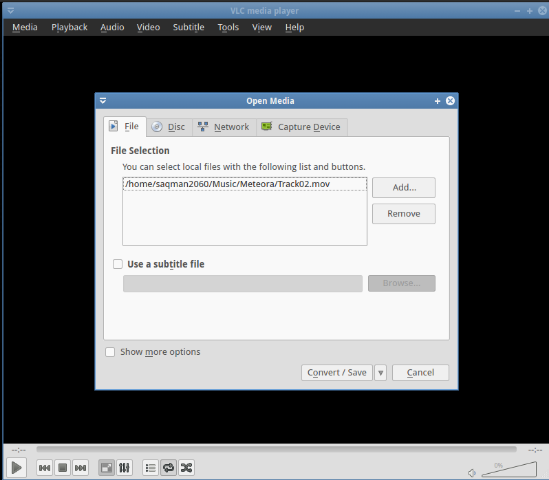
Once you insert your removable media device (disc or thumb drive), open up VLC, and press the play button. If your media does not play automatically, an “Open Media” window appears asking you to choose the type of file, or removable media to run.
Open media selection window in VLC vesion 2.1.4 on Xubuntu 14.10
If you want to play a DVD, click the “Disc” tab and select the type of media disc you have in your disc drive, DVD or CD-ROM. You will notice that all DVDs, BlueRays and VCDs are labeled as “/dev/dvd”. Audio CDs are marked “/dev/cdrom”. If your removable media discs are any of these, you should choose accordingly. If for some reason, VLC cannot find any device files labeled “/dev/dvd” or “/dev/cdrom”, then type “/dev/sr0”, which is your system’s actual physical disc drive, in the “Disc device” textbar.
If you like making videos of yourself, VLC can do that. There is an option under the “Media” menu named “Capture Video”. Facing your PC’s camera, record what you are doing live for a project or just for fun. If you are not comfortable being in front of a video cam, this is be a good way to practice.
The “Capture Mode” drop down menu allows you to choose the types of videos to create. The first selection, “Video for Linux 2”, is where you create a video file using a camera and a sound capture device if you have one.
A hidden benefit of VLC is its commitment to education. For example, you will soon learn where devices are stored on a Linux system and how they are labeled.
To create a video using a camera, you want to choose the “Video for Linux 2” option next to “Capture mode”. Choosing a device to capture video, VLC had the default option “/dev/video0”(this is my laptop’s embedded webcam), and the device to capture audio input “hw:1,0”. I am starting to learn how Linux labels devices.
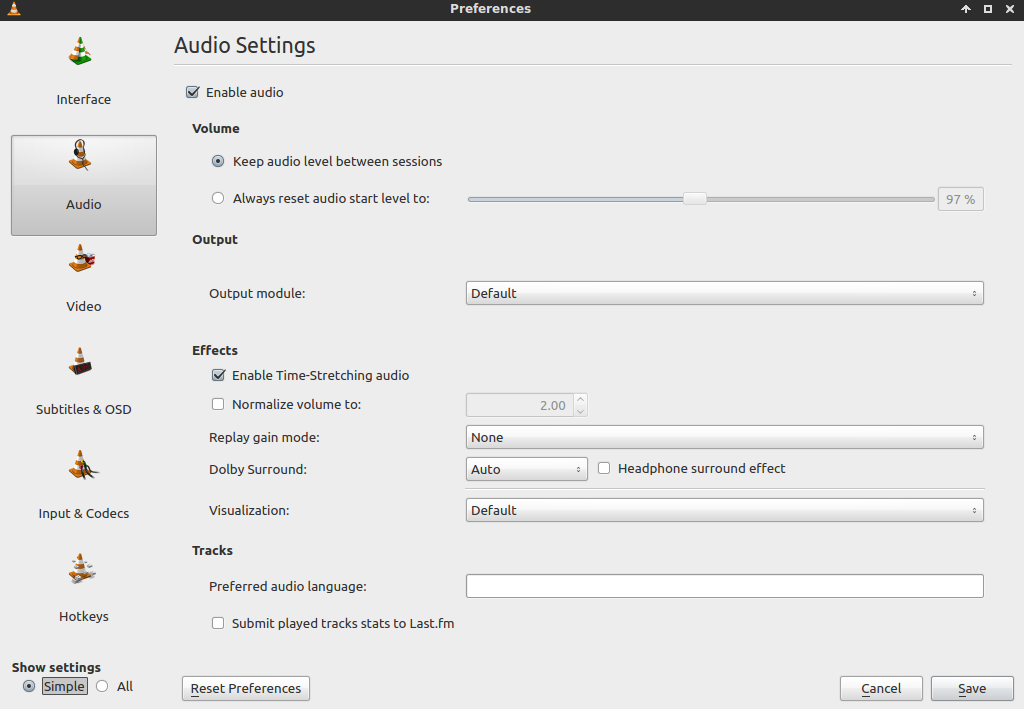
A complement to the wide-screen view is the surround sound. You hear everything from the flow of water to the drop of a needle. VLC handles surround sound automatically but there is an option that allows you to experience surround sound using a pair of headphones. Once set, and you have a good pair of earphones, you may make the mistake of thinking you really are at the theater.
Go to “Tools”, click on “preferences” and select “Audio”. Scroll down until you find “Dolby Surround” and click the option for “Headphone surround effect”. Hope your ears are ready.
This is one of my favorites of VLC. You can convert media files to different types. There are multiple media file formats in daily usage. VLC will allow you to convert media files to different formats for use on different systems.
Click on “Media” and click “convert/save. The “Open Media” window appears. You can choose a file or a media disc to convert. If a file, then navigate to its location. Once selected, click the “convert/save” button at the bottom of the window.
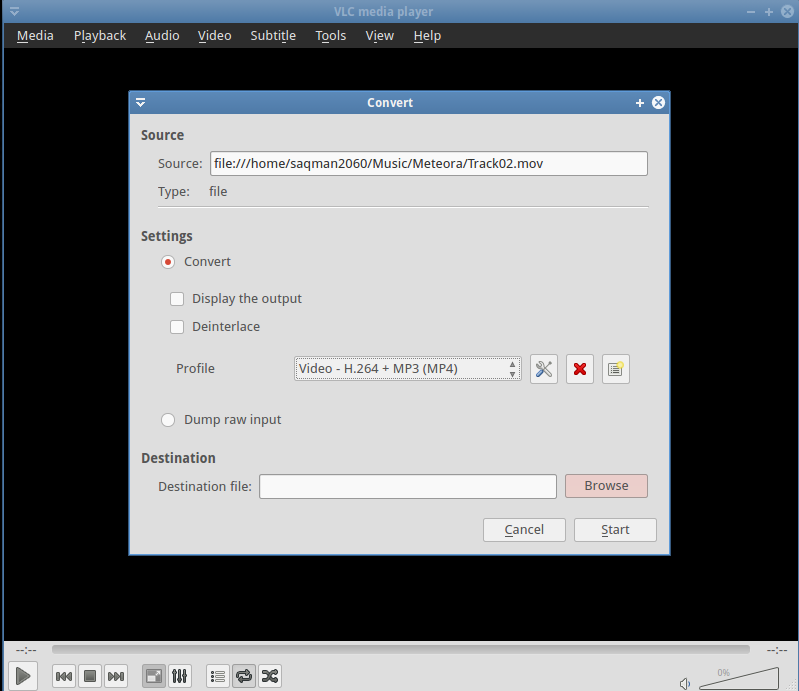
You are then taken to the another window where you choose a new file format. Scroll down the list. You will be surprised at what file formats that you can use.
Select the type of file format you want next to “Profile”. Select the destination where you want to store the new format and press “Start” . You can convert files to work for Android, iPads, and Youtube for instance. Did I mention All-in-One? Yes I did.
Note: VLC is capable of reading most media file formats.
VLC is loaded with lots of cool functions to make the most of entertainment. Entertainment is at the preference of the user. VLC is about preference. Life is much better when everyone can enjoy it in their own way. Having a program that is not flexible and breaks often is not a program worth having regardless of how many controls it has. Putting anything on your system, make sure it is flexible and can stand the test of time. I have been using VLC since 2005, and I have never been more happier. There are a few lessons to learn from VLC when it comes to choosing good multimedia applications. The application must be able to perform at a satisfactory level for the user. The majority of the user’s needs must be met. There should be nothing restricting the user to explore other options. The program should be compatible with other operating systems and able to read more than one multimedia file format. You should always have a solid foundation to stand on. VLC can be such a foundation.
Sony has open-sourced “LevelEditor”, a level editing application for game levels that can be adapted to work with any game engine and uses a nice WYSIWYG interface…
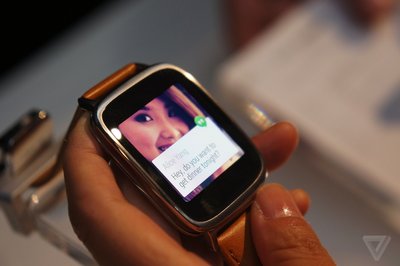
Promises, promises. Asus went into this year’s IFA show in Berlin with the immodest pledge of revealing the best looking Android Wear smartwatch to date. Featuring a curved 2.5D design on the front and a stainless cover on the back, its newly announced ZenWatch emphasizes style above all else. Its price also isn’t bad, coming in at 199 euros, and it has a set of high-quality internal components, too — including a 1.6-inch AMOLED display, 4GB of storage and 512MB of RAM, and the same Qualcomm…

 Canonical has a new spin on its OpenStack plans. The company is rolling out