
Home Blog Page 1444

Web Development Tools for Linux & How to Install Them

Often due to some restrictions by the web development company, most of the web developers are forced to use free open source platforms such as Ubuntu. For such developers, it becomes headache to work without the tools that are mandatory and used for developing a website. However, there are some similar tools available for Linux that can be used in the web development.

In this article, we are going to see a good list of Web Design / Development tools for Linux. Additionally, the installation steps given for each tool are specially for Ubuntu, however it should also work on Debian operating system.

GIMP

GIMP is an open source web designing tool and an alternative for Adobe Photoshop. Personally, I believe that it lacks some of the features as well as needs to be polished, however, once you are familiar with it, it will become a good alternative to Photoshop. This tool can be used for basic image manipulation, also may be decent at the more advanced stuff too, depending on the skills of the web designer.
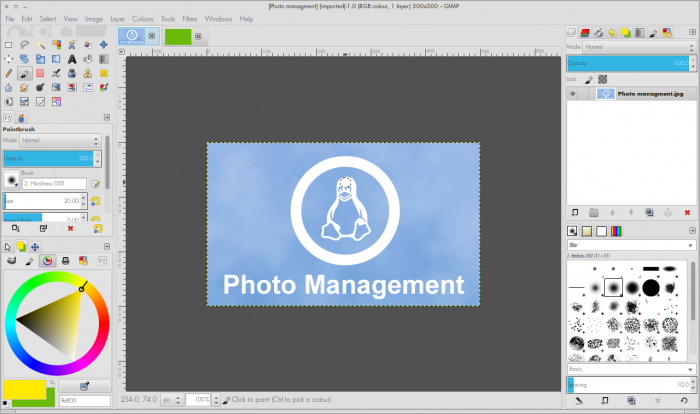
Gimp

How to install Gimp on Linux

sudo apt-get install gimp

INKSCAPE

Inkscape is an open source vector editor. Though the UI looks ugliest for some people, however I found this tool very powerful and packed with more great features as compare to Adobe Illustrator.

inkscape

How to install Inkscape on Linux

sudo apt-get install inkscape

IMAGEMAGICK

ImageMagick is basically a command line editor, especially useful for resizing, sharpening, adding filters and watermarks on images in bulk. Check the official website of ImageMagick for more instructions.

How to install ImagicMagick on Linux

sudo apt-get install imagemagick

GEDIT

gEdit assists in the tasks of reading, printing and editing of texts, simply and easily. Simple, yet full of features with tools such as copy, cut, paste, undo and redo, settings fonts and colors, the software has all the common features of text editors. This does not mean that Gedit is a basic editor, with several other features. Possessing highlight setting for various programming languages ​​such as C, C + +, Java, HTML, XML, Python, Perl, among others, gEdit can be a good choice as a text editor for programming and development on Linux platform.
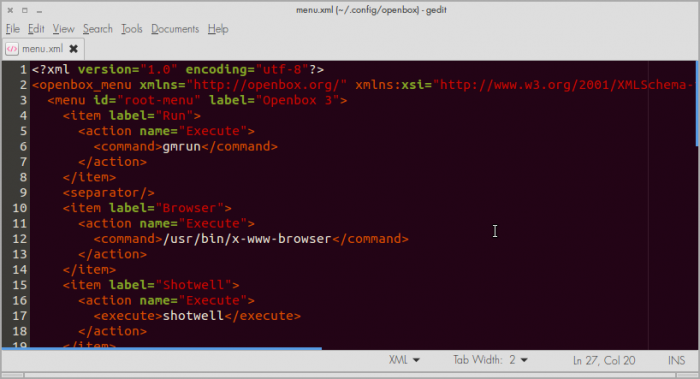
gedit

How to install gEdit

sudo apt-get install gedit

SUBLIME TEXT 2

The Sublime Text is a code editor which supports several languages ​​such as HTML5, CSS, PHP, ASP and Python, for example. The software has a very clean interface, and the black background of the screen does not bother reading anything. Two of the best features of it are the Multiple Selections and Command Palette, which allows you to access any menu item or let you open any document in just few key strokes.
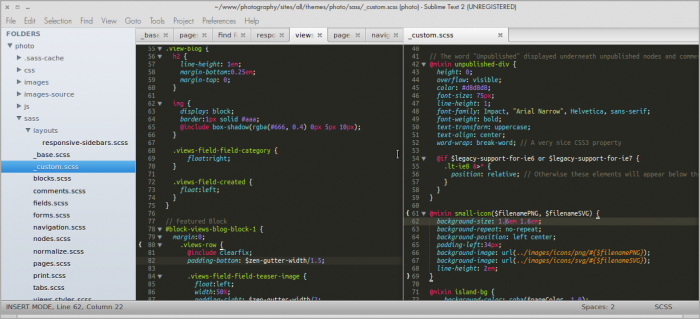
Subime

How to install Sublime Text 2 on Linux

Check the installation steps here.

SASS

Sass – another method to write CSS. With Sass, we have more freedom to treat the styles applied concepts of OO programming. It uses the Ruby language to interpret their .scss files / .sass or compilers installed on your system (Mac, Windows, Linux) to transform .scss / .sass on. Css.

How to install Sass on Linux

In order to install Sass on a distribution of Linux, you’ll require to install Ruby first. To install Ruby and then Sass, follow the steps given here.

GCOLOR2

Gcolor2 is tool that translates any shade of color, so you can use it in your image editor. It displays the color code in hexadecimal, their levels of saturation, hue, and RGB values ​​and opacity. This software also has feature to save the colors, name and code.
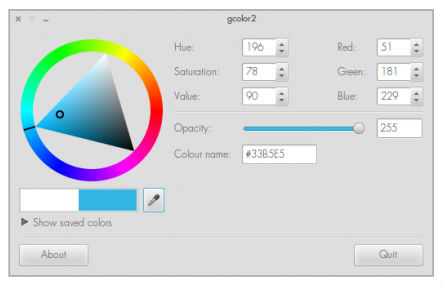
gcolor2

How to install gcolor2 on Linux

sudo apt-get install gcolor2

FILEZILLA

FileZilla is an application intended for users who want to connect to servers via FTP communication protocol. With it you can upload and download files from the web easily and quickly. It will run on almost anything such as OSX, GNU/Linux and Windows.
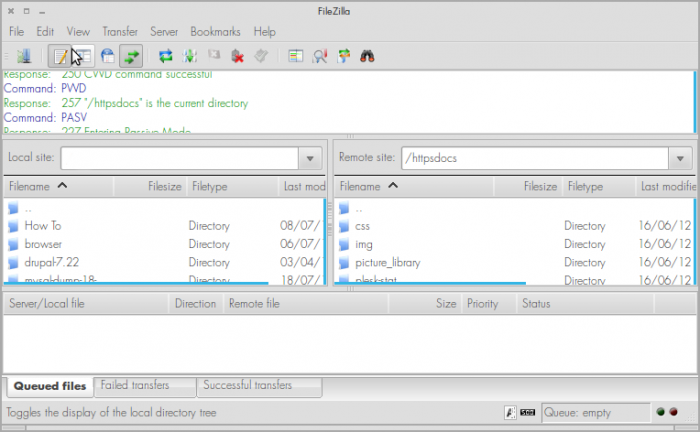
filezilla

How to install Filezilla on Linux

sudo apt-get install filezilla

DRUSH

Drush is a simle command line shell and scripting interface developed for Drupal. It allows you to download, enable, disable, uninstall, update modules/themes/profiles/translations via the command line in a very simple way (apt-get style).

How to install Drush on Linux

sudo apt-get install drush

Once you have installed it, simply update it to the latest version using the following command.

sudo drush dl drush –destination=’/usr/share’

PHPMYADMIN

PhpMyAdmin is a an excellent set of PHP scripts in a form of browser base interface to manage MySQL Server. It allows you to create, edit, view and delete databases.
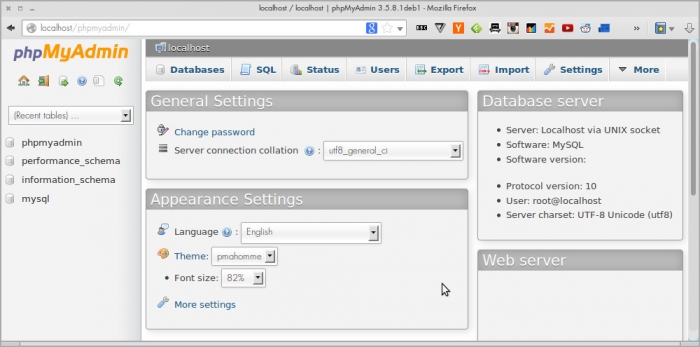
phpmyadmin

How to install phpmyadmin on Linux

sudo apt-get install phpmyadmin

TASKSEL

The tasksel is one of the most efficient terminal based application that installs multiple software at once on Linux distributions such as Debian, Ubuntu, Mint, etc…
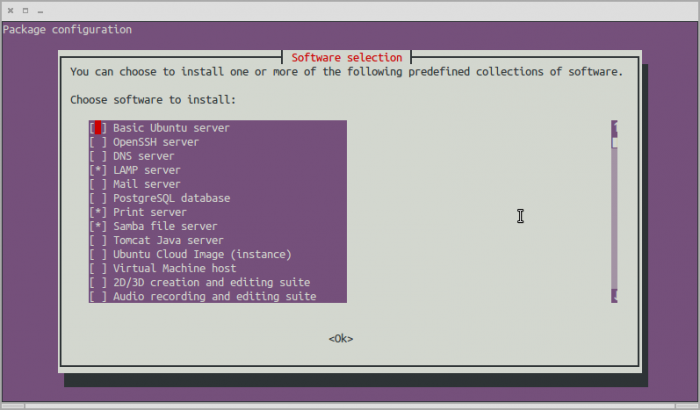
tasksel

How to install Tasksel on Linux

sudo apt-get install tasksel

VIRTUAL BOX

VirtualBox is a more reputable options for operating systems in virtual machines emulation. With it you can run a system within another, like Ubuntu (or any other Linux distribution) on a Windows PC or Mac, and vice versa.

How to install Virtual Box on Linux

sudo apt-get install virtualbox

APACHE BENCH

The ApacheBench Apache is a software used for testing the performance of web servers, regardless of the server used. This is very useful for comparing the performance of different configurations, but can not always show the reality of the environment.

How to install Apache Bench on Linux

sudo apt-get install apache2-utils

LYNX

Lynx is a terminal-based web browser, used to display text only, ideal for systems based console or with few graphics. It is useless for web designers, but good for developers to test the code after writing.

How to install Lynx on Linux

sudo apt-get install lynx

Hope you find these tools helpful.

Windows wars? The Android and Chrome OS Alliance

Can Google’s Rebel Alliance of Android and Chrome OS finally dent Microsoft’s Windows Evil Empire? I expect we’ll see this desktop operating system war start in late 2014.

What’s Next For Fedora?

Matthew Miller Fedora Project LeaderBetween the upcoming Fedora 21 release, involvement in Red Hat’s Project Atomic, its planned re-structuring under Fedora.next, and its new leader, Matthew Miller, the Fedora Project has a lot going on lately. All of the upheaval is a sign that the distribution is doing what it must to stay relevant in the new world of distributed, scale-out computing, says Miller who took over as project leader earlier this month after his predecessor Robyn Bergeron announced her departure in May.

Technologists tend to overlook the role of traditional Linux distributions in innovation as they flock to the next big thing, Miller argues. But many distributions – Fedora included – are doing cutting-edge work that forms the foundation on which the newest computing layers are built (attend his talk at LinuxCon North America in Chicago, Aug. 20-22, for more on this topic.)

“The problems that distros were trying to solve a decade ago largely are seen as not only solved, but kind of boring,” said Miller, a longtime Fedora community member and system administrator who joined Red Hat in 2012. “All of the open source excitement seems to be about applications and orchestration layers above the base OS.”

Miller aims to bring more attention, and importance, to the operating system and, more specifically, the Fedora project by focusing more on its role as a platform for innovation in the cloud, and any other new technologies that may arise in the future. To do this, the Fedora project structure needs to be more agile and adaptable, allowing for more experimentation, as well as more welcoming to new contributors, Miller says.

“What I want is for Fedora to be flexible enough that we’re still relevant, useful, and interesting as we go forward,” Miller said.

Thus, big changes are underway for the distribution. It’s an incremental evolution initiated by Fedora.next, the project’s long-term planning process which has been underway for more than a year.

Miller has been active in the process from the start and is now responsible for implementing it. But it has been, and must continue to be, a largely community-driven transformation, he says.

First Visible Changes in Fedora 21

While Fedora is traditionally a desktop distribution, it also has a contingent of “crazy but awesome” sysadmins running it on production servers who are eager to see the project evolve for the cloud, Miller said. The initial installation has a lot of default settings and features that are now at odds with the minimal images needed to make use of containers and clouds, for example. Other open source communities would also like to see the distribution become more enterprise friendly as the faster moving, more experimental upstream version to Red Hat Enterprise Linux.

Fedora 21 will be the first tangible step in this direction with the release split into three variations: cloud, server and desktop. They’ll all be built out of a shared repository and have the same release schedule. But the repackaging will allow for more targeted development for the various uses of the distribution, as well as create safe areas for experimentation.

Fedora Cloud, for example, is focused on making fundamental improvements to the OS guest image. It will become a better base for running clusters of Docker images on top of cloud platforms such as OpenStack. Developers can also more easily test new technologies such as Project Atomic tools for deploying container-based applications on Linux.

“As we go forward, we’re following the emerging technologies around deployment, orchestration, and management of containerized applications, and I expect to see that evolve quickly in Fedora’s cloud offerings,” Miller said.

Meanwhile Fedora Server is putting together an almost push-button deployment of a database server. And Fedora Workstation will be packaged to accommodate software developers building server side and client applications.

“Fedora in general works as the innovation area (for Red Hat distributions). We look at all the things happening in the open source world and combine them and put them out,” Miller said. “We want to continue to do that in cloud areas as well.”

More fundamental long-term changes

Longer term, the community has planned changes to the base design group, which oversees the main repository for all of the other versions, as well as the creation of a Fedora playground repository, and a more welcoming mailing list for newcomers.

The creation of the Server, Workstation and Cloud products means the Base Design group will mostly focus on basic improvements, Miller says. But pressure from other areas will increase over the next few releases and the group’s mission will become more urgent and defined.

“For example, right now on the devel mailing list there’s a discussion over whether the ARM architecture can really be considered an equal when a couple of dozen packages don’t build,” Miller said. “When we have a more defined distinction between the Base and the rest of the collection of packages, we can better focus development effort, and also better communicate to users what we’re promising will work and which areas are more “best-effort.”

Better communication, in general, is also a long-term goal for the project. One of the Fedora community’s four core values is the “friends” foundation, defined as welcoming all skill levels, finding consensus and honoring all contributions. But developers tend to adhere to this more at project conferences than in online interactions, Miller says.

“Some of our mailing lists are downright hostile, and that has to change, especially because it doesn’t actually reflect the reality of our community as a whole,” he said.

The new Fedora Magazine site, launched last year, is one effort to help improve project communication (and also a great place for new people to help out.) Establishing a Fedora playground, or a repository with fewer guidelines and lower barriers for contributions, will also help get more people involved. This will be an experimental feature in Fedora 21 that will become more established over time.

“Right now people can’t get it into Fedora until (their code is) perfect,” Miller said. “Maybe over the course of 2-3 years (Fedora playground) will draw in more participants. People can make more mistakes and learn and ramp up into being contributors.”

Setting up VPN on Linux

There is definitely a growing trend of people trying out Linux operating systems. The motivation might be the fact that they are free and generally considered superior to Windows when it comes to security and stability. People who want to give Linux a fair shot generally go with Debian-based forks like, Ubuntu, Linux Mint etc.

Although installing some of the most common software like, Skype, Web browsers, Music players are pretty easy using the software repositories, it could be quite intimidating for a newbie to configure VPN or install a new printer if it doesn’t work out-of-box.

A VPN comes very handy to protect one’s personal information, gain access to geo-restricted content — for instance, one can use a US VPN to gain access to services like Spotify and Netflix, to secure their internet connection when using unprotected public networks. However, if one looks for the right tutorial or ask for help in discussion boards, one would realize the fact that setting up things on the popular Debian-based distributions is quite easy. There are 2 types of VPN solutions, OpenVPN and PPTP VPN. Today we are going to see how to setup VPN with PPTP on Ubuntu and its derivatives.

If you know a thing or two about Linux, it would only a few minutes to setup VPN. If you are beginner, stop bitting your nails, you are going to do just fine if you are a good at following instructions.

Server side setup

The server will be responsible to assign IP addresses to all the client machines in the network, be it Linux, Windows or Mac clients.

– 1. The very first thing is to install the PPTP package on your server. One can simply use the standard “apt-get” command to install. It is advisable to update the repositories first. Use the following commands. It will only take a few seconds for the installation to complete.

sudo apt-get update
sudo apt-get install pptpd

– 2. Now you will have to edit the pptd.conf file. The file resides in the following path, “/etc/pptpd.conf”
If you have GUI you can do it with your favorite text editor (e.g. Gedit).

sudo gedit /etc/pptpd.conf

Or you could use “nano” to edit the file right from the terminal.

sudo nano /etc/pptpd.conf

If you have not used nano before, you might as well check out this discussion on Ask Ubuntu [http://askubuntu.com/questions/54221/how-to-edit-files-in-a-terminal-with-nano] for help.

– 3. You need to add the following two lines to “pptpd.conf.”

localip 172.20.0.1
remoteip 172.20.0.100-300

What does these lines do? The VPN server will use the localip inside the VPN and an IP with in the range 172.20.0.100 to 300 (e.g., 172.20.0.120, 172.20.0.124, etc.,) will be assinged to the clients that connect to the server.

– 4. The next step is to add new users. You will have to use “nano” or a text editor or Gedit like you did with editing the pptpd.config file above. The file will have all the information about users and is stored in the following file, “/etc/ppp/chap-secrets”

Edit this file to add new users. You will have the enter certain details in the right order for this to work. First you will have to enter the client’s name, followed by the server, the password and IP address.

So a couple of new client added to the VPN might look like this.

computer1 pptpd password *
computer2 pptpd password *

You can either use a specific IP address, but it is better to use asterisk, which means that any IP address in the range assigned could be used to login.

– 5. This step is optional, but is advised to assign a DNS server. There are several free DNSs out there, the 2 most popular are, OpenDNS and Google’s DNS.

If you want to use OpenDNS, you should use these IP addresses 208.67.222.222 & 208.67.220.220. If you would like to use Google’s DNS, you will have to use the IPs 8.8.8.8 and 8.8.4.4. To use OpenDNS you can add these lines to the file.

ms-dns 208.67.222.222
ms-dns 208.67.220.220

– 6. Almost everything on the server side is done. Now it is time to wake the daemon. To start PPTPD, you will have to use the following terminal command.

service pptpd start

– 7. Now you need to setup proper forwarding. This time you will have to edit the file “/etc/systl.conf”
There should be the following line in this file.

net.ipv4.ip_forward = 1

If it doesn’t exist, copy paste this into the file and save the file and update it using the command,

“sysctl -p”

– 8. Finally if you wish the clients to communicate with one another, you will have to add the following rules.
# iptables -t nat -A POSTROUTING -o eth0 -j MASQUERADE && iptables-save

In the above rule, you will have to replace “eth0” with the internet connection that is used by the server. You can use the commands, iwconfig and ifconfig to figure this out.

# iptables –table nat –append POSTROUTING –out-interface ppp0 -j
# iptables -I INPUT -s 172.20.0.0/20 -i ppp0 -j ACCEPT
# iptables –append FORWARD –in-interface eth0 -j ACCEPT

The above rule also requires you to use the correct internet connection like for the first rule. That’s it everything on the server side has been configured and clients could now handshake with the server now.

Client side setup

It really doesn’t matter what operating system the clients run. You can find tutorials to configure Windows and Mac OSX on the internet. There are even services like Switch VPN, that can help you connect you Android device to the VPN server quite easily. However, here we are going to see how one can easily setup a Debian-based client for VPN.

– 1. The client should have pptp installed. We have already done this step on the server. You will just have to do this again on your clients with the following terminal commands on Debian-based distros.

sudo apt-get update
sudo apt-get install pptp-linux

– 2. Now you will have to load the ppp_mppe module, which could be triggered with the following command.

modprobe ppp_mppe

– 3. Create client configuration file in the following directory (/etc/ppp/peers/). You can name this file whatever you want. But you will have to remember this file name to connect to the VPN server.

pty “pptp –nolaunchpppd”
name computer1
password password
remotename PPTP
require-mope-128

If you had named this file “vpncomputer1”, you should use the following command to connect to the server.

pppd call vpncomputer1

– 4. Finally for proper routing, you will have to execute the following line.

ip route add 172.20.0.0/20 dev ppp0

The above steps can use used several times to add multiple clients to the server.

This is the Gear Live, Samsung’s $199 Android Wear Smartwatch

Wearables were everywhere today at Google I/O, but there was only one truly new product announced: the Galaxy Live, Samsung’s Android Wear-running smartwatch. And we’ve had a chance to spend a few minutes playing with a demo unit — it’s only able to do a few things right now, but we have our best sense yet of what Android Wear hardware and software will look like. This is one of the key devices for Android Wear, one of the watches being given to all attendees of the conference, and at first…

Continue reading…

Read more at The Verge

Google Reboots its Living Room Efforts With the Fluid and Simplified Android TV

Google hasn’t exactly been successful at taking over the living room — its previous Google TV efforts have failed to capture much consumer interest. However, during the I/O keynote today, the company showed that it is ready to start fresh with Android TV.

As shown off onstage, Android TV is a much-simplified approach that focuses on having quick access to content you’ll want to watch. The main area shows off suggested shows from Google Play and other apps you have installed. Scrolling down,…

Continue reading…

Read more at The Verge

Google Strikes The Next Blow In The Cloud-Storage Wars: Unlimited Space

Just days after Microsoft announced a price cut for its online-storage offering OneDrive, Google has struck back. Its new cloud service, Drive for Work, will do battle with Microsoft, Dropbox and others for the bargain-basement price tag of $10 per user per month. What you get for that price: Unlimited storage.

No word yet on what happens to your files if your monthly payment doesn’t process on time, though.

Read more at ReadWriteCloud

Rygel 0.23.1 Is a Powerful and Free DLNA Media Server for Linux

Rygel, a home media solution (UPnP AV MediaServer) that allows users to easily share audio, video, and pictures to other devices, is now at version 0.23.1.

Read more at Softpedia.

Android Apps Will Eventually Run on Chromebooks

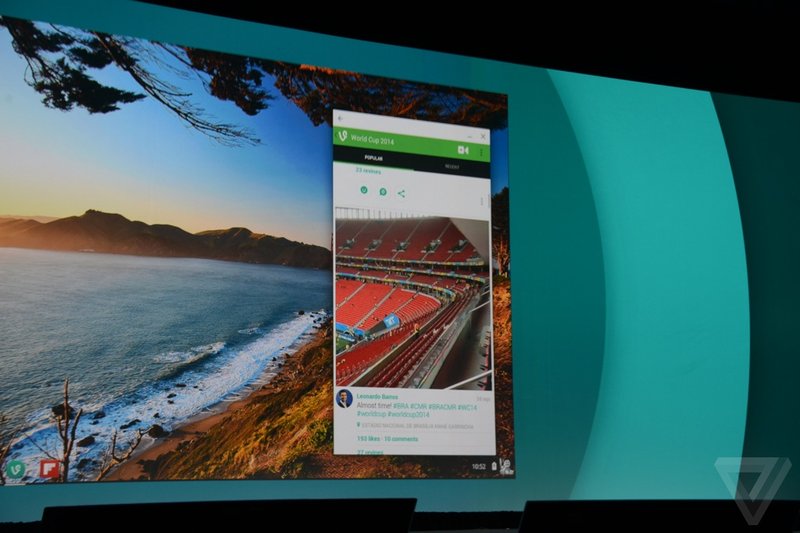
Google is working to bring Chrome OS and Android closer together, and that’ll eventually mean having Android apps running right on a Chromebook. “We’re in early days,” Sundary Pichai, Google’s Chrome and Android chief, said today. At Google’s I/O developer conference, he showed how the Evernote Android app looked while running on Chrome OS.

Developing. Check out our Google I/O Live Blog for the latest updates!

Continue reading…

Read more at The Verge

Automation Controller Taps Raspberry Pi Compute Module

Techbase has designed a Raspberry Pi Compute Module into a Linux-based “ModBerry” automation computer backed by an “iMod” cloud platform for remote control. The computer-on-module version of the Raspberry Pi Compute Module, which began shipping this week, was anticipated by many, but perhaps nowhere so acutely as in Poland. First, we heard about A Sherlybox […]

Read more at LinuxGizmos