Enlightenment is one of those Linux desktops you either love or you hate. It’s a minimal desktop that doesn’t sacrifice great looks and tons of configuration. Bodhi Linux delivers Enlightenment beautifully and could easily become that Windows XP replacement you’ve been looking for. However, along with the blazing speed and multitude of configuration options, comes a bit of a learning curve. Enlightenment is not your ordinary drag and drop interface. In fact, just getting launchers onto a shelf (Enlightenment’s “panel”) can be a task… unless you know the process. For those in the know, configuring shelves and desktop launchers is painless.
To lower that learning curve, I want to illustrate how to add launchers to both the Enlightenment shelf and the desktop. With this bit of knowledge, you can easily make Enlightenment your own.
Adding launchers to shelves
Before we actually get into the process, you have to understand one simple piece of information – you actually place launchers on a module within the shelf. This module is called the IBar. It is the IBar which converts the shelf into a dock which can hold application launchers. By default, shelves will include IBars, so you don’t have to add those. If, however, you had a blank shelf, you will have to add the ibar module, otherwise you cannot add launchers.
With that said, let’s add application launchers to the default shelf. Here are the steps to do this:
-
Left click any blank spot on the desktop
-
From the resulting menu, click Settings > Settings Panel
-
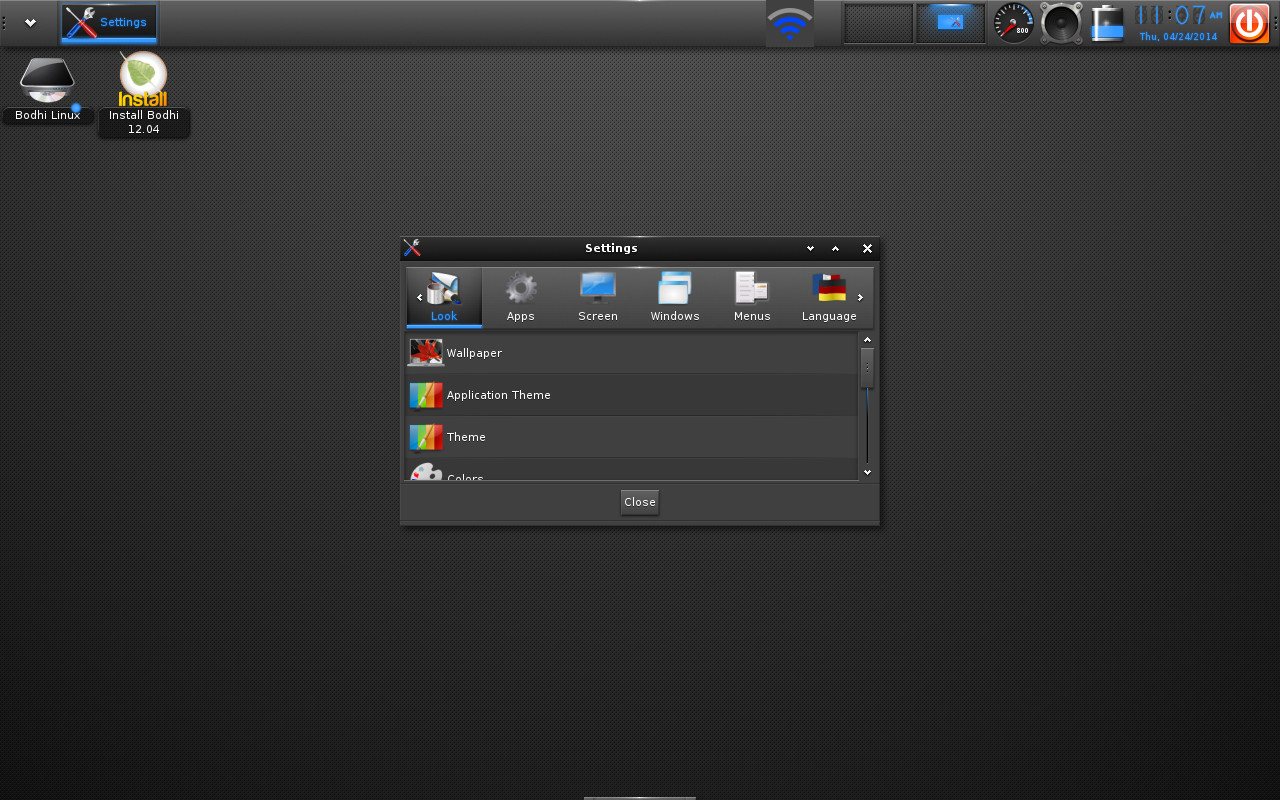
From within the Settings Panel (Figure 1), click on the Apps “tab”
-
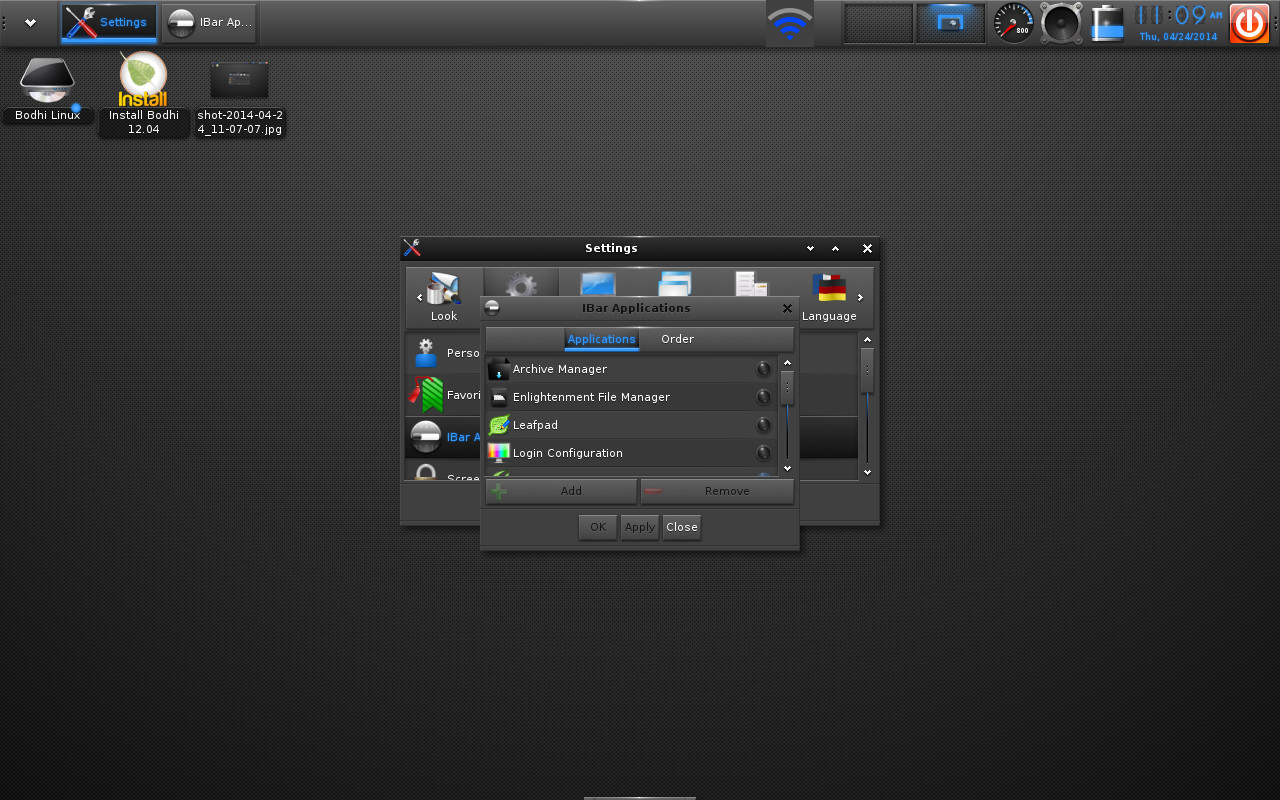
Locate and click the IBar Applications entry from the list
-
Locate and select the app you want to add from the list (Figure 2)
-
Click the Add button
-
Click Apply
-
Go back through the list and add any other applications (select, click Add, click apply)
-
After you’ve added all of the applications you want, click Close.
Those application launchers should now appear on any IBar on your desktop. You can also move those application launchers around (not by drag and drop though). To do this, follow these steps:
-
Go back to the IBar Applications window (from within the Settings Panel)
-
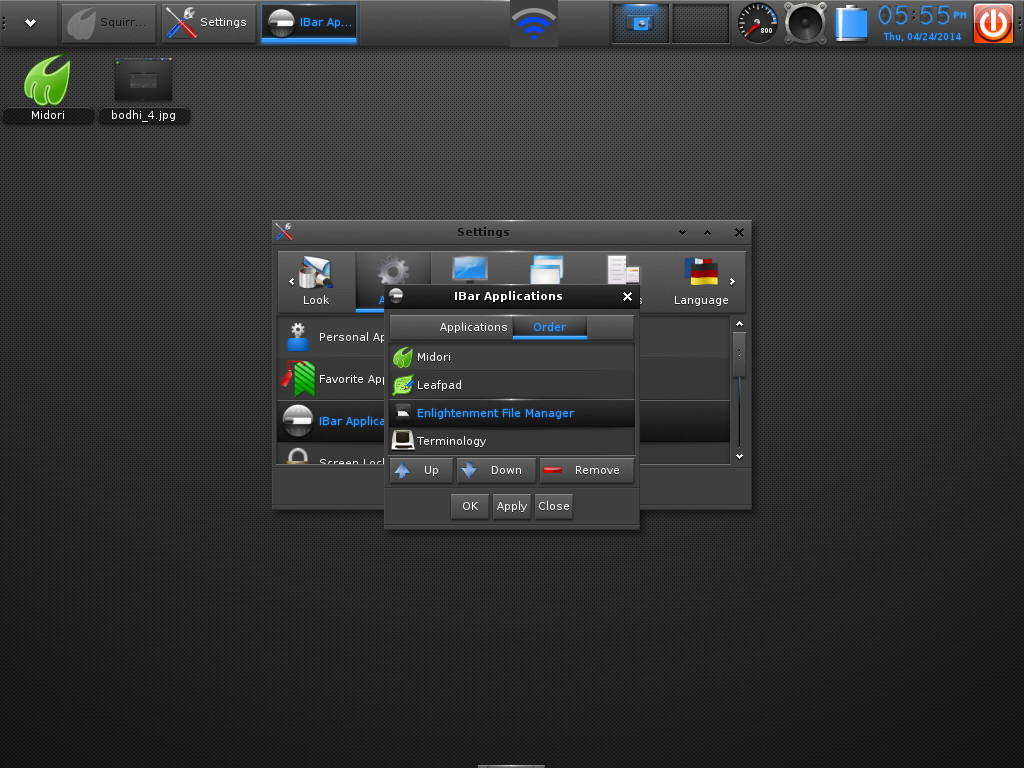
Click on the Order tab
-
Select the application you want to move (Figure 3)
-
Click either Up or Down to move the launcher to the right or left
-
Once you’ve moved all of the applications into the order you want, click OK.
Another cool trick is to add a second shelf to the desktop with only an IBar. This will give you a very clean dock you can auto-hide to keep out of the way. Here’s how:
-
From the Main Menu, click Settings > Shelves
-
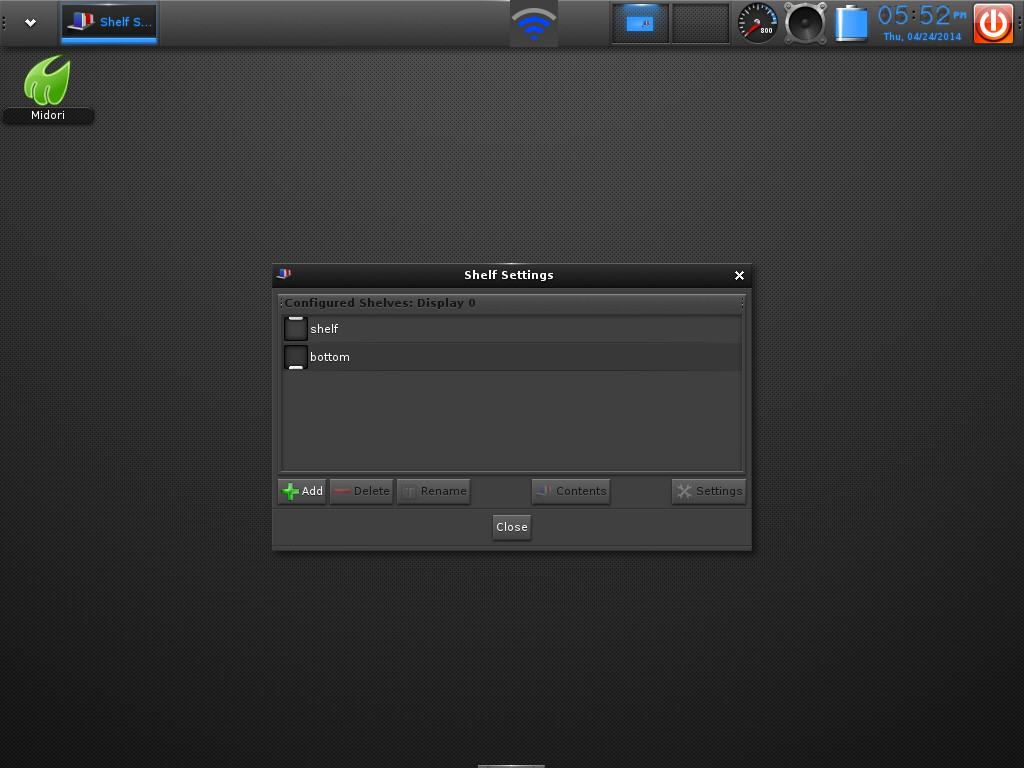
In the Shelf Settings window (Figure 4), click Add
-
Give the Shelf a name
-
Click OK
-
In the resulting window, make sure only IBar is selected
-
Click Add Gadget
-
Click Close.
Adding launchers to the desktop
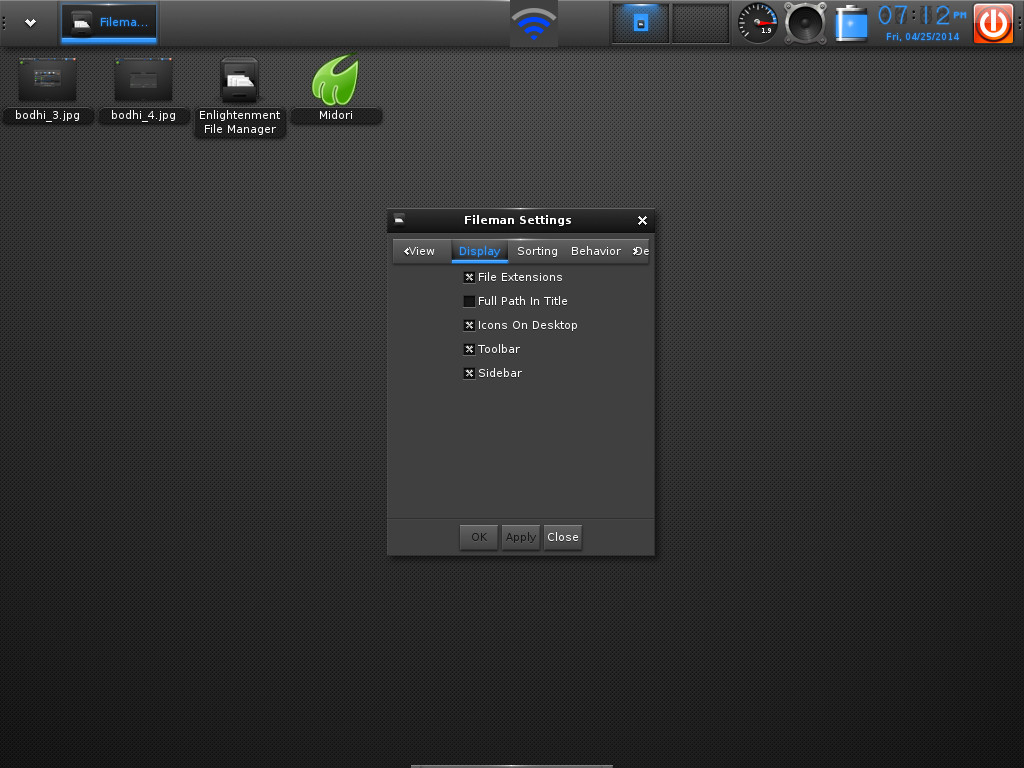
As of Bodhi 2.0, it is now possible to include desktop launchers thanks to the Enlightenment File Manager (EFM). If you go to Main Menu > Settings > All > Files > File Manager, you should see under the Display tab a setting for Icons on Desktop (Figure 5). Make sure that is checked.
Things are very simple at this point. All you have to do is open up the file manager, navigate to /user/share/applications/ copy the launcher you want and then paste it into /home/USERNAME/Desktop, a.k.a. ~/Desktop, (Where USERNAME is the actual username). You can do this copy/paste like so:
-
Find the file in /user/share/applications/
-
Right-click the file in question
-
Select Copy
-
Navigate back to /home/USERNAME/Desktop
-
Right click in the right pane of the file manager
-
Select Paste.
Once you’ve done that, the launcher should automatically appear and be ready to launch your application. Any new application you install will have a file in /usr/share/applications/ so you can rest assured, this method should work for any application.
Enlightenment, and Bodhi Linux, are a fantastic example of how highly configurable the Linux desktop can be. If you find yourself needing to add launchers to enhance the efficiency of the desktop, you can now handle that seemingly hidden task.