
Linux is one of the most stable platforms available. That doesn’t mean every application that runs on the system will enjoy the same incredible stability. Truth is, apps crash. It’s almost an inevitability that you’re going to experience a rogue application now and then. When it happens, you need to know how to close the app to get rid of any negative impact the wayward app might have. If it happens rarely, you’re good to force close the app and move on. If, however, you find it happening frequently, you need to have the tools available to help you figure out why this is occurring.
The most powerful tool at your disposal is the command line. With tools like the gdb and strace commands, you have everything you need to help figure out what is causing that application to die. For those unwilling to learn the command line, your tools are a bit less powerful, but still quite helpful. Although the GUI tools won’t give you the raw data needed to send to developers, they will help you troubleshoot the issue at hand. These tools will also give you a deep peek into your system…and who doesn’t want that?
Let’s dive into these tools and see how they can help you when a piece of software isn’t behaving as it should. I’ll be demonstrating on an Ubuntu 13.10 system using tools that are installed by default or found in the Ubuntu Software Center.
Where is the information?
The first thing you must understand is that Linux has an incredibly powerful log file system. These logs (found in /var/log/) are your best friends in troubleshooting a system. The two most important log files for troubleshooting your system are:
-
/var/log/syslog
-
/var/log/dmesg
Thing is, the normal process of checking these logs is done through the command line. Opening up a terminal window and running the command:
less /var/log/syslog
will spit out the entire contents of the log for you to look through. But the command line isn’t something most new users want to work with. In fact, I get a lot of email stating “I’d try Linux, but I don’t want to have to run commands all the time!” Well, thankfully, you can avoid the command line – even to view your log files.
Glogg
This is the first (and only) tool in the group you have to install. The glogg tool is a multi-platform GUI that allows you to browse through your system log files. This tool is actually far more powerful than that (allowing for the use of regular expressions as search tools), but it’s still one of the best ways to view your log files without opening up a terminal window. You’ll find glogg in the Ubuntu Software Center. To install it, follow these steps:
-
Open up the Ubuntu Software Center
-
Search for “glogg” (no quotes)
-
Click the listing for Glogg
-
Click Install
-
When prompted type your sudo password
-
Allow the installation to complete
When the installation is finished, you should see a new icon on your Unity Launcher. Click the new launcher to open up glogg. When the application opens, you won’t find a log loaded. To do this, click on the folder icon in the upper left corner. Using the file manager, navigate to /var/log and double-click syslog. You should now see plenty of text loaded in glogg (Figure 1).
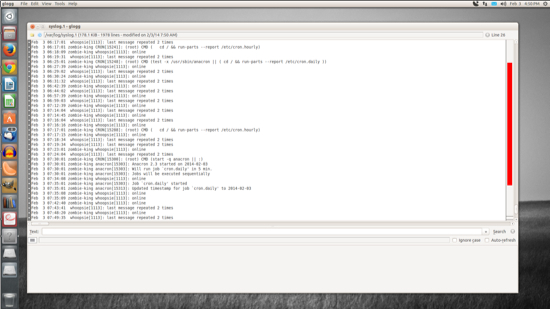
What you can do now is search this log for any string that might be related to trouble. Understand, a lot of applications won’t be logging to syslog directly, but you might find hints that can lead you to critical information about that application. Another method that can be helpful is to notate the exact time the application crashes and compare that to a time stamp in /var/log/syslog. You can also open up an application log file in glogg. You will need to know exactly where that application houses its log files, otherwise this method will do you no good.
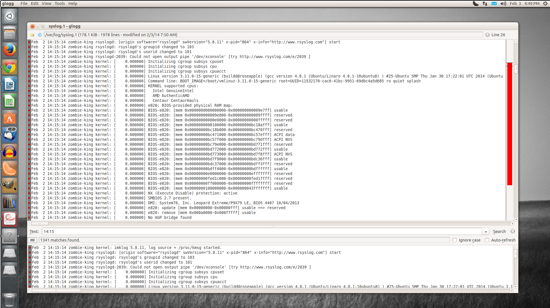
Let’s say, for example, you cannot find the location of the log file for the app; so, instead, you turn to /var/log/syslog. You know the app crashed at precisely 2:15 PM, so you open up the log file and search for 14:15 (since the logs are in 24 hour time). You will find the search results marked in red (Figure 2); look through those results to see if you find any clues as to why your app crashed.
One of the best things about glogg is that it allows you to follow a log file. With this, you can open up a log file, follow it, and view (in real time) anything written to the file. This can help you troubleshoot by seeing if, when you open an application, anything is written to the log file.
To follow a log file, do the following:
-
Open glogg
-
Open up the log file in question
-
Click View > Follow File.
At this point, glogg will automatically refresh the log view when any data is written to said log.
But what if looking in the log files either is diving too deep into the Linux system, or it simply bears no results? You can also opt for Occam’s Razor and look at the simplest solution.
System Monitor
If you’ve used Windows, then you know about the Task Manager and how it can help you resolve issues. Many Linux distributions have very similar tools. You will find Ubuntu’s take on Task Manager in the System Monitor. Click on your Super Key (aka “Windows” key), type “system” (no quotes), and click on the System Monitor icon. When this tool opens, you will find three easy-to-use tabs:
-
Processes: Lists all running processes by name, user, percentage of CPU used, ID, memory used, and priority.
-
Resources: Shows the history for CPU, Memory and Swap, and Network.
-
File Systems: Shows devices, where the devices are mounted, the size of each device, how much space is available, and how much space is used.
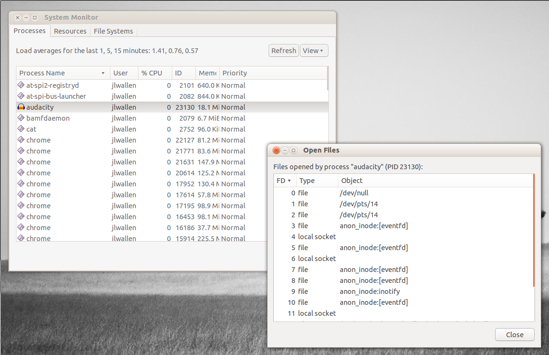
Key to troubleshooting applications will be the Processes and Resources tab. If you have an app that has frozen (and won’t quit), you can do the following:
-
Open System Monitor
-
Click on the Processes tab
-
Locate the process name
-
Right-click the process name
-
Select Open Files
-
From the resulting window (Figure 3), check for any clues
If open files gives you nothing, your best bet might be to simply kill the application. To do that, select the process in question and then click End Process. This will forcibly close the application. At this point you can go back to glogg, open a log file, follow the file, and re-launch the application.
Troubleshooting application crashing can be a rabbit hole most users don’t want to dive into. Unless you’re willing to put the power of the command line at your fingers, you’ll have to get creative. With the help of a few tools, you can begin the process of narrowing down those issues. Hopefully, by using these tools, you’ll start to understand the systems and processes necessary to administer a Linux machine – even if only one tiny step at a time.
