Home Blog Page 1574

Google’s Go Programming Language: Taking Cloud Development By Storm

What do popular projects like Docker, Heroku’s Force.com and Cloud Foundry’s (Go)Router all have in common? They’re all written in Go (a.k.a. “golang”), Google’s five-year-old programming language.

While languages like Java continue to dominate programming, new models have emerged that are better suited to modern computing, particularly in the cloud. Go, written expressly for the cloud, has been growing in popularity because of its mastery of concurrent operations and the beauty of its construction. 

Read more at ReadWriteCloud

Linux Mint 17 Codenamed “Qiana”

Linux Mint 17 will be named “Qiana” and should be available at the end of May 2014.

Qiana is pronounced kee-AHN-ah. It was the name of a fashion silk-like material, introduced in the 1970s and popular in the disco-era, when it was made into loud, shiny shirts with pointy collars.  The feminine name is of American origin, and its meaning is “silky”.

Read more at Linux Mint

Unison – An Ultimate Local/Remote File Synchronization Tool for Linux

File Synchronization is the process of mirroring, files and data in two or more locations in accordance with certain protocols. Files and Data are the most valuable thing in this era of Information Technology. By File Synchronization, we ensure that one or more copies of our priceless data is…

Read more at TecMint

NVIDIA GeForce 700 Series: Stick To The Binary Linux Drivers

For current and potential owners of NVIDIA GeForce 700 series graphics cards that are curious about the graphics driver situation on Linux, under Ubuntu 14.04 LTS with the latest open and closed-source NVIDIA drivers with the latest “Kepler” and “Maxwell” graphics cards. Here’s what you need to know now if trying to use the open-source Nouveau driver with these very latest NVIDIA graphics processors.

Read more at Phoronix

KDE Ships 4.13 Beta 3

The third beta of KDE 4.13 is now available…

Read more at Phoronix

Pocket’s Prototype for Android Wear Saves Articles Right from your Wrist

Googled unveiled Android Wear this week and encouraged developers to build apps purpose-built for the wrist. Pocket is among the first companies to rise to the challenge, showing off a prototype version of a software development kit for Android Wear today that will let you save links directly from your watch. The prototype allows developers to integrate Pocket into their own apps so that users can save items with a couple of taps. “Up until now, smartwatches have focused solely on delivering short notifications,” Pocket says. “What’s been missing is the ability to quickly act on that information by saving or sharing it.”

Pocket’s SDK works by allowing you to turn those notifications into saved articles and videos. When an alert on…

Continue reading…

Read more at The Verge

How to Manage Btrfs Storage Pools, Subvolumes And Snapshots on Linux (part 1)

Before we dive into using Btrfs, how is it pronounced? Lots of ways, like Bee Tree Eff Ess and Bee Tee Arr Eff Ess. That’s too many syllables, so I favor Butter Eff Ess. It sounds nice, and everyone likes butter. In this two-part series we’ll build a three-node Btrfs storage pool and learn all about managing snapshots, rollbacks, and subvolumes. Part 1 covers installing Btrfs, creating a simple test lab, creating a storage volume, and what commands to use to see what’s in it. In Part 2 we’ll create and manage subvolumes, snapshots and rollbacks.

What’s the Big Deal about Btrfs?

Btrfs is the next-generation Linux filesystem all cram-full of advanced features designed for maximum data protection and massive scalability such as copy-on-write, storage pools, checksums, support for 16, count ’em, 16-exabyte filesystems, journaling, online grow and shrink, and space-efficient live snapshots. If you’re accustomed to using LVM and RAID to manage your data storage, Btrfs can replace these.

A snapshot is a copy of a Btrfs subvolume at a particular point in time. It’s many times faster than making a traditional backup, and incurs no downtime. You can make snapshots of a filesystem whenever you want, and then quickly roll back to any of them.

Prerequisites

To use Btrfs you need a recent version of Debian, Arch Linux, Ubuntu, OpenSUSE, SUSE Enterprise Linux, Red Hat Enterprise Linux, or Fedora Linux, and an extra empty hard disk to play with, or ~50GB of free space on a hard disk. Btrfs is already supported in the kernels of these distros (run cat /proc/filesystems to check), so you only need to install the user-space tools btrfs-progs, which is btrfs-tools on Debian/Ubuntu/Mint/etc.

You’ll see a lot of warnings in the Btrfs documentation, and even in the output of some commands, that it is not ready for production systems and to not trust it for anything important. However, the good people at SUSE Enterprise Linux claim the opposite, and have supported it for production systems since SLES 11 SP2. I use it on my OpenSUSE and Ubuntu systems without drama. But, as they say, your mileage may vary and you should do your own testing. Meanwhile, it’s free to test and learn, so let’s get cracking.

Creating a Btrfs Storage Pool

First create three partitions of equal size to create a simple testing environment. GParted is a great graphical app to do this, and it partitions and creates the filesystem at the same time (figure 1). The Btrfs documentation recommends a mininum partition size of one gigabyte. In the examples for this tutorial they are 12 gigabytes each. I’m using a blank 150GB SATA hard disk for this article (/dev/sdd) because it makes me feel a little safer using a separate hard drive for filesystem testing. You can use any hard disk on your PC that has enough free space to play with, and 50GB gives you plenty of room to do mad Btrfs experiments. Do be careful to not destroy stuff you want to keep, like your root filesystem and data.
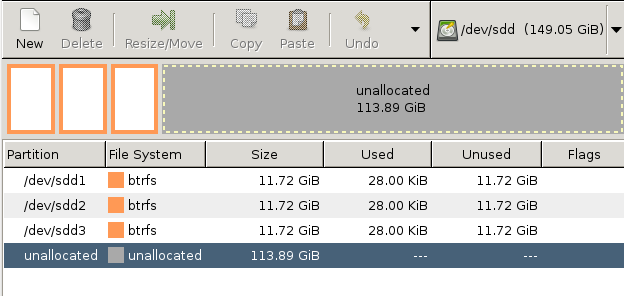
fig-1-gparted

Now that we have three Btrfs partitions to play with, we will combine them into a Btrfs storage pool with the mkfs.btrfscommand:

# mkfs.btrfs -f -L testbtrfs  /dev/sdd1 /dev/sdd2 /dev/sdd3
WARNING! - Btrfs v0.20-rc1 IS EXPERIMENTAL
WARNING! - see http://btrfs.wiki.kernel.org before using
adding device /dev/sdd2 id 2
adding device /dev/sdd3 id 3
fs created label testbtrfs on /dev/sdd1
        nodesize 4096 leafsize 4096 sectorsize 4096 size 35.16GB
Btrfs v0.20-rc1

The -f option forces an overwrite of any existing filesystems. -L creates a filesystem label, which is any name you want to give it. With no other options this command creates a three-node RAID array, using RAID0 for data and RAID1 for metadata. The RAID in Btrfs has some differences from the old-fashioned RAID we’re used to. In Btrfs RAID0 stripes your data across all available devices with no redundancy. RAID1 mirrors your data in pairs, round-robin across all available devices, so there are always two copies of your metadata regardless of how many devices are in the storage pool.

Seeing Your Partitions and UUIDs

You can use the familiar old blkid command to see your new Btrfs filesystems (the UUIDs are abbreviated in this example):

# blkid  /dev/sdd* 
/dev/sdd: UUID="e9b11649" UUID_SUB="af7ce22c" TYPE="btrfs" 
/dev/sdd1: LABEL="testbtrfs" UUID="b6a05243" UUID_SUB="4770cbfb" TYPE="btrfs" 
/dev/sdd2: LABEL="testbtrfs" UUID="b6a05243" UUID_SUB="b4524e3d" TYPE="btrfs" 
/dev/sdd3: LABEL="testbtrfs" UUID="b6a05243" UUID_SUB="7e279107" TYPE="btrfs"

Mounting the Btrfs Storage Volume

Notice that the UUIDs on the three partitions in our storage volume are the same, but the UUID_SUBs are unique. If you run the blkid command before creating the storage pool, the UUIDs will also be unique. I like to create a special testing directory– in this example, /btrfs — so I don’t accidently gum up something important. Mounting any single device mounts the whole works, like this:

# mkdir /btrfs
# mount /dev/sdd3 /btrfs

You can create an /etc/fstab entry in the same way as for any filesystem. Use your label or the UUID (not the UUID_SUB) like one of these examples:

LABEL=testbtrfs  /btrfs  btrfs  defaults  0 0
UUID=b6a05243  /btrfs  btrfs  defaults  0 0

What are my RAID Levels?

You can check your RAID levels with the btrfs command:

# btrfs filesystem df /btrfs
Data, RAID0: total=3.00GB, used=0.00
Data: total=8.00MB, used=0.00
System, RAID1: total=8.00MB, used=4.00KB
System: total=4.00MB, used=0.00
Metadata, RAID1: total=1.00GB, used=24.00KB
Metadata: total=8.00MB, used=0.00

Measuring Available Space

You can’t use our good ole du and df commands to measure used and free space on the mounted Btrfs filesystem, because they don’t understand Btrfs metadata, RAID, and how it manages storage. Measuring available space on a Btrfs volume is tricky because of these factors. I copied 7GB of files into my little test volume, and this is what it looks like with thebtrfs command:

# btrfs filesystem df btrfs/
Data, RAID0: total=9.00GB, used=6.90GB
Data: total=8.00MB, used=0.00
System, RAID1: total=8.00MB, used=4.00KB
System: total=4.00MB, used=0.00
Metadata, RAID1: total=1.00GB, used=46.01MB
Metadata: total=8.00MB, used=0.00

You could also try it on any raw device in the storage pool:

# btrfs filesystem show /dev/sdd1
failed to open /dev/sr0: No medium found
Label: 'testbtrfs'  uuid: b6a05243
        Total devices 3 FS bytes used 6.95GB
        devid    3 size 11.72GB used 4.01GB path /dev/sdd3
        devid    2 size 11.72GB used 3.01GB path /dev/sdd2
        devid    1 size 11.72GB used 4.02GB path /dev/sdd1

Allrighty then, we have a nice Btrfs storage pool to play with, and know how to poke around in it. Come back for part 2 to learn how to create, remove, and manage snapshots and subvolumes.


Android-x86 Just Might Make a Good Linux Desktop Alternative

Working with the Android OS on a desktop computer environment takes personal computing in a new direction. How many will follow it remains to be seen. The release of Android-x86 version 4.4-RC1 (KitKat-x86) by the Android-x86 Project brings the viability of an Android distro as an alternative desktop several steps closer, but it is still a work in progress. This software release lets you run a live session of Android from CD or USB drive — or you can install Android KitKat for the PC on a laptop or desktop’s hard drive.

Read more at LinuxInsider

Neela Jacques: Why Collaborative Development is Right for Software-Defined Networking

OD summit photo There are a number of open source software business models that companies employ today. These approaches fall along a spectrum of openness, from companies building their products and services utilizing fully open, raw code to a mostly closed model in which they offer access to their products via a limited API, says OpenDaylight Executive Director Neela Jacques.  In between lies what he calls “Open Plus,” or proprietary software built on open source and/or open standards.
“I believe this is where the sweet spot lies,” Jacques wrote recently in his OpenDaylight blog. “In many cases end users here can experience the best of both worlds – the performance from a highly tuned, controlled piece of software, but the ability to migrate to another member of the ecosystem if technical requirements change.”

Vendors are already taking this approach with the OpenDaylight project, and many other open source projects that follow the collaborative development model. Jacques and other collaborative project leaders will go into more detail about this approach in a keynote panel, moderated by Linux Foundation Executive Director Jim Zemlin, next week at Collaboration Summit in Napa, Calif. Here he talks more about collaborative development, its challenges and successes, and its role in revolutionizing software-defined networking.

Linux.com: Is collaborative development the new model for open source success (as Peter Levine recently suggested), why or why not?

Neela Jacques: I see running open source a little bit like air traffic control in the way that it benefits end users (passengers). To do this well you need solid infrastructure and governance – common systems, agreed upon paths, a standard way for planes to communicate, signs for taxiing etc. On the other hand, you want competition for what comes around it –  companies utilizing the common infrastructure and governance to innovate on top – (planes), service providers (airlines) and other services (food service, shops etc.).

I do believe we are seeing a major evolution in how software is being developed. It used to be you had two opposing models: Closed Proprietary vs. Fully Open. Today what we’re seeing is something I call open-plus, where players large and small work together to define standards, develop industry wide APIs and protocols, and to create platforms everyone can plug into. In this model you overcome the challenges with each model and get the best of both. You don’t get the waste of everyone constantly reinventing the wheel with undifferentiating technologies just like you don’t want a country with eight separate incompatible phone systems. In fact this frees up resources for people to invest in making solutions that have better UX, that better solve end-user problems. It’s not surprising that so much of the technology that has changed our lives incorporates open source code at its core.

Can you describe the biggest challenge you’ve faced so far and how you overcame it?

Jacques: In general mine has been to bring the skeptics on board. Many correctly identify all the challenges to collaboration in our industry. I find myself often having to invite folks into the community to see for themselves that it’s a meritocracy.

From a technical perspective the biggest challenge has been to determine support for a wide variety of ideas and technologies. OpenDaylight prides itself as being the place where people come to debate their ideas of how networking should be done, but to debate with code. The Service Abstraction Layer (SAL) is the solution we’ve found to enable a multitude of southbound devices and protocols.

Why is an open source, collaborative development model right for software defined networking?

Jacques: The key difference between SDN and traditional networking is that you are centralizing network intelligence at least to some degree, primarily to get greater programmability and agility in your network. Having multiple controllers makes as much sense as having multiple disparate civil air traffic controllers in the same city. SDN begs for a platform into which all network services can plug into and that can talk to the set of hardware devices to its south. One option is to anoint one player to own that platform and let them control the market and the bulk of profits for the next twenty years. The challenge is if that’s the model everyone will spend money trying to be that one dominant player, and therefore we’ll see endless turf wars. Open, collaborative development makes perfect sense for SDN because controllers are the wrong battleground. They all do roughly the same function. The value is in the apps, in the network services, in the orchestration and in the hardware/chipsets. Basically anywhere but the controller.

What other industries or market niches are ripe for collaborative development and why?

Jacques: I think PaaS and orchestration as two areas really needing strong community collaboration. I was very excited to hear Pivotal announce it was creating a foundation for Cloud Foundry. The way that apps are written needs to change, and while AWS has many advantages it still doesn’t provide all the elements of a true PaaS. The Cloud Foundry community has the potential to become Borland, Eclipse, WebSphere and AWS all wrapped into one – a one-stop shop for app developers – but it’s hard for me to see any one company providing all the resources and leadership needed to be able to achieve that.

When I was at VMware I used three words to describe the approach you need to take to get to a software-defined data center. For each type of resource (compute, storage and networking) you need to “abstract, pool, and automate.” The industry has been making great progress on abstract and pool, but we’re still in the early days of “automate.” I would love to see industry collaboration around developing an industry standard orchestration and automation engine. OpenStack Heat is a good start, but I think the potential in the space is huge. I see OpenDaylight plugging right into OpenStack Neutron which will enable a much richer set of networking functions and tasks to be automated.

Troubleshooting Ubuntu One Cloud Storage on Linux

Update: Ubuntu One will no longer be available as of June 1, 2014 and all data will be wiped July 31, 2014. Here are three alternatives to Ubuntu One.

Ubuntu One is my go-to cloud storage system. It’s a cross-platform (Linux, Mac, Android, IOS, Windows), easy to use, robust tool that anyone can use as their cloud storage. But, even the best systems can stutter or fail to work.

Take, for example, the common practice of moving the default Ubuntu One folder from the ~/ directory into a non-standard location. I have done this a number of times on systems using SSD drives (where space is limited). When you move that default location, Ubuntu One might not behave in its normal rock-solid manner.

When Ubuntu One fails, what do you do? There are two troubleshooting paths you can take: GUI or command line. Either method does a great job of solving issues with the system. Having both methods at your disposal will certainly empower you to tackle most any problem you find.

I will assume you already have an Ubuntu One account and that the necessary software for running Ubuntu One is installed on your machine.

Let’s start out with the troubleshooting methods handled by the GUI.

GUI Control

As you might expect, the GUI is not nearly as powerful as troubleshooting with the command line. But many users (especially those new to Linux) prefer not to deal with the command line. So let’s start there.

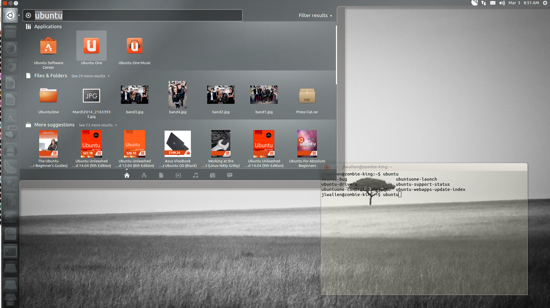
The GUI associated with Ubuntu One is called the Ubuntu One Control Panel. You can start it by opening the Unity Dash and typing “ubuntu one” (no quotes) and then click on the Ubuntu One icon (Figure 1).

ubuntu one

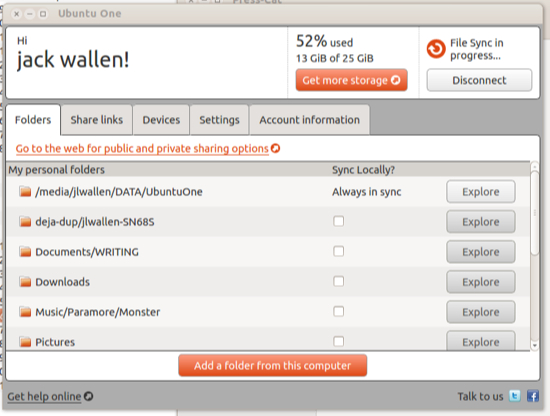
You can also open the tool from a terminal window by issuing the command ubuntuone-control-panel-qt. No matter how you start it, the Control Panel will open to display information about your account and personal folders (Figure 2).

ubuntu one

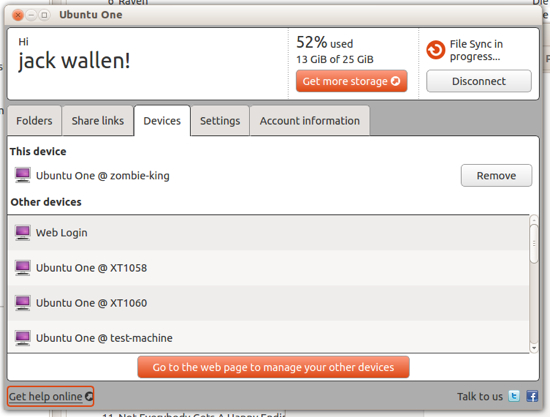
The first thing you want to do is make sure your machine is actually listed as a device authorized for your Ubuntu One account. Click on the Devices tab and make sure the hostname for your machine is listed (it should be listed as “This device” — Figure 3). If you do not find the machine listed, chances are you’ll need to reinstall Ubuntu One.

ubuntu one

If you find machines that you no longer use, you have to go to your Ubuntu One web page to manage those devices. From there you need to login, click on My Account, and then scroll down until you see the Devices section.

Back to the Control Panel…

One of the quickest steps you can do to give Ubuntu One a “kickstart” is click Disconnect, wait a moment, and click Connect. If you click Disconnect during a file sync, Ubuntu One will stop the sync and stop the sync daemon. Click Connect and the daemon will start and the sync will pick up where it left off.

A good indicator that you might want to run the above action is if the Ubuntu One cloud icon has disappeared from the desktop notification area (Figure 4).

ubuntu one

If you go into the Settings tab (of the Control Panel), you will find you can limit upload and download speeds as well as configure File Sync Settings. Under this section, make sure everything is checked except Automatically sync all folders shared with me to this computer.

You can enable the auto sync for sharing, if you can trust those that would be sharing with you.

One last issue to check within the Control Panel is to make sure you have Ubuntu One associated with the right account. Click on the Account information tab and make sure the Personal details and services are correct.

Command line

If you’re comfortable with the command line, you can do quite a bit more with Ubuntu One. The command to control Ubuntu One is u1sdtool. There are a number of options available to this command. The ones you should know are: 

  • –current-transfers (list the current uploads and downloads)

  • –quit (shut down the Ubuntu One system)

  • –start (start the Ubuntu One system)

  • –connect (connect the syncdaemon)

  • –disconnect (disconnect the syncdaemon)

  • –status (list the current status of the syncdaemon)

  • –wait (complete the current synchronization between client and cloud)

  • –waiting (list the waiting content and metadata to be syncd)

For example, you find there are files or folders in your Ubuntu One account that have not syncd with your desktop. The first step is to find out if any metadata or content is waiting to be syncd. To do this, follow these steps:

  1. Open up a terminal window (in Ubuntu Unity you can hit Ctrl-Alt-t or type “terminal” within the Dash)

  2. Type u1sdtool –waiting

  3. If you see anything listed, continue

  4. Type u1sdtool –w

  5. Wait until you see “ubuntuone-syncdaemon became a fully enlightened Buddha!” in the terminal window

  6. Check to see if the files and folders have appeared.

If you do not see any metadata or content listed (after issuing u1sdtool -waiting), you should do the following (all from the terminal window):

  1. Disconnect from the syncdaemon (u1sdtool –disconnect)

  2. Shut down the syncdaemon (u1sdtool –quit)

  3. Restart the syncdaemon (u1sdtool –start)

  4. Reconnect to the syncdaemon (u1sdtool –connect).

Once you’ve issued the above commands, go back and run the u1sdtool –waiting command to see if your metadata and content are now listed. You can then issue the u1sdtool –w command to complete the sync.

If you still find problems with syncing, a sort of brute-force method is to rebuild the Ubuntu One configuration file. Here are the steps:

  1. From the terminal window, issue the command u1sdtool –quit

  2. Issue the command rm -rf ~/.config/ubuntuone

  3. Start the Ubuntu One Control Panel and allow the sync to start and finish.

Ubuntu One gives you 5 GB of free storage that you should take advantage of. It’s a powerful cloud service that you can easily troubleshoot with either a GUI or command line tools. Have you found a situation with Ubuntu One that cannot be resolved with the above steps? If so, share your experience with your fellow Linux.com readers so we can help resolve that problem.