Update: Ubuntu One will no longer be available as of June 1, 2014 and all data will be wiped July 31, 2014. Here are three alternatives to Ubuntu One.
Ubuntu One is my go-to cloud storage system. It’s a cross-platform (Linux, Mac, Android, IOS, Windows), easy to use, robust tool that anyone can use as their cloud storage. But, even the best systems can stutter or fail to work.
Take, for example, the common practice of moving the default Ubuntu One folder from the ~/ directory into a non-standard location. I have done this a number of times on systems using SSD drives (where space is limited). When you move that default location, Ubuntu One might not behave in its normal rock-solid manner.
When Ubuntu One fails, what do you do? There are two troubleshooting paths you can take: GUI or command line. Either method does a great job of solving issues with the system. Having both methods at your disposal will certainly empower you to tackle most any problem you find.
I will assume you already have an Ubuntu One account and that the necessary software for running Ubuntu One is installed on your machine.
Let’s start out with the troubleshooting methods handled by the GUI.
GUI Control
As you might expect, the GUI is not nearly as powerful as troubleshooting with the command line. But many users (especially those new to Linux) prefer not to deal with the command line. So let’s start there.
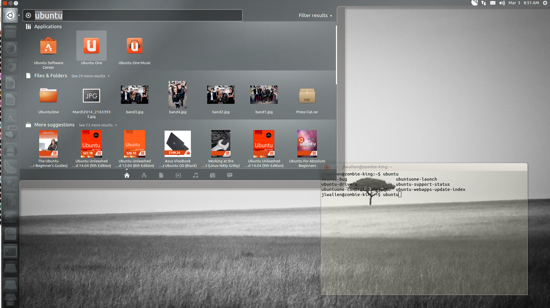
The GUI associated with Ubuntu One is called the Ubuntu One Control Panel. You can start it by opening the Unity Dash and typing “ubuntu one” (no quotes) and then click on the Ubuntu One icon (Figure 1).
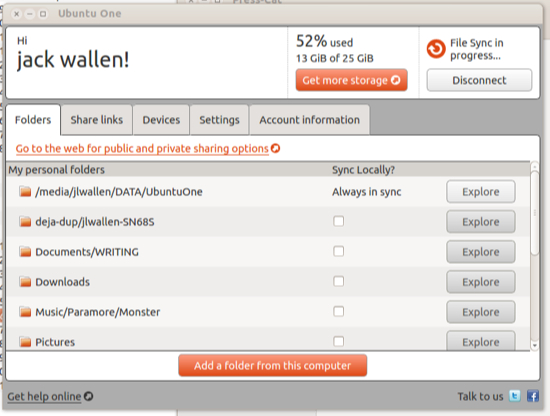
You can also open the tool from a terminal window by issuing the command ubuntuone-control-panel-qt. No matter how you start it, the Control Panel will open to display information about your account and personal folders (Figure 2).
The first thing you want to do is make sure your machine is actually listed as a device authorized for your Ubuntu One account. Click on the Devices tab and make sure the hostname for your machine is listed (it should be listed as “This device” — Figure 3). If you do not find the machine listed, chances are you’ll need to reinstall Ubuntu One.
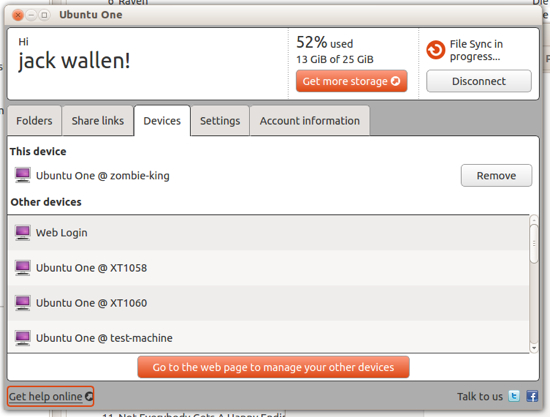
If you find machines that you no longer use, you have to go to your Ubuntu One web page to manage those devices. From there you need to login, click on My Account, and then scroll down until you see the Devices section.
Back to the Control Panel…
One of the quickest steps you can do to give Ubuntu One a “kickstart” is click Disconnect, wait a moment, and click Connect. If you click Disconnect during a file sync, Ubuntu One will stop the sync and stop the sync daemon. Click Connect and the daemon will start and the sync will pick up where it left off.
A good indicator that you might want to run the above action is if the Ubuntu One cloud icon has disappeared from the desktop notification area (Figure 4).

If you go into the Settings tab (of the Control Panel), you will find you can limit upload and download speeds as well as configure File Sync Settings. Under this section, make sure everything is checked except Automatically sync all folders shared with me to this computer.
You can enable the auto sync for sharing, if you can trust those that would be sharing with you.
One last issue to check within the Control Panel is to make sure you have Ubuntu One associated with the right account. Click on the Account information tab and make sure the Personal details and services are correct.
Command line
If you’re comfortable with the command line, you can do quite a bit more with Ubuntu One. The command to control Ubuntu One is u1sdtool. There are a number of options available to this command. The ones you should know are:
-
–current-transfers (list the current uploads and downloads)
-
–quit (shut down the Ubuntu One system)
-
–start (start the Ubuntu One system)
-
–connect (connect the syncdaemon)
-
–disconnect (disconnect the syncdaemon)
-
–status (list the current status of the syncdaemon)
-
–wait (complete the current synchronization between client and cloud)
-
–waiting (list the waiting content and metadata to be syncd)
For example, you find there are files or folders in your Ubuntu One account that have not syncd with your desktop. The first step is to find out if any metadata or content is waiting to be syncd. To do this, follow these steps:
-
Open up a terminal window (in Ubuntu Unity you can hit Ctrl-Alt-t or type “terminal” within the Dash)
-
Type u1sdtool –waiting
-
If you see anything listed, continue
-
Type u1sdtool –w
-
Wait until you see “ubuntuone-syncdaemon became a fully enlightened Buddha!” in the terminal window
-
Check to see if the files and folders have appeared.
If you do not see any metadata or content listed (after issuing u1sdtool -waiting), you should do the following (all from the terminal window):
-
Disconnect from the syncdaemon (u1sdtool –disconnect)
-
Shut down the syncdaemon (u1sdtool –quit)
-
Restart the syncdaemon (u1sdtool –start)
-
Reconnect to the syncdaemon (u1sdtool –connect).
Once you’ve issued the above commands, go back and run the u1sdtool –waiting command to see if your metadata and content are now listed. You can then issue the u1sdtool –w command to complete the sync.
If you still find problems with syncing, a sort of brute-force method is to rebuild the Ubuntu One configuration file. Here are the steps:
-
From the terminal window, issue the command u1sdtool –quit
-
Issue the command rm -rf ~/.config/ubuntuone
-
Start the Ubuntu One Control Panel and allow the sync to start and finish.
Ubuntu One gives you 5 GB of free storage that you should take advantage of. It’s a powerful cloud service that you can easily troubleshoot with either a GUI or command line tools. Have you found a situation with Ubuntu One that cannot be resolved with the above steps? If so, share your experience with your fellow Linux.com readers so we can help resolve that problem.