
Two ways to turn the Raspberry Pi into a media player and home entertainment hub
Read more at Enterprise Open Source Toolkit
Digital Storm was one of the first companies to reveal its Steam Machine — its own take on Valve’s formula for the perfect living room gaming PC. Today, the company’s getting the news out ahead of Valve’s announcement yet again, formally announcing that the new Digital Storm Bolt II will ship later this month for $1,899 with a hefty array of specs.
The Bolt II dual-boots Windows and SteamOS, and features liquid cooling by default — which allows the company to overclock the Intel Core i5-4670K processor to a speedy 4.2GHz right out of the reasonably small box. While the case features quite a few screws, PC builders will find components relatively easy to remove, with easy access to the hard drive bays, the memory, the graphics…
Most Linux users that employ Solid State Drives (SSDs) build their systems with the smaller SSDs holding the operating system and the larger, slower, much cheaper HDD drives holding their data. When you’re trying to create the fastest system possible, though, you want to get that data drive up to the speeds of your far-faster SSD. Problem is, very large SSDs can be cost-prohibitive. So, what can you do? With the help of bcache, you can use a smaller SSD as a caching drive for the larger, slower HDD. With this set up, you have the best of both worlds.
As of kernel 3.10, bcache is available with minimal installation and work. I will walk you through the process of getting the bcache data “drive” up and running (assuming you already have a working Linux system running on your faster SSD drive).
Although you can set this up on an existing system (with existing data), I highly recommend you not do so. The chance of losing data is high, so let’s start out with a fresh SSD (for caching) and a fresh HDD (for storage – or “backing”).
I am going to illustrate this process using a working installation of Ubuntu 13.10, with a smaller SSD drive (an inexpensive 60 GB drive will work fine) and a much larger HDD drive (as large as necessary) for backing. Let’s begin.
The first thing you must do is install bcache-tools. This is the tool that will create and register the block devices to work with bcache. To install bcache-tools you must first add the repository. This is done with the following commands:
sudo add-apt-repository ppa:g2p/storage
sudo apt-get update
sudo apt-get install bcache-tools
Before you set about creating your bcache devices, format both drives to the ext4 file system (I prefer using Gparted for this). Once the devices are formatted, you can create and register the devices with the help of bcache-tools. Let’s say the caching device (SSD) is located at /dev/sdc and the backing device (HDD) is located at /dev/sdb. First, create the backing device with the command:
sudo make-bcache -B /dev/sdb1
Now, create the caching device with the command:
sudo make-bcache -C /dev/sdc1
If you get an error that there are already non-bcache superblocks on the device(s), you have to remove those errors with the wipefs command, as such:
sudo wipefs -a /dev/sdb1
You might have to do that for both the caching and backing devices.
With distributions that use udev (such as Ubuntu), you can skip the next two steps. If your distribution doesn’t use udev, you have to register the devices with the kernel. We’ll do those one at a time with the commands:
sudo echo /dev/sdb1 > /sys/fs/bcache/register
sudo echo /dev/sdc1 > /sys/fs/bcache/register
Once the backing device is registered, it will show up in /dev in the form of /dev/bcacheX (Where X is a number – such as /dev/bcache0). The registering can either be done manually (you’d have to re-register each time you reboot), or you can set it for auto-register with an init script. The contents of that init script would need to be:
echo /dev/sd* > /sys/fs/bcache/register_quiet
This will look for and register bcache superblocks and ignore everything else.
Now it’s time to mount the newly created file system. This is done with the mount command:
sudo mount /dev/bcacheX /path/to/mount/point
Where X is the device to be mounted (most likely bcache0) and /path/to/mount/point is the actual path you want to mount the device to. For example, you could create a DATA folder on / and then mount bcache0 there:
mount /dev/bcache0 /DATA
NOTE: Make sure the user that will want to write data to the caching device has permission to write to the DATA directory.
At this point, the cache set will show up in /sys/fs/bcache/ as a UUID (a UUID will be a long string of characters). You will need that UUID for the next command.
The devices are now created and registered. You now have to attach the caching and backing devices to enable the caching feature. Here you will need the UUID (a long string of characters) found in /sys/fs/bcache/ (enter the command: ls /sys/fs/bcache and you’ll see the UUID). To attach the devices, you simply use the echo command to add the UUID to the attach file in /sys/block/bcache0/bcache/. The command is:
echo UUID > /sys/block/bcache0/bcache/attach
Where UUID is the actual UUID found in /sys/fs/bcache.
Your bcache system is now ready to use. Simply write your data to the /DATA directory (see photo, below) and you should enjoy much faster data writes.
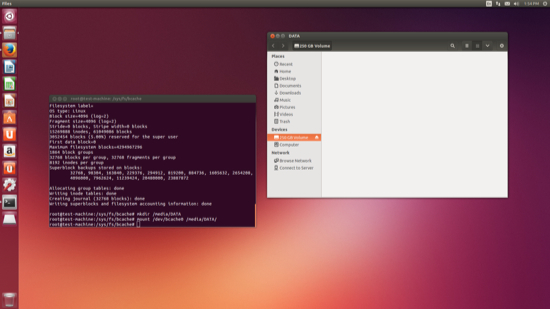
To check to see if the caching is working, open up a terminal window and issue the command:
tail /sys/block/bcache0/bcache/stats_total/*
By default, bcache uses writethrough caching. With writethrough, only reads are cached and writes are written directly to the backing drive. You can gain some serious speed by enabling writeback caching. Be warned, however, this is not nearly as reliable as the writethrough mode. You can lose data should there be a power outtage or if the SSD fails. But if you long for that extra bump of speed, you can enable writeback caching by issuing the following command:
echo writeback > /sys/block/bcache0/bcache/cache_mode
Again, I will caution you that using writeback mode is not as reliable as writethrough.
If you’re looking for a way to squeeze as much speed from your machines as possible, bcache might be exactly what you need. With the right hardware, and just a little time, you can get those older, slower HDD drives writing data as if they were solid state drives. But do remember, always back up your data before you attempt any work of this nature.
Editor’s Note: For more on bcache, read Linux.com’s recent article All About the Linux Kernel: Bcache, or see the bcache documentation and a full list of bcache features and performance notes.