
The Galaxy S4 will be the first device to ship with Samsung’s Knox technology, which like BlackBerry aims to divide your personal and work lives.
Read more at Enterprise Open Source Toolkit
Tomáš Matějíček has announced the release of Slax 7.0.6, an updated version of the Slackware-based live CD with a minimalist KDE desktop: “I’d like to announce an update of Slax live Linux, version 7.0.6. The main changes are the new Linux kernel 3.8.2 and updated KDE 4.10.1…”
GIMP isn’t the only graphics application for Linux, though you might think so since it gets all the attention. Today we turn our attention to the wonderful Krita drawing, painting, and illustration program for Linux. We’ve talked about Krita before: Demystifying Krita with Comics, Modern Art: A Look at Krita 2.3, and Calligra Suite, the Promising Not-An-Office Suite. Today we’re going to learn about the important fundamental Krita tools, Tools, Brushes, and Colors. I’m not much of an artist, but I can show you how to use the excellent Krita features.
Krita has great support for Wacom drawing tablets, including pressure sensitivity, so I’m using my ancient Wacom Graphire 2 for this article. Tablets are super-easy to use in Linux: just plug them in and go. Use them like a real pencil, pen or paintbrush: Touch the tablet to draw, lift to not draw, tap, press harder for more “ink”, press lighter for a fainter image. Use the duo-switch on the handle for right-click and left-click, and single- and double-tap for single- and double-click.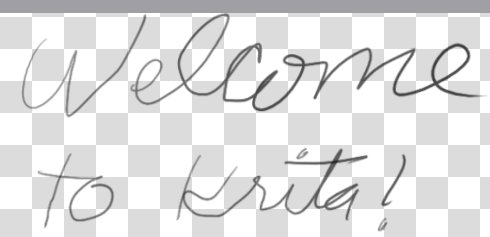 Fig. 1: Cursive writing! Not very good after years of typing.
You don’t need a tablet and can follow along using your mouse. Open Krita and you will be greeted with a screen that gives you various options such as opening recent documents, creating a new one, which color space to use, and size. Click on RGB and select Transparent 640×480. Why? Why not? This puts us in the RGB color space with a transparent background. Now, without changing any settings, make some squiggles. I demonstrate my beautiful cursive writing in figure 1.
That’s boring, so let’s play with tools, brushes, and colors. A key concept to understand is that tools and brushes have different functions but work together. Tools are on the left dock of your Krita screen, and these control the shapes that you can draw. Brushes control textures and line thicknesses. The default brush is the pixel brush  , and the default tool is the freehand tool
  .
.
Let’s pick a color from the color picker. There are two: the basic color picker in the top toolbar, and the advanced col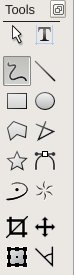 or picker in the right dock. It doesn’t matter which one you use; just pick a color, any color. I like purple. Now click on different tools and try them out (figure 2.) These are surprisingly flexible: try different pressures, turning them in different directions, and making them different sizes. The polygons are completed with a double-click or double-tap.
Fig. 2: shape-drawing tools
My shapes are empty, so let’s use the fill tool, and practice using the very cool right-click color picker. 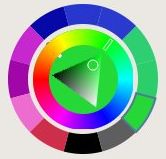 Right-click color picker
This is a fast way to pick a new color without leaving your work. Click the fill tool button , then right-click anywhere in your drawing to open the quick color picker. Notice that as you work and select different colors the color picker automatically saves them. In the right-click color picker your saved colors are in the outer ring. And voila, figure 3 emerges in all of its purple majesty.
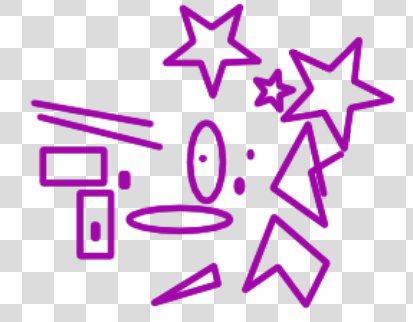 Fig. 3: Purple shapes!
Click the brush tool on the top toolbar, and a giant screen full of rich choices spreads out before you. The quickest way to learn what the brushes and different controls do is to play with them. You’re not wasting materials, after all. I like the Curves brush, so let’s have a little fun with that. It’s especially good with a tablet, but you can do cool stuff with a mouse too. Note how the textures and shapes vary with the stroke pressure, direction, and speed (figure 4).
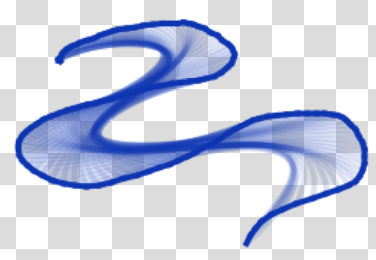 Fig. 4: Curves brush
The hairy brush, as figure 5 shows, is indeed hairy-looking.
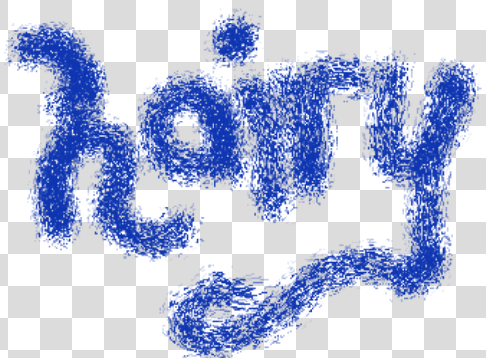 Fig 5: Hairy brush
Brush controls
The blue bars are sliders, and there are also arrow controls on the left. And for us keyboard fans, right-click to type in your values. The Predefined Brushes tab contains a hoard of wonderful special effects, and the Custom Brush lets you create your own brush pattern and save it (figure 6).
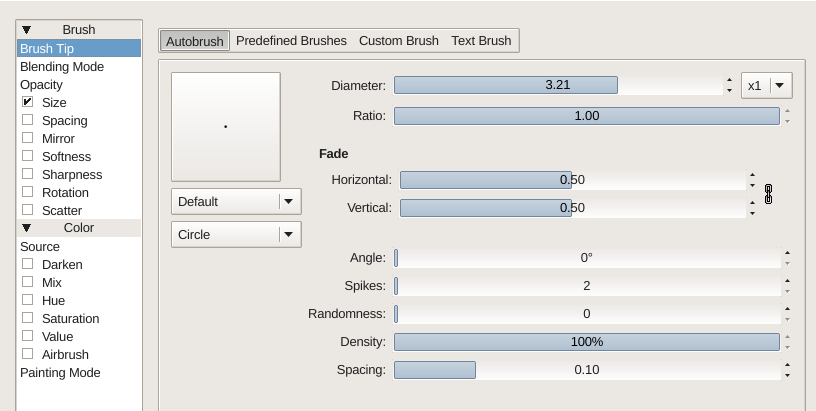 Fig. 6: Brush controls
Text Brush gives you two cool ways to brush on text: in a straight line with a click, or in Pipe Mode, which follows your stroke. (Figure 7.)
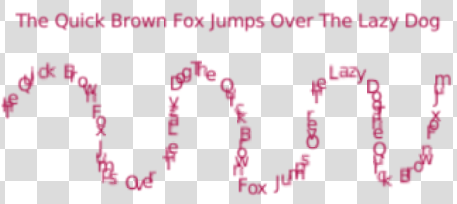 Fig. 7: Text brush
You’ve doubtless noticed there are some Tools we have not tried out yet, the Select Area tools, so let’s go try them out (figure 8).
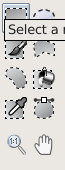 Fig. 8: Select area tools
I’ll use a simple diagram to illustrate how the area selection tools work. First I created a red rectangle with the draw rectangle tool and filled it with blue. Then I selected an oval area with the elliptical area selector, filled the ellipse with darker blue, and then moved it with the move a layer tool, resulting in figure 9.
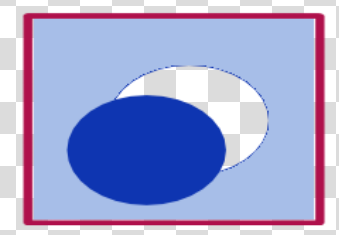 Fig. 9: Select and move an oval area
There is a bit of trickiness introduced when you use the move layer tool: it creates a new layer. Layers are wonderful things that make it easy to edit complex images, and we’ll talk about them more someday. The layers windows is on the lower right, and the active layer is always highlighted. So if you are trying to draw on the non-active layer and getting frustrated, just go click on it to make it active.
Krita supports ctrl+z to undo, ctrl+shift+z to redo, and also has Edit > Undo and Edit > Redo. You can also use the eraser, which is in the top toolbar. Click it to turn it on, erase with your cursor, and then click to turn it off. Nice and fast.
You’ll probably want to save your work twice: first as a Krita document, and then as whatever final image format you want to use. When you save it as a Krita document then it saves all your layers, so you can easily go back and edit it. Once it’s exported to a normal image format, such as PNG or JPG, you lose all that.
Back in 2010 Linux.com published a list of the year’s top Linux distributions, and the popularity of the topic made it an instant annual tradition.
There have been several shifts and shakeups on the lists presented since then, of course, and -– as you’ll soon see – this year’s offering holds true to that pattern. In fact, I think it’s safe to say that the past year has seen so much upheaval in the desktop world – particularly where desktop environments are concerned – that 2013’s list could come as a surprise to some.
Let me hasten to note that the evaluations made here are nothing if not subjective. There also is no such thing as the “one best” Linux distro for anything; in fact, much of the beauty of Linux is its diversity and the fact that it can be tweaked and customized for virtually any taste or purpose. The one best Linux for you, in other words, is the flavor you choose for your purpose and preference and then tweak until it feels just right.
Still, I think some Linux flavors stand out these days as leaders for particular use cases. I’m going to diverge a bit from past lists here when it comes to those categories, however. Specifically, where past lists have included the category “Best Linux LiveCD,” I think that’s become almost obsolete given not just the general shift to USBs — some PCs don’t even come with CD drives anymore, in fact — but also the fact that most any Linux distro can be formatted into bootable form.
On the other hand, with the arrival of Steam for Linux, I think this year has brought the need for a new category: Best Linux for Gaming.
Read on, then, for a rundown of some of the best of what the Linux world has to offer.
There are so many excellent contenders for desktop Linux this year that it’s become a more difficult choice than ever – and that’s really saying something.
Canonical’s Ubuntu has made great strides in advancing Linux’s visibility in the public eye, of course, while Linux Mint and Fedora are both also very strong choices. Regarding Ubuntu, however, a number of issues have come up over the past year or so, including the inclusion of online shopping results in searches – an addition Richard Stallman and the EFF have called “spyware.”
At the same time, the upheaval caused by the introduction of mobile-inspired desktops such as Unity and GNOME 3 continues unabated, spurring the launch of more classically minded new desktops such as MATE and Cinnamon along with brand-new distros.
For best desktop Linux distro, I have to go with Fuduntu, one of this new breed of up-and-comers. Originally based on Fedora but later forked, Fuduntu offers a classic GNOME 2 interface – developed for the desktop, not for mobile devices — and generally seems to get everything right.
Besides delivering the classic desktop so many Linux users have made clear that they prefer, Fuduntu enjoys all the advantages of being a rolling release distribution, and its repository includes key packages such as Netflix and Steam. I’ve been using it for months now and haven’t seen a single reason to switch.
At the risk of sounding repetitive, I have to go with Fuduntu for best Linux distro as well. In fact, the distro is optimized for mobile computing on laptops and netbooks, including tools to help achieve maximum battery life when untethered. Users can see battery life improvements of 30 percent or more over other Linux distributions, the distro’s developers say.
Such optimizations combined with this solid and classic distro make for a winner on portable devices as well.
 The enterprise is one context in which I have to agree with recent years’ evaluations, and that includes the enterprise desktop.
While SUSE Linux Enterprise Desktop is surely RHEL’s primary competitor, I think Red Hat Enterprise Linux is the clear leader in this area, with just the right combination of security, interoperability, productivity applications and management features.
It’s a similar situation on the server. While there’s no denying SUSE Linux Enterprise Server has its advantages, Red Hat is pushing ahead in exciting new ways. Particularly notable about Red Hat this year, for example, is its new focus on Big Data and the hybrid cloud, bringing a fresh new world of possibilities to its customers.
 Best Security-Enhanced Distribution
Security, of course, is one of the areas in which Linux really stands out from its proprietary competitors, due not just to the nature of Linux itself but also to the availability of several security-focused Linux distributions.
Lightweight Portable Security is one relatively new contender that emerged back in 2011, and BackBox is another popular Ubuntu-based contender, but I still have to give my vote to BackTrack Linux, the heavyweight in this area whose penetration testing framework is used by the security community all over the world. Others surely have their advantages, but BackTrack is still the one to beat.
 Best Multimedia Distribution
Ubuntu Studio has often been named the best distro for multimedia purposes in Linux.com’s lists, but it’s by no means the only contender. ZevenOS, for instance, is an interesting BeOS-flavored contender that came out with a major update last year.
For sheer power and nimble performance, though, this year’s nod goes to Arch Linux. With an active community and thousands of software packages available in its repositories, Arch stays out of the way so your PC can focus on the CPU-intensive tasks at hand.
 Last but certainly not least is the gaming category, which surely represents one of the biggest developments in the Linux world over this past year. While it may not be relevant for enterprise audiences, gaming has long been held up as a key reason many users have stayed with Windows, so Valve’s decision to bring its Steam gaming platform to Linux is nothing if not significant.
The Linux distro choice here? That would have to be Ubuntu, which is specifically promoted by the Valve team itself. “Best experienced on Ubuntu” reads the tag line that accompanied the Steam for Linux release last month, in fact. Bottom line: If you’re into gaming, Ubuntu Linux is the way to go.
Have a different view on any of these categories? Please share your thoughts in the comments.