As discussed in my last Android coding article, one of the neat features of coding for a phone is the ability to use its motion sensors. As well as just detecting a motion event, as I covered in that tutorial, you can also use the information from the sensor to change what you’re drawing on the screen. In this tutorial, we’ll look at how to draw shapes on Android, and at doing a bit more with the information given by the acceleration sensor.
There are two ways to draw on Android; via a Canvas, or using a custom View. This tutorial will look at using a custom View to draw a moving bubble on the screen; watch Linux.com for a follow-up on drawing with a Canvas and detecting touch events. I won’t go into too much detail on handling sensors; check out the last tutorial for detailed info.
Making a custom view and bubble
First, let’s extend View to create a custom View:
 public class BubbleView extends View {
  private int diameter;
  private int x;
  private int y;
  private ShapeDrawable bubble;
  public BubbleView(Context context) {
    super(context);
    createBubble();
  }
  private void createBubble() {
    x = 200;
    y = 300;
    diameter = 100;
    bubble = new ShapeDrawable(new OvalShape());
    bubble.setBounds(x, y, x + diameter, y + diameter);
    bubble.getPaint().setColor(0xff00cccc);
  }
  protected void onDraw(Canvas canvas) {
    super.onDraw(canvas);
	bubble.draw(canvas);
  }
}
We use ShapeDrawable to create an oval on the custom View. It’s important both to set the bounds (the box within which the oval will be drawn; here it’s square, so the oval will be a circle), and the paint colour. Then onDraw() is the important method to override — this is the method which will be called every time your View is drawn. Here all we do is to call super, then draw the bubble.
You can set this as the View to use with this code in your Activity:
 public class BubbleActivity extends Activity {
  private BubbleView bubbleView;
  public void onCreate(Bundle savedInstanceState) {
    super.onCreate(savedInstanceState);
    bubbleView = new BubbleView(this);
    setContentView(bubbleView);
  }
}
Compile and run, and you should see a blue bubble in the centre of the screen. (Note: I found that this worked fine on a handset, but not on the emulator.)
XML Views
An alternative approach to using code to set up your custom View is to describe it in XSL. Here’s a simple XML file, res/drawable/circle.xml, to draw a solid blue circle on the screen:
<?xml version="1.0" encoding="utf-8"?>
<shape
    xmlns:android="http://schemas.android.com/apk/res/android"
    android:shape="oval">
   <solid
       android:color="#ff00cccc"/>
   <size
       android:width="100dp"
        android:height="100dp"/>
</shape>
To call this from your Activity, you’ll need to use a bit more code than you do when extending View:
 private LinearLayout layout;
public void onCreate(Bundle savedInstanceState) {
  super.onCreate(savedInstanceState);
  layout = new LinearLayout(this);
  ImageView i = new ImageView(this);
  i.setImageResource(R.drawable.circle);
  i.setAdjustViewBounds(true);
  i.setLayoutParams(new Gallery.LayoutParams(LayoutParams.WRAP_CONTENT,
                    LayoutParams.WRAP_CONTENT));
  layout.addView(i);
  layout.setGravity(Gravity.CENTER);
  setContentView(layout);
}
This sets up a new Layout and ImageView, and adds the image defined by the file res/drawable/circle.xml to the ImageView. setAdjustViewBounds() sets the ImageView bounds to the same as the size of the Drawable. We then set the layout parameters to wrap the content, and add the ImageView to the layout. Run this, and you’ll see a solid circle in the top left of the screen. To put it in the centre of the screen, add the line
 layout.setGravity(Gravity.CENTER);
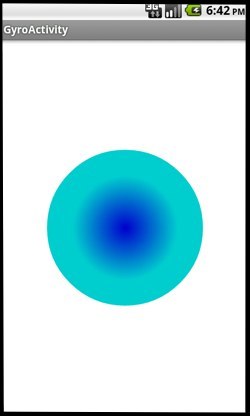
Using XML, you can also set up some neat graphical effects, like this shaded circl:
<?xml version="1.0" encoding="utf-8"?>
<shape
    xmlns:android="http://schemas.android.com/apk/res/android"
    android:shape="oval">
   <gradient
       android:startColor="#ff0000cc"
       android:endColor="#ff00cccc"
       android:type="radial"
       android:gradientRadius="100"/>
   <size
       android:width="200dp"
        android:height="200dp"/>

</shape>
However, this is really only suitable for a static shape, while we want a moving one. So we’ll stick with our custom View class.
Moving with the sensor
Now we have our custom View with a bubble in it, the next job is to grab a sensor and make the ball move with the accelerometer. Let’s do some work with BubbleActivity:
public class BubbleActivity extends Activity implements SensorEventListener {
  private SensorManager manager;
  private BubbleView bubbleView;
  private Sensor accel;
  public void onCreate(Bundle savedInstanceState) {
    super.onCreate(savedInstanceState);
    bubbleView = new BubbleView(this);
    setContentView(bubbleView);
    manager = (SensorManager)getSystemService(SENSOR_SERVICE);
    accel = manager.getDefaultSensor(Sensor.TYPE_ACCELEROMETER);
    manager.registerListener(this, accel,
        SensorManager.SENSOR_DELAY_GAME);
  }
  public void onAccuracyChanged(Sensor sensor, int accuracy) {
    // don't do anything; we don't care
  }
  public void onSensorChanged(SensorEvent event) {
    bubbleView.move(event.values[0], event.values[1]);
    bubbleView.invalidate();
  }
  protected void onResume() {
    super.onResume();
    manager.registerListener(this, accel,
          SensorManager.SENSOR_DELAY_GAME);
  }
  protected void onPause() {
    super.onPause();
    manager.unregisterListener(this);
  }
}
As per the last tutorial, we extend SensorEventListener, which means implementing onAccuracyChanged() and onSensorChanged(). We also get the SensorManager in onCreate(), grab the accelerometer, and register the listener. It’s important to remember to unregister it in onPause() and reregister in onResume(), to avoid running straight through your battery.
When something happens, the SensorEvent has three values: x, y, and z (axes are defined in the API). We’re passing the x and y of those to the BubbleView. Let’s look atBubbleView.move():
protected void move(float f, float g) {
  x = (int) (x + f);
  y = (int) (y + g);
  bubble.setBounds(x, y, x + diameter, y + diameter);
}
If you try running this now, you’ll notice that the View flips from landscape to portrait as you move the device. To avoid this, edit AndroidManifest.xml to look like this:
...
  <activity android:name=".BubbleActivity"
            android:screenOrientation="portrait"
            android:label="@string/title_activity_bubble" >
...
Run again, and you’ll see it working as expected.
Finding the center and edges of the screen
We’re using hard-coded values for the starting point of the bubble, but ideally it would start in the centre of the screen. Unfortunately, the 2D coordinates start from the top left  corner of the screen, so we’ll need to find the device screen size:
 private int width; private int height;
private void createBubble() {
  WindowManager wm = (WindowManager)
      ctx.getSystemService(Context.WINDOW_SERVICE);
  Display display = wm.getDefaultDisplay();
  Point size = new Point();
  display.getSize(size);
  width = (size.x)/2;
  height = (size.y)/2;
  x = width;
  y = height;
  diameter = 100;
  bubble = new ShapeDrawable(new OvalShape());
  bubble.setBounds(x, y, x + diameter, y + diameter);
  bubble.getPaint().setColor(0xff74AC23);
}
This requires API 13; if you’d rather stick with a lower API, you can use the getWidth() and getHeight() methods instead, which are now deprecated.
You’ll also notice that the bubble drifts off the screen. Experiment with the code a bit yourself (log lines may be helpful) to find a way of avoiding that. You could also use the z value of the SensorEvent (event.values[2]) to refine the movement of the bubble a bit further. As ever, the more you play around with the code yourself, the more you’ll learn about how it all works.

