
Organisations, mentors and, most importantly, students are being called on to get ready for this year’s Google Summer of Code as Google funds students to work on a wide range of open source projects.
Read more at The H
CyanogenMod offers a customised open-source firmware version of Android for a variety of phone and tablet hardware. It provides some features not available in the vendor-supplied firmwares, it’s more customisable (if you want, you can build CyanogenMod for yourself), and it allows you to avoid the bloatware that comes with vendor firmware. It also tends to give quicker access to updates. There are a few more reasons, too, why you might want to try CyanogenMod; for me, the opportunity to lose a particularly annoying piece of proprietory software on my Galaxy S2 was a big gain. Read on for my experience installing CM on a Galaxy SII.
As per CyanogenMod’s general disclaimer, you mod your phone at your own risk!
If you have any irreplacable data on your phone that’s not already backed up elsewhere, now is a good time to back it up. (Discovering that my phone was refusing to connect correctly to my laptop to do this further encouraged my modding efforts.) User data stored on the SD card should not be lost, but this sort of process is always a bit risky (and not all apps obey correct data storage expectations).
The details of install will vary between devices. The list of supported devices links to an install guide (to install a pre-built image) and a build guide (if you want to build your own image). I’ll look here at the install process, but if you’re interested in building your own version, the CM docs are pretty helpful. Unless you’re experienced, it’s best to try out a pre-built release first before starting down the DIY route.
In my case (with a Galaxy SII), I downloaded the Heimdall Suite and ClockworkModRecovery to my laptop to get started. I then followed the wiki instructions to boot the phone into download mode and used Heimdall to push ClockworkModRecovery onto it. (A note: I was using my Mac laptop to do this rather than a Linux box, and ran into problems with an “ERROR: Claiming interface failed!” error. This page (including the comments) got me sorted.) At this point, I had a custom recovery image on my device, which would allow me to install the CyanogenMod firmware.
Next step was to download the relevant build for my device (again, note that this is device-specific! Check the location of the files for your own device on the wiki.). To push this onto the device SD card, the instructions give the command
adb shell mount /data
According to the docs this should indeed work, but I got an (unhelpful) error message from ADB. Instead, I used the interactive shell, exited it, and then pushed the image to the SD card:
$ adb shell
~ # mount /data
~ # exit
$ adb push cm-10.1-20130208-NIGHTLY-i9100.zip /sdcard/
Having done that, I booted into recovery mode on the phone. The SII requires you to hold down Volume Up, Home, and Power (all at once; bring your extra fingers!) to do this, and you need to keep holding them down until you see the recovery screen.
Note! At this point, there is a backup/restore option on the ClockworkModRecovery screen. I strongly recommend using this, even if you already backed up any irreplaceable data. But then, as an ex-sysadmin, I am professionally inclined to backup paranoia. It’s your data; it’s up to you what you do with it.
This brought me to the scary part: choosing ‘wipe data / factory reset’ from the CWM menu. After this, you should be able to choose ‘install zip from sdcard’, choose the CM file you installed with adb push above, and away you go. However, I was unable to find this file on the sdcard. Instead, I installed it to the internal sdcard with
adb push cm-10.1-20130208-NIGHTLY-i9100.zip /emmc
and was then able to find it via the ‘install zip from internal sdcard’ menu option.
More troubleshooting: While doing this, I also had the problem that adb failed to recognise my device. After a few rounds of removing and reinserting the USB cable (both ends), restarting the adb server, and restarting the phone into recovery mode, I finally had success with using the ‘advanced – reboot recovery’ option on the phone’s CWM menu. To be honest this is just voodoo as I have no idea why it stopped working in the first place or why it started again; but if you have the same problem, give it a go.
The install complete, it was time to hit ‘reboot system now’ on the phone’s CWM menu.
Your options when choosing the CM file to download are:
I tried a nightly build first, since ideally I wanted CM 10.1 (based on Android JellyBean). Sadly it crashed (literally) every second, so I retreated to the stable (9.1.0) version for my phone (based on Android Ice Cream Sandwich). To do this, I botted back into the CWM menu, used adb push to install the stable version to the internal SD card, did another factory wipe (when I tried without this it hung on boot), installed the 9.1.0 zip to my phone, and rebooted, this time successfully.
CyanogenMod no longer includes any of the Google Apps (Play Store etc) due to copyright issues. To install these, I had to download from goo.im, and install using adb push. (Alternatively you may be able to download and save the file straight to your phone.) I installed the zip file by shutting the phone down again and booting back into recovery. I installed to/emmc/ as before, but this time it was accessible under ‘sdcard’ rather than ‘internal sdcard’. This may be a reflection of the way that CyanogenMod organises the internal storage as compared to the default Samsung method. This went smoothly; the only really annoying thing was that I then had to go through all my old apps reinstalling them one by one, and updating preferences. On the upside, that meant I could not install a whole load of rubbish that lingers around in my history; and unlike with a stock vendor install, there are very few restrictions on what you may and may not install or remove.
So far, my phone feels faster and works fine. I’d like to get the JellyBean version running so will keep an eye on the release candidate downloads; I lack the patience to keep up with bleeding-edge. I have however found the CyanDelta app which should simplify the process of updates; as yet I haven’t used it so cannot vouch for it directly. I confess that the process was a little nail-biting at points, but for most hardware (check the specifics for yours!) you should be able to reinstall the vendor’s stock firmware if it all goes horribly wrong. Certainly worth the hassle for me; that dreadful vendor app will never pop up unbidden again!
The Cloud today seems a bit like Dawson City in 1896 when the Klondike Gold Rush was about to get underway. Everybody is talking about the Cloud, and many want a piece of the action. The Open Source world has been abuzz with OpenStack in particular, with some going so far as to call it “the new Linux”.

Unfortunately, Cloud has been saddled up with some serious marketing-babble baggage, and OpenStack is hard to immediately relate to. Even the technically savvy computer user could be forgiven for wondering, “what is everybody talking about!?!” This article will help you understand the relationship between your Linux distribution and an OpenStack Cloud.
First things first, let’s ditch the capital “C” and some of the marketing. OpenStack bills itself as “a cloud operating system for data centers.” What does that mean? The National Institute of Standards and Technology puts it like this: “cloud computing is a model for enabling… on-demand… access to a shared pool of… computing resources… that can be rapidly provisioned and released with minimal management effort or service provider interaction.” OpenStack does that;the orchestration of pools of computing resources to do stuff.
If you are anything like me, your pool of computing resources is maybe a laptop, a little fileserver, and a desktop computer. In other words, a far cry from a data center. However, your Linux computers do have something in common with some data centers: KVM, the kernel-based virtual machine.
In 2007, a module was added to the Linux kernel that turned every Linux PC with the right hardware into a computer capable of running other computers, a hypervisor. Computers running software computers is called virtualization. For many Linux users, this meant being able to boot a Windows virtual machine from within their Linux distribution so they could run Quicken.
For businesses, KVM meant the end of single purpose hardware. Instead of having a server that did one thing, and sat idle when it wasn’t doing that one thing, a virtual machine running on a server could do the thing. When the virtual machine wasn’t doing the thing, its resources could be used by other virtual machines doing other things. So KVM was good for you, because it let you try out other Linux distributions and use Outlook without rebooting. KVM was good for businesses because it meant they could use their hardware more effectively.
Is that the cloud? No. But virtualization provided by the KVM hypervisor is a key cloud building block.
One of the ways that the cloud impacts you directly is through the web services you consume. This article was written using Google Docs while listening to music on SoundCloud. I used computing resources from shared pool, and released them with minimal service provider interaction. Neither of these service providers use OpenStack, but mentioning them helps answer a question: “What is the point of the cloud?”
The point of a hypervisor is virtual machines. Software computers have all of the benefits of hardware computers, and some bonuses. If a virtual machine has problems, there is almost no cost to throwing it away and replacing it with an exact copy of itself. Complex configurations of multiple computers are simpler to implement. KVM works with libvirt, and other Open Source projects like oVirt, to provide user friendly management interfaces for virtual machines. But even these enhanced KVM consumers are not the cloud, because the KVM hypervisor is all about virtual machines.
So what does KVM have to do with OpenStack? Virtual machines are the simplest route to the cloud. OpenStack can use a KVM hypervisor to provision virtual machines. For Openstack though, the point is no longer virtual machines, but rather what they can be used for. A virtual machine is a way of applying computing resources to a task. OpenStack is a collection of services that are used to apply computing resources from a pool to a task, and return them to the pool when the task is complete. The point of an OpenStack cloud is to automate the allocation of computing resources to temporally bound, distributed computing tasks.
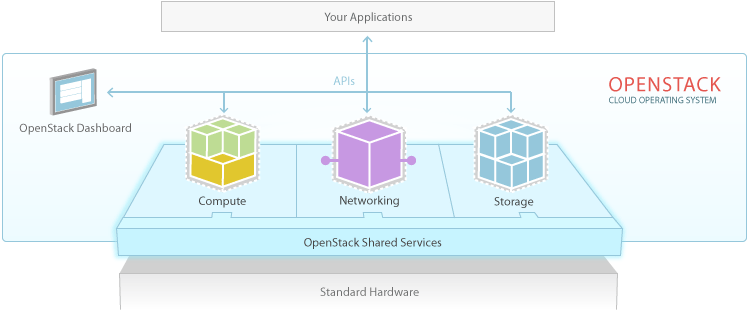
OpenStack use and improvement has been driven, like many things in the world of software, by developers. Before the cloud model of computing became prevalent, software was written mostly to be run on a single computer. The ability for a software program to scale on-demand was often added after the fact. Development of software that runs in a cloud environment like OpenStack is different, in that it presumes scalability. Developers can use the OpenStack application programming interfaces (APIs) to consume the OpenStack services as they are required. Virtual machines, storage resources, and networking are all represented in the APIs, and are added and removed to a computing task as usage demands.
Developers use OpenStack to deploy their software. End users use OpenStack by consuming software that is deployed on it. That could be a corporate web application like webmail, or a service that processes database requests. If everyone in the office logs on and checks their email first thing in the morning, OpenStack calls up more virtual machine instances on KVM hypervisors to provide additional computing power to make sure that everyone gets the reminder that their TPS reports are due.
And now you know what you, the Linux user, and OpenStack, the cloud operating system, have in common: the KVM hypervisor.

