
Home Blog Page 2824

Language agnostic web server Mongrel2 1.0 released

Mongrel2 is a language agnostic web server capable of routing web requests to applications written in any one of ten languages

Read more at The H

system76 part deux coming soon!

Just a quick post to say that the second and last part of the system76 Pangolin Performance’s first impressions is coming soon – I have it written down, but I need to review the whole text and add some pictures in it. You don’t want to read through all this text without some pictures!

In the mean time, I learned from my trusty RSS reader a couple of days ago that gnash 0.8.8 has been released. I’ve had the chance to compile it with various USE flags combinations in Gentoo to take a look at the new version.

I’ve been impressed with this new release. Youtube videos now work, which is kind of… essential! You must, however, delete and block Youtube cookies. Not a problem for me since I’m not registered on it, but still! Video performance was a bit poor – the CPU jumped to 100% while playing.

I’ve also taken a look on Newgrounds to see how it handled animations. For some, it buckled, for others, the frame rate was incredibly good, with very low CPU consumption. I only tested the AGG backend for animations. The OpenGL one only displayed a grey box every time and I know that the Cairo one ain’t quite ready yet. As far a rendering goes, I haven’t watched enough videos and animations, but from what I saw, it was pretty sharp in general.

I went back to adobe-flash with the nspluginwrapper, but I might return back to gnash from time to time to play around with it. And if you haven’t, give it a spin, you might be surprised!

Fedora 13 Gnome: Compiz Windows and Menu Transparency

1.- Open your terminal and change ti super user

su - (after this, press enter and type your root password)

2.- type in your terminal the next commands to install the complete suite of compiz, by default Fedora has the compiz and compiz-gnome, so you can just delete the first 2 parameters:

Complete Suite (If you don’t have compiz):

yum install compiz compiz-gnome emerald emerald-themes fusion-icon compiz-fusion-extras compiz-fusion-extras-gnome compizconfig-backend-gconf

Minimal settings (This is just what I need with the default Fedora 13 installation):

yum install compiz-fusion-extras compiz-fusion-extras-gnome compizconfig-backend-gconf

And if you want to have the Menus and Windows Transparency open your CompizConfig Setting Manager under the System->Preferences menu and go to the Opacity, Brightness and Saturation section and add the next line to the menu:

Tooltip | Menu | PopupMenu | DropdownMenu

And after this, your are good to go and try your new desktop effects provided by Compiz, here are some keyboard shortcuts. Enjoy

Desktop Effects1 Keyboard Shortcuts
Rotate Cube Mousewheel on Desktop
Switcher2 Alt + Tab
Shift Switcher3 Super + Tab (2 modes: flip and cover)
Ring Switcher Super + Tab – overrides Shift Switcher
Expo Super + E (toggle)
Film Effect Ctrl + Alt + Down Arrow4
Rotate Cube Manually Ctrl + Alt + Left Mouse Button
Scale Windows Alt + Shift + Up Arrow
Show/Clear Desktop Ctrl + Alt + D (toggle)
Snapping Windows Move a window across workspaces5
Screenshot Super + Left Mouse Button
Zoom In/Out Super + Mousewheel
Transparent Window Alt + Mousewheel
Resize Window Alt + F8
Move Window Alt + F7
Add Helper Super + P
Widget Layer F9 (toggle)
Water Effects Shift + F9 (toggle)
Fire Effects: On Super + Shift + Left Mouse Button
Fire Effects: Clear Super + Shift + C
Annotate: Draw Super + Left Mouse Button
Annotate: Start Super + 1
Annotate: End Super + 3
Group: Select Window(s) Super + S
Group: Group Windows Super + T
Group: Ungroup Windows Super + U
Group: Flip Windows Super + Right or Left Arrow

1 Effects have to be enabled to see results.
2 To see the full effect, have multiple windows or programs open.
3 To configure: Go to Advanced Desktop Effects Settings.
4 Use left and right arrow thereafter to move to workspaces.
5 Disables Wobbly Windows.

Source: Voices in my Head (and Google)


Block crackers with 3 locks to your SSH door

Security always requires a multi-layered scheme. SSH is a good example of this. Methods range from simple sshd configuration through the use of PAM to specify who can use SSH, to application of port-knocking techniques, or to hide the fact that SSH access even exists. Applying these techniques can make life much harder for possible intruders, who will have to go past three unusual barriers.

Tab tweaks land in Chrome Canary

Google adds a new labs feature to its bleeding-edge version of Chrome to make it easier for users to test features that are still in development, but at least partially ready for users to explore.

Read more at CNET News

Using Spell Checking in Vim


Mark Twain has been quoted as saying that he respected a person who could spell a word more than one way. Unfortunately, Twain’s enthusiasm for creative spelling isn’t widely shared today, at least in the professional world. If you need a little help in the spelling department, but prefer the old school way of editing text, you can turn to Vim’s spelling support.

Support for spell checking was added in Vim 7. Before that, a few scripts were available to hack spell checking support into Vim — or you could do what I did and use ispell or aspell, but inline spell checking is much nicer.

If you’re new to Vim and/or using Vim in text mode, it’s not obvious that Vim even supports spell checking. But it does, and it’s easy to use once you turn it on. You’ll need to be in command mode and switch to last line mode, then run this:

:set spell spelllang=en_us

You might not want to be that specific, or you might want a different region. The “en_us” specifies English, U.S. style. You might want to use “en_ca” instead, if you’re in Canada, or “en_gb” for Great Britain, or “en_au” for Australia. And, of course, this works for other languages as well.

If you’re using Vim to write code and prose, you might want to turn spell checking on only in the local buffer. To do that, use:

:setlocal spell spelllang=en_us

Once you’ve set this, Vim will highlight misspelled words. If you’re using Vim in text mode, you should see the entire word highlighted, or if you’re using Gvim, you should see a squiggly underline for any word that is misspelled.

Vim does more than just highlight misspelled words, it actually categorizes misspelled words, it also highlights rare words, words that aren’t capitalized (but should be), and words that have the wrong spelling for the specified region. For example, I’ve set Vim to check for U.S. spelling (spelllang=en_us), so it should highlight words that are spelled correctly in another region but might be considered incorrect for the local region.

Vim uses different colors for each type of word. This may vary depending on the colors you have set up in your terminal or how you have Gvim set up, but on my system I see misspelled words highlighted with red, an orange for rare words, blue for words that aren’t capitalized, and so on.

Getting tired of seeing the highlighting? You may want to turn spell checking off if you’re working with code or something like that. Use the nospell directive to turn this off:

:set nospell

Using Spellchecking

Spell checking wouldn’t be very useful if you didn’t have any help correcting the misspelled words, or a way to tell the program that the word is actually correct. Let’s start with correcting words.

To move to a misspelled word, use ]s and [s. The ]s command will move the cursor to the next misspelled word, the [s command will move the cursor back through the buffer to previous misspelled words.

Once the cursor is on the word, use z=, and Vim will suggest a list of alternatives that it thinks may be correct. For instance, if I highlight autocompletion and then use z=, I see something like figure 1:
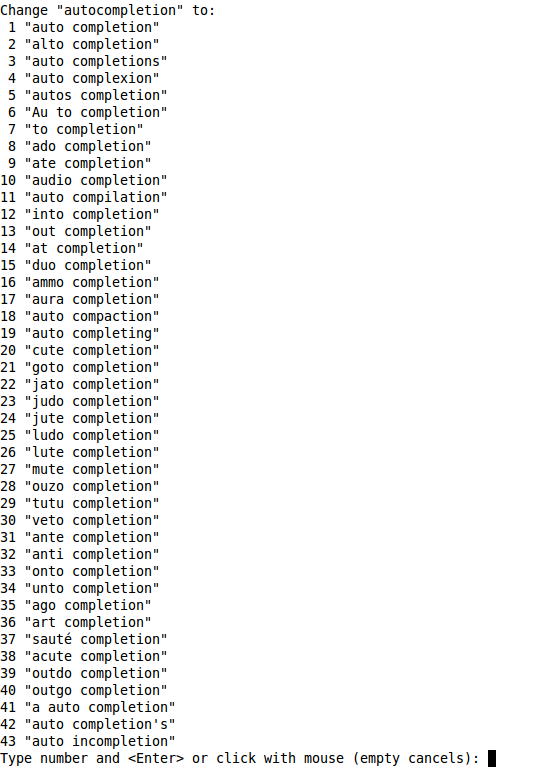
Figure 1: Word suggestions in Vim

Just hit Enter if none of the suggestions work, or enter the number for the correct word.

What if Vim is wrong, and the word is correct? Use the zg command and Vim will add it to its dictionary. Simple as pie. You can also mark words as incorrect using zw.

If you don’t want to keep telling Vim explicitly every time you restart to turn on spelling, just add the following to your .vimrc:

set spell spelllang=en_us

Substitute the appropriate region, of course.

Vim’s combination of syntax highlighting, autocompletion (using CTRL-p and CTRL-n), abbreviations and mappings, and spell-checking makes it a killer editor to write in. Even when I need to share materials with clients in ODF or Word format, I usually write first in Vim with HTML and then copy and paste into OpenOffice.org, which usually handles the formatting just fine.

Have some writing tips with Vim you’d like to share? Something you’d like to know how to do in Vim? Speak up in the comments!

Unigine Announces Its OilRush Game For Linux

Back in July we reported that Unigine Corp, the company behind the advanced Unigine gaming/3D engine, was working on its own strategy game. This game was supposed to be announced by the end of July, then in private we were told it got pushed back to the middle of August, but to start off September we finally have the announcement for this new game. Unigine OilRush is the game title and it will be available for Linux. Will this be the best Linux native game we see in 2010?


Read more at Phoronix

IBM ships 5.2GHz chip, its fastest yet

A chip in IBM’s new zEnterprise System clocks in at 5.2GHz. The fastest IBM microprocessor to date is targeted at mainframes. It packs in four cores, plus a respectable helping of DRAM.

Read more at CNET News

Archos releases five budget Android tablets

French vendor Archos is set on Android: At the IFA consumer electronics fair, the company presents a total of five mobile devices with Google’s operating system – from a pocket model up to a 10.1-inch tablet PC

Read more at The H

Eight great virtual appliances for VMware, free for the downloading

The combination of free open source and virtual machines is hard to beat; here are some of the handiest virtual appliances you’ll find

Read more at ComputerWorld