For regular updates on the blockchain universe, Pierkarska of Hyperledger recommends this free biweekly newsletter from MIT Technology Review.
Pierkarska from Hyperledger also recommends these two online courses from edX, which runs on the open source Open edX platform. Both courses cost $99 if you want to get a certificate at the end, but if you don’t need that certificate, you can study for free.
A good “101” class for getting up to speed. Course description: “Understand exactly what a blockchain is, its impact and potential for change around the world, and analyze use cases in technology, business, and enterprise products and institutions.”
A practical class for getting started with developing blockchain applications on the open source Hyperledger platform. Course description: “A primer to blockchain and distributed ledger technologies. Learn how to start building blockchain applications with Hyperledger frameworks.”
Linux and open source have changed the computer industry (among many others) forever. Today, there are tens of millions of open source projects. A valid question is “Why?” How can it possibly make sense to hire developers that work on code that is given away for free to anyone who cares to take it? I know of many answers to this question, but for the communities that I work in, I’ve come to recognize the following as the common thread.
An Industry Pivot
Software has become the most important component in many industries, and it is needed in very large quantities. When an entire industry needs to make a technology “pivot,” they often do as much of that as possible in software. For example, the telecommunications industry must make such a pivot in order to support 5G, the next generation of mobile phone network. Not only will the bandwidth and throughput be increased with 5G, but an entirely new set of services will be enabled, including autonomous cars, billions of Internet-connected sensors and other devices (aka IoT), etc. To do that, telecom operators need to entirely redo their networks distributing millions of compute and storage instances very, very close to those devices/users.
Brendan Higgins recently proposed adding unit tests to the Linux kernel, supplementing other development infrastructure such as perf, autotest and kselftest. The whole issue of testing is very dear to kernel developers’ hearts, because Linux sits at the core of the system and often has a very strong stability/security requirement. Hosts of automated tests regularly churn through kernel source code, reporting any oddities to the mailing list.
Unit tests, Brendan said, specialize in testing standalone code snippets. It was not necessary to run a whole kernel, or even to compile the kernel source tree, in order to perform unit tests. The code to be tested could be completely extracted from the tree and tested independently. Among other benefits, this meant that dozens of unit tests could be performed in less than a second, he explained.
Giving credit where credit was due, Brendan identified JUnit, Python‘s unittest.mock and Googletest/Googlemock for C++ as the inspirations for this new KUnit testing idea.
Brendan also pointed out that since all code being unit-tested is standalone and has no dependencies, this meant the tests also were deterministic. Unlike on a running Linux system, where any number of pieces of the running system might be responsible for a given problem, unit tests would identify problem code with repeatable certainty.
How’s that for a confuding title? In a recent email discussion, a colleague compared the Decentralized Identifier framework to DNS …suggesting they were similar. I cautiously tended to agree but felt I had an overly simplistic understanding of DNS at a protocol level. That email discussion led me to learn more about the deeper details of how DNS actually works – and hence, this article.
On the surface, I think most people understand DNS to be a service that you can pass a domain name to and have it resolved to an IP address (in the familiar nnn.ooo.ppp.qqq format).
NOTE: The Google DNS Query page returns the DNS results in JSON format. This isn’t particular or specific to DNS. It’s just how the Google DNS Query page chooses to format and display the query results.
DNS is actually much more than a domain name to IP address mapping. Read on…
Cloud Native DevOps is a relatively new collection of old concepts and ideas that coalesced out of a need to address inadequacies in the “old” way of building applications. To understand what Cloud Native DevOps engineers do on a daily basis, one needs to understand that the objective of the Cloud Native model is to build apps that take advantage of the adaptability and resiliency that are so easy to achieve using cloud tools. There are four main concepts that serve as the basis of cloud native computing: Microservices, Containers, CI/CD, and DevOps.
The best DevOps engineers will have the ability to use or learn a wide variety of open-source technologies and are comfortable with programming languages that are heavily used for scripting. They have some experience with IT systems and operations and data management and are able to integrate that knowledge into the CI/CD model of development. Crucially, DevOps engineers also need to have their sights set not just on writing code, but on the actual business outcomes from the product they develop. Big-picture thinking like that also requires strong soft skills to enable communication across teams and between the client and the technical team.
Learn how to transition to Linux in this tutorial series from our archives.
In this series, we provide an overview of fundamentals to help you successfully make the transition to Linux from another operating system. If you missed the earlier articles in the series, you can find them here:
Linux gives you a lot of control over network and system settings. On your desktop, Linux lets you tweak just about anything on the system. Most of these settings are exposed in plain text files under the /etc directory. Here I describe some of the most common settings you’ll use on your desktop Linux system.
A lot of settings can be found in the Settings program, and the available options will vary by Linux distribution. Usually, you can change the background, tweak sound volume, connect to printers, set up displays, and more. While I won’t talk about all of the settings here, you can certainly explore what’s in there.
Connect to the Internet
Connecting to the Internet in Linux is often fairly straightforward. If you are wired through an Ethernet cable, Linux will usually get an IP address and connect automatically when the cable is plugged in or at startup if the cable is already connected.
If you are using wireless, in most distributions there is a menu, either in the indicator panel or in settings (depending on your distribution), where you can select the SSID for your wireless network. If the network is password protected, it will usually prompt you for the password. Afterward, it connects, and the process is fairly smooth.
You can adjust network settings in the graphical environment by going into settings. Sometimes this is called System Settings or just Settings. Often you can easily spot the settings program because its icon is a gear or a picture of tools (Figure 1).
Under Linux, network devices have names. Historically, these are given names like eth0 and wlan0 — or Ethernet and wireless, respectively. Newer Linux systems have been using different names that appear more esoteric, like enp4s0 and wlp5s0. If the name starts with en, it’s a wired Ethernet interface. If it starts with wl, it’s a wireless interface. The rest of the letters and numbers reflect how the device is connected to hardware.
Network Management from the Command Line
If you want more control over your network settings, or if you are managing network connections without a graphical desktop, you can also manage the network from the command line.
Note that the most common service used to manage networks in a graphical desktop is the Network Manager, and Network Manager will often override setting changes made on the command line. If you are using the Network Manager, it’s best to change your settings in its interface so it doesn’t undo the changes you make from the command line or someplace else.
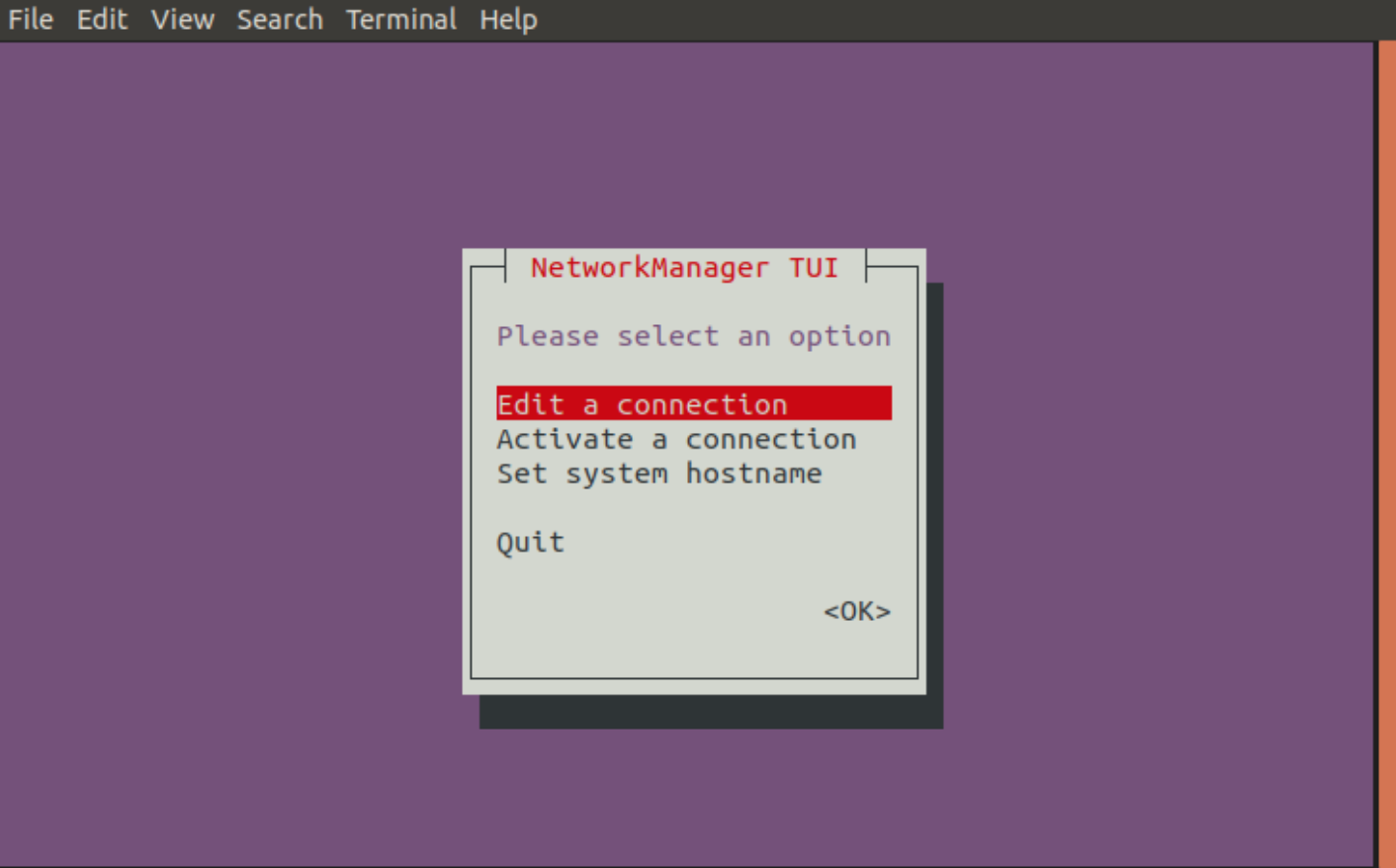
Changing settings in the graphical environment is very likely to be interacting with the Network Manager, and you can also change Network Manager settings from the command line using the tool called nmtui. The nmtui tool provides all the settings that you find in the graphical environment but gives it in a text-based semi-graphical interface that works on the command line (Figure 2).
Figure 2: nmtui interface
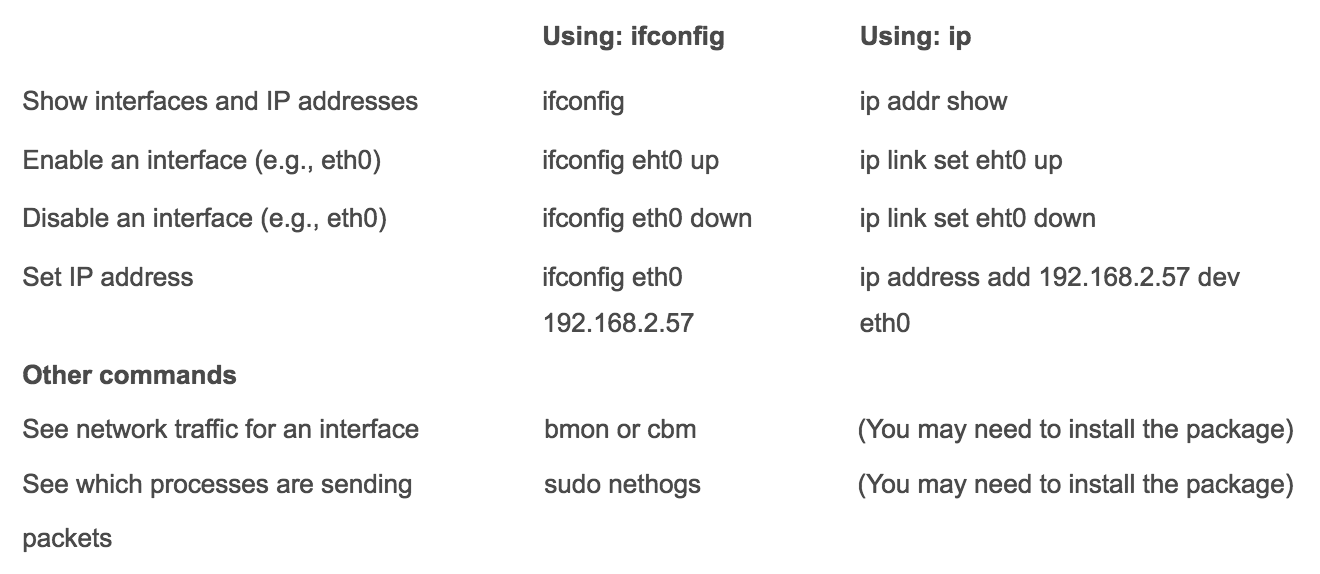
On the command line, there is an older tool called ifconfig to manage networks and a newer one called ip. On some distributions, ifconfig is considered to be deprecated and is not even installed by default. On other distributions, ifconfig is still in use.
Here are some commands that will allow you to display and change network settings:
Process and System Information
In Windows, you can go into the Task Manager to see a list of the all the programs and services that are running. You can also stop programs from running. And you can view system performance in some of the tabs displayed there.
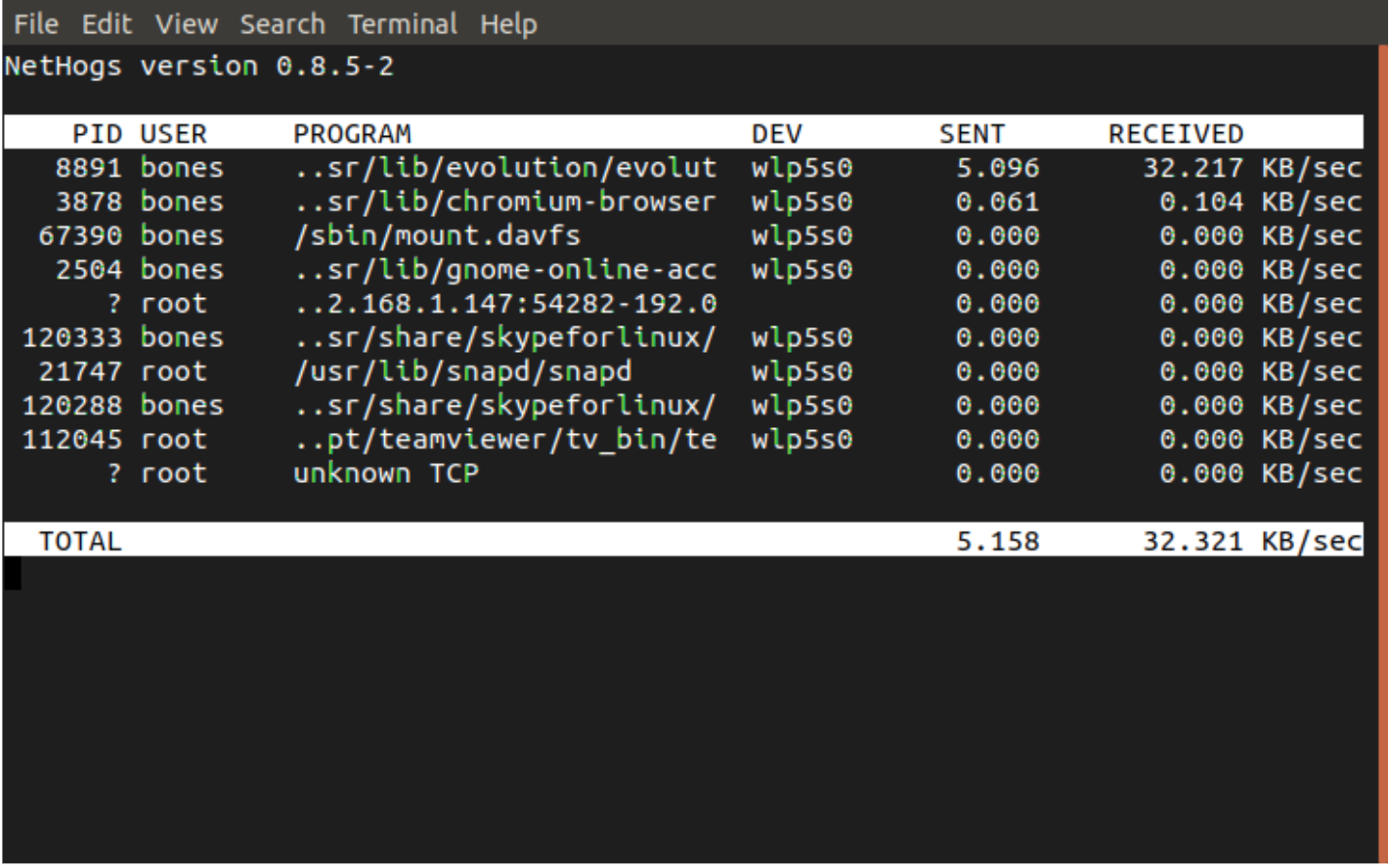
You can do similar things in Linux both from the command line and from graphical tools. In Linux, there are a few graphical tools available depending on your distribution. The most common ones are System Monitor or KSysGuard. In these tools, you can see system performance, see a list of processes, and even kill processes (Figure 3).
Figure 3: Screenshot of NetHogs.
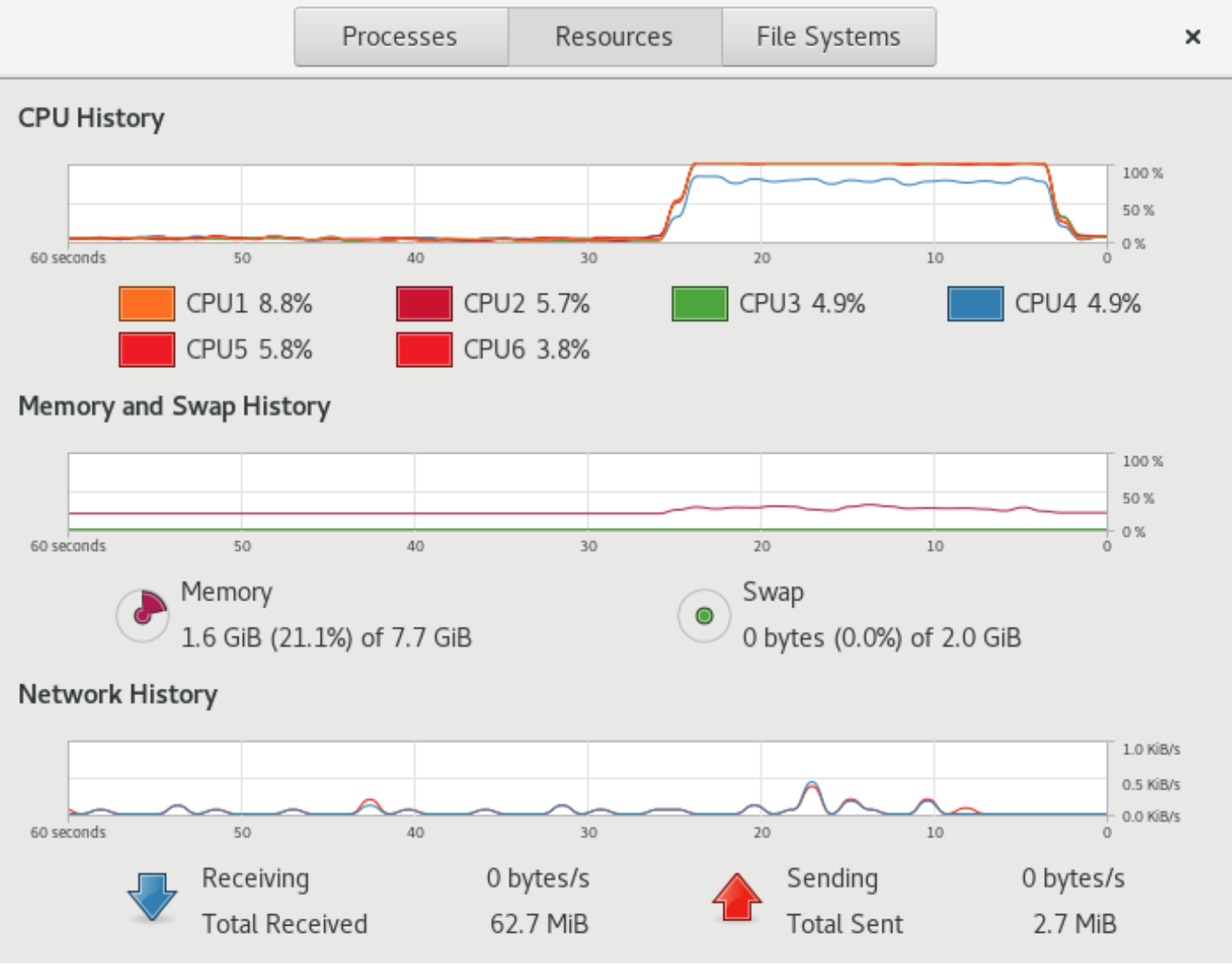
In these tools, you can also view global network traffic on your system (Figure 4).
Figure 4: Screenshot of Gnome System Monitor.
Managing Process and System Usage
There are also quite a few tools you can use from the command line. The command ps can be used to list processes on your system. By default, it will list processes running in your current terminal session. But you can list other processes by giving it various command line options. You can get more help on ps with the commands info ps, or man ps.
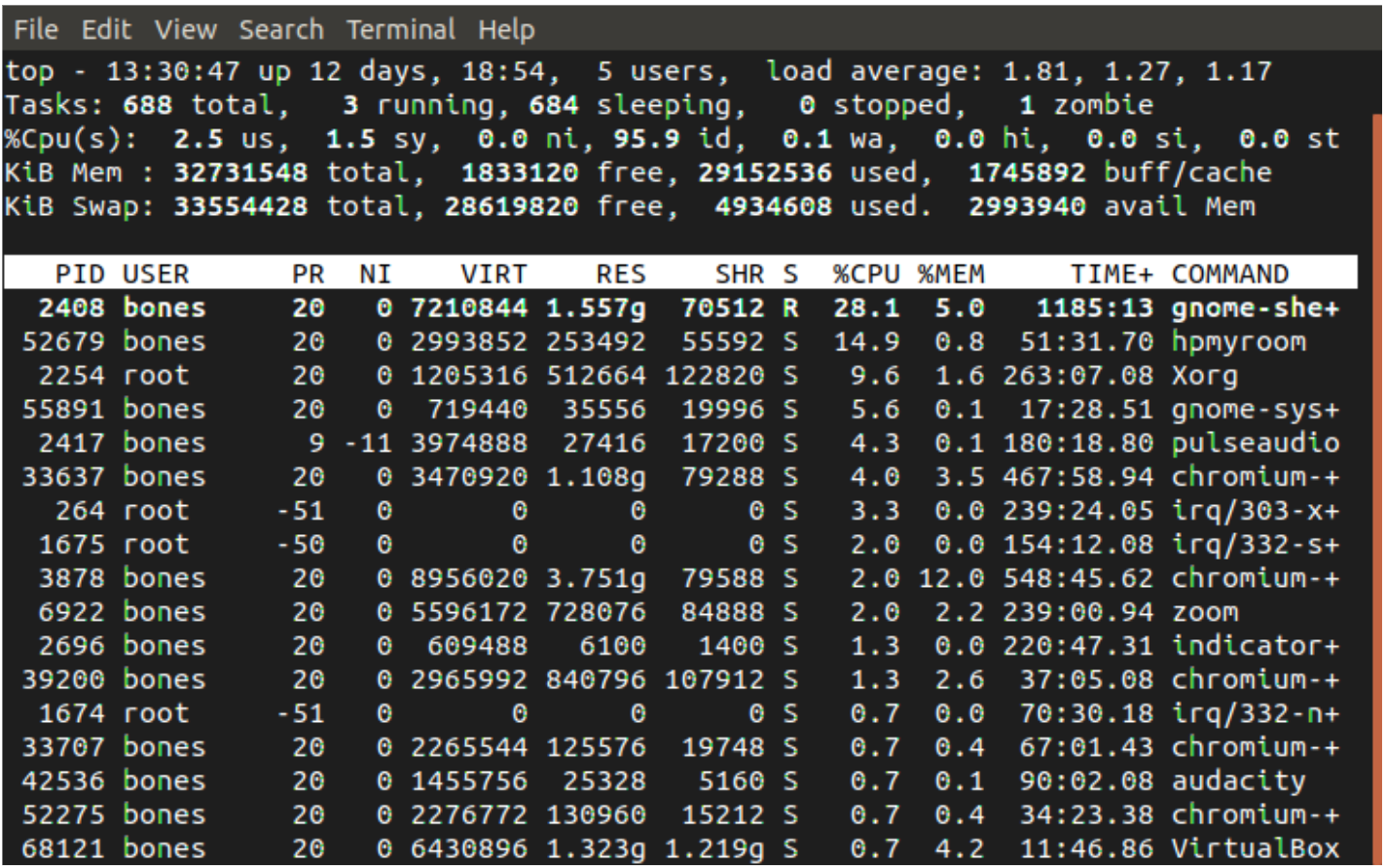
Most folks though want to get a list of processes because they would like to stop the one that is using up too much memory or CPU time. In this case, there are two commands that make this task much easier. These are top and htop (Figure 5).
Figure 5: Screenshot of top.
The top and htop tools work very similarly to each other. These commands update their list every second or two and re-sort the list so that the task using the most CPU is at the top. You can also change the sorting to sort by other resources as well such as memory usage.
In either of these programs (top and htop), you can type ‘?’ to get help, and ‘q’ to quit. With top, you can press ‘k’ to kill a process and then type in the unique PID number for the process to kill it.
With htop, you can highlight a task by pressing down arrow or up arrow to move the highlight bar, and then press F9 to kill the task followed by Enter to confirm.
The information and tools provided in this series will help you get started with Linux. With a little time and patience, you’ll feel right at home.
Learn more about Linux through the free “Introduction to Linux” course from The Linux Foundation and edX.
Kubernetes was the dominant technology skill requested by IT firms in 2018, according to a new report from jobs board Dice.
The report, which scoured the site’s job postings, found that “Kubernetes” was far and away the skill most requested by IT recruiters and hiring managers. Nate Swanner, editor of Dice Insights, noted that Kubernetes – and to a lesser extent Terraform – led the demand of skill requests toward “containerization of apps and services, as well as the cloud.” Terraform is an infrastructure as code software by HashiCorp.
The Dice news followed similar findings released late last year from jobs board Indeed.
Indeed’s work found that Kubernetes had the fastest year-over-year surge in job searches among IT professionals. It also found that related job postings increased 230 percent between September 2017 and September 2018.
Linux systems provide a handy suite of commands for helping you see how busy your disks are, not just how full. In this post, we examine five very useful commands for looking into disk activity. Two of the commands (iostat and ioping) may have to be added to your system, and these same two commands require you to use sudo privileges, but all five commands provide useful ways to view disk activity.
Probably one of the easiest and most obvious of these commands is dstat.
dtstat
In spite of the fact that the dstat command begins with the letter “d”, it provides stats on a lot more than just disk activity. If you want to view just disk activity, you can use the -d option. As shown below, you’ll get a continuous list of disk read/write measurements until you stop the display with a ^c. Note that after the first report, each subsequent row in the display will report disk activity in the following time interval, and the default is only one second.
Entroware, a UK-based PC manufacturer specializing in custom Linux systems, just rolled out their new Ares PC. It’s a stylish-looking AIO that ships with Ubuntu or Ubuntu MATE and should be a great fit for classrooms, home office and business use. I have a review system on the way, but until it arrives let’s see what’s under the hood and breakdown the various loadouts…
Happy 2019! Here in the new year, we’re continuing our series on aliases. By now, you’ve probably read our first article on aliases, and it should be quite clear how they are the easiest way to save yourself a lot of trouble. You already saw, for example, that they helped with muscle-memory, but let’s see several other cases in which aliases come in handy.
Aliases as Shortcuts
One of the most beautiful things about Linux’s shells is how you can use zillions of options and chain commands together to carry out really sophisticated operations in one fell swoop. All right, maybe beauty is in the eye of the beholder, but let’s agree that this feature *is* practical.
The downside is that you often come up with recipes that are often hard to remember or cumbersome to type. Say space on your hard disk is at a premium and you want to do some New Year’s cleaning. Your first step may be to look for stuff to get rid off in you home directory. One criteria you could apply is to look for stuff you don’t use anymore. ls can help with that:
ls -lct
The instruction above shows the details of each file and directory (-l) and also shows when each item was last accessed (-c). It then orders the list from most recently accessed to least recently accessed (-t).
Is this hard to remember? You probably don’t use the -c and -t options every day, so perhaps. In any case, defining an alias like
alias lt='ls -lct'
will make it easier.
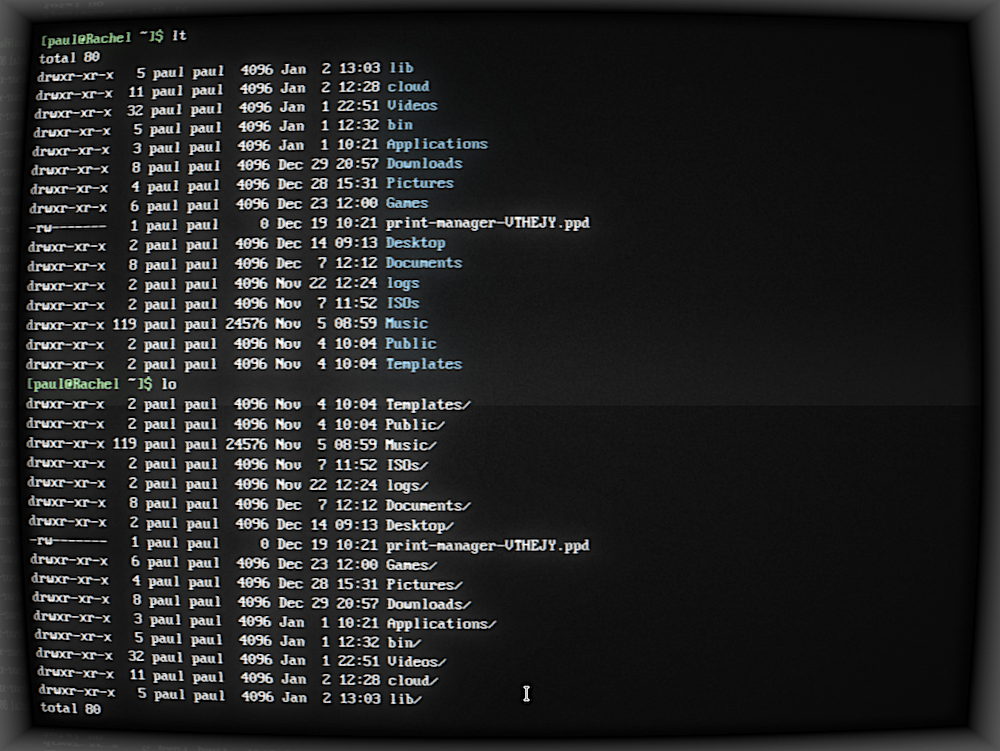
Then again, you may want to have the list show the oldest files first:
alias lo='lt -F | tac'
Figure 1: The lt and lo aliases in action.
There are a few interesting things going here. First, we are using an alias (lt) to create another alias — which is perfectly okay. Second, we are passing a new parameter to lt (which, in turn gets passed to ls through the definition of the lt alias).
The -F option appends special symbols to the names of items to better differentiate regular files (that get no symbol) from executable files (that get an *), files from directories (end in /), and all of the above from links, symbolic and otherwise (that end in an @ symbol). The -F option is throwback to the days when terminals where monochrome and there was no other way to easily see the difference between items. You use it here because, when you pipe the output from lt through to tac you lose the colors from ls.
The third thing to pay attention to is the use of piping. Piping happens when you pass the output from an instruction to another instruction. The second instruction can then use that output as its own input. In many shells (including Bash), you pipe something using the pipe symbol (|).
In this case, you are piping the output from lt -F into tac. tac‘s name is a bit of a joke. You may have heard of cat, the instruction that was nominally created to concatenate files together, but that in practice is used to print out the contents of a file to the terminal. tac does the same, but prints out the contents it receives in reverse order. Get it? cat and tac. Developers, you so funny!
The thing is both cat and tac can also print out stuff piped over from another instruction, in this case, a list of files ordered chronologically.
So… after that digression, what comes out of the other end is the list of files and directories of the current directory in inverse order of freshness.
The final thing you have to bear in mind is that, while lt will work the current directory and any other directory…
# This will work:
lt
# And so will this:
lt /some/other/directory
… lo will only work with the current directory:
# This will work:
lo
# But this won't:
lo /some/other/directory
This is because Bash expands aliases into their components. When you type this:
lt /some/other/directory
Bash REALLY runs this:
ls -lct /some/other/directory
which is a valid Bash command.
However, if you type this:
lo /some/other/directory
Bash tries to run this:
ls -lct -F | tac /some/other/directory
which is not a valid instruction, because tac mainly because /some/other/directory is a directory, and cat and tac don’t do directories.
More Alias Shortcuts
alias lll='ls -R' prints out the contents of a directory and then drills down and prints out the contents of its subdirectories and the subdirectories of the subdirectories, and so on and so forth. It is a way of seeing everything you have under a directory.
mkdir='mkdir -pv' let’s you make directories within directories all in one go. With the base form of mkdir, to make a new directory containing a subdirectory you have to do this:
mkdir newdir
mkdir newdir/subdir
Or this:
mkdir -p newdir/subdir
while with the alias you would only have to do this:
mkdir newdir/subdir
Your new mkdir will also tell you what it is doing while is creating new directories.
Aliases as Safeguards
The other thing aliases are good for is as safeguards against erasing or overwriting your files accidentally. At this stage you have probably heard the legendary story about the new Linux user who ran:
rm -rf /
as root, and nuked the whole system. Then there’s the user who decided that:
rm -rf /some/directory/ *
was a good idea and erased the complete contents of their home directory. Notice how easy it is to overlook that space separating the directory path and the *.
Both things can be avoided with the alias rm='rm -i' alias. The -i option makes rm ask the user whether that is what they really want to do and gives you a second chance before wreaking havoc in your file system.
The same goes for cp, which can overwrite a file without telling you anything. Create an alias like alias cp='cp -i' and stay safe!
Next Time
We are moving more and more into scripting territory. Next time, we’ll take the next logical step and see how combining instructions on the command line gives you really interesting and sophisticated solutions to everyday admin problems.