

Home Blog Page 434

Migrating to Linux: Graphical Environments

This is the third article in our series on migrating to Linux. If you missed earlier articles, they provided an introduction to Linux for new users and an overview of Linux files and filesystems. In this article, we’ll discuss graphical environments. One of the advantages of Linux is that you have lots of choices, and you can select a graphical interface and customize it to work just the way you like it.

Some of the popular graphical environments in Linux include: Cinnamon, Gnome, KDE Plasma, Xfce, and MATE, but there are many options.

One thing that is often confusing to new Linux users is that, although specific Linux distributions have a default graphical environment, usually you can change the graphical interface at any time. This is different from what people are used to with Windows and Mac OS. The distribution and the graphical environment are separate things, and in many cases, they aren’t tightly coupled together. Additionally, you can run applications built for one graphical environment inside other graphical environments. For example, an application built for the KDE Plasma graphical interface will typically run just fine in the Gnome desktop graphical environment.

Some Linux graphical environments try to mimic Microsoft Windows or Apple’s MacOS to a degree because that’s what some people are familiar with, but other graphical interfaces are unique.

Below, I’ll cover several options showcasing different graphical environments running on different distributions. If you are unsure about which distribution to go with, I recommend starting with Ubuntu. Get the Long Term Support (LTS) version (which is 16.04.3 at the time of writing). Ubuntu is very stable and easy to use.

Transitioning from Mac

The Elementary OS distribution provides a very Mac-like interface. It’s default graphical environment is called Pantheon, and it makes transitioning from a Mac easy. It has a dock at the bottom of the screen and is designed to be extremely simple to use. In its aim to keep things simple, many of the default apps don’t even have menus. Instead, there are buttons and controls on the title bar of the application (Figure 1).
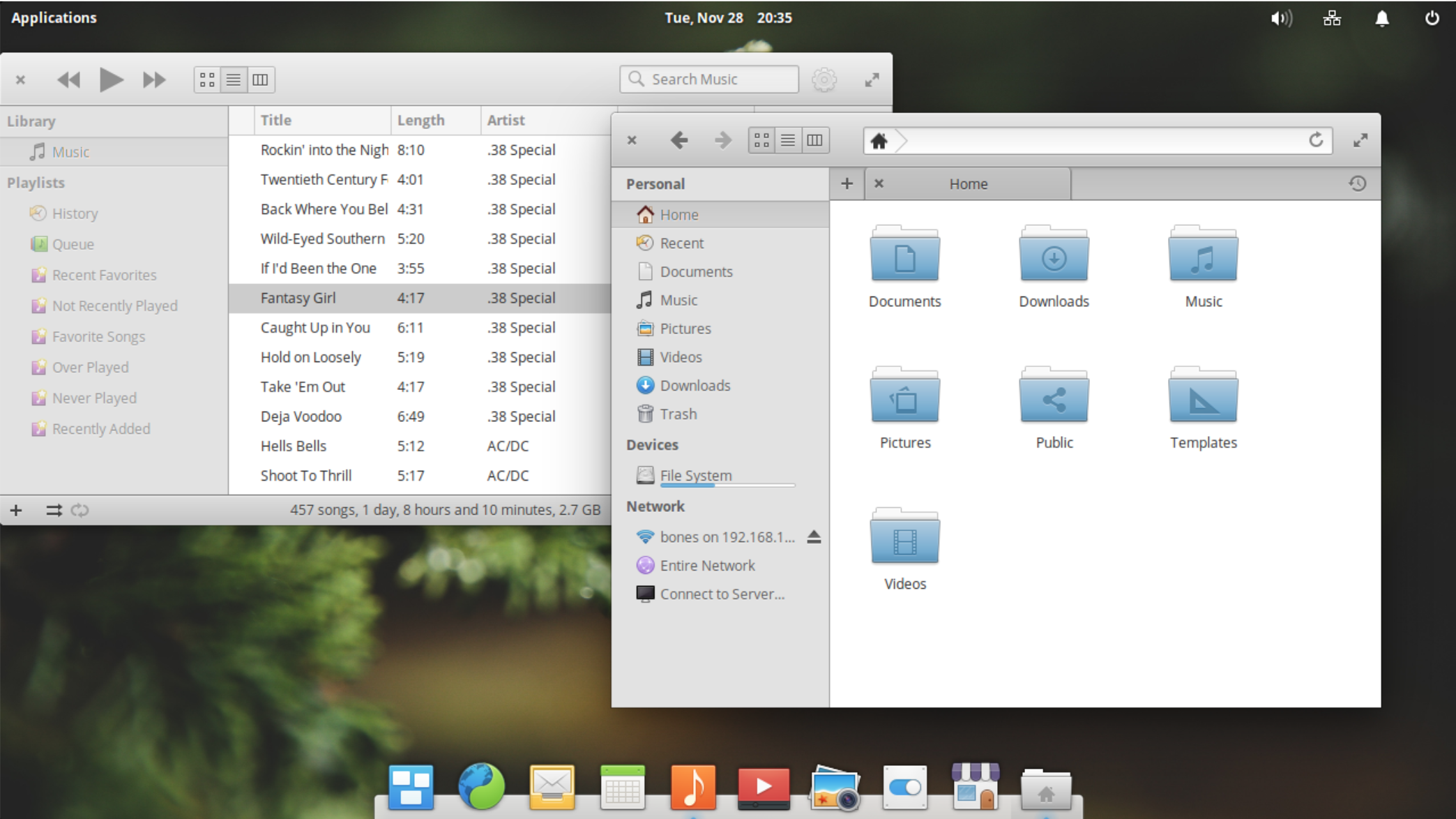
Figure 1: Elementary OS with Pantheon.

The Ubuntu distribution presents a default graphical interface that is also very Mac like. Ubuntu 17.04 or older uses the graphical environment called Unity, which by default places the dock on the left side of the screen and has a global menu bar area at the top that is shared across all applications. Note that newer versions of Ubuntu are switching to the Gnome environment.

Transitioning from Windows

ChaletOS models its interface after Windows to help make migrating from Windows easier.  ChaletOS used the graphical environment called Xfce (Figure 2). It has a home/start menu in the usual lower left corner of the screen with the search bar. There are desktop icons and notifications in the lower right corner. It looks so much like Windows that, at first glance, people may even assume you are running Windows.
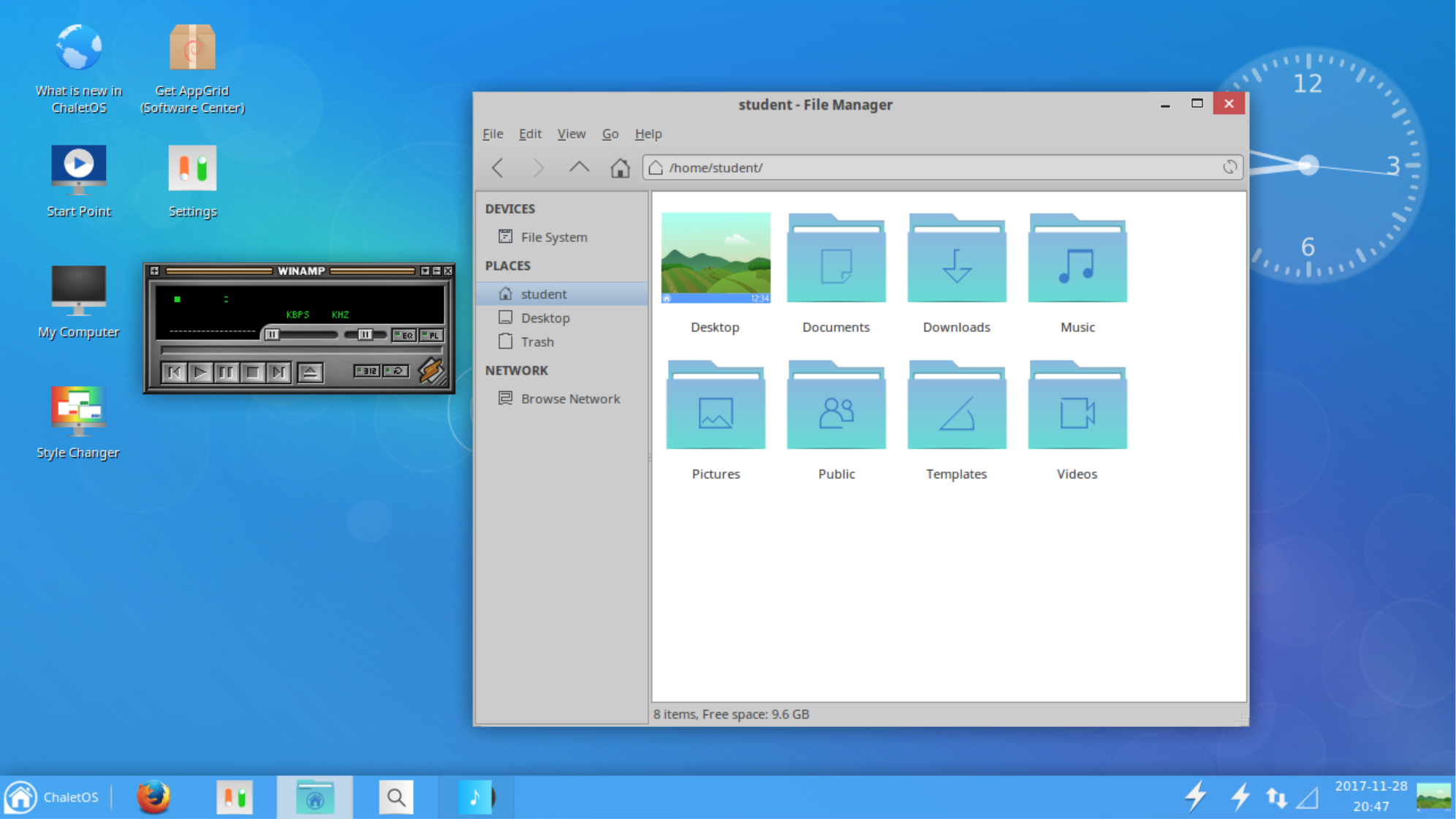
Figure 2: ChaletOS with Xfce.

The Zorin OS distribution also tries to mimic Windows. Zorin OS uses the Gnome desktop modified to work like Windows’ graphical interface. The start button is at the bottom left with the notification and indicator panel on the lower right. The start button brings up a Windows-like list of applications and a search bar to search.

Unique Environments

One of the most commonly used graphical environments for Linux is the Gnome desktop (Figure 3). Many distributions use Gnome as the default graphical environment. Gnome by default doesn’t try to be like Windows or MacOS but aims for elegance and ease of use in its own way.
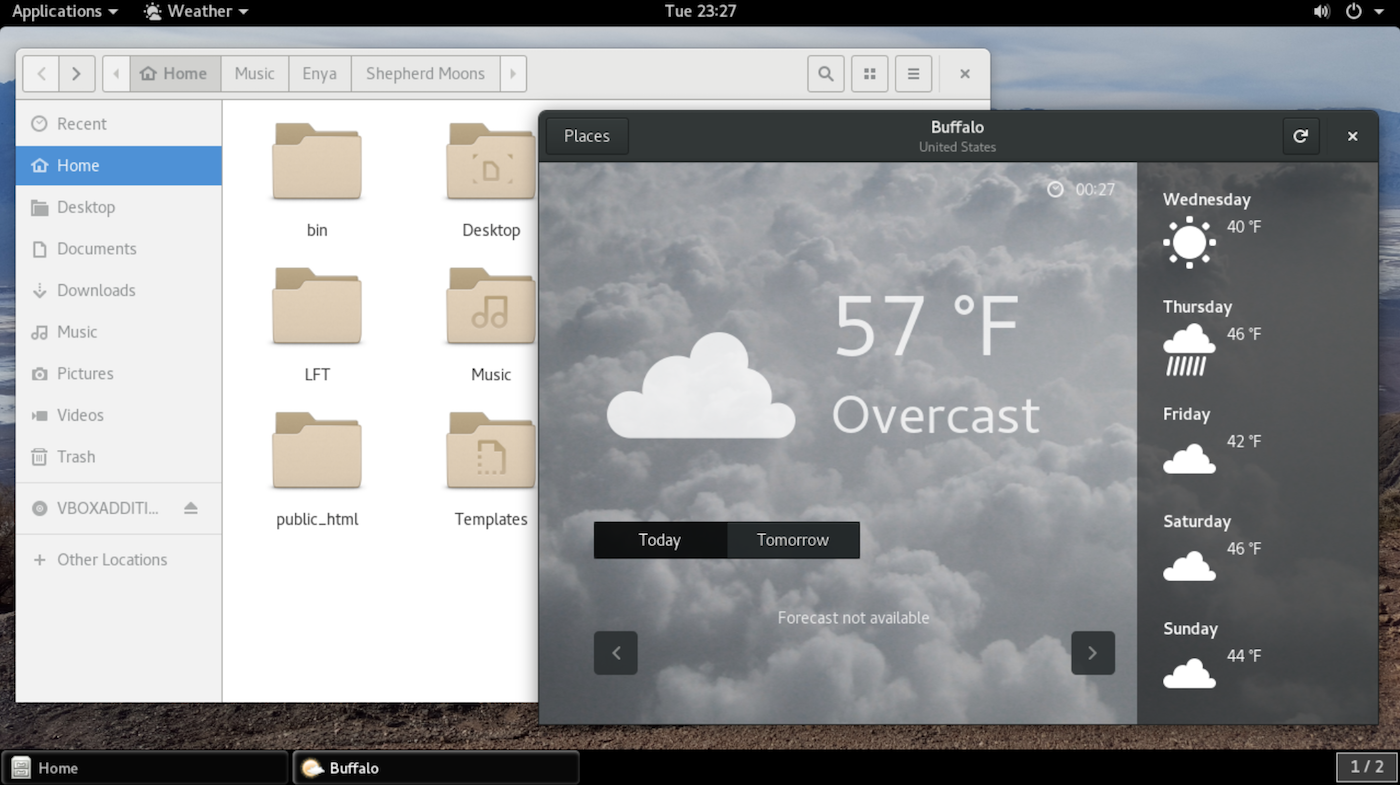
Figure 3: openSUSE with Gnome.

The Cinnamon environment was created mostly out of a negative reaction to the Gnome desktop environment when it changed drastically from version 2 to version 3. Although Cinnamon doesn’t look like the older Gnome desktop version 2, it attempts to provide a simple interface, which functions somewhat similar to that of Windows XP.

The graphical environment called MATE is modeled directly after Gnome version 2, which has a menu bar at the top of the screen for applications and settings, and it presents a panel at the bottom of the screen for running application tabs and other widgets.

The KDE plasma environment is built around a widget interface where widgets can be installed on the desktop or in a panel (Figure 4).
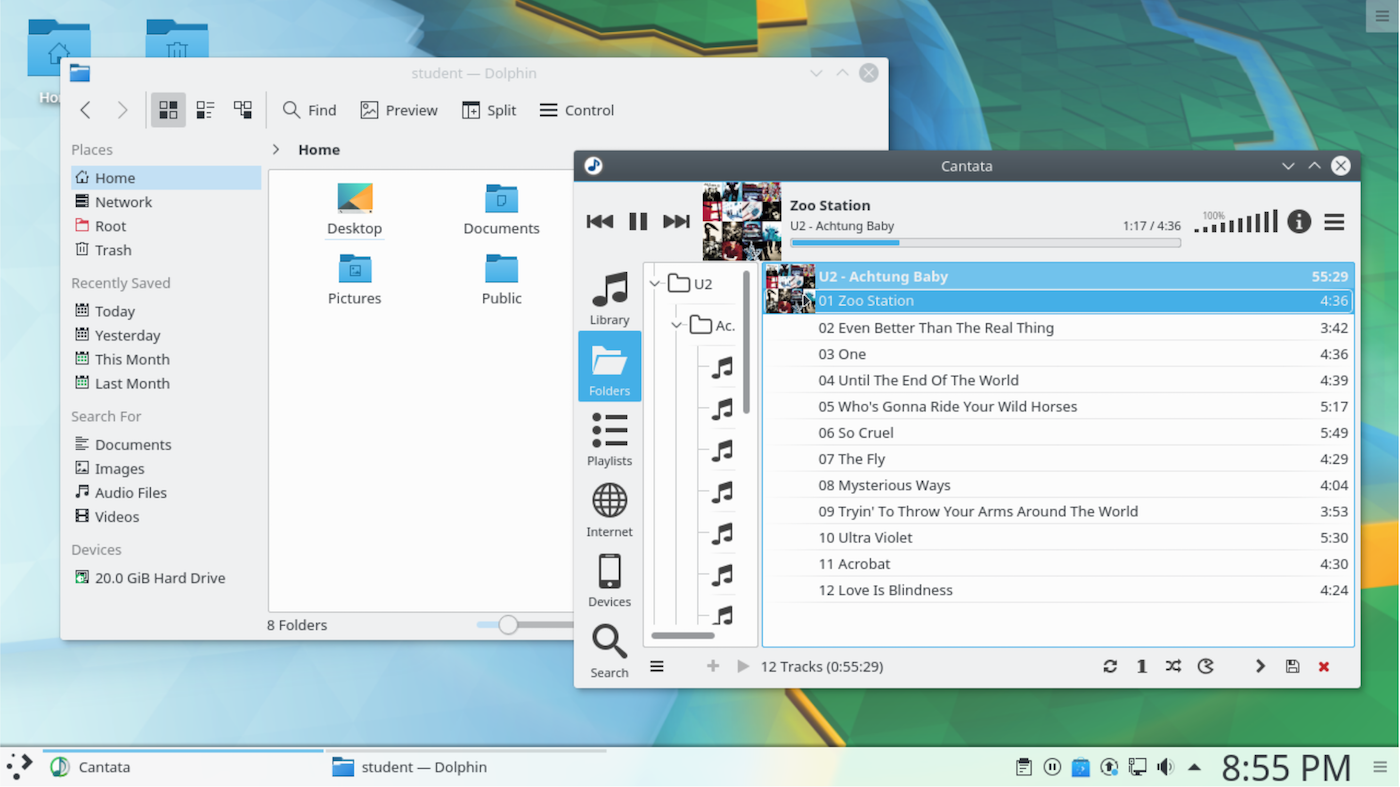
Figure 4: Kubuntu with KDE Plasma.

No graphical environment is better than another. They’re just different to suit different people’s tastes. And again, if the options seem too much, start with Ubuntu.

Differences and Similarities

Different operating systems do some things differently, which can make the transition challenging. For example, menus may appear in different places and settings may use different paths to access options. Here I list a few things that are similar and different in Linux to help ease the adjustment.

Mouse

The mouse often works differently in Linux than it does in Windows and MacOS. In Windows and Mac, you double-click on most things to open them up. In Linux, many Linux graphical interfaces are set so that you single click on the item to open it.

Also in Windows, you usually have to click on a window to make it the focused window. In Linux, many interfaces are set so that the focus window is the one under the mouse, even if it’s not on top. The difference can be subtle, and sometimes the behavior is surprising. For example, in Windows if you have a background application (not the top window) and you move the mouse over it, without clicking, and scroll the mouse wheel, the top application window will scroll. In Linux, the background window (the one with the mouse over it) will scroll instead.

Menus

Application menus are a staple of computer programs and recently there seems to be a movement to move the menus out of the way or to remove them altogether. So when migrating to Linux, you may not find menus where you expect. The application menu might be in a global shared menu bar like on MacOS. The menu might be below a “more options” icon, similar to those in many mobile applications. Or, the menu may be removed altogether in exchange for buttons, as with some of the apps in the Pantheon environment in Elementary OS.

Workspaces

Many Linux graphical environments present multiple workspaces. A workspace fills your entire screen and contains windows of some running applications. Switching to a different workspace will change which applications are visible. The concept is to group the open applications used for one project together on one workspace and those for another project on a different workspace.

Not everyone needs or even likes workspaces, but I mention these because sometimes, as a newcomer, you might accidentally switch workspaces with a key combination, and go, “Hey! where’d my applications go?” If all you see is the desktop wallpaper image where you expected to see your apps, chances are you’ve just switched workspaces, and your programs are still running in a workspace that is now not visible. In many Linux environments, you can switch workspaces by pressing Alt-Ctrl and then an arrow (up, down. left or right). Hopefully, you’ll see your programs still there in another workspace.

Of course, if you happen to like workspaces (many people do), then you have found a useful default feature in Linux.

Settings

Many Linux graphical environments also have some type of settings program or settings panel that let you configure settings on the machine. Note that similarly to Windows and MacOS, things in Linux can be configured in fine detail, and not all of these detailed settings can be found in the settings program. These settings, though, should be enough for most of the things you’ll need to set on a typical desktop system, such as selecting the desktop wallpaper, changing how long before the screen goes blank, and connecting to printers, to name a few.

The settings presented in the application will usually not be grouped the same way or named the same way they are on Windows or MacOS. Even different graphical interfaces in Linux can present settings differently, which may take time to adjust to. Online search, of course, is a great place to search for answers on how to configure things in your graphical environment.

Applications

Finally, applications in Linux might be different. You will likely find some familiar applications but others may be completely new to you. For example, you can find Firefox, Chrome, and Skype on Linux. If you can’t find a specific app, there’s usually an alternative program you can use. If not, you can run many Windows applications in a compatibility layer called WINE.

On many Linux graphical environments, you can bring up the applications menu by pressing the Windows Logo key on the keyboard. In others, you need to click on a start/home button or click on an applications menu. In many of the graphical environments, you can search for an application by category rather than by its specific name. For example, if you want to use an editor program but you don’t know what it’s called, you can bring up the application menu and enter “editor” in the search bar, and it will show you one or more applications that are considered editors.

To get you started, here is a short list of a few applications and potential Linux alternatives.
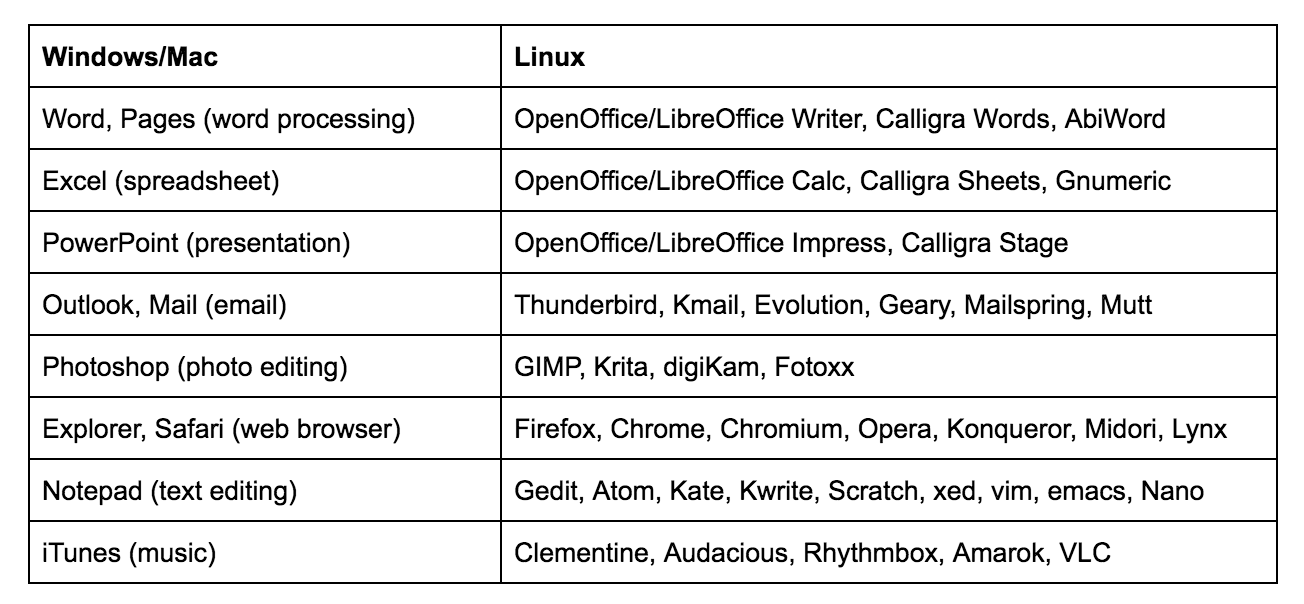
Note that this list is by no means comprehensive; Linux offers a multitude of options to meet your needs.

Learn more about Linux through the free “Introduction to Linux” course from The Linux Foundation and edX.

4 Successful Open Source Business Models to Consider

When I first discovered open source, the idea of building a business around it seemed counterintuitive. However, as I grew more familiar with the movement, I realized that open source software companies were not an anomaly, rather a result of the freedoms open source offers. As GNU project founder Richard Stallman said of free software, it’s “a matter of liberty, not price.” Open source is, above all, about the unhindered liberty to create. In this sense, the innovation and creativity demonstrated in open source business models is a testimony to the ideals of open source.

Although most open source projects do not start as or evolve into companies, companies can grow with open source at the heart of their business model. If you’d like to build a business around open source, here are four successful models to consider.

Read more at OpenSource.com

The Linux Commands You Should Never Use

Unless, of course, you like killing your machines.

Spider-Man’s credo is, “With great power comes great responsibility.” That’s also a wise attitude for Linux system administrators to adopt.

No! Really! Thanks to DevOps and cloud orchestration, a Linux admin can control not merely a single server, but tens of thousands of server instances. With one stupid move—like not patching Apache Struts—you can wreck a multibillion-dollar enterprise.

Failing to stay on top of security patches is a strategic business problem that goes way above the pay grade of a system administrator. But there are many simple ways to blow up Linux servers, which do lie in the hands of sysadmins. It would be nice to imagine that only newbies make these mistakes—but we know better.

Read more at HPE

What Is A Distributed System?

“Hello world!”

The simplest application to write and operate is one that runs in one thread on a single processor. If that’s so easy, why on earth do we ever build anything else? Usually because we also want operational and developmental performance. A single server is a physical and organisational limitation on what you can achieve with an application.

Machine Performance (AKA Things)

There are three main operational performance issues introduced by running on a single machine.

  • Scale. You might want more CPU, memory or storage than is available on one server no matter how big, or it might be more efficient (cost/server utilization) to use machines with different properties for different functions. For example: CPUs vs GPUs.
  • Resilience. Any software or piece of physical hardware will crash (even mainframes die eventually). A single server is a single point of failure.
  • Location. “Propinquity” means useful proximity. Unless the only user of your application will be sitting at a keyboard plugged into your server, eventually your single-machine application will need to talk to something else.

Read more at Container Solutions

Linux And Windows Machines Being Attacked By “Zealot” Campaign To Mine Cryptocurrency

As the cryptocurrency craze is reaching new heights, cybercriminals are looking for new methods to steal digital coins. In the past, we have seen methods like crypto jacking and spearphishing attacks. In a related development, security researchers have found a new malware campaign to mine cryptocurrency.

Named Zealot Campaign, this malware targets Linux and Windows machines on an internal network. The most noticeable property of Zealot is the use of NSA’s EternalBlue and EternalSynergy exploits.

Read more at FOSSBytes

PowerfulSeal: A Testing Tool for Kubernetes Clusters

Bloomberg has adopted Kubernetes, the open source system for deploying and managing containerized applications which has gained a great deal of industry momentum, in its infrastructure. As a result, systems are becoming more distributed than ever before, running on machines scattered around the globe and across the cloud. This means there are more moving parts, any of which could fail for a long list of reasons.

Systems engineers want to feel confident that the complex systems they’ve built will withstand problems and keep running. To do that, they run batteries of elaborate tests designed to simulate all sorts of problems. But it’s impossible to imagine every potential problem, let alone plan for all of them.

Read more at Tech at Bloomberg

What Are Containers and Why Should You Care?

What are containers? Do you need them? Why? In this article, we aim to answer some of these basic questions.

But, to answer these questions, we need more questions.  When you start considering how containers might fit into your world, you need to ask: Where do you develop your application? Where do you test it and where is it deployed?

You likely develop your application on your work laptop, which has all the libraries, packages, tools, and framework needed to run that application. It’s tested on a platform that resembles the production machine and then it’s deployed in production. The problem is that not all three environments are the same; they don’t have same tools, frameworks, and libraries. And, the app that works on your dev machine may not work in the production environment.

Containers solved that problem. As Docker explains, “a container image is a lightweight, standalone, executable package of a piece of software that includes everything needed to run it: code, runtime, system tools, system libraries, settings.”

What this means is that once an application is packaged as a container, the underlying environment doesn’t really matter. It can run anywhere, even on a multi-cloud environment. That’s one of the many reasons containers became so popular among developers, operations teams, and even CIOs.

Containers for developers

Now developers or operators don’t have to concern themselves with what platforms they are using to run applications. Devs don’t have to tell ops that “it worked on my system” anymore.

Another big advantage of containers is isolation and security. Because containers isolate the app from the platform, the app remains safe and keeps everything around it safe. At the same time, different teams can run different applications on the same infrastructure at the same time — something that’s not possible with traditional apps.

Isn’t that what virtual machines (VM) offer? Yes and no. VMs do offer isolation, but they have massive overhead. In a white paper, Canonical compared containers with VM and wrote, “Containers offer a new form of virtualization, providing almost equivalent levels of resource isolation as a traditional hypervisor. However, containers are lower overhead both in terms of lower memory footprint and higher efficiency. This means higher density can be achieved — simply put, you can get more for the same hardware.” Additionally, VMs take longer to provision and start; containers can be spinned up in seconds, and they boot instantly.

Containers for ecosystem

A massive ecosystem of vendors and solutions now enable companies to deploy containers at scale, whether it’s orchestration, monitoring, logging, or lifecycle management.

To ensure that containers run everywhere, the container ecosystem came together to form the Open Container Initiative (OCI), a Linux Foundation project to create specifications around two core components of containers — container runtime and container image format. These two specs ensure that there won’t be any fragmentation in the container space.

For a long time, containers were specific to the Linux kernel, but Microsoft has been working closely with Docker to bring support for containers on Microsoft’s platform. Today you can run containers on Linux, Windows, Azure, AWS, Google Compute Engine, Rackspace, and mainframes. Even VMware is adopting containers with vSphere Integrated Container (VIC), which lets  IT pros run containers and traditional workloads on their platforms.

Containers for CIOs

Containers are very popular among developers for all the reasons mentioned above, and they offer great advantages for CIOs, too. The biggest advantage of moving to containerized workloads is changing the way companies operate.

Traditional applications have a life-cycle of a about a decade. New versions are released after years of work and because they are platform dependent, sometimes they don’t see production for years. Due to this lifecycle, developers try to cram in as many features as they can, which can make the application monolithic, big, and buggy.

This process affects the innovative culture within companies. When people don’t see their ideas translated into products for months and years, they are demotivated.

Containers solve that problem, because you can break the app into smaller microservices. You can develop, test, and deploy in a matter of weeks or days. New features can be added as new containers. They can go into production as soon as they are out of testing. Companies can move faster and stay ahead of the competitors. This approach breeds innovation as ideas can be translated into containers and deployed quickly.

Conclusion

Containers solve many problems that traditional workloads face. However, they are not the answer to every problem facing IT professionals. They are one of many solutions. In the next article, we’ll cover some of the basic terminology of containers, and then we will explain how to get started with containers.

Learn more about Linux through the free “Introduction to Linux” course from The Linux Foundation and edX.

As Kubernetes Surged in Popularity in 2017, It Created a Vibrant Ecosystem

For a technology that the average person has probably never heard of, Kubernetes surged in popularity in 2017 with a particular group of IT pros who are working with container technology. Kubernetes is the orchestration engine that underlies how operations staff deploy and manage containers at scale. (For the low-down on containers, check out this article.)

In plain English, that means that as the number of containers grows then you need a tool to help launch and track them all. And because the idea of containers — and the so-called “microservices” model it enables — is to break down a complex monolithic app into much smaller and more manageable pieces, the number of containers tends to increase over time. Kubernetes has become the de facto standard tool for that job.

Kubernetes is actually an open source project, originally developed at Google, which is managed by the Cloud Native Computing Foundation (CNCF).

Read more at TechCrunch

How to Market an Open Source Project

The widely experienced and indefatigable Deirdré Straughan presented a talk at Open Source Summit NA on how to market an open source project. Deirdré currently works with open source at Amazon Web Services (AWS), although she was not representing the company at the time of her talk. Her experience also includes stints at Ericsson, Joyent, and Oracle, where she worked with cloud and open source over several years.

Through it all, Deirdré said, the main mission in her career has been to “help technologies grow and thrive through a variety of marketing and community activities.” This article provides highlights of Deirdré’s talk, in which she explained common marketing approaches and why they’re important for open source projects.

Read more at The Linux Foundation

Ops Checklist for Monitoring Kubernetes at Scale

By design, the Kubernetes open source container orchestration engine is not self-monitoring, and a bare installation will typically only have a subset of the monitoring tooling that you will need. In a previous post, we covered the five tools for monitoring Kubernetes in production, at scale, as per recommendations from Kenzan.

However, the toolsets your organization chooses to monitor Kubernetes is only half of the equation. You must also know what to monitor, where to put processes in place in order to assimilate the results of monitoring and how to take appropriate corrective measures in response. This last item is often overlooked by DevOps teams.

All of the Kubernetes components — container, pod, node and cluster — must be covered in the monitoring operation. Let’s go through monitoring requirements for each one.

Read more at The New Stack