Home Blog Page 545

Which Official Ubuntu Flavor Is Best for You?

Ubuntu Linux comes in a few officially recognized flavors, as well as several derivative distributions. The recognized flavors are:

Up until recently, the official Ubuntu Linux included the in-house Unity desktop and a sixth recognized flavor existed: Ubuntu GNOME — Ubuntu with the GNOME desktop environment.

When Mark Shuttleworth decided to nix Unity, the choice was obvious to Canonical—make GNOME the official desktop of Ubuntu Linux. This begins with Ubuntu 18.04 (so April, 2018) and we’ll be down to the official distribution and four recognized flavors.

For those already enmeshed in the Linux community, that’s some seriously simple math to do—you know which Linux desktop you like, so making the choice between Ubuntu, Kubuntu, Lubuntu, Mythbuntu, Ubuntu Budgie, and Xubuntu couldn’t be easier. Those that haven’t already been indoctrinated into the way of Linux won’t see that as such a cut-and-dried decision.

To that end, I thought it might be a good idea to help newer users decide which flavor is best for them. After all, choosing the wrong distribution out of the starting gate can make for a less-than-ideal experience.

And so, if you’re considering a flavor of Ubuntu, and you want your experience to be as painless as possible, read on.

Ubuntu

I’ll begin with the official flavor of Ubuntu. I am also going to warp time a bit and skip Unity, to launch right into the upcoming GNOME-based distribution. Beyond GNOME being an incredibly stable and easy to use desktop environment, there is one very good reason to select the official flavor—support. The official flavor of Ubuntu is commercially supported by Canonical. For $150.00 per year, you can purchase official support for the Ubuntu desktop. There is, of course, a 50-desktop minimum for this level of support. For individuals, the best bet for support would be the Ubuntu Forums, the Ubuntu documentation, or the Community help wiki.

Beyond the commercial support, the reason to choose the official Ubuntu flavor would be if you’re looking for a modern, full-featured desktop that is incredibly reliable and easy to use. GNOME has been designed to serve as a platform perfectly suited for both desktops and laptops (Figure 1). Unlike its predecessor, Unity, GNOME can be far more easily customized to suit your needs—to a point. If you’re not one to tinker with the desktop, fear not, GNOME just works. In fact, the out of the box experience with GNOME might well be one of the finest on the market—even rivaling (or besting) Mac OS X. If tinkering and tweaking is of primary interest, you will find GNOME somewhat limiting. The GNOME Tweak Tool and GNOME Shell Extensions will only take you so far, before you find yourself wanting more.
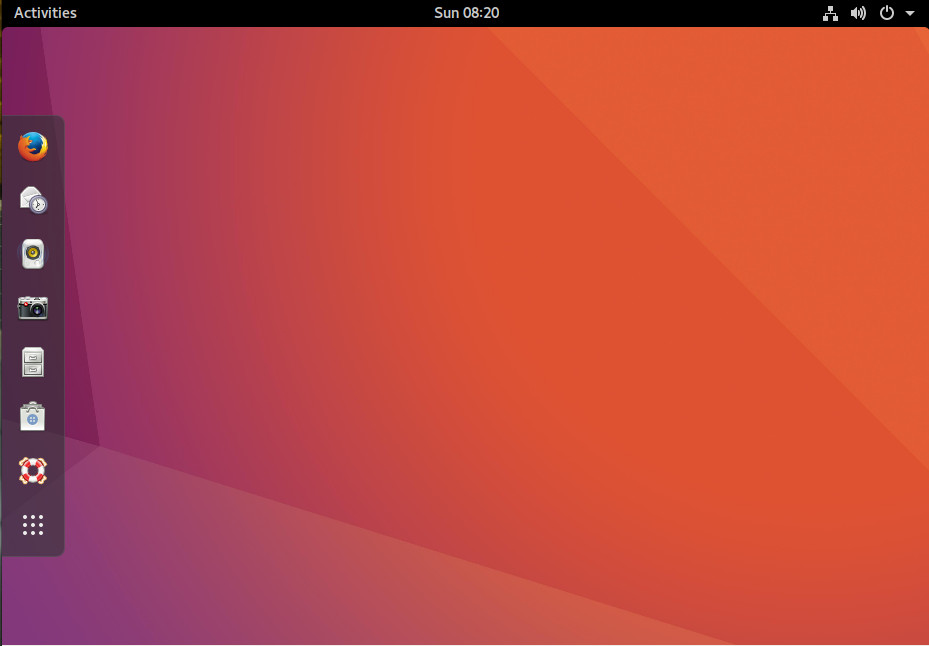
Figure 1: The GNOME desktop with a Unity-like flavor might be what we see with Ubuntu 18.04.

Kubuntu

The K Desktop Environment (otherwise known as KDE) has been around as long as GNOME and has, at times, been maligned as a lesser desktop. With the release of KDE Plasma 5, that changed. KDE has become an incredibly powerful, efficient, and stable desktop that can stand toe to toe with the best of them. But why would you select Kubuntu over the official Ubuntu? The answer to that question is quite simple—you’re used to the Windows XP/7 desktop metaphor. Start menu, taskbar, system tray, etc., KDE has those and more, all fashioned in such a way that will make you feel like you’re using the best of the past and current technologies. In fact, if you’re looking for one of the most Windows 7-like official Ubuntu flavors, you won’t find one that better fits the bill.

One of the nice things about Kubuntu, is that you’ll find it a bit more flexible than any Windows iteration you’ve ever used—and equally reliable/user-friendly. And don’t think, because KDE opts to offer a desktop somewhat similar to Windows 7, that it doesn’t have a modern flavor. In fact, Kubuntu takes what worked well with the Windows 7 interface and updates it to meet a more modern aesthetic (Figure 2).
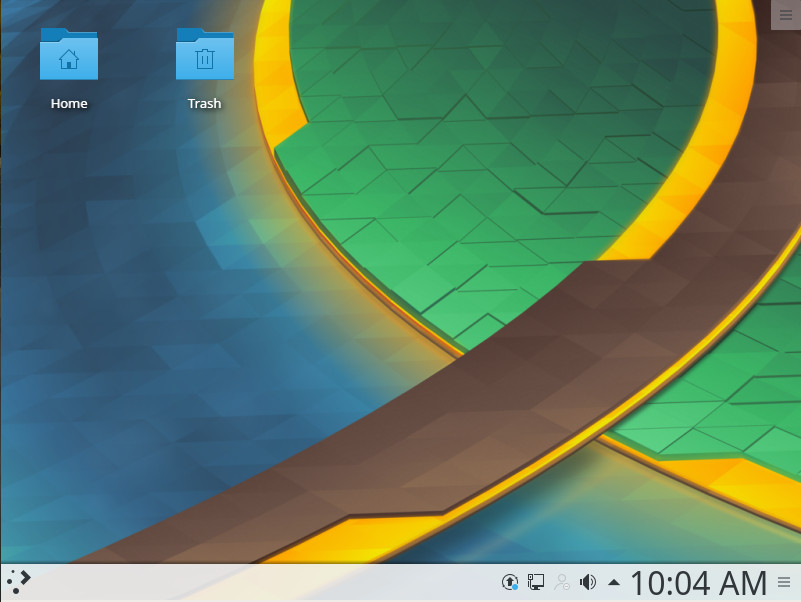
Figure 2: Kubuntu offers a modern take on an old UX.

The official Ubuntu is not the only flavor to offer desktop support. Kubuntu users also can pay for commercial support. Be warned, it’s not cheap. One hour of support time will cost you $103.88 cents.

Lubuntu

If you’re looking for an easy-to-use desktop that is very fast (so that older hardware will feel like new) and far more flexible than just about any desktop you’ve ever used, Lubuntu is what you want. The only caveat to Lubuntu is that you’re looking at a bit more bare bones on the desktop then you may be accustomed to. Lubuntu makes use of the LXDE desktop and includes a list of applications that continues the lightweight theme. So if you’re looking for blazing fast speeds on the desktop, Lubuntu might be a good choice.
However, there is a caveat with Lubuntu and, for some users, this might be a deal breaker. Along with the small footprint of Lubuntu come pre-installed applications that might not stand up to task. For example, instead of the full-blown office suite, you’ll find the AibWord word processor  and the Gnumeric spreadsheet tool. Don’t get me wrong; both of these are fine tools. However, if you’re looking for software that’s business-ready, you will find them lacking. On the other hand, if you want to install more work-centric tools (e.g., LibreOffice), Lubuntu includes the Synaptic Package Manager to make installation of third-party software simple.

Even with the limited default software, Lubuntu offers a clean and easy to use desktop (Figure 3), that anyone could start using with little to no learning curve.
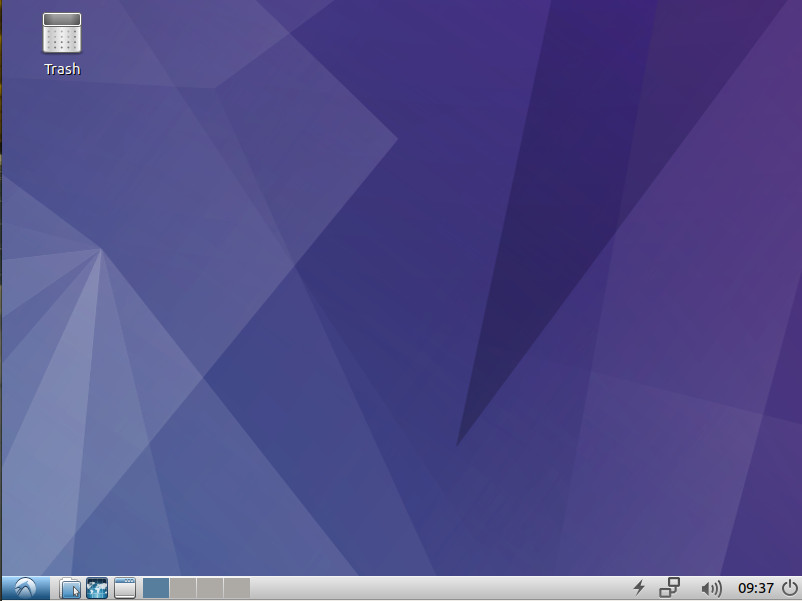
Figure 3: What Lubuntu lacks in software, it makes up for in speed and simplicity.

Mythbuntu

Mythbuntu is a sort of odd bird here, because it isn’t really a desktop variant. Instead, Mythbuntu is a special flavor of Ubuntu designed to be a multimedia powerhouse. Using Mythbuntu requires TV Tuners and TV Out cards. And, during the installation, there are a number of additional steps that must be taken (choosing how to set up the frontend/backend as well as setting up your IR remotes).

If you do happen to have the hardware (and the desire to create your own Ubuntu-powered entertainment system), Mythbuntu is the distribution you want. Once you’ve installed Mythbuntu, you will then be prompted to walk through the setup of your Capture cards, recording profiles, video sources, and Input connections (Figure 4).
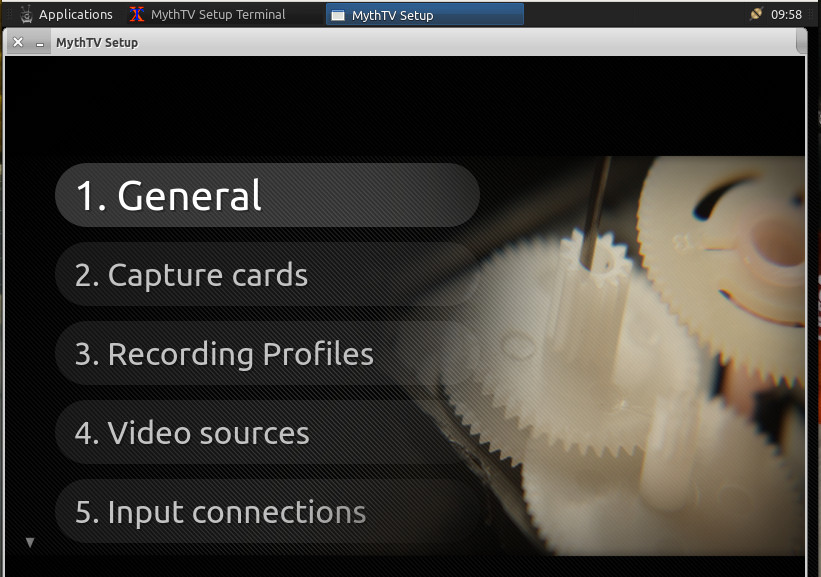
Figure 4: Getting ready to set up Mythbuntu.

Ubuntu Budgie

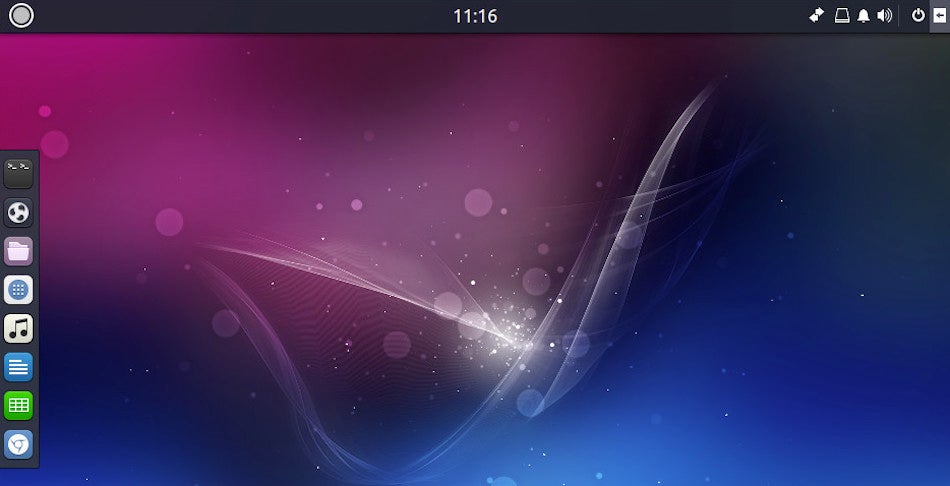
Ubuntu Budgie is the new kid on the block to the official flavor list. Sporting the Budgie Desktop, this is a beautiful and modern take on Linux that will please just about any type of user. The goal of Ubuntu Budgie was to create an elegant and simple desktop interface. Mission accomplished. If you’re looking for a beautiful desktop to work on top of the remarkably stable Ubuntu Linux platform, look no further than Ubuntu Budgie.

Adding this particular spin on Ubuntu to the list of official variants was a smart move on the part of Canonical. With Unity going away, they needed a desktop that would offer the elegance found in Unity. Customization of Budgie is very easy, and the list of included software will get you working and browsing immediately.

And, unlike the learning curve many users encountered with Unity, the developers/designers of Ubuntu Budgie have done a remarkable job of keeping this take on Ubuntu familiar. Click on the “start” button to reveal a fairly standard menu of applications. Budgie also includes an easy to use Dock (Figure 5) that holds applications launchers for quick access.
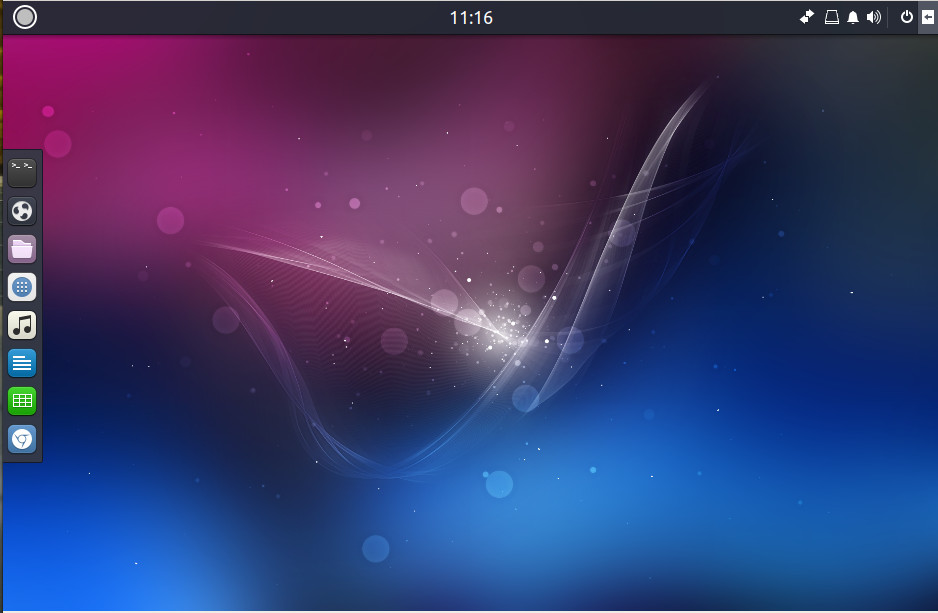
Figure 5: This is one beautiful desktop.

Another really nice feature found in Ubuntu Budgie is a sidebar that can be quickly revealed and hidden. This sidebar holds applets and notifications. With this in play, your desktop can be both incredibly useful, while remaining clutter free.

In the end, if you’re looking for something a bit different, that happens to also be a very modern take on the desktop—with features and functions not found on other distributions—Ubuntu Budgie is what you’re looking for.

Xubuntu

Another official flavor of Ubuntu that does a nice job of providing a small footprint version of Linux is Xubuntu. The difference between Xubuntu and Lubuntu is that, where Lubuntu uses the LXDE desktop, Xubuntu makes use of Xfce. What you get with that difference is a lightweight desktop that is far more configurable (than Lubuntu) as well as one that includes the more business-ready LibreOffice office suite.

Xubuntu is an out of the box experience that anyone, regardless of experience, can use. But don’t think that immediate familiarity means this flavor of Ubuntu is locked out of making it your own. If you’re looking for a take on Ubuntu that’s somewhat old-school out of the box, but can be heavily tweaked to better resemble a more modern desktop, Xubuntu is what you want.

One really handy addition to Xubuntu that I’ve always enjoyed (one that harks back to Enlightenment) is the ability to bring up the “start” menu by right-clicking anywhere on the desktop (Figure 6). This can make for very efficient usage.
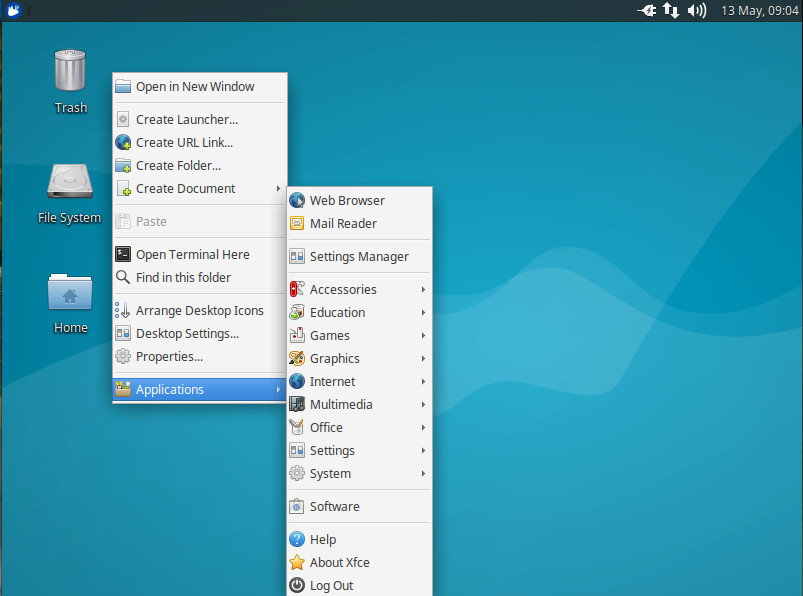
Figure 6: Xubuntu lets you bring up the “start” menu by right-clicking anywhere on the desktop.

The choice is yours

There is a flavor of Ubuntu to meet nearly any need—which one you choose is up to you. As yourself questions such as:

  • What are your needs?

  • What type of desktop do you prefer to interact with?

  • Is your hardware aging?

  • Do you prefer a Windows XP/7 feel?

  • Are you wanting a multimedia system?

Your answers to the above questions will go a long way to determining which flavor of Ubuntu is right for you. The good news is that you can’t really go wrong with any of the available options.

Learn more about Linux through the free “Introduction to Linux” course from The Linux Foundation and edX.

Linux Foundation Tackles Real-Time Data Analysis with SNAS.io Initiative

The Linux Foundation is looking to boost access to real-time analytics with the adoption of the former Open Border Gateway Monitoring Protocol (OpenBMP) platform into the open source community under the new SNAS.io (Streaming Network Analytics System) initiative.

The program is set to provide a framework for the tracking and analyzing of network routing topology data in real-time for operators and enterprises using Border Gateway Protocol (BGP). The system taps into data collected from Layer 2 and Layer 3 of the network and includes IP information, quality of service requests, and physical and device specifications.

Read more at SDxCentral

What Serverless and the Internet of Things Can Learn from Each Other

Serverless application architecture and the Internet of Things (IoT) have a lot in common: both are emerging technology choices that are introducing fundamentally new ways of managing networks and, as a result, are requiring new ideas around the design and deployment of applications.

Both technology areas have not yet matured, with much of the tooling — especially around security, logging, and deploying at scale — yet to be solved. Both are seeing massive interest from developer communities and enterprise, eager to implement solutions, and both need to learn how to support developers and systems integrators to adopt a fast moving technology with a rapid pace of innovation that means there are new things to learn every other week.

Read more at The New Stack

Microsoft Will Offer 3 Flavors of Linux in the Windows Store

Microsoft made headlines at last year’s Build developer conference when it announced that it would build support for the Bash shell and Ubuntu Linux binaries directly into Windows 10. Doing so enables devs to run command-line tools while building apps as well as allows power users to run limited instances of Linux directly on top of Windows without installing a virtual machine. Today, at this year’s conference, the company one-upped itself and announced that it’s expanding Linux support to include OpenSUSE and Fedora distributions.

What’s really wild is that you’ll be able to pick up any of these three distributions directly through the Windows Store.

Read more at Engadget

How to Do Time Series Prediction Using RNNs, TensorFlow, and Cloud ML Engine

The Estimators API in tf.contrib.learn (See tutorial here) is a very convenient way to get started using TensorFlow. The really cool thing from my perspective about the Estimators API is that using it is a very easy way to create distributed TensorFlow models. Many of the TensorFlow samples that you see floating around on the internets are not distributed — they assume that you will be running the code on a single machine. People start with such code and then are immeasurably saddened to learn that the low-level TensorFlow code doesn’t actually work on their complete dataset. They then have to do lots of work to add distributed training code around the original sample, and who wants to edit somebody else’s code?

So, please, please, please, if you see a TensorFlow sample that doesn’t use the Estimators API, ignore it. It will be a lot of work to make it work on your production (read: large) datasets — there will be monitors, coordinators, parameter servers, and all kinds of systems programming craziness that you don’t want to have to dive into. Start with the Estimator API and use the Experiment class. 

Read more at Dataconomy

Starting an Open Source Project: A Free Webinar Highlights Best Practices

Have you launched an open source project or are you considering doing so? Making a success of your project can involve everything from evaluating licenses to community outreach. The good news is that there are many free resources that can help you advance and protect your project.

A recent webinar called “Best Practices for Starting an Open Source Project” focused on this topic. Hosted by Capital One, the online event featured Mike Dolan, VP of Strategic Programs at The Linux Foundation, as well as Scott Nicholas, who is Senior Director in the same department and assists in the execution of The Linux Foundation’s annual Legal Summit and other legal programs.

Dolan and Nicholas noted that much of the work in launching a project involves community focus, and they provided advice on key considerations for a project launch including:

  • How you want your community of developers to build and evolve code

  • Setting up a decision-making model

  • Understanding licenses, charter documents, and policies

  • Creating a usage policy and trademark that fits your code and concept

Dolan and Nicholas both have extensive experience in launching and supporting open source projects. They noted during the webinar that The Linux Foundation has trained more than 800,000 people on open source technologies, and provided the following slide detailing open source milestones:

The Linux Foundation Best Practices

Dolan noted the importance of maintaining independent governance and neutral project assets for open source projects. At the same time, he emphasized that involvement from and dependencies with businesses can keep open source projects healthy and sustainable. For example, many leading businesses contribute to projects ranging from OpenStack to Linux.

Dolan also discussed The Linux Foundation’s Core Infrastructure Initiative (CII) Badge Program. It includes a Best Practices Badge that can showcase an open source project’s commitment to security. Project leaders should look into it.

Scott Nicholas provided a walkthrough of best practices that The Linux Foundation follows with its projects. “Project participants need expertise on how to collaborate with each other,” he said, encouraging meetings and group discussion. He added that governance models and scope for projects should be clearly defined.

“One of the things that is very important to us is separation of business governance and technical governance for projects,” he said. He added that The Linux Foundation builds out charter documents for the open source projects that it stewards. These documents include Inbound Contribution guidelines, Outbound Licensing guidelines, Documentation, and Trademarks.

“Many open source projects will have situations arise where code comes into the project from another project that has a different licensing setup,” he said. “We have an exception policy defined that can help make it easier for code like this to be accepted into a project.” He noted that Contributor Licensing Agreements can help streamline contribution processes and said that The Linux Foundation uses Creative Commons licensing for contributions to documentation for its projects. Additionally, he highly recommended that project leaders document their APIs.

Free Resources

As open source becomes more pervasive, individual contributors and tech and DevOps workers everywhere are building out and overseeing open source projects. And, companies from Google to Netflix to Facebook are releasing their open source creations to the community. You can learn more in the free webcast replay of Best Practices for Starting an Open Source Project, and you can check out the full presentation deck from the event, available as a PDF, which is a very handy reference guide.

If you’re interested in more information on launching and managing an open source project, you’ll find many useful, free resources in our previous post, Free Tools for Driving an Open Source Project to Success.

Kubernetes: The Smart Person’s Guide

As containers have become more important to businesses across the globe, it was necessary to create a system that would allow containers to scale out to meet the needs of enterprise-level deployments. That’s where Kubernetes comes into play.

Unlike Docker, Kubernetes is a very robust ecosystem. Instead of deploying a single container, Kubernetes enables you to deploy multiple containers to multiple hosts, making it ideal for larger deployments and load balancing.

This smart person’s guide is an easy way to get up to speed on Kubernetes. We’ll update this guide periodically when news about Kubernetes is released.

Read more at TechRepublic

Building Linux Firewalls With Good Old Iptables: Part 2

When last we met we reviewed some iptables fundamentals. Now you’ll have two example firewalls to study, one for a single PC and one for a LAN. They are commented all to heck to explain what they’re doing.

This is for IPv4 only, so I’ll write up some example firewalls for IPv6 in a future installment.

I leave as your homework how to configure these to start at boot. There is enough variation in how startup services are managed in the various Linux distributions that it makes me tired to think about it, so it’s up to you figure it out for your distro.

Lone PC Firewall

Use the lone PC firewall on laptop, desktop, or server system. It filters incoming and outgoing packets only for the host it is on.

#!/bin/bash

# iptables single-host firewall script

# Define your command variables
ipt="/sbin/iptables"

# Define multiple network interfaces
wifi="wlx9cefd5fe8f20"
eth0="enp0s25"

# Flush all rules and delete all chains
# because it is best to startup cleanly
$ipt -F
$ipt -X 
$ipt -t nat -F
$ipt -t nat -X
$ipt -t mangle -F 
$ipt -t mangle -X 

# Zero out all counters, again for 
# a clean start
$ipt -Z
$ipt -t nat -Z
$ipt -t mangle -Z

# Default policies: deny all incoming
# Unrestricted outgoing

$ipt -P INPUT DROP
$ipt -P FORWARD DROP
$ipt -P OUTPUT ACCEPT
$ipt -t nat -P OUTPUT ACCEPT 
$ipt -t nat -P PREROUTING ACCEPT 
$ipt -t nat -P POSTROUTING ACCEPT 
$ipt -t mangle -P PREROUTING ACCEPT 
$ipt -t mangle -P POSTROUTING ACCEPT

# Required for the loopback interface
$ipt -A INPUT -i lo -j ACCEPT

# Reject connection attempts not initiated from the host
$ipt -A INPUT -p tcp --syn -j DROP

# Allow return connections initiated from the host
$ipt -A INPUT -m conntrack --ctstate ESTABLISHED,RELATED -j ACCEPT

# If the above rule does not work because you
# have an ancient iptables version (e.g. on a 
# hosting service)
# use this older variation instead
$ipt -A INPUT -m state --state ESTABLISHED,RELATED -j ACCEPT

# Accept important ICMP packets. It is not a good
# idea to completely disable ping; networking
# depends on ping
$ipt -A INPUT -p icmp --icmp-type echo-request -j ACCEPT
$ipt -A INPUT -p icmp --icmp-type time-exceeded -j ACCEPT
$ipt -A INPUT -p icmp --icmp-type destination-unreachable -j ACCEPT

# The previous lines define a simple firewall
# that does not restrict outgoing traffic, and
# allows incoming traffic only for established sessions

# The following rules are optional to allow external access
# to services. Adjust port numbers as needed for your setup

# Use this rule when you accept incoming connections
# to services, such as SSH and HTTP
# This ensures that only SYN-flagged packets are
# allowed in
# Then delete '$ipt -A INPUT -p tcp --syn -j DROP'
$ipt -A INPUT p tcp ! --syn -m state --state NEW -j DROP

# Allow logging in via SSH
$ipt -A INPUT -p tcp --dport 22 -j ACCEPT

# Restrict incoming SSH to a specific network interface
$ipt -A INPUT -i $eth0 -p tcp --dport 22 -j ACCEPT

# Restrict incoming SSH to the local network
$ipt -A INPUT -i $eth0 -p tcp -s 192.0.2.0/24 --dport 22 -j ACCEPT

# Allow external access to your HTTP server
# This allows access to three different ports, e.g. for
# testing. 
$ipt -A INPUT -p tcp -m multiport --dport 80,443,8080 -j ACCEPT

# Allow external access to your unencrypted mail server, SMTP,
# IMAP, and POP3.
$ipt -A INPUT -p tcp -m multiport --dport 25,110,143 -j ACCEPT

# Local name server should be restricted to local network
$ipt -A INPUT -p udp -m udp -s 192.0.2.0/24 --dport 53 -j ACCEPT
$ipt -A INPUT -p tcp -m udp -s 192.0.2.0/24 --dport 53 -j ACCEPT

You see how it’s done; adapt these examples to open ports to your database server, rsync, and any other services you want available externally. One more useful restriction you can add is to limit the source port range. Incoming packets for services should be above port 1024, so you can allow in only packets from the high-numbered ports with --sport 1024:65535, like this:

$ipt -A INPUT -i $eth0 -p tcp --dport 22 --sport 1024:65535 -j ACCEPT

LAN Internet Connection-Sharing Firewall

It is sad that IPv4 still dominates US networking, because it’s a big fat pain. We need NAT, network address translation, to move traffic between external publicly routable IP addresses and internal private class addresses. This is an example of a simple Internet connection sharing firewall. It is on a device sitting between the big bad Internet and your LAN, and it has two network interfaces, one connecting to the Internet and one that connects to your LAN switch.

#!/bin/bash

# iptables Internet-connection sharing 
# firewall script

# Define your command variables
ipt="/sbin/iptables"

# Define multiple network interfaces
wan="enp0s24"
lan="enp0s25"

# Flush all rules and delete all chains
# because it is best to startup cleanly
$ipt -F
$ipt -X 
$ipt -t nat -F
$ipt -t nat -X
$ipt -t mangle -F 
$ipt -t mangle -X 

# Zero out all counters, again for 
# a clean start
$ipt -Z
$ipt -t nat -Z
$ipt -t mangle -Z

# Default policies: deny all incoming
# Unrestricted outgoing

$ipt -P INPUT DROP
$ipt -P FORWARD DROP
$ipt -P OUTPUT ACCEPT
$ipt -t nat -P OUTPUT ACCEPT 
$ipt -t nat -P PREROUTING ACCEPT 
$ipt -t nat -P POSTROUTING ACCEPT 
$ipt -t mangle -P PREROUTING ACCEPT 
$ipt -t mangle -P POSTROUTING ACCEPT

# Required for the loopback interface
$ipt -A INPUT -i lo -j ACCEPT

# Set packet forwarding in the kernel
sysctl net.ipv4.ip_forward=1

# Enable IP masquerading, which necessary for NAT
$ipt -t nat -A POSTROUTING -j MASQUERADE

# Enable unrestricted outgoing traffic, incoming
# is restricted to locally-initiated sessions only
$ipt -A INPUT -m conntrack --ctstate ESTABLISHED,RELATED -j ACCEPT
$ipt -A FORWARD -i $wan -o $lan -m conntrack --ctstate ESTABLISHED,RELATED -j ACCEPT
$ipt -A FORWARD -i $lan -o $wan -j ACCEPT

# Accept important ICMP messages
$ipt -A INPUT -p icmp --icmp-type echo-request  -j ACCEPT
$ipt -A INPUT -p icmp --icmp-type time-exceeded -j ACCEPT
$ipt -A INPUT -p icmp --icmp-type destination-unreachable -j ACCEPT

Stopping the Firewall

Take the first sections of the example firewall scripts, where it flushes, zeroes, and sets all default policies to ACCEPT, and put them in a separate script. Then use this script to turn your iptables firewall “off”.

The documentation on netfilter.org is ancient, so I recommend using man iptables. These examples are basic and should provide a good template for customizing your own firewalls. Allowing access to services on your LAN through your Internet firewall is good subject for another day, because thanks to NAT it is a huge pain and needs a lot of rules and explaining.

Learn more about Linux through the free “Introduction to Linux” course from The Linux Foundation and edX.

Optimizing Apps for Wearables With Enlightenment Foundation Libraries

Developers looking to add GUIs to their embedded devices have a variety of open source and commercial options, with Qt generally leading the list. If you’re operating in severely constrained environments, however, especially for battery powered devices like wearables, the open source Enlightenment Foundation Libraries (EFL) should be given close consideration.

At the recent Embedded Linux Conference, Cedric Bail, a long-time contributor to the Enlightenment project who works on EFL integration with Tizen at Samsung Open Source Group, discussed some of the lessons learned in optimizing wearable apps for low battery, memory, and CPU usage. Bail summarized EFL and revealed an ongoing project to improve EFL’s scene graph. However, most of the lessons are relevant to anyone optimizing for wearables on any platform (see the ELC video below).

EFL has been under development for 10 years and was released in 2011. It was designed as a toolkit for the 20-year old Enlightenment, the first windows manager for GNOME. Today, however, it has evolved to feature its own rendering library and scene graph and can work with a variety of windowing environments. The EFL project is in the process of adding an optimized Wayland support.

Samsung was an early supporter of EFL and is still its biggest champion. The CE giant now uses EFL in its Tizen-based Samsung Galaxy Gear smartwatches, as well as its smart TVs, and several other Tizen-based devices.

Like Enlightenment, EFL was designed from the start for embedded GUIs. The toolkit is licensed with a mix of LGPL 2.1 and BSD, and written in C, with bindings to other languages. EFL is primarily designed for Linux, although it’s lean enough to run on RTOS- and MCU-driven devices such as the Coyote navigation device.

“EFL is optimized for reducing CPU, GPU, memory, and battery usage,” said Bail. “It takes up as little as 8MB, including all widgets. Some have pushed it lower than that, but it’s less functional. Arch Linux can run with EFL on 48MB RAM at 300MH, with a 1024×768 screen in full 32-bits display, and without a GPU. EFL does better than Android on battery consumption. That’s why Samsung is using Tizen on its smartwatches.”

Despite its minimalist nature, EFL supports accessibility (ATSPI) and international language requirements. It’s also “fully themable,” and can “change the scale of the UI based on the screen and input size,” said Bail. “We also account for the DPI and reading distance of the screen for better readability.”

Bail disagrees with the notion that improvements in power/performance will soon make minimalist graphics toolkits obsolete. “Moore’s Law is slowing down, and it doesn’t apply to battery life and memory bandwidth,” said Bail.

Optimizing the UI is one of many ways to reduce your embedded footprint. In recent months, we’ve looked at ELC presentations about optimizations ranging from shrinking the Linux kernel and file system to streamlining WiFi network stacks to trimming energy consumption on an oceanographic monitoring device.

The UI is typically the most resource-intensive part of an application. “Most applications don’t do much,” said Bail. “They fetch stuff from the network, a database, and then change the UI, which does all the CPU and GPU intensive tasks. So optimizing the UI saves a lot of energy.”

The biggest energy savings can be found in the UI design itself. “If your designer gives you a 20-layer UI with all these bitmaps and transparency, there is very little our toolkit can do to reduce energy,” said Bail.

The most power-efficient designs stick to basic rectangles, lines, and vertical gradients, and avoid using the entire screen. “If you have full-screen animations where things slide from left to right or up and down, you can’t do partial updates, so it uses more energy,” said Bail. If you’re targeting AMOLED screens, consider using a black background, as the Enlightenment project does on its own website. “Reddit running in black consumes 41 percent less energy on Android AMOLED phone,” Bail added.

One other trick used on the Gear smartwatches is an integrated frame buffer within the display. “The system can completely suspend the SoC, while the display refreshes itself, and save a lot of battery life, which is fine if you’re just displaying a watch face.”

Memory optimization is another area where you can substantially reduce consumption. “All rendering operations are constrained by memory bandwidth,” said Bail. “And if you want to run a web browser, memory declines quickly.”

Memory consumption is primarily driven by screen size, which is not usually an issue for a smartwatch. There are other ways to optimize for memory usage, however, such as avoiding true multitasking and using CPU cache.

“Accessing main memory uses more energy than accessing the CPU cache,” said Bail. “You can optimize by improving cache locality and doing linear instead of random access. You can look for cache locality with Cachegrind and visualize it with Kcachegrind, and you can hunt for leaks and overuse with tools like massif and massif-visualizer.”

Power reduction in wearables can produce all-day battery life, as well as reduce dissipated heat for greater comfort, said Bail. Lower battery consumption also provides “more freedom for designers, who may want to go with a thinner device using a smaller battery.”

Wearables developers should also optimize for speed, which means “doing things more efficiently and avoiding unnecessary complications,” said Bail. This also applies to the GPU where you can optimize redrawing the screen if nothing has changed, or doing partial updates and reusing information from a past image. You should also trigger animations “only at speed the hardware is capable of,” he added.

The EFL project uses the Raspberry Pi as a target for speed optimization, and runs tests with Kcachegrind. For EFL, Bail recommends that Pi users adopt the more up-to-date Arch Linux over Raspbian.

Network optimization is also important. “When you send data, you are more likely to lose packets, which means you have to retransmit it, which takes energy,” said Bail. “You want to send as little data as possible over the network and download only what is needed.”

Optimizing downloads is a bit tricky because “this is usually a prefetch, and you don’t know if the user will need all of the download, so you may end up over-downloading something,” said Bail. “You should group your downloads together, and then switch to full network idle for as long as possible.” Otherwise, energy is consumed by wireless stacks time switching between energy states.

When optimizing specifically for battery use, developers rely on the Linux kernel. The kernel chooses the clock, voltage, and number of active cores “by trying to figure out what you are going to do even though it has no idea what you are doing,” said Bail. “For years, the kernel failed at this,” he added.

The problem comes from the kernel scheduler basing its decisions solely on past process activity whereas digital reality can be much more dynamic. Among other problems, the scheduler “forgets everything as soon as it migrates to another CPU core.” There are also complications such as the CPU frequency driver and CPU idle driver both looking at system load, but without coordinating their activities.

In the past, developers tried to overcome this problem with an energy aware userspace daemon equipped with a hard-coded list of applications and their corresponding behavior. ARM and Linaro are working on an a more dynamically aware solution called SCHED_DEADLINE as part of its Energy Aware Scheduling (EAS) project. The technology, which was covered in a separate ELC 2017 presentation by ARM’s Juri Lelli, promises to link CPU frequency and idle to the scheduler, while also retaining more information about past loads.

“SCHED_DEADLINE will let interactive tasks become properly scheduled by the system,” said Bail. “The userspace will break things apart in a thread that is dedicated to specific things.” With the new infrastructure, interactive tasks will be able to change behavior very quickly, even during the 16ms rendering of a frame.

With the increasing use of multi-core processors, the original EFL scene graph switched a few years ago to a dual-thread version. Now the project is developing a new version that will work in harmony with SCHED_DEADLINE.

The scene graph is “a bookkeeping of primitive graphical objects, of everything you draw on the screen,” said Bail. “It has a general view of the application from inside the toolkit so you can do global optimization.”

With the current dual-thread scene graph, “the kernel may have a hard time figuring out what is going on in the main loop,” explained Bail. “Our new version will help this by grouping computation — such as CPU-intensive tasks for generating spanline for shape, and decompressing image — into a specific thread for screen-intensive tasks, and grouping all the memory-bound computations in their own thread.”

The new scene graph is not without its drawbacks, however. “The main price we pay is increased memory usage because we need more threads,” said Bail. “Every thread has its own stack, which causes increasing complexity and new bugs. We are trying to patch all these risky things inside the toolkit.”

You can watch the complete video below:

Connect with the Linux community at Open Source Summit North America on September 11-13. Linux.com readers can register now with the discount code, LINUXRD5, for 5% off the all-access attendee registration price. Register now to save over $300!

CPU Utilization Is Wrong

The metric we all use for CPU utilization is deeply misleading, and getting worse every year. What is CPU utilization? How busy your processors are? No, that’s not what it measures. Yes, I’m talking about the “%CPU” metric used everywhere, by everyone. In every performance monitoring product. In top(1).

What you may think 90% CPU utilization means:

What it might really mean:

Read more at Brendan Gregg’s blog