Home Blog Page 591

How Service Discovery Works in Containerized Applications Using Docker Swarm Mode

When I first started considering container use in production environments, a question came to mind: When a container may exist across a cluster of servers, how do I get others (people, or applications) to connect to it reliably, no matter where it is in the cluster?

Of course, this problem existed to a degree in the olden days of virtual (or not) machines as well. Back in the Old Days of three-tier webapp stacks, this was handled gracefully by:

·  Load balancers had hard-coded IP addresses for the web servers they are load balancing across

·  Web servers had hard-coded IPs of the application servers they used for application logic

·  Application servers had bespoke, hand-crafted definitions of the databases they queried for data to provide back to the app servers

This was “simple” as long as web, application, or database servers weren’t replaced. If and when they were, the “smarter” of us ensured the new system used the IP address of its predecessor. (See? Simple! Who needs DevOps?) (Bonus points to those who used internal DNS instead of IPs.)

Solutions arose in time. Zookeeper comes to mind, but was far from alone. Service discovery is getting more attention now as complexity has increased: Where before there might have been 10 VMs, there may now be now 200-300 containers, and their lifecycles are significantly shorter than that of a VM.

Following Docker’s “batteries included, but can be replaced” philosophy, Docker Swarm mode comes with a built-in DNS server. This provides users with simple service discovery; if at some point their needs surpass the design goals of the DNS server, they can use third-party discovery services, instead (covered in our next blog post!).

Getting started

There’s plenty of resources available on the Internet discussing installing Docker Swarm mode, so that won’t be repeated here. For this post, I’ll be using a Vagrant configuration that I have forked on GitHub and added some port forwarding to for this post. If you have Vagrant and Virtualbox installed, bringing up a docker swarm mode cluster is as easy as:

$ git clone https://github.com/jlk/docker-swarm-mode-vagrant.git

Cloning into 'docker-swarm-mode-vagrant'...

remote: Counting objects: 23, done.

remote: Total 23 (delta 0), reused 0 (delta 0), pack-reused 23

Unpacking objects: 100% (23/23), done.

$ cd docker-swarm-mode-vagrant/

$ vagrant up

After the last command, take a break to stretch your legs – usually it takes 5-10 minutes for Vagrant to download the Ubuntu VM image, bring up 3 VMs, update packages on each, install Docker and join the VMs to a swarm mode cluster. Once completed, you should be able to ssh into the master node and list members of the swarm with:


$ vagrant ssh node-1

vagrant@node-1:~$ docker node ls

ID                           HOSTNAME  STATUS  AVAILABILITY  MANAGER STATUS

9f22lo0cthxn64w79arje5rqg    node-2    Ready   Active

p2yg78i4fmzwglu8lp4j1cebc *  node-1    Ready   Active        Leader

tp9h7cpef13fzeztje38igs4s    node-3    Ready   Active

(IDs will be different as they are fairly unique)

Launch a WordPress cluster

Next, let’s launch a WordPress cluster of two WordPress containers backed by a MariaDB database. To make this easy, I’ve created another GitHub project containing a docker-compose file to build the cluster. Let’s clone the project and bring up the containers:


vagrant@node-1:~$ git clone http://github.com/jlk/wordpress-swarm.git

Cloning into 'wordpress-swarm'...

remote: Counting objects: 7, done.

remote: Compressing objects: 100% (6/6), done.

remote: Total 7 (delta 0), reused 4 (delta 0), pack-reused 0

Unpacking objects: 100% (7/7), done.

Checking connectivity... done.

vagrant@node-1:~$ cd wordpress-swarm

vagrant@node-1:~/wordpress-swarm$ docker stack deploy --compose-file docker-stack.yml wordpress

Creating network wordpress_common

Creating service wordpress_wordpress

Creating service wordpress_dbcluster

vagrant@node-1:~/wordpress-swarm$

In the background, Docker is scheduling those containers to run across the swarm, downloading images, and spinning up the containers. Depending on your computer and network speeds, after about a minute you should be able to see the services running:


vagrant@node-1:~/wordpress-swarm$ docker service ls

ID            NAME                 MODE        REPLICAS  IMAGE

fyhqrei7hz75  wordpress_dbcluster  replicated  1/1       toughiq/mariadb-cluster:latest

ojbyktsyrmla  wordpress_wordpress  replicated  2/2       wordpress:php7.1-apache

vagrant@node-1:~/wordpress-swarm$

At this point, you should be able to load http://localhost:8080 in a browser and see the initial WordPress configuration screen.

Take a look at the docker-stack.yml file. You’ll see environment variables passed to the WordPress containers instructing them to connect to a MariaDB database with a hostname of dbcluster – the name listed for the database service. It’s just a string passed into the container, there’s no defined link between the two services. In older versions of this demo, we would have had to create a “link” between the wordpress and dbcluster services in the docker-stack.yml file in order for the wordpress containers to be able to recognize and use the dbcluster hostname. This would have looked like:


    services:

      wordpress:

        ...

        links:

          - dbcluster

Instead, what’s happening here is after Docker creates the dbcluster container, it automatically publishes an A record in its DNS service to allow other containers to find it when they perform a DNS name lookup. If you look at the beginning logs of one of the WordPress containers, you may be able to see at first it’s unable to find the dbcluster host, then after a few tries it gets it. Then the connection is refused while mariadb is starting up. WordPress keeps attempting to establish a database connection, and once the db is up, it connects and we’re up and running:


Warning: mysqli::__construct(): php_network_getaddresses: getaddrinfo failed: Name or service not known in - on line 22

Warning: mysqli::__construct(): (HY000/2002): php_network_getaddresses: getaddrinfo failed: Name or service not known in - on line 22

MySQL Connection Error: (2002) php_network_getaddresses: getaddrinfo failed: Name or service not known

Warning: mysqli::__construct(): (HY000/2002): Connection refused in - on line 22

MySQL Connection Error: (2002) Connection refused


AH00558: apache2: Could not reliably determine the server's fully qualified domain name, using 10.0.0.3. Set the 'ServerName' directive globally to suppress this message

AH00558: apache2: Could not reliably determine the server's fully qualified domain name, using 10.0.0.3. Set the 'ServerName' directive globally to suppress this message

[Mon Feb 27 16:16:43.086761 2017] [mpm_prefork:notice] [pid 1] AH00163: Apache/2.4.10 (Debian) PHP/7.1.2 configured -- resuming normal operations

[Mon Feb 27 16:16:43.086836 2017] [core:notice] [pid 1] AH00094: Command line: 'apache2 -D FOREGROUND'

Scaling the Database

Next, let’s try scaling up the database and see what happens. The database container image I picked to use here has been built with MariaDB’s Galera clustering enabled, configured to discover cluster members via multicast. While DNS-based service discovery is built into Docker Swarm Mode, the more complex process of multi-master replication is still left for an application to figure out, thus the Galera clustering functionality is required. Let’s scale the database cluster up to three nodes:

vagrant@node-1:~/wordpress-swarm$ docker service scale wordpress_dbcluster=3
wordpress_dbcluster scaled to 3

Docker spins up two more containers and adds them to a load-balanced pool behind the dbcluster virtual IP address. The containers start, discover each other via multicast, sync up and once you see the message below in their logs (after about 30 seconds), we have a three-node db cluster:

2017-02-27 16:49:42 139688903960320 [Note] WSREP: 
  Member 2.0 (84e5bc4c66b9) synced with group.

Try loading the WordPress site again in your browser – it should still work! At this point, when the WordPress containers attempt to connect to dbcluster, the request is load-balanced by Docker across the three dbcluster containers. The IP address for dbcluster which is published in Docker’s DNS is a “virtual IP,” and behind the scenes Docker load balances traffic to the cluster members using IPVS. If multi-master replication was not synchronized, this would cause significant confusion, if it worked at all.

Finally, let’s scale the database cluster back to a single node. While I’d want to be very, very certain of what I was doing (and the state of my backups) before trying this in production, for this demo we can be carefree and try:

vagrant@node-1:~/wordpress-swarm$ docker service scale wordpress_dbcluster=1

wordpress_dbcluster scaled to 1

vagrant@node-1:~/wordpress-swarm$

With that, two containers will be gracefully shut down, the mariadb cluster returns to a size of one, and WordPress should still be running happily.

Docker Swarm mode service discovery works quite well, and helps us to loosely define relationships between parts of an application. There’s limitations to what it can do, though – we’ll cover those in future posts.

Learn more about container networking at Open Networking Summit 2017. Linux.com readers can register now with code LINUXRD5 for 5% off the attendee registration.

John Kinsella has long been active in open source projects – first using Linux in 1992, recently as a member of the PMC and security team for Apache CloudStack, and now active in the container community. He enjoys mentoring and advising people in the information security and startup communities. At the beginning of 2016 he co-founded Layered Insight, a container security startup based in Silicon Valley where he is the CTO. His nearly 20-year professional background includes datacenter, security and network operations, software development, and consulting.

How to Install Debian, Ubuntu, or Kali Linux on Your Chromebook

Chromebooks are steadily gaining market share. With the arrival of Android apps to the platform, Chromebooks have become an ideal platform for a very large user-base, and Chrome OS is a very important piece of technology in the current consumer space.

However, if you are a Linux user, you may need many utilities and tools to get the job done. For example, I run my own servers and manage them remotely. At the same time, I also manage my Linux systems and a file server at home. I need tools.

Additionally, Chrome OS, as a result of being a Google product, has some restrictions. For example, there is no way to even download Creative Commons YouTube videos on Chromebook. What if I want to download Ubuntu or openSUSE and create a bootable USB drive? As much as Chrome OS is a Linux-based desktop, it does lack some features. So, you need what I call a “legacy” Linux desktop on your Chromebook. But wiping Chrome OS and installing a desktop Linux on it would mean losing access to millions of Android apps and games. What if you can get the best of both worlds? What if you can run a pure Linux distribution and Chrome OS, side by side, without dual booting?

That’s exactly what Crouton does.

Preparing your Chromebook for Crouton

Crouton is supported on a wide range of Chromebooks. I tested it on my ASUS Chromebook Flip, and it worked great. Chromebooks keep all data and files on Google servers, so you don’t have to worry about taking a backup of your files as you have to do on other operating systems. However, if you have files on a local ‘Download’ folder, then you must take a backup as the next step will wipe everything from your Chromebook. Once you have taken the backup on an external drive, it’s time to create a recovery image of your operating system to restore it if something goes wrong or if you want to go back to the stock Chromebook experience.

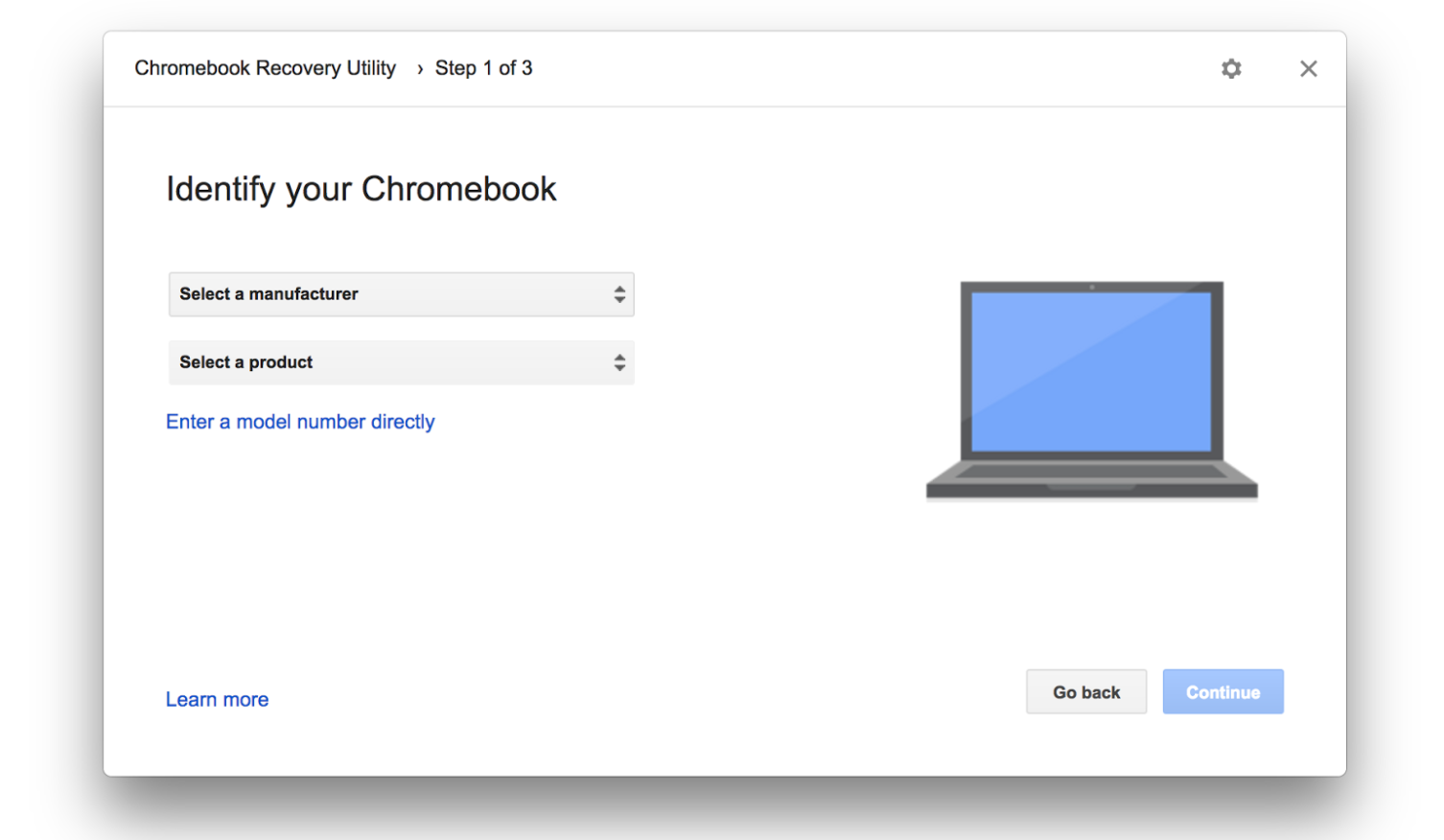
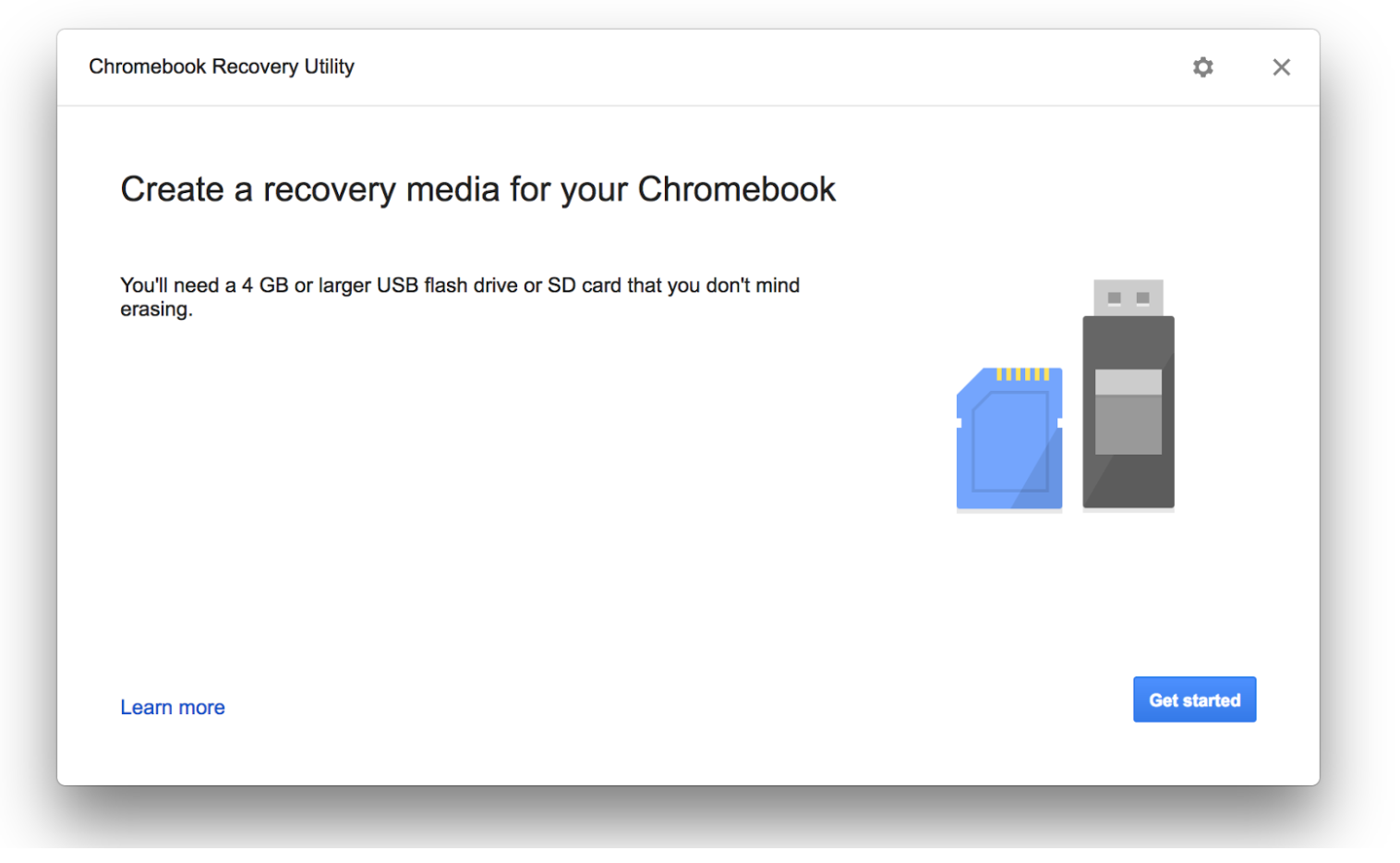
Install Chromebook recovery utility from the Chrome web store. Open the app and follow the instructions to create the recovery drive. It’s an easy three-step, click next process. All you need is working Internet and a USB drive with at least 4GB space.

Figure 1: Install the Chromebook Recovery Utility from the Chrome Web Store.

Figure 2: Then follow the easy to follow instructions.

Once the recovery disk is created, unplug it and proceed with the following steps. You can also create a recovery disk from Linux, macOS and Windows PCs using the Chrome web browser. Open web store in Chrome browser and install recovery tool. Once installed, follow the above procedure.

Change to developer mode

If you have the latest Chromebook, you can easily enable the developer mode by holding  Esc + Refresh keys and then pushing  the ‘power’ button.

It will boot into recovery mode, which will show a scary warning on the screen (this warning will appear at every reboot). Just ignore it and let Chrome OS wipe your data. The process can take up to 15 minutes, so don’t turn off your Chromebook.

Once the system has successfully booted into developer mode, at every reboot you will see the warning screen. You can either wait for a few seconds for it to automatically boot into Chrome OS, or press Ctrl+d to immediately boot into Chrome OS.

Now log into your Gmail account as usual and open the command-line interface by pressing Ctrl+alt+t.

Once in the terminal, open Bash shell by typing:

shell

In another tab, open the Crouton GitHub page and download Crouton (it’s downloaded into the Downloads directory)

There are many operating systems available for Chromebooks via Crouton, including Debian, Ubuntu, and Kali Linux.

Downloading latest crouton installer...
######################################################################## 100.0%
Recognized debian releases:
   potato* woody* sarge* etch* lenny* squeeze* wheezy jessie stretch sid
Recognized kali releases:
   kali* sana* kali-rolling
Recognized ubuntu releases:
   warty* hoary* breezy* dapper* edgy* feisty* gutsy* hardy* intrepid* jaunty*
   karmic* lucid* maverick* natty* oneiric* precise quantal* raring* saucy*
   trusty utopic* vivid* wily* xenial* yakkety* zesty*
Releases marked with * are unsupported, but may work with some effort.
chronos@localhost / $

As is self-evident, not all distributions or releases are supported. If you are planning to install Ubuntu, it defaults to Precise release, which is quite old, so you may face issues with Crouton on some machines. I heavily recommend using Trusty release.

To find which releases are available, run this command in the shell:

sh ~/Downloads/crouton -r list

To find which DEs are available, run:

sudo sh -e ~/Downloads/crouton -t list

Let’s say you want to install Xfce, the lightweight distribution suited for the low-powered device, but you want to install Ubuntu Trusty. You would use this pattern:

sh ~/Downloads/crouton -r trusty -t xfce

If you want to install the default Ubuntu distribution with xfce instead, use:

sh ~/Downloads/crouton -t xfce

The installation can take a bit longer because Crouton downloads the entire distribution over the Internet and installs it. In my case, it took more than 20 minutes.

Once the installation is complete, it will ask you to create a username and password. Now you can boot into your Linux distribution with this command:

sudo startTARGET

Replace TARGET with your desktop environment. If you installed Xfce, the command to start it will be:

sudo startxfce4

If you installed Unity, run:

sudo startunity

The most interesting thing about Crouton is that it runs the desired Linux distribution simultaneously with Chrome OS, which means you can easily switch between the two operating systems as if you’re switching between two tabs of a browser. Using:

Ctrl+Alt+Shift+ <- 

switches back to Chrome OS and typing

Ctrl+Alt+Shift+->

switches to Ubuntu Linux.

Now you have a standard Linux distribution running on Chromebook and you can install any package that you want. Bear in mind that, depending on your architecture, some packages may or may not be available because not all Linux applications are available for ARM processors.

That’s where the “best of both worlds” concept comes into play. You can simply switch back to Chrome OS and use applications like Microsoft Office, Adobe Photoshop, and thousands of games and applications that are available through Android.

At the same time, you can also access all the Linux utilities, whether it’s sshing into your server or using applications like GIMP and LibreOffice. To be honest, I do most of my consumer side work in Chrome OS; it has almost all commercial and popular apps and services. Whether I want to watch Netflix, HBO Now, Hulu, or Amazon Prime, I can do this on the same machine where I can also use core Linux utilities and manage my servers easily.

That’s what I call the best of both worlds.

Learn more about Linux through the free “Introduction to Linux” course from The Linux Foundation and edX.

GNU ddrescue – The Best Damaged Drive Rescue

When you rescue your data from a dying hard drive, time is of the essence. The longer it takes to copy your data, the more you risk losing. GNU ddrescue is the premium tool for copying dying hard drives, and any block device such as CDs, DVDs, USB sticks, Compact Flash, SD cards — anything that is recognized by your Linux system as /dev/foo. You can even copy Windows and Mac OS X storage devices because GNU ddrescue operates at the block level, rather than the filesystem level, so it doesn’t matter what filesystem is on the device.

Before you run any kind of file recovery or forensic tools on a damaged volume it is a best practice to first make a copy, and then operate on the copy.

I like to keep a SystemRescueCD handy, and also on a USB stick. (Remember the bad old days before USB devices? However did we survive?) SystemRescueCD has a small footprint and is specialized for rescue operations. These days most Linux distributions have live bootable versions so you can use whatever you are comfortable with, provided you add GNU ddrescue and any other rescue software you need.

Don’t confuse GNU ddrescue with dd-rescue by Kurt Garloff. dd-rescue is older, and the design of GNU ddrescue probably benefited from it. GNU ddrescue is fast and reliable: it skips bad blocks and copies the good blocks, and then comes back to try copying the bad blocks, tracking their location with a simple logfile.

Rescue Hardware

You need a Linux system with GNU ddrescue (gddrescue on Ubuntu), the drive you are rescuing, and a device with an empty partition at least 1.5 times as large as the partition you are rescuing, so you have plenty of headroom. If you run out of room, even if it’s just a few bytes, GNU ddrescue will fail at the very end.

There are a couple of ways to set this up. One way is to mount the sick drive on your Linux system, which is easy if it’s an optical disk or USB device. For SATA and SDD drives, USB adapters are inexpensive and easy to use. I prefer bringing the sick device to my good reliable Linux system and not hassling with bootloaders and strange hardware. I keep a spare SATA drive in a portable USB enclosure for storing the rescued data.

Another way is to boot up the system that hosts the dying drive with your SystemRescueCD (or whatever rescue distro you prefer), and connect your rescue storage drive.

If you don’t have enough USB ports, a powered USB hub is a lovely thing to have.

Identify Drive Names

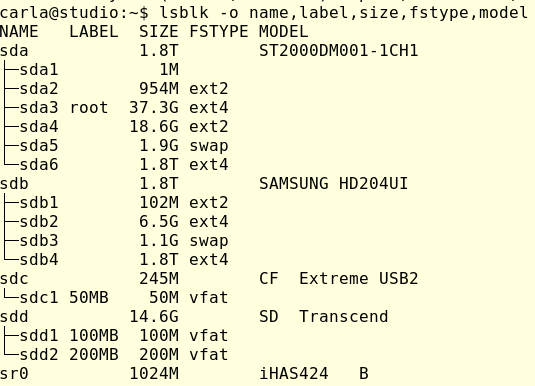
You want to make sure you have the correct device names. Connect everything and then run lsblk:

As this shows, it is possible to make mistakes. I have two 1.8TB drives. One has the root filesystem and my home directory, and the other is an extra data storage drive. lsblk accurately identifies the Compact Flash drive, an SD card, and the optical drive (sr0, iHAS424 identifies a Lite-On optical drive). If this doesn’t help you identify your drives then try findmnt:

$ findmnt -D
SOURCE     FSTYPE            SIZE   USED  AVAIL USE% TARGET
udev       devtmpfs          7.7G      0   7.7G   0% /dev
tmpfs      tmpfs             1.5G   9.6M   1.5G   1% /run
/dev/sda3  ext4             36.6G  12.2G  22.4G  33% /
tmpfs      tmpfs             7.7G   1.2M   7.7G   0% /dev/shm
tmpfs      tmpfs               5M     4K     5M   0% /run/lock
tmpfs      tmpfs             7.7G      0   7.7G   0% /sys/fs/cgroup
/dev/sda4  ext2             18.3G    46M  17.4G   0% /tmp
/dev/sda2  ext2              939M 119.1M 772.2M  13% /boot
/dev/sda6  ext4              1.8T 505.4G   1.2T  28% /home
tmpfs      tmpfs             1.5G    44K   1.5G   0% /run/user/1000
gvfsd-fuse fuse.gvfsd-fuse      0      0      0    - /run/user/1000/gvfs
/dev/sdd1  vfat             14.6G     8K  14.6G   0% /media/carla/100MB
/dev/sdc1  vfat            243.8M    40K 243.7M   0% /media/carla/50MB
/dev/sdb4  ext4              1.8T   874G 859.3G  48% /media/carla/8c670f2e-
   dae3-4594-9063-07e2b36e609e

This shows that /dev/sda3 is my root filesystem, and everything in /media is external to my root filesystem.

/media/carla/100MB2 and /media/carla/50MB have labels instead of UUIDs like /media/carla/8c670f2e-dae3-4594-9063-07e2b36e609e because I always give my USB sticks descriptive filesystem labels. You can do this for any filesystem, for example I could label the root filesystem this way:

$ sudo e2label /dev/sda3 rootdonthurtmeplz

Run sudo e2label [device] to see your nice new label. e2label is for ext2/ext3/ext4, and XFS, JFS, BtrFS, and other filesystems have different commands. The easy way is to use GParted; unmount the filesystem and then you can apply or change the label without having to look up the command for each filesystem.

Basic Rescue

Allrightythen, we’ve spent enough time figuring out how to know which drive is which. Let’s say that GNU ddrescue is on /dev/sda1, the damaged drive is /dev/sdb1, and we are copying it to /dev/sdc1. The first command copies as much as possible, without retries. The second command goes over the damaged filesystem again, and makes three retries to copy everything. The logfile is on the root filesystem, which I think is a better place than the removable media, but you can put it anywhere you want:

$ sudo ddrescue -f --no-split /dev/sdb1 /dev/sdc1 logfile
$ sudo ddrescue -f -r3 /dev/sdb1 /dev/sdc1 logfile

To copy an entire drive use just the drive name, for example /dev/sdb and don’t specify a partition.

If you have any damaged files that ddrescue could not completely recover you’ll need other tools to try to recover them, such as Testdisk, Photorec, Foremost, or Scalpel. The Arch Linux wiki has a nice overview of file recovery tools.

Learn more about Linux through the free “Introduction to Linux” course from The Linux Foundation and edX.

Editor’s Note: The article has been modified from the original version. We previously gave instructions on how to restore the damaged volume, but of course you don’t want to do that!

Elasticsearch and Kibana: Installation and Basic Usage on Ubuntu 16.04

Elasticsearch is a production-ready search engine written in Java and is extremely powerful. It can be used as a standalone search engine for the web or as a search engine for e-commerce web applications. 

eBay, Facebook, Netflix is some of the companies that use this platform. This is popular because it is more than just a search engine. It is also a powerful analytics engine and a logs management and retrieval system. The best part about this is that it is Open Source, free to use always. Kibana is the visualization tool provided by elastic.

In this tutorial, we will be going through the installation steps for Elasticsearch followed by the installation of Kibana and then we will use Kibana to store and retrieve data. 

Read more at HowtoForge

Adapt or Die: The New Pattern of Software Delivery

Companies need to get many different versions of their software out in quick succession, often running more than one version at once in order to test their assumptions in the marketplace and learn where to focus their energies next.

In short, companies need to be highly adaptable, so their software needs to be highly adaptable too.

An enthusiastic proponent of microservices, Adrian Cockcroft, former cloud architect at Netflix and currently with Amazon Web Services, has described the need to adapt like this: “Everything basically is subservient to the need to be able to make decisions, and build things, faster than anyone else.”

But speed isn’t the only factor here,…

Read more at The New Stack

Keeping Docker Containers Safe

Docker containers introduce serious security problems, but you can employ a number of methods to deploy them securely.

Few debate that the destiny of a hosting infrastructure is running applications across multiple containers. Containers are a genuinely fantastic, highly performant technology ideal for deploying software updates to applications. Whether you’re working in an enterprise with a number of critical microservices, tightly coupled with a pipeline that continuously deploys your latest software, or you’re running a single LEMP (Linux, Nginx, MySQL, PHP) website that sometimes needs to scale up for busy periods, containers can provide with relative ease the software dependencies you need across all stages of your development life cycle.

Containers are far from being a new addition to server hosting. I was using Linux containers (OpenVZ) in production in 2009 and automatically backing up container images of around 250MB to Amazon’s S3 storage very effectively. A number of successful container technologies have been used extensively in the past, including LXC, Solaris Zones, and FreeBSD jails, to name but a few.

Suffice to say, however, that the brand currently synonymous with container technology is the venerable Docker. 

Read more at ADMIN

Most Useful Linux Command Line Tricks

We use many Linux command lines every day. We know some tricks from the web, but if we don’t practice them, we may forget them. I’ve decided to make a list of tips and tricks that you may have forgotten or that may be entirely new to you.

Display Output as a Table

Sometimes, when you see the output of a command, it can be overwhelming to identify the output due to overcrowded strings (for example, the output of the mount command). How about viewing it like a table? This is easy to do!

Read more at DZone

How Embedded Linux Accelerates IoT Development

You’ll find that the quickest way to build components of an IoT ecosystem is to use embedded Linux, whether you’re augmenting existing devices or designing a new device or system from the beginning. Embedded Linux shares the same source code base as desktop Linux, but it is coupled with different user interface tools and other high-level components. The base of the system is essentially the same.

Let’s look at a few common cases.

Read more at OpenSource.com

Faster Data Center Transfers with InfiniBand Network Block Device

The storage team of ProfitBricks has been looking for a way to speed transfers between VMs on compute nodes and physical devices on storage servers, connected via InfiniBand, in their data centers. As a solution, they developed the IBNBD driver, which presents itself as a block device on the client side and transmits the block requests to the server side, according to Danil Kipnis, Software Developer at ProfitBricks GmbH.

“Any application requiring block IO transfer over InfiniBand network can benefit from the IBNBD driver,” says Kipnis.

Danil Kipnis, Software Developer at Profitbricks GmbH
In his presentation at the upcoming Vault conference, Kipnis will describe the design of the driver and discuss its application in cloud infrastructure. We spoke with Kipnis to get a preview of his talk.

Linux.com: Please give our readers a brief overview of the IBNBD driver project.

Danil Kipnis: IBNBD (InfiniBand network block device) allows for an RDMA transfer of block IO over InfiniBand network. The driver presents itself as a block device on client side and transmits the block requests in a zero-copy fashion to the server-side via InfiniBand. The server part of the driver converts the incoming buffers back into BIOs and hands them down to the underlying block device. As soon as IO responses come back from the drive, they are being transmitted back to the client.

Linux.com: What has motivated your work in this area? What problem(s) are you aiming to solve?

Kipnis: ProfitBricks is an IaaS company. Internally, our data centers consist of compute nodes (where customer VMs are running) and storage servers (where the hard drives are) connected via InfiniBand network. The storage team of ProfitBricks has been looking for a solution for a fast transfer of customer IOs from the VM on a compute node to the physical device on the storage server. We developed the driver in order to take advantage of the high bandwidth and low latency of the InfiniBand RDMA for IO transfer without introducing the overhead of an intermediate transport protocol layer.

Linux.com: Are there existing solutions? How do they differ?

Kipnis: The SRP driver serves the same purpose while using SCSI as an intermediate protocol. Same goes for the ISER. A very similar project to ours is accelio/nbdx by Mellanox. It is different from IBNBD in that it operates in user-space on server side and its development is currently on hold/given up in favor of NVMe over Fabrics to the best of my knowledge. While NVMEoF solutions do simplify the overall storage stack, they also sacrifice the flexibility on the storage side, which can be required in a distributed replication approach.

Linux.com: What applications are likely to benefit most from the approach you describe?  

Kipnis: Any application requiring block IO transfer over InfiniBand network can benefit from the IBNBD driver. The most obvious area is the cloud context, where customer volumes are scattered across a server cluster. Here one often wants to start a VM on one machine and then attach a block device physically situated on a different machine to it.

Linux.com: What further work are you focusing on?

Kipnis: Currently, we are working on integrating the IBNBD driver into a new replication solution for our DCs. There we want to take advantage of the InfiniBand multicast feature as a way to deliver IOs to different legs of a RAID setup. This would require among other things extending the driver with a “reliable multicast” feature.

Interested in attending the Vault conference? Linux.com readers can register now with the discount code, LINUXRD5, to save $35 off the attendee registration price.

4 Security Steps to Take Before You Install Linux

Learn how to work from anywhere and keep your data, identity, and sanityDOWNLOAD NOW

Systems administrators who use a Linux workstation to access and manage IT infrastructure — whether from home or at work —  are at risk of becoming attack vectors against the rest of the infrastructure.

In this blog series, we’re laying out a set of baseline recommendations for Linux workstation security to help systems administrators avoid most glaring security errors without introducing too much inconvenience. Last week, we covered security considerations for choosing your hardware.

Now, before you even start with your operating system installation, there are a few things you should consider to ensure your pre-boot environment is up to snuff. You will want to make sure:

  • UEFI boot mode is used (not legacy BIOS) (ESSENTIAL)

  • A password is required to enter UEFI configuration (ESSENTIAL)

  • SecureBoot is enabled (ESSENTIAL)

  • A UEFI-level password is required to boot the system (NICE-to-HAVE)

UEFI and SecureBoot

UEFI, with all its warts, offers a lot of goodies that legacy BIOS doesn’t, such as SecureBoot. Most modern systems come with UEFI mode on by default.

Make sure a strong password is required to enter UEFI configuration mode. Pay attention, as many manufacturers quietly limit the length of the password you are allowed to use, so you may need to choose high- entropy short passwords vs. long passphrases (see the full ebook for more on passphrases).

Depending on the Linux distribution you decide to use, you may or may not have to jump through additional hoops in order to import your distribution’s SecureBoot key that would allow you to boot the distro. Many distributions have partnered with Microsoft to sign their released kernels with a key that is already recognized by most system manufacturers, therefore saving you the trouble of having to deal with key importing.

As an extra measure, before someone is allowed to even get to the boot partition and try some badness there, let’s make them enter a password. This password should be different from your UEFI management password, in order to prevent shoulder-surfing. If you shut down and start a lot, you may choose to not bother with this, as you will already have to enter a LUKS passphrase and this will save you a few extra keystrokes.

Once you’ve mastered the hardware and pre-boot considerations, you’re ready to choose a distro. Chances are you’ll stick with a fairly widely-used distribution such as Fedora, Ubuntu, Arch, Debian, or one of their close spin-offs. In any case, we’ll tell you what to consider when picking a distribution to use in our next article in this series.

Whether you work from home, log in for after-hours emergency support, or simply prefer to work from a laptop in your office, you can use A SysAdmin’s Essential Guide to Linux Workstation Security to do it securely. Download the free ebook and checklist now!

Read more:

3 Security Features to Consider When Choosing a Linux Workstation