Home Blog Page 676

Apache on CentOS Linux For Beginners

We learned the basics of running the Apache HTTP server on the Debian/Ubuntu/etc. family of Linux distributions in Apache on Ubuntu Linux For Beginners and Apache on Ubuntu Linux For Beginners: Part 2. Now we’re going to tackle CentOS/Fedora/andtherest. It’s the same Apache; the differences are package names, configuration files, and that never-ending source of fun times, SELinux.

Install Apache in the usual way with Yum, set it to automatically start at boot, and then start it:


$ sudo yum -y install httpd
$ sudo systemctl enable httpd.service
$ sudo systemctl start httpd.service

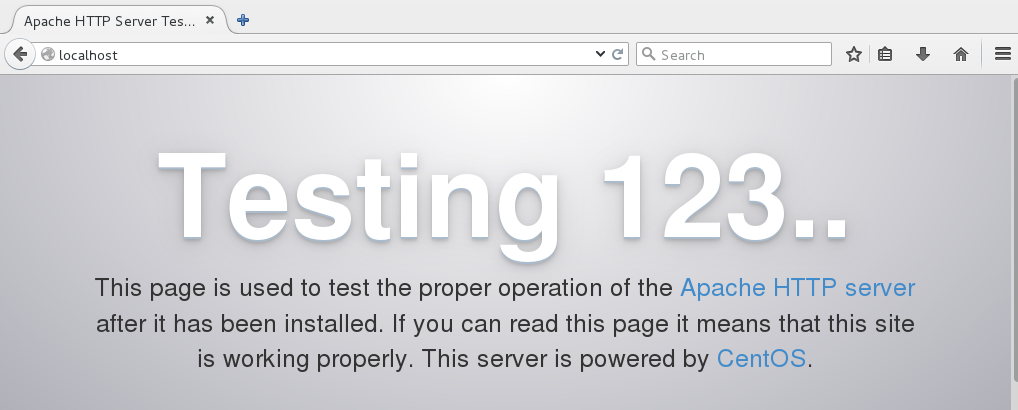
Point a web browser to http://localhost, and you should see a test page (Figure 1).

Figure 1: Apache test page.

It works! We are wonderful.

SELinux

CentOS installs with an active SELinux configuration set to SELINUX=enforcing in /etc/sysconfig/selinux, which will prevent your new virtual hosts from operating. There are two ways to handle this. One way is to disable SELinux by changing SELINUX=enforcing to SELINUX=permissive, and then rebooting. This keeps your rules active without enforcing them, and logs all SELinux messages so you can study how the rules are working, and if they are set correctly.

The other way is to leave SELinux in enforcing mode and create a ruleset for your new virtual host. In the following examples our virtual host root is /var/www/html/mysite.com:


$ sudo semanage fcontext -a -t httpd_sys_rw_content_t 
  '/var/www/html/mysite.com(/.*)?'
restorecon -RF /var/www/html/mysite.com

While you’re testing and learning, you could make this ruleset apply to your entire web root by using '/var/www/html(/.*)?' instead of creating rules for each individual virtual host. Note that neither of these rulesets are very secure; they’re for making testing easier. A more secure SELinux configuration is more fine-grained and applied to individual directories; I leave it as your homework to study how to do this.

Configuration Files

CentOS/etc. use a different configuration file structure than the Debian Linux family. Apache configuration files are stored in /etc/httpd. The default CentOS 7 installation supplies these directories:


conf
conf.d
conf.modules.d
logs
modules
run

conf contains the main server configuration file, httpd.conf. You probably won’t edit this file very often. This contains global configurations such as the location of the configuration files, include files, the Apache user and group, document root, and log file location and format.

conf.d is where your virtual hosts and any other custom configurations go. It contains welcome.conf, which is is the default virtual host that displays the default welcome page. autoindex.conf enables directory listings, and php.conf controls how Apache interacts with PHP.

All files in conf.d must have a .conf extension. This is controlled in httpd.conf, so you have the option to change it to whatever you want. Really. Even something goofy, like .feedme or .hiapache.

conf.modules.d loads whatever installed modules you want to use.

logs, modules, and run are all symlinks to other directories. Take a little time to study your configuration files and see what is in them.

Create a new virtual host

Now that we have an inkling of what to do, let’s create a new virtual host and its welcome page. In this example it is mysite.com.


$ sudo mkdir -p /var/www/html/mysite.com
$ cd /var/www/html/test.com
$ sudo nano index.html

You are welcome to copy this fabulous custom welcome page:


<head>
<title>Mysite.com index page</title>
</head>
<h1>Hello, welcome to mysite.com! It works!</h1>            
<h2>That is all I have to say. If you don't 
see this then it doesn't work.</h2>
</body>
</html>

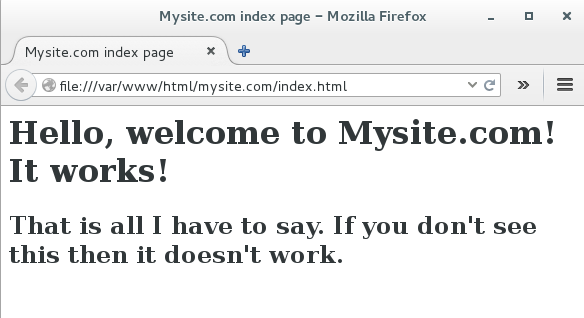
Test your new index page by opening it in a web browser (Figure 2), which in this example is file:///var/www/html/mysite.com/index.html.

Figure 2: Mysite test page.

Excellent, the welcome page renders correctly. Now let’s configure a virtual host to serve it up, /etc/httpd/conf.d/mysite.conf.


$ cd /etc/httpd/conf.d/
$ sudo nano mysite.conf

This is a basic barebones virtual host:


<VirtualHost *:80>
    ServerAdmin carla@localhost
    DocumentRoot /var/www/html/mysite.com
    ServerName mysite.com
    ServerAlias mysite.com
</VirtualHost>

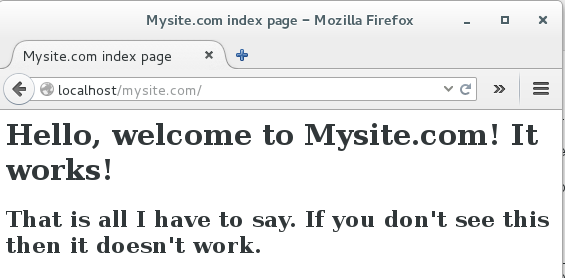
Now point a web browser to http://localhost/mysite.com to (Figure 3).

Figure 3: Mysite virtual host.
Behold! Your fab new virtual host lives! If it doesn’t look right restart Apache, and force your browser to bypass its cache by pressing Shift+reload. After years of testing multiple setups and running Apache on all kinds of Linux distributions, I’m rather muddled on when you need to restart or reload the configuration without restarting, or when Apache picks up new configurations automatically. During your testing, you can restart it with gay abandon.

Multiple virtual hosts

For quick easy testing map your server’s IP address to your domain names in /etc/hosts:


192.168.1.25       mysite.com
192.168.1.25       www.mysite.com

Now you can access http://mysite.com and http://www.mysite.com without the localhost portion of the address. Copy these /etc/hosts entries to other hosts on your LAN, and they should also have access to your site.

To set up more sites repeat these steps, creating different document roots and domains for each one, and their corresponding entries in /etc/hosts. For example, adding second virtual host looks like this:


192.168.1.25       mysite.com
192.168.1.25       www.mysite.com
192.168.1.25       mycatpics.com
192.168.1.25       www.mycatpics.com

And beware of SELinux.

When you’re ready to roll out a production server refer to Dnsmasq For Easy LAN Name Services to learn how to set up DNS on your LAN with the excellent Dnsmasq name server.

Creating a publicly accessible Internet web server is a much bigger job that involves registering domain names, setting up careful and correct DNS, and building a good firewall. Do please study this with great care.

The fine Apache documentation is exhaustively thorough, and it makes more sense when you have a live server running, and have some idea of how things work.

Advance your career in system administration! Check out the Essentials of System Administration course from The Linux Foundation.

Keynote: OpenSDS – An Industry-Wide Collaboration for SDS Management

Cameron Bahar, SVP and Global CTO of Huawei Storage, and Steven Tan, Chief Architect at Huawei, launch the project proposal for a new open source initiative called OpenSDS during their LinuxCon Europe keynote.


Microsoft Releases Open Source Toolkit Used to Build Human-Level Speech Recognition

Last week, Microsoft announced a speech recognition breakthrough: a transcription system that can match humans, with a word error rate of 5.9 percent for conversational speech. This new system is built on an open source toolkit that Microsoft already developed. A major new update to the toolkit, now called the Cognitive Toolkit, was released today in beta.

Formerly called the Computational Network Toolkit (CNTK), the MIT-licensed, GitHub-hosted project gives researchers some of the building blocks, such as neural networks, to develop their own machine learning systems. These machine learning applications can run on both CPUs and GPUs, and the toolkit has support for compute clusters. This scalability has already made CNTK strongly competitive with other popular frameworks, including Google’s TensorFlow.

Read more at Ars Technica

Root Cause: How Complex Web Systems Fail

Distributed web-based systems are inherently complex. They’re composed of many moving parts — web servers, databases, load balancers, CDNs, and many more — working together to form an intricate whole. This complexity inevitably leads to failure. Understanding how this failure happens (and how we can prevent it) is at the core of our job as operations engineers.

In his influential paper How Complex Systems Fail, Richard Cook shares 18 sharp observations on the nature of failure in complex medical systems. The nice thing about these observations is that most of them hold true for complex systems in general. Our intuitive notions of cause-and-effect, where each outage is attributable to a direct root cause, are a poor fit to the reality of modern systems.

In this post, I’ll translate Cook’s insights into the context of our beloved web systems and explore how they fail, why they fail, how you can prepare for outages, and how you can prevent similar failures from happening in the future.

Read more at Scalyr Blog

How to Assess the Benefits of SDN in Your Network

Find out what three networking problems the benefits of SDN could address in your network and the questions you should ask to make sure you’re on the right track.

In terms of the benefits of SDN, let’s look at three of the most important problems the technology can solve, along with some considerations you can use to decide how SDN could help you.

More intelligent access. One of the main benefits of SDN technologies is to help you make the access edge of your branch and campus networks more intelligent for both security and performance management

Read more at TechTarget

The World Runs on OpenStack

The OpenStack Summit keynotes got underway the morning of October 25, with Mark Collier, Chief Operating Officer of the OpenStack Foundation, declaring that the world runs on OpenStack.

Collier’s claims were not exactly bravado, as they were backed by a conga line of large operators all using OpenStack to power their cloud services.

The core design approach around OpenStack is driven by what Collier referred to as the four opens: open source, open community, open development and open design.

Read more at ServerWatch

How to Sort Output of ‘ls’ Command By Last Modified Date and Time

One of the commonest things a Linux user will always do on the command line is listing the contents of a directory. As we may already know, ls and dir are the two commands available on Linux for listing directory content, with the former being more popular and in most cases, preferred by users.

When listing directory contents, the results can be sorted based on several criteria such as alphabetical order of filenames, modification time, access time, version and file size. Sorting using each of these file properties can be enabled by using a specific flag.

[[ This is a content summary only. Visit my website for full links, other content, and more! ]]

Read complete article

How to Keep your Linux PC Safe From Exploits

As with any big piece of software, Linux is complex, and difficult for outsiders to comprehend. That’s why it’s not terribly shocking that a 9-year-old Linux kernal vulnerability, known as Dirty COW, wasn’t patched until just a few days ago on October 20.

First off, here’s a quick reminder of what Linux is: Linux is a kernel, just one piece of software in the GNU/Linux OS, with the GNU suite of tools making up the majority of the base operating system. That said, the kernel is one of the keys to the OS, allowing the software to interact with hardware. Linux’s importance to servers and infrastructure means that a lot of eyes are constantly looking at the kernel. Some of those eyes belong to employees at companies like IBM or Red Hat who are paid to work on it full-time. That’s pretty impressive for a piece of software that’s freely given away.

Read more at PC World

Manage SSH Key File With Passphrase

Any serious DevOps will only ssh by key file. Not with password, right? And mostly our powerful key file can unlock many critical envs. Have you ever uploaded your private key to other envs, like jumpbox? What if your key is magically stolen by hackers somehow?

Time to protect your sensitive ssh key by passphrase. And live with it, headache-free.

Manage SSH Key File With Passphrase


Original Article: http://dennyzhang.com/ssh_passphrase

Update Per Audience Feedback:

  • Thanks to Joshua Cornutt: When storing a private key on a server, I’d opt for a hardware option (HSM) since it’s likely the key will need to be actively used and thus a passphrase can’t be securely used (think automated use of a server-side private key) .

Cheat Sheet for impatient users. Recommend to read this post through, even for experienced users.

Name Summary
Load key file ssh-add ~/.ssh/id_rsa
Remove all loaded keys ssh-add -D
Whether it’s encrypted grep “ENCRYPTED” id_rsa
Add/Change passphrase ssh-keygen -p -f id_dsa
Remove passphrase ssh-keygen -p -P $passwd -N “” -f id_rsa
Load key without prompt Check link: here

Add passphrase to existing ssh key

We can easily use ssh-keygen to add passphrase. This certainly gives us extra security benefit. Next, what’s the impact of this change?

  • You never use your private key other than your computer. Right? If yes, nothing you need to worry. One tiny difference: you might be asked to input the passphrase once. Check all loaded keys by ssh-add -l.
  • In some cases, we might use key files to do passwordless login in remote servers. For example, ssh tunnel for port forwarding, ssh from jumpbox to other machines, etc. Then we have to make sure the key file is correctly loaded and recognized. Run ssh-add ./id_rsa, then input passphrase manually. This also can be done automatically. We will explain it shortly.
# Change file mode to allow overwrite
chmod 700 id_rsa

# Add passphrase to key file
ssh-keygen -p -f id_rsa

# Denny-mac:.ssh mac$ ssh-keygen -p -f id_rsa
# Key has comment 'id_rsa'
# Enter new passphrase (empty for no passp...
# Enter same passphrase again: 
# Your identification has been saved with ...

Load protected ssh key without prompt

Pity that ssh-add itself doesn’t have native support for this[1]. Here is a workaround. A bit tricky, I admit.

# Specify your passphrase here
export YOUR_PASSPHRASE="XXX"

# Load protected key without prompt
echo "echo $YOUR_PASSPHRASE" > /tmp/mypass
chmod 700 /tmp/mypass
cat id_rsa| SSH_ASKPASS=/tmp/mypass ssh-add -

# Verify loaded certificate
ssh-add -l

Change passphrase for existing private key

Run below command. You will be asked to input old passphrase and new one. If the key is not encrypted, just press enter in the terminal.

ssh-keygen -p -f ~/.ssh/id_dsa

Remove passphrase

Use openssl to remove passphrase.[2] You will need to manually input old passphrase.

openssl rsa -in id_rsa -out id_rsa_new

Same can be done by ssh-keygen.[3] The amazing part is no required human intervene. Totally automated.

ssh-keygen -p -P "$OLDPASS" -N "" -f id_rsa

More Reading: Reverse SSH Tunnel: Export Your Mac Laptop To The Internet.

Footnotes:

[1] unix.stackexchange.com/questions/90853/how-can-i-run-ssh-add-automatically-without-password-prompt
[2] www.thinkplexx.com/learn/howto/security/ssl/remove-passphrase-password-from-private-rsa-key
[3] stackoverflow.com/questions/112396/how-do-i-remove-the-passphrase-for-the-ssh-key-without-having-to-create-a-new-ke

Like our blog posts? Discuss with us on LinkedInTwitter Or NewsLetter.

Watch Videos from Embedded Linux Conference + OpenIoT Summit Europe

Thank you for your interest in the recorded sessions from Embedded Linux Conference + OpenIoT Summit Europe 2016! View more than 125+ sessions from the event below.


Keynotes


Embedded Linux Conference


Open IoT Summit