The Linux Foundation has released session details for three major conferences coming up this fall: MesosCon Europe, Embedded Linux Conference / OpenIoT Summit Europe, and LinuxCon + ContainerCon Europe.
MesosCon Europe, which will take place August 31-September 1 in Amsterdam, The Netherlands, is an annual conference organized by the Apache Mesos community, bringing together users and developers for two days of sessions about Mesos and related technologies. This year, the MesosCon program will include workshops to get started with Mesos, keynote speakers from industry leaders, and sessions led by adopters and contributors.
LinuxCon + ContainerCon Europe will take place October 4-6 this year in Berlin, Germany. At LinuxCon + ContainerCon Europe, you have the chance to learn from Linux experts, with presentations from leading maintainers, developers, and project leads in the Linux community and from around the world.
With 185+ sessions — ranging from tutorials to technical deep dives — and 1,500 Linux community members to collaborate with, the event offers unparalleled open source content for attendees of all levels. This year, conference festivities also include a special celebration of the 25th anniversary of Linux.
Scheduled speakers and sessions at LinuxCon + ContainerCon Europe will cover today’s important topics in open source development, including containers, networking, security, cloud applications, the Linux kernel, and more.
Embedded Linux Conference and OpenIoT Summit Europe are co-located October 11-13 in Berlin. For the past 10 years, ELC has been the premier vendor-neutral technical conference for developers, architects, and engineers using Linux in embedded products. The OpenIoT Summit offers essential knowledge for system architects and firmware, software, and application developers in the emerging IoT ecosystem.
Pwnie Express has given the keys to software used to secure the Internet of Things (IoT) and Android software to the open-source community.
The Internet of Things (IoT), the emergence of devices ranging from lighting to fridges and embedded systems which are connected to the web, has paved an avenue for cyberattackers to exploit.
The software should help penetration testers identify and locate threats to Internet of Things (IoT) devices.
When I first started on my journey with Linux, back in the late 1990s, there was one inevitability: the terminal. You couldn’t escape it. The command line was a part of your daily interaction with the open source platform and that was that. Today’s Linux is a much different beast. New and seasoned users alike can work with the platform and never touch the command line or terminal.
But, on the off-chance you do want to take advantage of the power that is the command line, it’s good to know there are numerous options available, some of which offer unique takes on the task. Those are the terminals I want to highlight today—the ones that offer more than just the ability to enter a command. If you’re looking for a far more efficient interaction with your terminal and OS, or you’re looking for more flexibility with your terminal, one of these will certainly fit your needs.
Technically speaking, these are actually terminal emulators. What they do is create a windowed terminal environment (so you don’t have to log out of your desktop and work from within a real terminal). With that said, let’s take a look at some really cool (and unique) examples of the Linux terminal window. I’ll be demonstrating these terminals on Elementary OS Freya and Ubuntu 16.04.
Guake
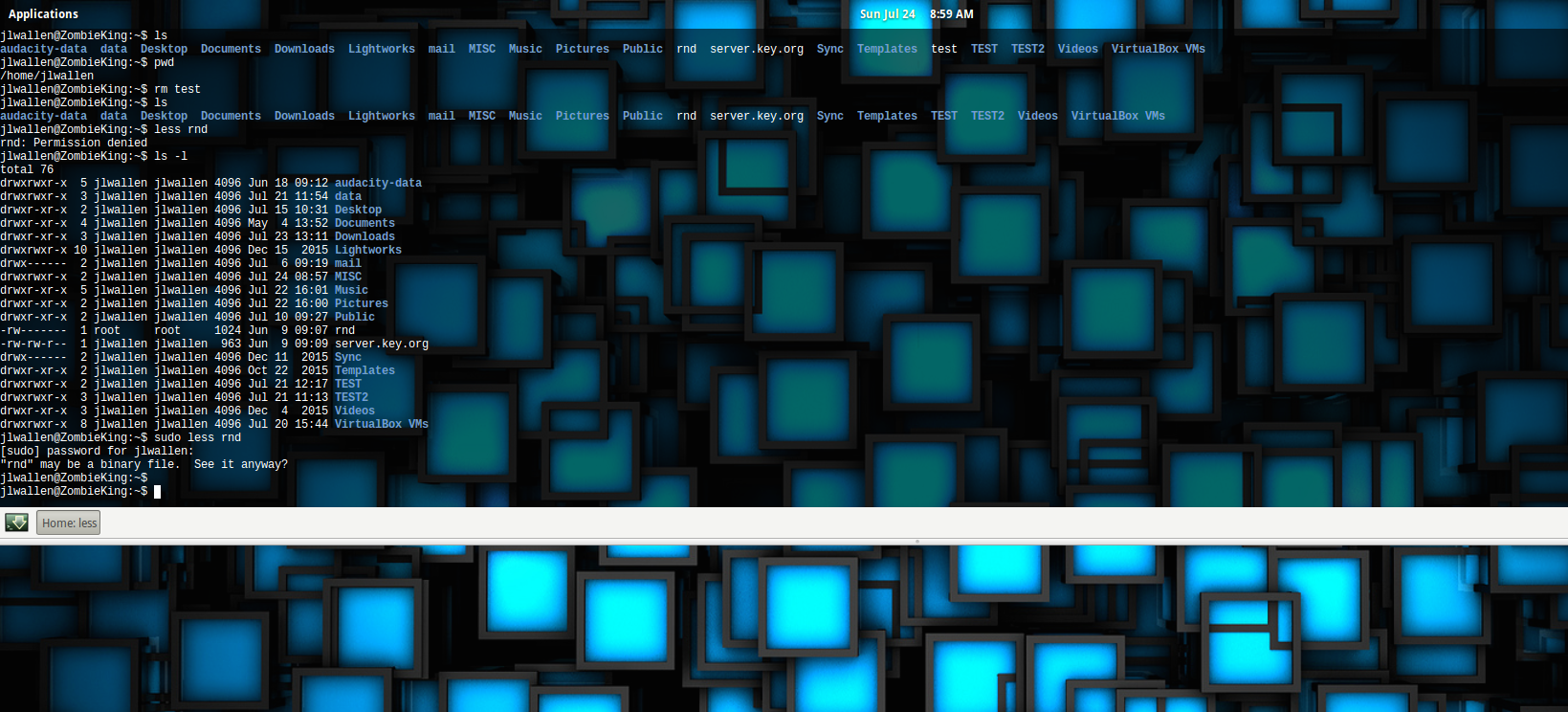
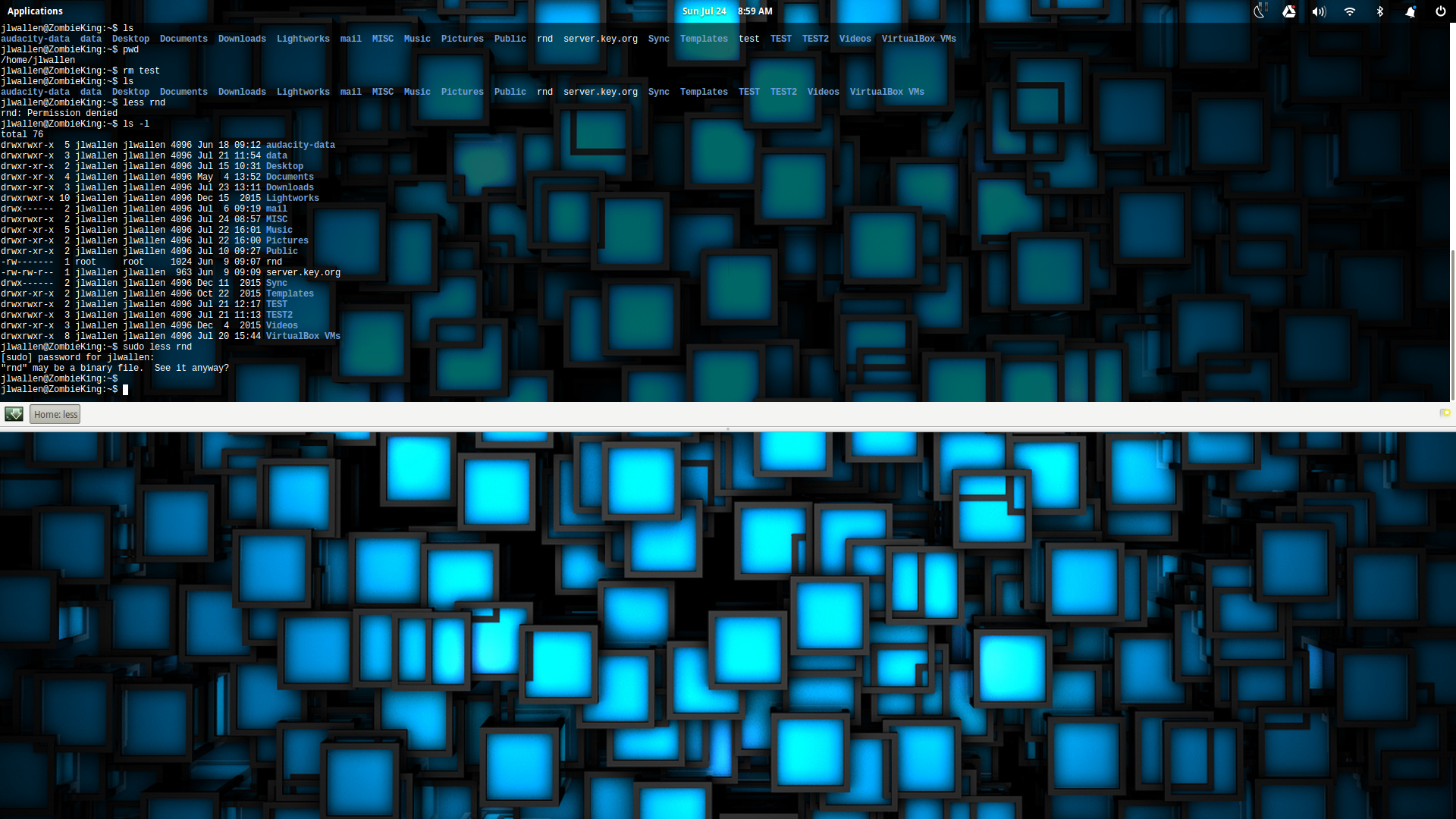
Guake is my terminal window of choice. The primary reason for this is that I use the terminal quite a bit throughout the day and don’t want to have to clutter up an already cluttered dock with yet another tool. Guake makes this easy. With the simple click of a hot key, the Guake terminal will drop down from the top of the window (as an overlay), ready to use (Figure 1).
Figure 1: The Guake Terminal in action.
Installing Guake can be done from standard repositories. Issue the command sudo apt-get install -y guakeand the app and its dependencies will be added to your system. Once installed, you must run the Guake application before you can call the terminal with the hot key. To start up Guake, either find the Guake entry in your desktop menu or issue the command guake. When you run the command, you should get a desktop notification that Guake is running. To call up the terminal overlay, hit the hotkey (by default this is F12) and you’re ready to work.
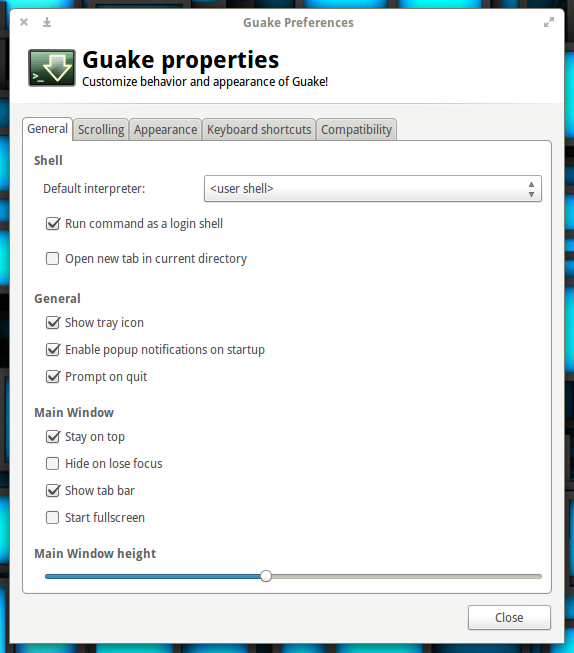
You can configure Guake from with the Guake properties app (it can be found in your desktop menu) or by issuing the command guake-prefs. From within the Guake properties window (Figure 2), you can set a number of options.
Figure 2: The Guake properties window allows you configure the app to your liking.
One thing you will not find is the ability to auto-start Guake at login. Because of this, you will have to make use of your desktop’s startup applications tool to ensure Guake is running at login (otherwise the hotkey will not work). For example: In Elementary OS Freya, I go to System Settings > Applications > Startup and add Guake to the list of apps to start at login.
Once running, to call up my terminal, all I have to do is hit F12.
Terminator
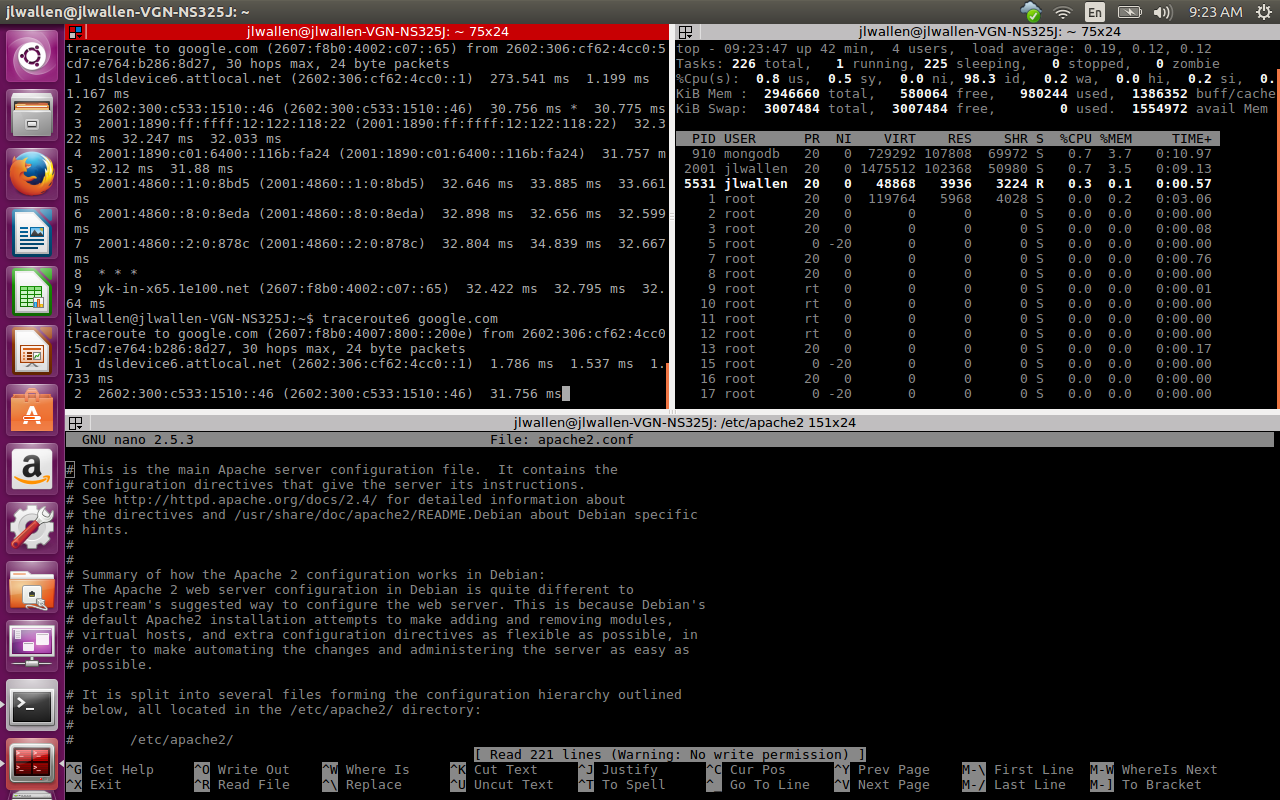
If you’re a system admin, network admin, or a developer, you probably live with multiple terminals open. This can sometimes be a logistical and confusing nightmare. That’s where terminal emulators like Terminator come into play. Terminator allows you to open a terminal window and then split it (horizontally and vertically) into as many terminals as you need. This means, from a single window, you can set up a terminal for each of your tasks (Figure 3).
Figure 3: Terminator running three terminals, each for a different task.
Terminator is also available from the standard repository and can be installed with the command sudo apt-get install -y terminator. Once installed, you can run the app from either your desktop menu or with the commandterminator.
Let’s say you want Terminator displaying the same layout as you see in Figure 3. To do this, follow these steps:
Open Terminator
Right-click in the terminal window and select Split Horizontally
Right-click in the upper terminal and select Split Vertically
You should now have two terminals in the top pane and one in the bottom. But what if you want to give a little more space to that upper right terminal? Easy. Click and drag the vertical bar separating the two until you have the desired size for each terminal.
ROXTerm
How many times have you been using a terminal that supports tabs, but wound up lost on which tab you had open, which tab you needed, and what work was where? If that describes something you’ve experienced, you might want to give ROXTerm a try. ROXTerm won’t blow you away with bells and whistles; in fact, it really has only three features that set it apart from other terminals. Those features, however, are pretty helpful.
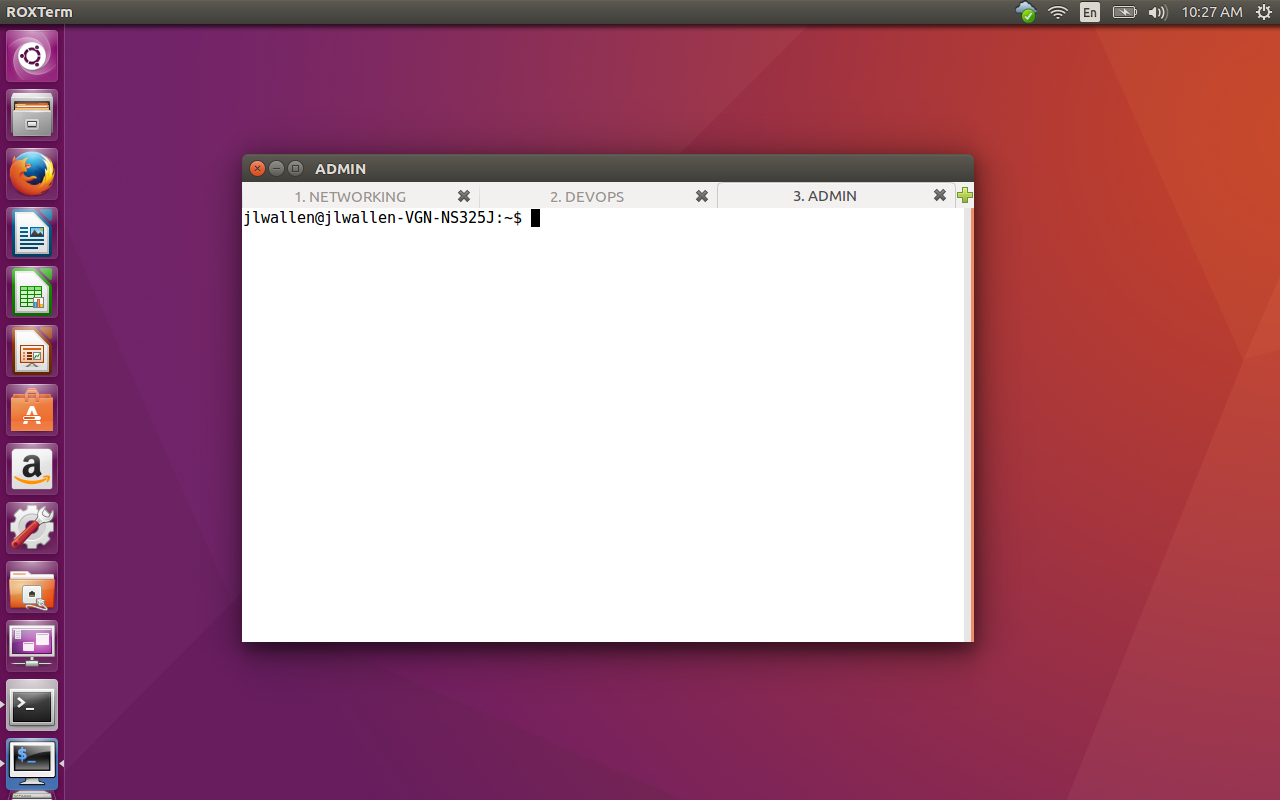
The first feature is the ability to name your tabs. This means you could have tabs for, say, NETWORKING, DEVOPS, and ADMIN (Figure 4).
Figure 4: Named tabs make it really simple to know what you’re working with.
ROXTerm can be installed from the standard repositories. To do so, issue the command sudo apt-get install -y roxterm. Once installed, you can find the app in your desktop menu or issue the commandroxterm.
To rename a tab, do the following:
Open ROXTerm
Click the + button to open as many tabs as needed
Right-click on a tab and select Name Tab
Give the tab a name
Click Apply
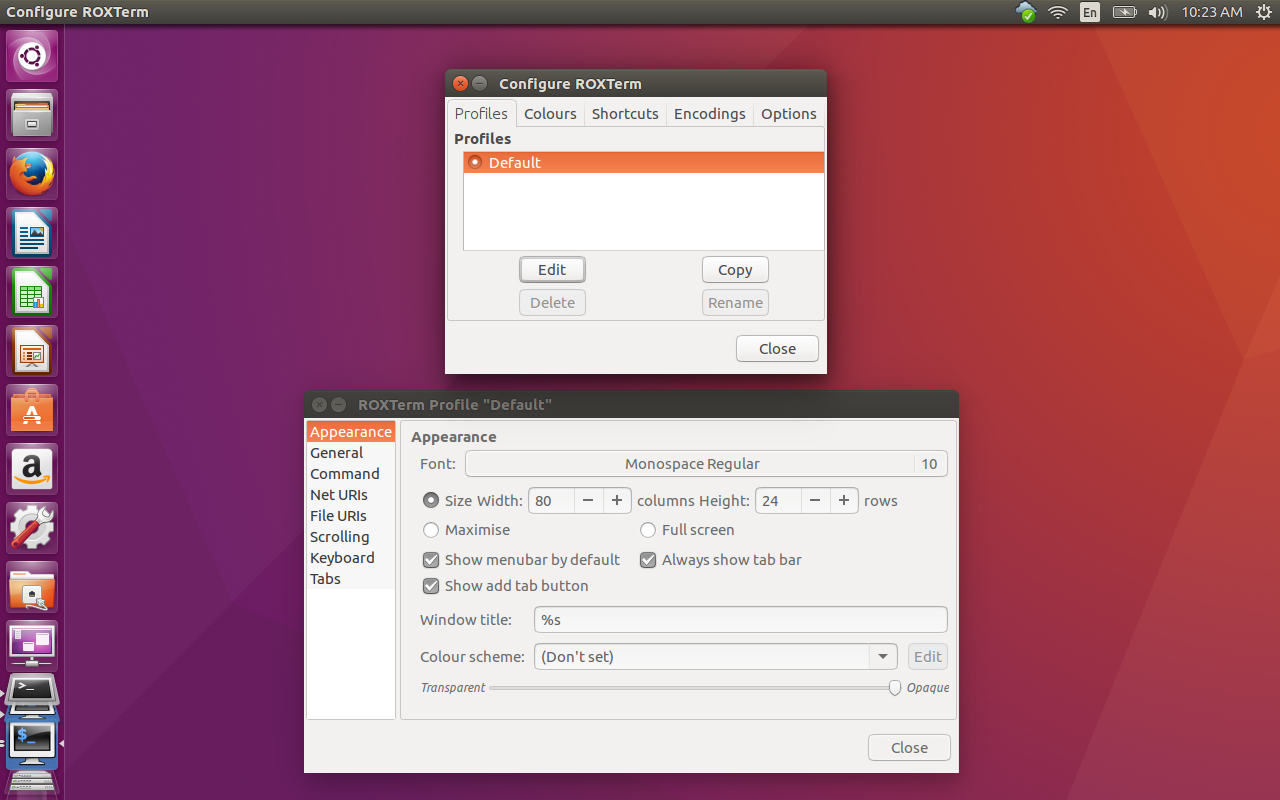
Another incredibly handy feature of ROXTerm is the ability to drag and drop items into the terminal. Don’t get too excited. You cannot drag, say, a configuration file into ROXTerm and have it automatically open it into your favorite editor. What the drag and drop feature does is allow you to drag an item into a terminal and ROXTerm will automatically copy the direct path into the prompt. Say, for instance, you want to edit /etc/apache2/sites-available/000-default.conf. If you drag and drop that file from your file manager into ROXTerm, the direct path will automatically copy to the prompt. All you have to do (for this example) is prepend sudo nano to the prompt and hit Enter. In this case, the nano editor will open to edit the 000-default.conf file. The final feature that sets ROXTerm apart from the standard terminal app is it’s GUI configuration tool (Figure 5) that offers plenty of options.
Figure 5: The ROXTerm configuration tool in action.
To open the ROXTerm configuration tool, issue the commandroxterm-config. With this tool you can edit the default profile, keyboard shortcuts, file URIs, scrolling, command, and more. Although ROXTerm might look, on the surface, like a standard terminal, it’s much, much more.
Take your pick
Many different terminal emulators are available on Linux, each of which offers its own features. You may be someone who can get by with the default tool on your distribution/desktop of choice. If, however, you need more power, more efficiency, and more flexibility, give one of these three a chance and see if it doesn’t wind up your go-to terminal for all your Linux command line needs.
The Solus Project version 1.2, released last month, shows considerable maturity in the homegrown Budgie desktop. Solus 1.2 is the second minor release in the Shannon series, built around a custom Budgie desktop developed in-house and the eopkg package manager forked from PiSi. Solus is a Linux distribution built from scratch.
The Budgie desktop can be set to emulate the look and feel of the GNOME 2 desktop, but it is a different flavor from the GNOME 2-0 retread, MATE. It is tightly integrated with the GNOME stack.
Containers have the power to change infrastructure architecture, making it more secure and more energy efficient. This is because containerized applications can be started, stopped or juggled from machine to machine in seconds — far faster than applications can be moved on VMs or bare metal. That speed opens up the world to intelligent container-aware tools that can control what’s running in a data center in near real time.
Combined with clever tooling, containers could help make data centers less static and more like an organic body: re-assigning resources or repelling threats as and when required.
Future versions of Android will be more resilient to exploits thanks to developers’ efforts to integrate the latest Linux kernel defenses into the operating system.
Android’s security model relies heavily on the Linux kernel that sits at its core. As such, Android developers have always been interested in adding new security features that are intended to prevent potentially malicious code from reaching the kernel, which is the most privileged area of the operating system.
One older example is Security Enhancements for Android (SEAndroid), a set of kernel add-ons and tools that make exploitation of certain vulnerabilities harder by enforcing access controls.
OpsDev means that the dependencies of the various application components must be understood and modeled first before the development process begins.
Apple is continually aligning all products and apps so a user with multiple Apple products can have a seamless experience while switching from one device or app to another without losing the user’s context of what they are doing. Instead of focusing on the product features or product specs, the company focuses on its customers’ experiences. …
As you can see, the delivery of such personalized software services impacts the design paradigm and now must be inverted. While DevOps tends to start with the developer-led challenges (e.g., code review and code standards, build management and continuous integration), it ultimately sits in the wheelhouse of operations teams once the application is promoted into production; OpsDev begins with the end in mind. Once we understand the interdependencies of the different data sources and its availability, we can then design the component that ties everything together. Additionally, the smart fridge software is constantly updated.
The job ain’t easy. There are constantly systems to update, bugs to fix, users to please, and on and on. A sysadmin’s job might even entail fixing the printer (sorry). To celebrate the hard work our sysadmins do for us, keeping our machines up and running, we’ve collected five horror stories that prove just how scary / difficult it can be.
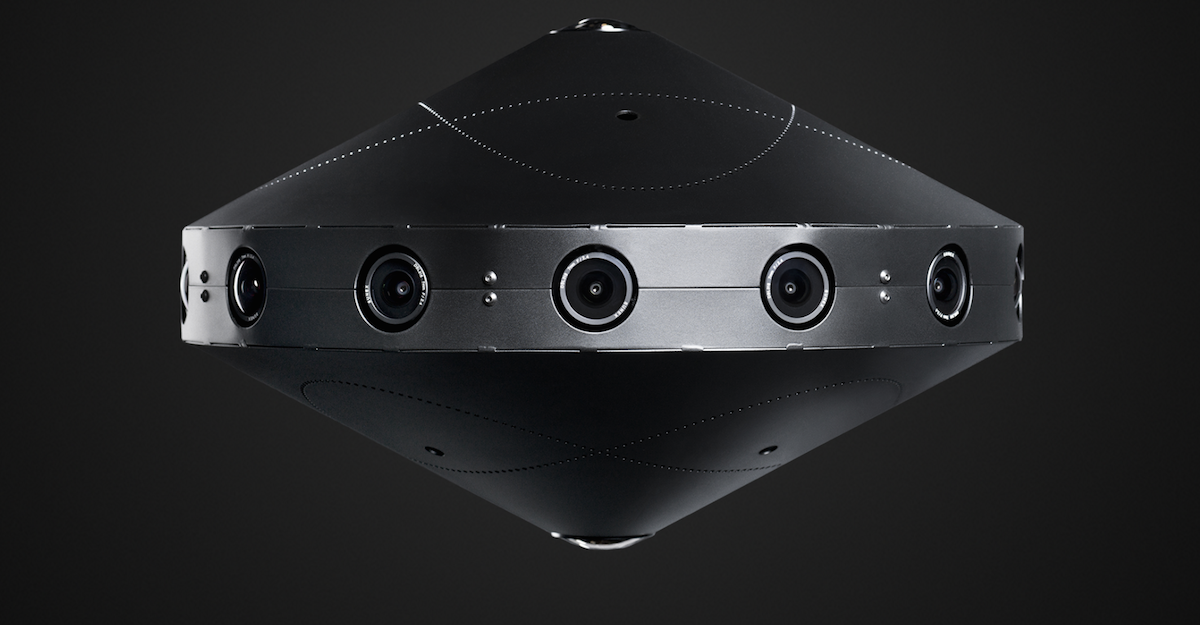
In April, Facebook announced it had built a “Surround360” 3D-360 video capture system, but that it did not plan to sell it. Instead, the social networking giant promised it would open source both the hardware and the Ubuntu Linux-based software used to stitch together images from the camera into stereoscopic 360 panoramas. This week, Facebook did just that, posting full specs and code for the device on GitHub.
The Surround360 incorporates 14 wide-angle cameras with 4-megapixel resolution and global shutters, arranged in a ring-like design. The cameras can output 4K, 6K, or 8K video resolution. There are also two fisheye lenses on the bottom and one on top to complete the 360-degree immersive experience. The rugged aluminum chassis sits on a pole, which is masked in software so it is invisible when you look down with your VR headset.
The device is built entirely with off-the-shelf hardware that can be ordered online. Facebook offers a cartoon-like manual that promises to help you build the device in as little as four hours.
Facebook is motivated by the need to create content not only for its Oculus Rift VR headset and Samsung’s lower-end, Oculus-infused Gear VR, but also its own Facebook.com ads and user-generated content. In its announcement, Facebook said it wanted to “accelerate the growth of the 3D-360 ecosystem,” and that “anyone will be able to contribute to, build on top of, improve, or distribute the camera based on these specs.”
Well, maybe not just anyone. The parts cost about $30,000 — much more than many 3D-360 cameras, such as the dual-fisheye, $350 Ricoh Theta S or the soon-to-ship, 16-camera GoPro Odyssey, which costs $15,000. Yet, it’s cheaper than most professional-level models, such as the spherical, eight-camera Nokia OZO, which sells for $60,000.
Linux Software Vastly Reduces Processing Time
The major benefit of the higher end cameras — and the Surround360 in particular — is not only quality and durability, but much shorter processing time stitching videos into a seamless whole. The open source Linux software “vastly reduces the typical 3D-360 processing time while maintaining the 8K-per-eye quality we think is optimal for the best VR viewing experience,” says Facebook.
The task is daunting considering the amount of RAW video data involved – the Surround360 can capture 120GB per minute at 30fps, or 240GB at 60fps. To stitch the disparate views together, the system uses an optical flow algorithm to compute left-right eye stereo disparity rather than using tedious, manual “hand stitching.”
Optical flow lets you synthesize views separately for the left and right eyes, as well as flow the top and bottom camera views into the side views, and flow pairs of cameras views to match objects appearing at different distances. As a result, the camera can maintain “image quality, accurate perception of depth and scale, comfortable stereo viewing, and increased immersion,” says Facebook.
The Surround360 can be controlled remotely from any device with a web browser. The Ubuntu Linux 14.04 desktop used for processing, however, must be top-of-the-line, and capable of a 17Gbps sustained transfer rate. An 8-way level-5 RAID SSD is required to keep up with the isochronous camera capture rates.
Playback is currently optimized for the Oculus Rift and smartphone-enabled GearVR. On the latter, 8K playback requires a “dynamic streaming” feature that adds a “noticeable lag,” but is still acceptable, according to a hands-on report from TechCrunch. Presumably, you could also use other headsets, and you can view panoramas on computers with 2D displays without the immersive vertical views.
Facebook is a major consumer and producer of open source, mostly Linux-based software, and has previously experimented with open source hardware in its Open Compute initiative for servers. It chose not to open source the Oculus Rift, however.
Razer’s OSVR HDK 2.0 headset is open source, as well as Google’s much lower end Cardboard. The other major open source VR effort is OpenVR, an open source version of Valve’s SteamVR software, which forms the basis for HTC’s commercial Vive headset.
The Surround360 is not the first open source panoramic video camera. Elphel’s $60,000 and up Eyesis4Pi is a panoramic, stereophotogrammetric rig that incorporates 24 Linux-driven Elphel cameras with 5-megapixel resolution. After stitching, this results in a panoramic image resolution of 64 megapixels, says Elphel. A similar Elphel panoramic camera was mounted on the first Google Streetview cars before being replaced with an in-house design.


 Read more at