Home Blog Page 773

3 Reasons IBM Participates in Linux Foundation Projects

It’s impressive that  IBM was founded more than a century ago with decades of research, technologies, and products behind it. But even more impressive is that the company continues to evolve and embrace emerging technologies. It’s done so, in part, due to its continued involvement with Linux and open source through The Linux Foundation.

“IBM has a long history with The Linux Foundation,” says Todd Moore, VP of Open Technology at IBM. “We’ve been one of the bedrock members of The Linux Foundation since its inception.” And, more generally, says Moore, “We have a long history of doing open source projects throughout many communities.”

Today IBM participates in many Linux Foundation projects, including the Open Mainframe Project. The project’s goal is bringing government, academic and corporate members together, “to boost adoption of Linux on mainframes.”

IBM was one of the founding Platinum members of the Open Mainframe Project, along with ADP, CA Technologies, and SUSE. IBM’s participation included making “the largest single contribution of mainframe code from IBM to the open source community,” Moore says.

“We choose to work with The Linux Foundation and participate in projects like the Open Mainframe Project because of the people, the communities who come together, and the great things that get done,” says Moore.

3 reasons IBM participates in Linux Foundation projects

Moore cites three main reasons IBM participates in Linux Foundation projects:

  • Tailored structure: “There’s quite a bit of customization that can happen within a Linux Foundation project. Many communities impose structure in how they want to operate. When we work with the Linux Foundation to create a community, the community can be very much tailored to just that set of individuals.”

  • Open Governance: “Working with the Linux Foundation brings credibility to the actual open governance structure that we like to see in communities. This partnership brings the credibility that this is a project that will be truly governed out in the open.

  • Encouraging collaboration and participation: “We set up organizations and work effectively to create an atmosphere where people will come and collaborate, and they’ll be ‘sticky’ and they’ll want to go and work on those projects.”

Other Linux Foundation projects that IBM is involved in include Node.js, ODPi, the Cloud Native Computing Foundation, and The Hyperledger Project.

“If we were just to take a project and open source it ourselves and expect people to come to that project, it’s a very difficult path,” says Moore. “When you do it in partnership with someone like The Linux Foundation, that path very much gets smoothed. We have great contacts, great recruitment into these projects, and the staff that we can really go and help and deliver on that.”

Watch the complete video below:

Read more stories about Linux Foundation Collaborative Projects:

PLUMgrid: Open Source Collaboration Speeds IO and Networking Development

Telecom Companies Collaborate Through OPNFV to Address Unique Business Challenges


ON.Lab Releases Latest ONOS SDN Platform

The Open Network Lab’s Open Network Operating System project unveiled its seventh release targeting a software-defined networking operating system, dubbed “Goldeneye.”

ONOS said the Goldeneye release includes advances such as improved adaptive flow monitoring and selective DPI from ETRI, claimed to provide lower overhead flow monitoring and Yang tool chain support from Huawei; integration of northbound intent subsystem with the Flow objective subsystem; a six-times improvement in core performance to support consistent distributed operations; and southbound improvements to Cisco IOS NetConf and Yang tool chain.

Read more at RCR Wireless

Make Peace With Your Processes: Part 1

A fundamental design feature of Unix-like operating systems is that many of a system’s resources are accessible via the filesystem, as a file. For example the “procfs” pseudo-filesystem offers us access to all kinds of valuable treasures. In this series of articles, I’ll provide an overview of your system processes, explain how to use the “ps” command, and much more.

By querying files present in “/proc” you can quickly find out the intricacies of your network connections, the server’s CPU vendor, and look up a mountain of useful information, such as the command line parameters that were passed to your latest-and-greatest application when it fired up. This is because many of the functions of a server — such as a network connection — are really just another stream of data and in most cases can be presented as a file on your filesystem.

Let’s jump ahead for a moment in case you’re not too familiar with the “/proc” filesystem. If you knew that your Process ID was 16651, for example, then you could run this command to find out what was sent to the Puppet process to start it up:

# xargs -0 < /proc/16551/cmdline

The output from that command is:

/usr/bin/ruby /usr/bin/puppet agent

As you can see, Puppet’s agent is using the Ruby programming language in this case and the binary “/usr/bin/puppet” is passed the parameter “agent” to run it as an “agent” and not a “master”.

The “Everything Is A File” philosophy makes total sense if you think about it. The power harnessed within Unix’s standard tools (usually used for manipulating data held in the more common text files) such as “grep”, “awk” and “sed” are a major strength of the Operating System. But most importantly you can have a system’s components integrate very efficiently and easily if many things are simply files.

If you have you ever tried to look into a process running on a Unix-like machine then you’ll know that if anything the abundance of information adds confusion, rather than assists, if you don’t know where to look. There are all sorts of things to consider when you are eagerly trying to track down a rogue process on production machine.

In this series, I will attempt to offer a broad insight into how the Process Table can be accessed by the ps command and in combination with “/proc” and “/dev” how it can help you manipulate your systems.

Legacy

There are a few legacy stumbling blocks when it comes to looking up a process on different types of Unix boxes, but thankfully we can rely on the trusty “ps” command to mitigate some of these headaches automatically.

For example, Unix used the “ps” command by grouping its parameters together and prepending a hyphen. BSD, on the other hand, enjoyed grouping switches together but, for one reason or another, fell out with the hyphen entirely.

Throwing another spanner in the works, however, was good old GNU’s preference, in which its long options used two dashes. Now that you’ve fully committed those confusing differences to memory, let’s assume that the ps command does as much as it can by mixing and matching the aforementioned options in an attempt to keep everyone happy.

Be warned that occasionally sometimes oddities can occur, so keep an eye out for them just in case. I’ll try to offer alternative commands as we go along to act as a reminder that not all is to be taken exactly as read. For example, a very common use of the ps command is:

# ps -aux

Note,however, that this is indeed different from:

# ps aux

You might suspect, and would be forgiven for thinking as much, that this is purely to keep everyone on their toes. However, according to the ps command’s manual, this is apparently because POSIX and UNIX insist that they should cater to processes owned by a user called “x”. However, if I’m reading the information correctly, then if the user “x” does not exist, then “ps aux” is run. I love the last sentence of the manual’s definition and draw your attention to it as a gentle warning: “It is fragile, subject to change, and thus should not be relied upon.”

Process Tree

Enough eye strain for a moment; let’s begin by looking at the ps command and what it can help with in relation to querying the Process Table.

For starters (and I won’t be betting the ranch on this statement), it’s relatively safe to assume that upper- and lowercase mean the same thing.

If you’ve never seen the output of a Process Tree, then it might help with understanding “child” threads, which live under a “parent” process. In this case, the command is simply:

# pstree

The not-so-impossible-to-decipher output from that command is shown in Listing 1 (on a server not running “systemd but good, old “init” (which is always Process ID (PID) number one, as an aside):

init-+-auditd---{auditd}

    |-certmonger

    |-crond

    |-dbus-daemon---{dbus-daemon}

    |-hald---hald-runner-+-hald-addon-acpi

    |                    `-hald-addon-inpu

    |-apache2---8*[apache2]

    |-master-+-pickup

    |        `-qmgr

    |-6*[mingetty]

    |-oddjobd

    |-rpcbind

    |-rsyslogd---3*[{rsyslogd}]

    |-sshd---sshd---sshd---bash---pstree

    |-udevd---2*[udevd]

Listing 1: Output from the “pstree” command showing parent processes and their children.

You can make your screen output much messier by adding the “-a” switch. Doing so will add command-line arguments (pulled from the /proc filesystem in the same way that our example did earlier). This is very useful, but you might want to do something like “grep” a specific process name from the output, as follows:

# pstree -ap | grep ssh


|-sshd,29076

 |   `-sshd,32365

 |       `-sshd,32370

 |               |-grep,8401 ssh

 |   |-sssd_ssh,1143 --debug-to-files

Listing 2: The command “pstree” showing only SSH processes with command line arguments and PIDs

As you can see from Listing 2, the command we are querying with is also shown (starting with “grep”) in the output so try not to let that trip you up. I’ve added the “-p” switch to display the PIDs, too.

One final look at this example is shown in Listing 3. Here, the all-pervasive “-Z” switch offers us any SELinux config associated with the parent and child detail displayed in our process table tree. That command for reference was:


# pstree -aZp | grep ssh


|-sshd,29076,`unconfined_u:system_r:sshd_t:s0-s0:c0.c1023'

 |   `-sshd,32365,`unconfined_u:system_r:sshd_t:s0-s0:c0.c1023'

 |       `-sshd,32370,`unconfined_u:unconfined_r:unconfined_t:s0-s0:c0.c1023'

 |               |-grep,8406,`unconfined_u:unconfined_r:unconfined_t:s0-s0:c0.c1023' ssh

 |   |-sssd_ssh,1143,`system_u:system_r:sssd_t:s0' --debug-to-files

Listing 3: The output now includes SELinux detail, command line arguments and PIDs

In this article, I provided a very brief introduction to the “ps” command. In the next several articles, I’ll show further options, examples, and details for using this powerful tool. Stay tuned.

Read Part 2 here.

Chris Binnie is a Technical Consultant with 20 years of Linux experience and a writer for Linux Magazine and Admin Magazine. His new book Linux Server Security: Hack and Defend teaches you how to launch sophisticated attacks, make your servers invisible and crack complex passwords.


 

Give New Life to Old PCs with Linux

Do you have some old hardware collecting dust in the basement, attic, or garage? Don’t let it go to waste just because it’s not powerful enough to run modern operating systems. Linux can breathe new life into such machines. I have revived many old PCs in this way. For example, I use one as my main file server, another as a family laptop in the living room for quick browsing, and third one as a media center in the kids’ room. Additionally, I have donated two revived laptops to a cause.

So, don’t let good hardware die of old age.

Before you start work on reviving your old PC with software alone, however, I suggest making a dime-sized investment in hardware. One thing that can vastly affect performance is RAM. Try to get at least 4GB of RAM. We will be using some 32-bit distros for old hardware, and they won’t detect anything more than 3GB either way. So, 4GB is a great investment for mere $20. Just make sure it’s compatible with your motherboard.

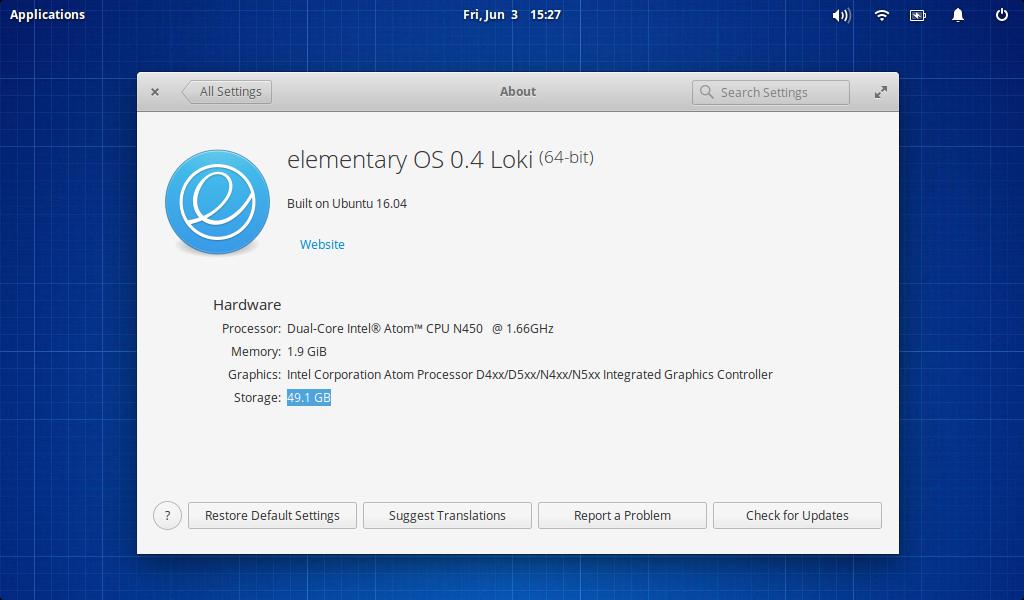
Another hardware component that makes dramatic performance improvement is the hard drive. Trust me, those slow hard drives from early 2000s can really affect performance. I managed to get a decent elementary OS experience from Dell Mini 1012 that I bought about 6 years ago this way. The machine had a mere 2GB of RAM, but I replaced the hard drive with a Kingston SSD. Now elementary OS flies on it.

Softer Side of the Equation: The Right OS

Once you’ve made the suggested hardware upgrades, you need to find the distribution that’s right for you. There are many distros designed to run on underpowered devices. But, there is one main problem from my point of view: appearance.

Most lightweight distributions make heavy compromises in the look and feel department that discourages me from using them on my machines. Because I want them to look great. Sometimes I win; sometimes I have to give up something. But in the end, it’s just another Linux distro running on my system. That’s what counts.

Elementary OS

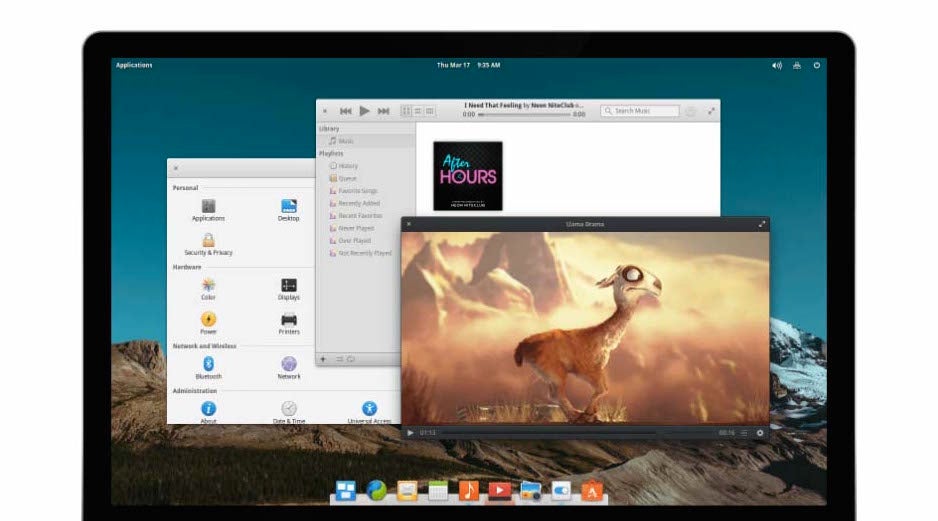
OK, elementary OS doesn’t claim to be a lightweight distro. But with a Kingston 120GB SSD, my Dell Inspiron 1012 — with Intel Atom N450, 1.66 GHz processor, and 2GB of RAM — ran phenomenally great with elementary OS. Everything, including WiFi, worked out of the box. So, if you have an old machine and you don’t want to compromise on appearances, then give elementary OS a try.

Figure 1: elementary OS Loki desktop
Just download elementary OS from the official site and write the image onto a flash drive. I do suggest waiting another week for the next release of elementary OS Loki, because it has newer kernel and thus better hardware support.

I suggest using the simple dd command to write the iso to the USB drive:

sudo dd if=/location_of_elementaryos.iso of=/path_of_usb_flash_drive bs=1m

MATE

If your system can’t boot into elementary OS or you have performance issues. A MATE based distro would be my second choice. I find Ubuntu MATE to be the best bet on such hardware. This is because Ubuntu MATE offers great out of the box support for a variety of hardware. From a technical point of view, Ubuntu MATE requires a minimum of Pentium III 750 MHz processor and at least 512MB of RAM. So, if you really can’t upgrade your hardware, then MATE offers a much more polished experience.

Download the iso image for Ubuntu Mate from the site and write it to a USB drive with the dd command as mentioned above.

Lubuntu or Xubuntu

Xubuntu is another good “lightweight” distro, but if I had to make compromises where even MATE couldn’t run on the hardware, then I would skip Xubuntu and head straight for Lubuntu.

Lubuntu, on paper and in my experience, is far more resource efficient than Xubuntu. These distros are not as visually appealing as MATE, but when you have a really old or underpowered hardware, Lubuntu will make it usable. Lubuntu was originally based on LXDE, but the LXDE project has merged with Razor Qt project to create LXQt. So Lubuntu is going to enjoy latest Qt technologies (it uses latest Qt5 and KDER Frameworks 5) with the typical lightweight experience. The best of both worlds, I would say.

Trisquel Mini

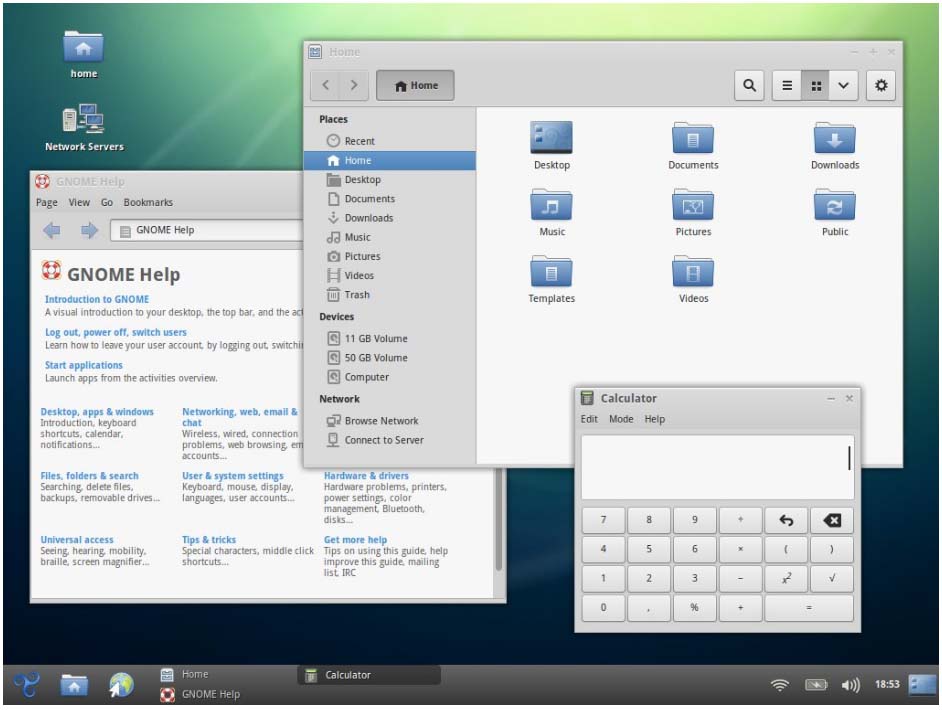
Trisquel Mini is a lightweight version of Trisquel Linux. The mini version is designed to run on underpowered devices, and it also uses LXDE to keep thing light. Despite my comment on the look and feel of underpowered distros, Trisquel Mini does offer an appealing experience. So, try it if the other options fail you.

Figure 2: Trisquel Mini.

Puppy Linux

As we move down the “lightweight Linux distro” rabbit hole to find the right distro for our really, really, really old hardware, we come across an extremely light distro: Puppy Linux.

Puppy is so lightweight that it doesn’t even require your system to have a hard drive. The Puppy project goes on to recommend that you should not install Puppy on hard drive and instead use to boot it from CD/DVD or USB drive. The good news is that you can save your file/work directly on the CD/DVD or USB drive and work in a purely portable manner. Just plug in your Puppy drive, do your work, and unplug. Done.

It’s Not Just About the Distro

These distros pick and choose lightweight components – from desktop environment to X Window System to application – to keep things under control. So, when you use low-powered hardware, you should also choose appropriate applications. I won’t use LibreOffice on anything below elementary OS on this list. My preferred word processor would be either AbiWord or Google Docs. And, instead of using Firefox or Chromium, I would choose Midori. The point is, you should look for less resource-intensive applications for the job.

Go Arch Linux

If you want even tighter control over your low-powered hardware, I suggest going bare bones with Arch Linux and then choosing the lightest components possible for your system. Arch Linux will enable you to carefully handpick whatever component you need. Check out my Arch Linux tutorial that I update regularly for more information.

Conclusion

There is just no need to waste old or underpowered hardware. You can put these machines to good use with Linux. All you need to do is find the right distro for you.

Do We Need a More Open, Private, “Decentralized” Internet?

Is it time to rebuild the Web? That’s what Tim Berners-Lee and other Internet pioneers are now saying in response to concerns about censorship, electronic spying and excessive centralization on the Web.

Last week, Berners-Lee, the guy who played a leading role in creating the Web in 1989, held a conference with other computer scientists in San Francisco at the Decentralized Web Summit. Attendees also included the likes of Mitchell Baker, head of Mozilla, and Brewster Kahle of the Internet Archive.

Their discussions centered around making the Web “open, secure and free of censorship by distributing data, processing, and hosting across millions of computers around the world, with no centralized control,” according to the conference site.

Read more at The VAR Guy

From the Enterprise Service Bus to Microservices

Dealing with legacy is one of the most common areas of conversation we have around “cloud native” and Pivotal Cloud Foundry. I wrote up a basic framing for how to think of legacy applications last year as part of my cloud-native journey series, and in reviewing talks for the upcoming SpringOne Platform conference I’ve noticed that it’ll be one of the topics at that event this August.

Pivotal architect Rohit Kelapure has been working on this topic a lot and has written a white paper on migrating from Enterprise Service Bus (ESB)-based legacy architectures. After working with him on the paper a tad, I had a few questions whose answers I thought would be helpful to share for all those folks who ask about this topic.

Coté: Technology choices often start with the best of intentions. Few people want to make a bad system. Whats driven so many organizations to choose ESBs?

Rohit: ESBs are a response to enterprise needs around service integration, audit, transformation, business impact traceability, composability, data transformation and a central point for governance….

Read more at The New Stack

Chef’s Habitat Puts the Automation in the App

The creators of the popular system-automation framework introduce Habitat, which allows apps to do their own automation on any target platform.

The makers of the configuration management platform Chef, typically mentioned in the same breath with Puppet, Salt, and Ansible, is taking on application automation applications.Habitat, its new open source project, lets apps take their automation behaviors with them wherever they run.

Habitat doesn’t replace the existing galaxy of container-based application-deployment systems — Docker, Kubernetes, Rocket, Mesosphere, and so on. Instead, it addresses the issues they typically don’t.

Read more at InfoWorld


Putting the ‘Micro’ Into Microservices With Raspberry Pi

Microservices replaces monolithic systems with distributed systems. Almost by definition, this means an explosion of moving parts. In a demo context, when everything is running on a single laptop, it’s easy to forget that a microservices architecture really is a system with lots of different things trying to communicate with one another over an unreliable network. Even in a ‘real’ system, with virtualization and containers, it’s not always obvious how much complexity is involved in the aggregated system — as long as things work well. After all, the reason the fallacies of distributed computing are known as fallacies is because they’re assumptions we all tend to make.

Read more at DZone

Kubectl vs HTTP API

One of the best things Kubernetes has is its API, however, I’ve seen a few tools that instead of using the HTTP API use a wrapper on kubectl. I tweeted about it and a discussion was created around the differences between kubectl and the HTTP API.

One thing that I hope it’s clear it’s that kubectl is designed to be used by people and HTTP API is designed to be used by code. In fact, if you look at the documentation you will see that there’s a list of differnt APIs and kubectl is under kubectl CLI, this is teh list of all the kubernetes APIs:

  • Kubernetes API
  • Extension API
  • Autoscaling API
  • Batch API
  • kubectl CLI

So, let’s see what these differences are!

Read more at k8s.uk

Explanation of “Everything is a File” and Types of Files in Linux

If you are new to Linux, or have used it for a few months, then you must have heard or read statements such as In Linux, everything is a File. Read Also: 5 Useful…

[[ This is a content summary only. Visit my website for full links, other content, and more! ]]