Git is a very popular open source version control system. Many developers use Git on a desktop machine and push their updates to a central server running on a service like GitHub or GitLab. Although such services are great, this may lead some to think of Git as a client-server model with local checkout of code and updates that are always being pushed back to the single central server.
Git is a distributed version control system, and it happily allows you to have many repositories for the same software. You might have a complete functional repository running on a server on your LAN that developers are pushing their changes to. That local repository might also use Git to share changes to a repository on GitHub and grab contributions from remote developers. When you have such a local repository on your LAN, you might want to have web interfaces to allow exploration and discussion of the repository.
A major advantage to using a web interface to a Git repository is that you can share links to the page you are viewing with other developers. If you see an issue that needs to be addressed, the link can let another person see that exact line of code — at the version and branch of code that you are looking at. It can also perhaps be shown with blame information (discussed shortly) if it helps to see that lines of code were developed by different people who might have a different understanding of the intended goal of a function.
In contrast, when using the command-line Git tools, the person you are discussing things with has to check out the correct branch, open the correct file, and navigate to the right line. And, if a developer is part way through editing something already, it might even be simpler for them to create a fresh copy of the repository to see what you are talking about. A URL that can be seen in the browser needs no setup.
The Git repository on your LAN will probably have much lower network latency than a server on the Internet and also allow more expensive Git operations to be performed than might be enabled, or fully enabled, on a public server. An example of a more expensive operation is “git blame,” which lets you browse a file and see who committed each line of code to create the current version of that file. On a public repository, you might not be able to see git blame for a large file, because it’s very resource intensive to create such a page. On a local server, however, you are in control of what is too expensive for your computer resources.
If you are familiar with the web interfaces to Git, you might even want to install one on your laptop so that you can easily browse a repository, for example, when Internet is unavailable or expensive. Again, a collection of links to specific parts of code that you can see in the web interface might help you work through a list of tasks and jump between them without needing to check out code in your working directory to get a feel for what needs to be done.
If you have /etc under Git control, you are unlikely to want to make that Git repository publicly available. So, a local web interface to the /etc Git repository might be the most desirable solution. In this article, I’ll take a look at cgit, Gitweb, and GitList, which are all projects that provide web interfaces to Git repositories. You can get an idea of how cgit operates by looking at the instance running on kernel.org.
Cgit
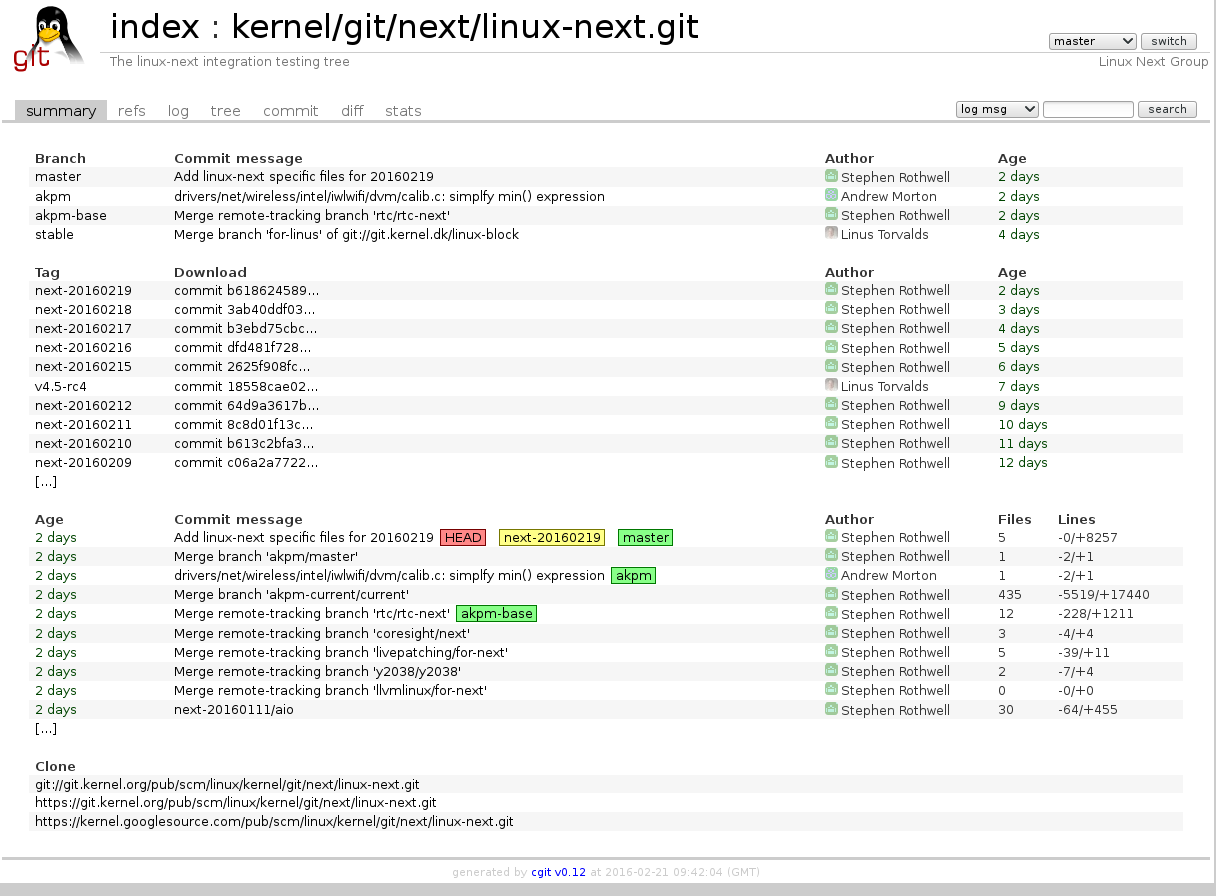
The cgit web front end (Figure 1) is written in C and runs as a CGI program from your web server. On Fedora, installing the cgit package also installs the support files to have Apache make cgit available at http://localhost/cgit. You shouldn’t see any Git repositories at that location yet. That is done by editing the /etc/cgitrc configuration file.
You can either have cgit look for Git repositories contained in a given path using the scan-path directive or list each repository explicitly using the later three directives which can be repeated to expose multiple repositories. Both of these approaches are shown below. Note that the repo.path lists the path for the “.git” directory for the repository.
scan-path=/var/lib/git

repo.url=test
repo.path=/opt/test/.git
repo.desc=Main Testing repo
If you are running Fedora and you try to expose a repository in /tmp for testing, you might not see what you had hoped. If you get an error message telling you that the repository can not be found, then you have probably run into the below configuration conflict.
If you look at the systemd startup file for Apache at /usr/lib/systemd/system/httpd.service, you see that the PrivateTmp directive is used. So, the /tmp that cgit is seeing is likely not the /tmp directory that you can see when running Bash. Although it stops quick testing using /tmp, continuing to use PrivateTmp is a good configuration. Thus, for temporary testing using another location — such as /var/lib/git-testing — will be more secure than sharing /tmp.
The web interface offered by cgit lets you see a log of all commits, the tree view of the repository so you can see how each file has evolved, as well as an overview of which users the commits have been coming from over time. You can also get the commit messages as an atom feed so you can see what is happening in your favorite news reader. The differences that a commit has made can be viewed in a unified diff format as well as in side-by-side mode showing the old and new files next to each other.
Two other options that you might want to enable in /etc/cgitrc allow you to download tar archives and to mark up your source code with colors. Here, the snapshots line tells cgit to include links to allow archives of commits to be downloaded. The source-filter line enables syntax highlighting using the syntax-highlighting.sh script, which is included in the cgit package.
snapshots=tar.gz tar.bz2 zip
source-filter=/usr/libexec/cgit/filters/syntax-highlighting.sh
Gitweb
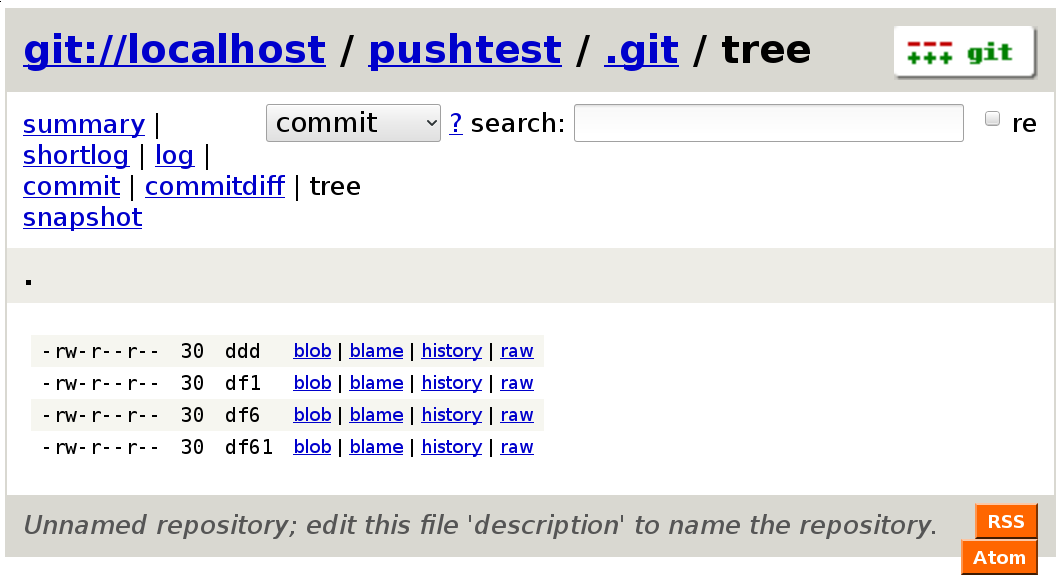
Gitweb (Figure 2) is a CGI program written in Perl and uses Apache as its web server. Installing Gitweb on Fedora will also set things up so that Gitweb is accessible through http://localhost/git. The Gitweb configuration file at /etc/gitweb.conf should already be set up to find and expose Git repositories under /var/lib/git for you.
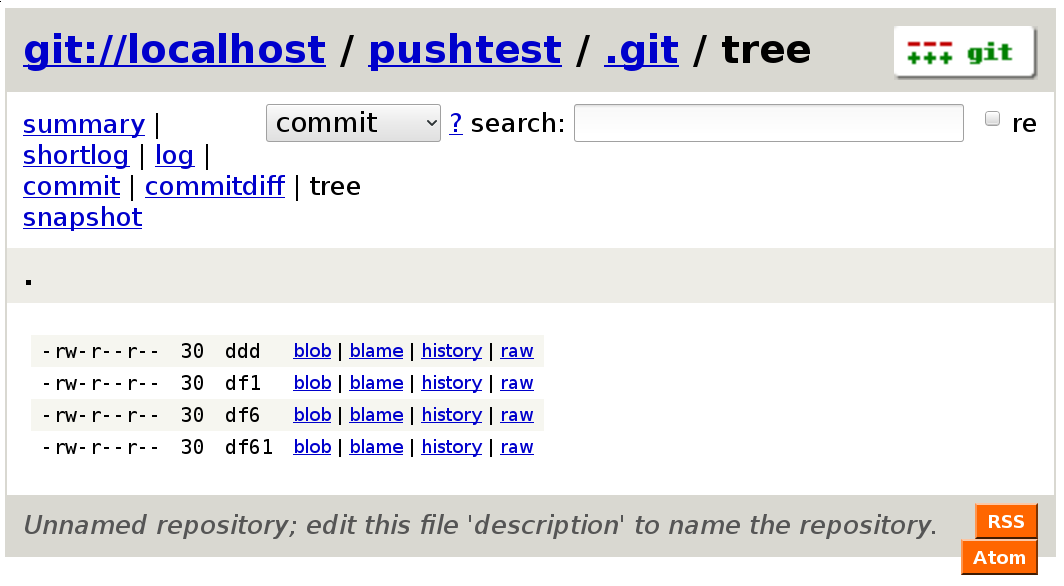
I found that a mixed bag of potentially CPU-intensive settings were disabled in /etc/gitweb.conf. For example, grep was enabled and blame was disabled. When viewing a repository in Gitweb, you’ll see that a text entry box is at the top right of the screen. Selecting grep from the drop-down next to it allows you to find a string or regular expression in any file in the repository. On the other hand, viewing “blame” information was disabled by default. As I mentioned previously, you might like to view blame information for a repository to see who committed each line in the file and which commit brought that line into its current state.
Gitweb uses the “projectroot” variable to declare the top-level path that all Git repositories should be stored under — as shown in the following line. If you need more than one top-level path for your Git repositories, the Apache RewriteEngine can be used to set up the environment variable GITWEB_PROJECTROOT depending on what top-level path you are looking for. See the Gitweb man page for details.
our $projectroot = "/var/lib/git";
GitList
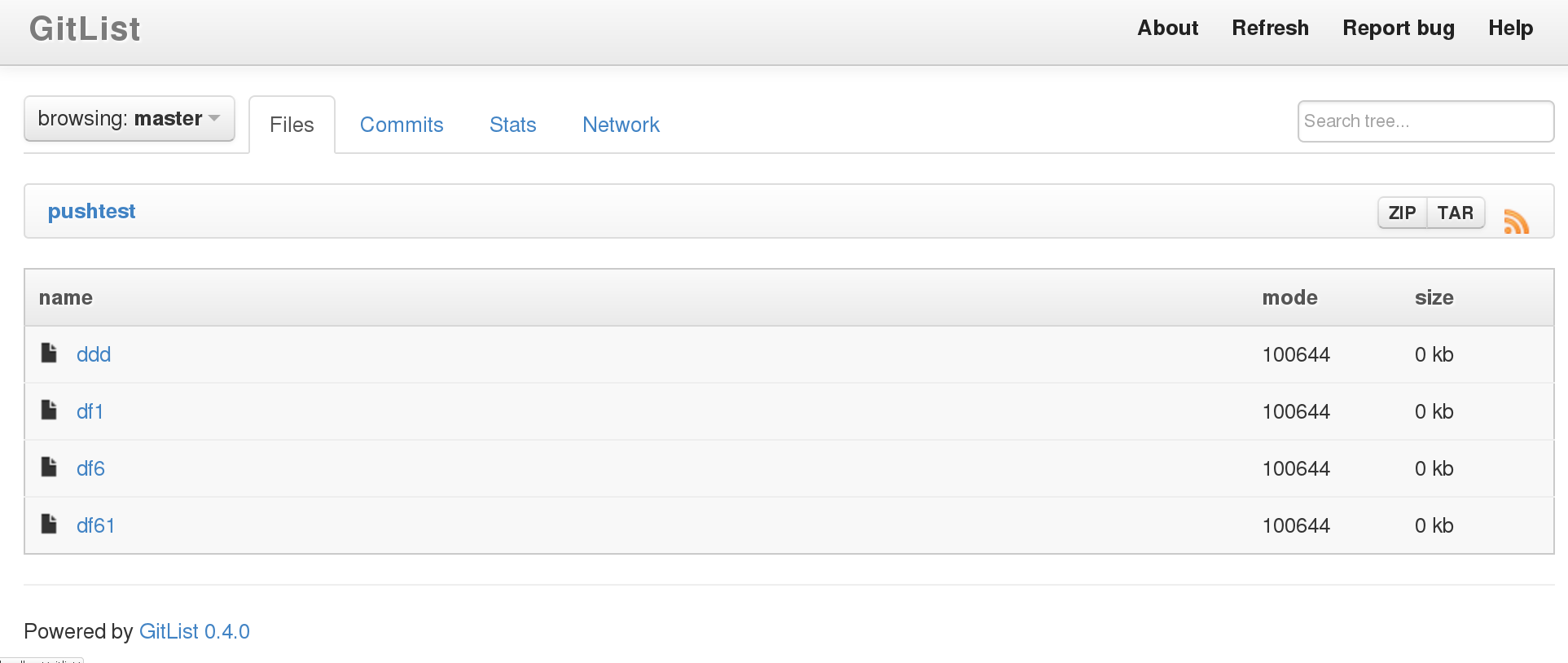
GitList (Figure 3) is written in PHP and uses the Bootstrap framework to create its web interface. At the time of writing, there was no package for GitList for Fedora. The installation instructions provide a good overview of what is needed to get up and running. On Fedora, you are likely to have to also create a config file to help Apache work with GitList.
cd /var/www/html
tar xvf .../gitlist-0.5.0.tar.gz
cd ./gitlist
mkdir cache
chmod 777 cache
cp config.ini-example config.ini
vi config.ini
+repositories[] = '/home/git/repositories/' ; Path to your repositories

cd /etc/httpd/conf.d
cat ./gitlist.conf
Alias /gitlist /var/www/html/gitlist/
<Directory /var/www/html/gitlist>
 Options FollowSymLinks
 AllowOverride All
</Directory>
GitList provides an RSS newsfeed for your repository, allows you to search for strings in the files in the repository, and allows you to see blame information for each file you are investigating.
Permissions and Updating Things
The examples I’ve shown here are mostly aimed at exposing one or more Git repositories from /var/lib/git to your web browser. The Git repositories under that directory all need to be readable by the web server. This leaves the sticky situation of handling the file system permissions.
For ease of discussion, let’s assume you are working on a repository in ~/src. Apache will work on a clone of your repository that is located in /var/lib/git.
An easy solution is to allow the user that the web server runs as to be able to read the .git subtree in the repository that you are working on. This way, the apache user can directly clone and pull from the repository in your ~/src directory. A downside to this is that the apache user will need to read each parent directory leading to the .git directory you want to clone.
For example, a working git directory at /tmp/gittest.git owned by the user “ben” can be made accessible this way with the following commands.
chgrp -R apache /tmp/gittest.git/.git
chmod +s        /tmp/gittest.git/.git
The following commands will then set up a copy of the git repository in /var/lib/git for the Git web interfaces to inspect and present.
sudo -u apache bash
cd /var/lib/git
git clone /tmp/gittest.git gittesttmp
cd ./gittesttmp
git pull
The above relies on performing the “git pull” step periodically to keep the repositories in /var/lib/git fresh.
Another way to do things is to set up the Git repository that you are working on to know the location of the Git repository in /var/lib/git so that you can keep pushing changes to /var/lib/git as you commit your changes.
The following creates a bare repository in the /var/lib/git file system, to which you can push your changes as they are made. A bare Git repository contains all the information about the files in the repository but does not have any current working set of files. This is why the bare repository is cloned into the .git subdirectory. If you look in /var/lib/git/pushtest, you should only see the .git directory.
Once the remote is added to your working Git repository, you should be able to keep using the last push command to send your local commits to the Git repository at /var/lib/git/pushtest so you can see them with the web interface.
# mkdir /var/lib/git/pushtest
# chown ben:apache /var/lib/git/pushtest
# chmod +s /var/lib/git/pushtest

$ cd /var/lib/git
$ git clone --bare ~/src/pushtest pushtest/.git
$ cd ~/src/pushtest
$ git remote add gitweb /var/lib/git/pushtest
$ git push -u gitweb master
Final Words
These Git web interfaces are fairly easy to install and get up and running. Because Git is a distributed system, it shouldn’t affect your normal workflow to create a clone of a repository on a server machine and use the web interface to investigate the project. Paranoid users may also be happy to have another local copy of the current source repository around, possibly with changes that have not yet been pushed to a public server.
With a local web interface, you should also be able to perform tasks that web services might consider too expensive to allow. For example, looking at the blame information for a very large file or showing all the diffs between two commits.