We previously published an article on the best open source editors in 2008. Given the length of time that has elapsed, and the new projects that have come forward, it’s prudent to update the article. Here’s our updated list of the finest open source editors available for Linux. Naturally, it’s largely a matter of preference, but it’s extremely likely you’ll find your ideal editor below.
Torvalds went on to discuss his belief that “code either works or it doesn’t.” He should know. The current Linux kernel is one of the largest collaborative projects ever attempted, with more than 20 million lines of code and more than 12,000 contributors so far. Additionally, an average of 185 changes are accepted into the kernel every day — nearly 1,300 per week — and Torvalds ultimately has the final say on what code is accepted.
In the TED talk, Torvalds admitted that he is sometimes “myopic, when it comes to other people’s feelings…” However, he said, “What I love about open source is that it really allows different people to work together.”
Torvalds was listed as one of the most influential people in the world by TIME magazine back in 2004. In that profile, Lawrence Lessig wrote, “there is no doubt that the open, collaborative model that produced GNU/Linux has changed the business of software development forever.”
Nonetheless, typically self-deprecating Torvalds doesn’t see himself as a visionary. Instead, he says: “I’m an engineer. I’m happy with the people who are wandering around looking at the stars but I am looking at the ground and I want to fix the pothole before I fall in.”
The text editor is a tool Linux users have either a casual or a very deep relation with. If you’re one of those users that only opens up the text editor on the rare occasion that a configuration file must be tweaked, then you’re probably good with the likes of Nano. Developers, on the other hand, need something much more powerful. On the Linux platform, you can easily turn to Vi or Emacs, but some developers prefer to have a GUI at their fingertips.
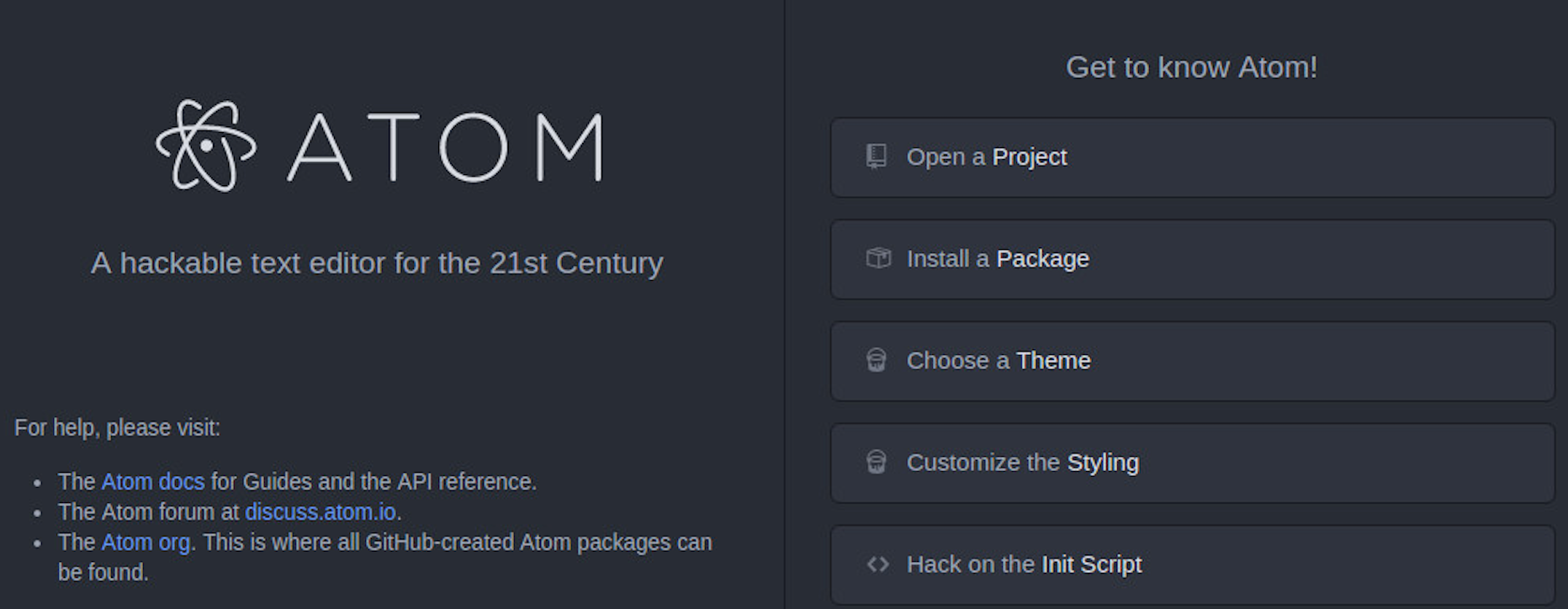
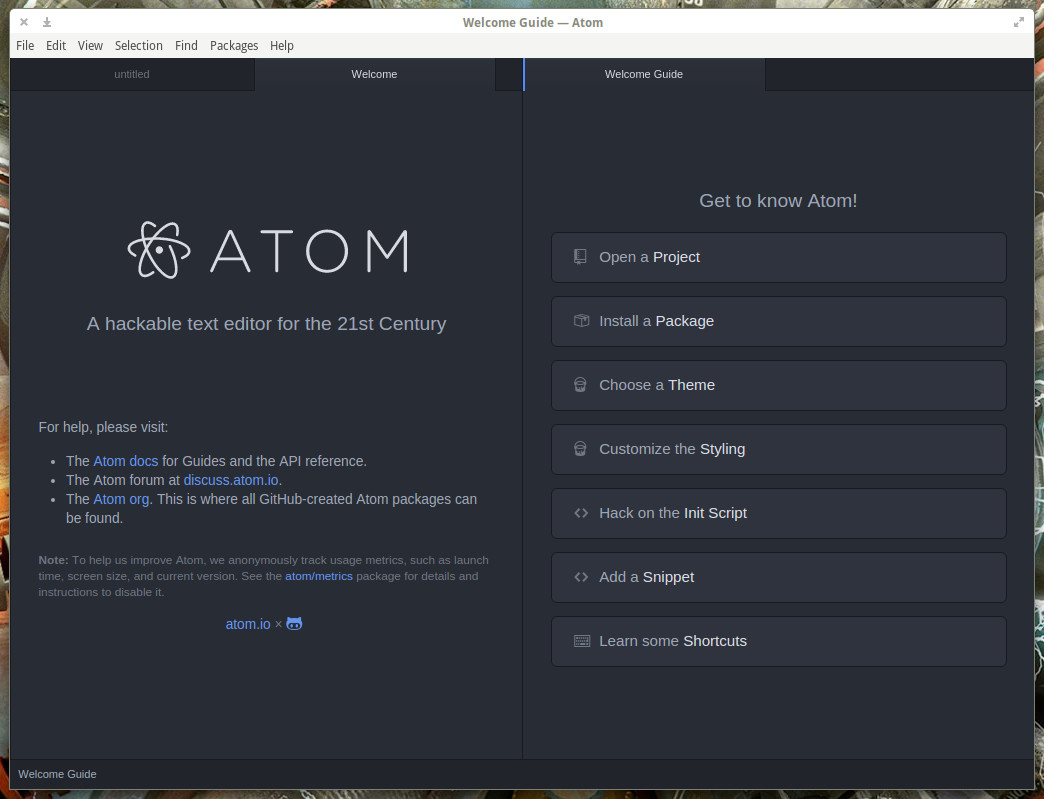
Figure 1: The Atom welcome guide is ready to help you get to know the text editor.
That’s where Atom comes in. Atom is a text editor of a different ilk. It has the power of hard-core editors with a user-friendly GUI. Atom offers all the features you’d need in a platform ready for developers:
Easy extensibility
Cross-platform editing
Built-in package manager
Smart autocompletion
Built-in file browser
Multi-pane viewing
Find and replace
Themable
Customize styling with your own CSS/LESS
And much more
In terms of available packages for Atom, you can browse among the nearly four thousand available extensions that can be added. If you’re looking for your next favorite text editor, look no further.
Let’s install Atom and use it.
Installation
I will be demonstrating Atom on Elementary OS Freya. From the Atom home page, you can download either an .rpm or .deb package for installation. To install Atom on the Debian-based platform, download the .deb package and save it in your ~/Downloads directory. Once the file has downloaded, follow these steps:
Open up a terminal window
Change into the ~/Downloads directory with the command cd ~/Downloads
Issue the command sudo dpkg -i atom-XXX.deb(Where XXX is the architecture of the file downloaded…i.e. amd64)
Type your sudo password and hit Enter
Allow the installation to complete
The installation should go off without a hitch. However, I tested the same installation on Ubuntu Mate 16.04, and it installed with errors (meaning it wouldn’t run). If you find that is the case on your Ubuntu system, you can fix it with the following steps:
Open up a terminal window (or remain in the one used for installing Atom)
Issue the command sudo apt-get install -f
Type your sudo command (if necessary) and hit Enter
Allow apt-get to do its thing
That should fix the dependency issue. You’re ready to go.
First Launch
When you first launch atom (either from your desktop menu or from the command line…with the command atom), you will be greeted by the welcome guide (Figure 1 above).
This welcome guide will appear the first time you open Atom. Upon closing the editor, when you reopen, it will land on the editor window. To get back to the Welcome Guide, open Atom and then click Help > Welcome Guide.
From the Welcome Guide, you can easily open a project, install new packages, customize the styling, hack the Atom initscript, create snippets to be used later, learn keyboard shortcuts (memorize Shift+Ctrl+p, which is the command to open up the keyboard shortcut drop-down).
Installing Packages
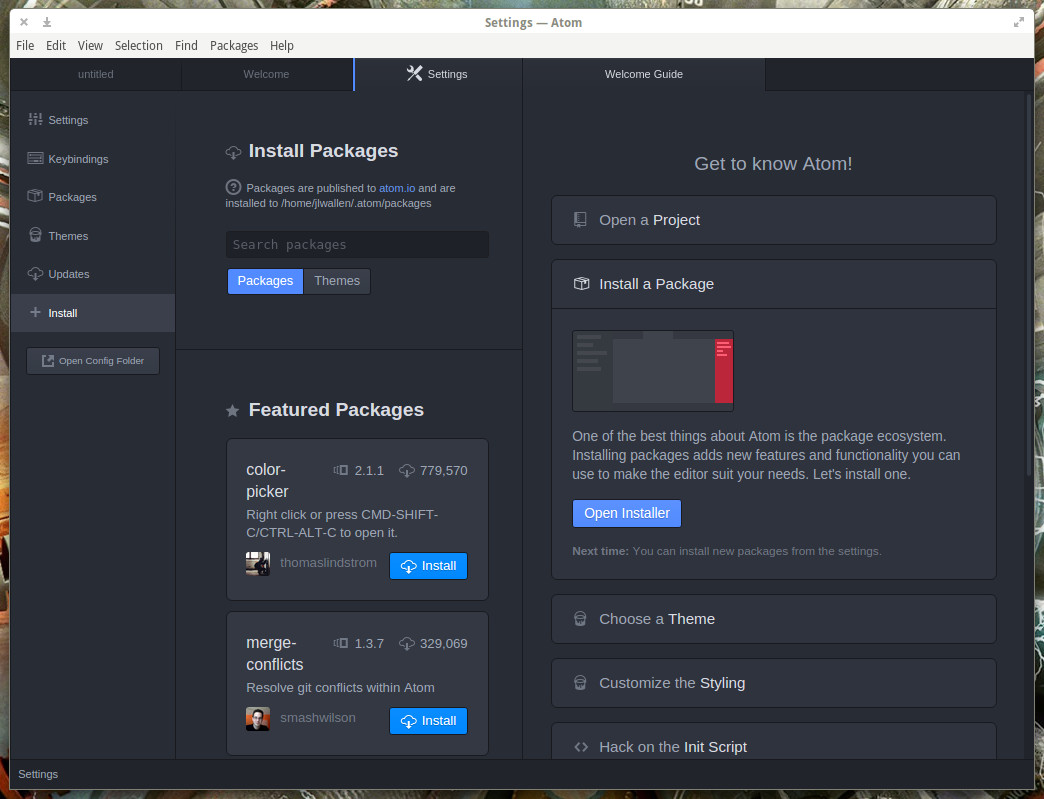
Figure 2: Installing packages in Atom is quite simple.
This will probably be one of the first things you do with Atom. Out of the box, Atom offers quite a lot of features. Even so, you might find a feature you need added to Atom. Installing packages is quite simple. Here’s how:
Open up Atom
From the Welcome Guide, click Install a Package
Click Open Installer
From the newly opened pane (Figure 2) scroll through the listing of packages (or do a search for a keyword or name)
When you find the package you want to install, click the associated Install button
Allow the installation to complete
Once you’ve installed a package, you’ll find a newly-created sub-menu in the Packages menu. Click on that sub-menu to see what the package offers.
Let me show you a really cool example. Say you write in C or C++. Out of the box, Atom cannot run scripts written in those languages. However, there is an outstanding package, aptly named script, that canrun C and C++. Here’s what you do:
Open Atom
Go to the Welcome Guide
Click Install package
Enter script in the search field
Locate the package, script, by rgbkrk
Click Install
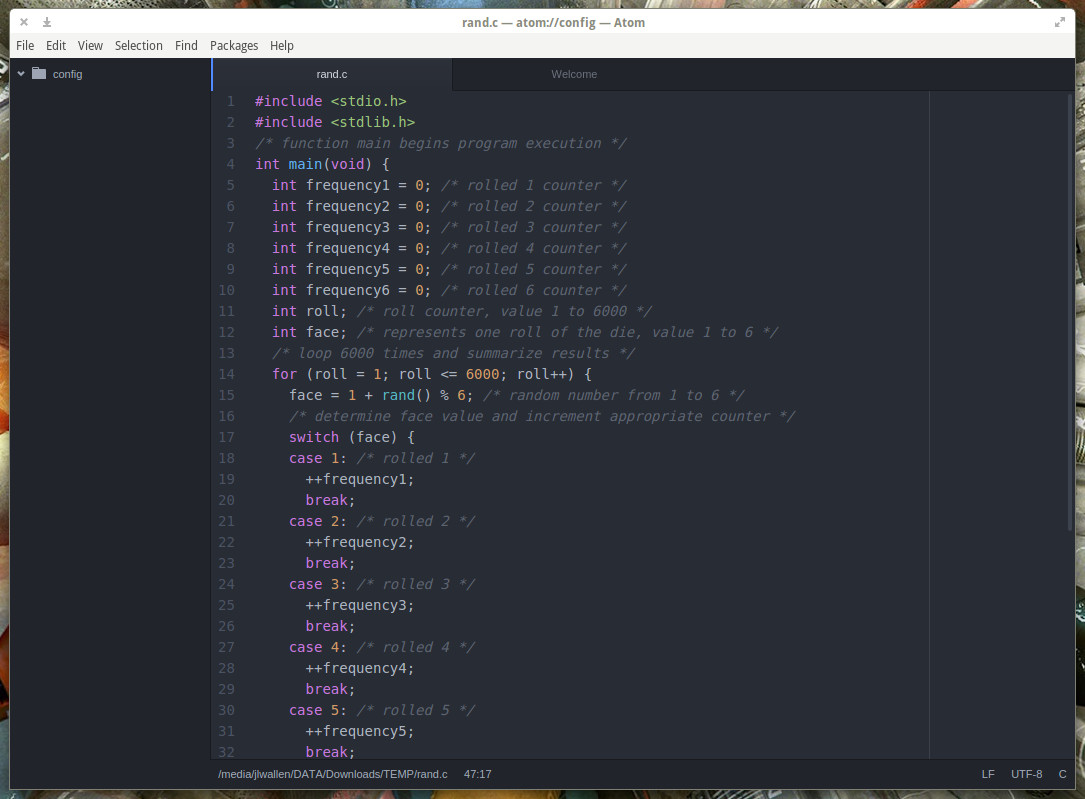
Figure 3: A C++ script with proper color-coding.
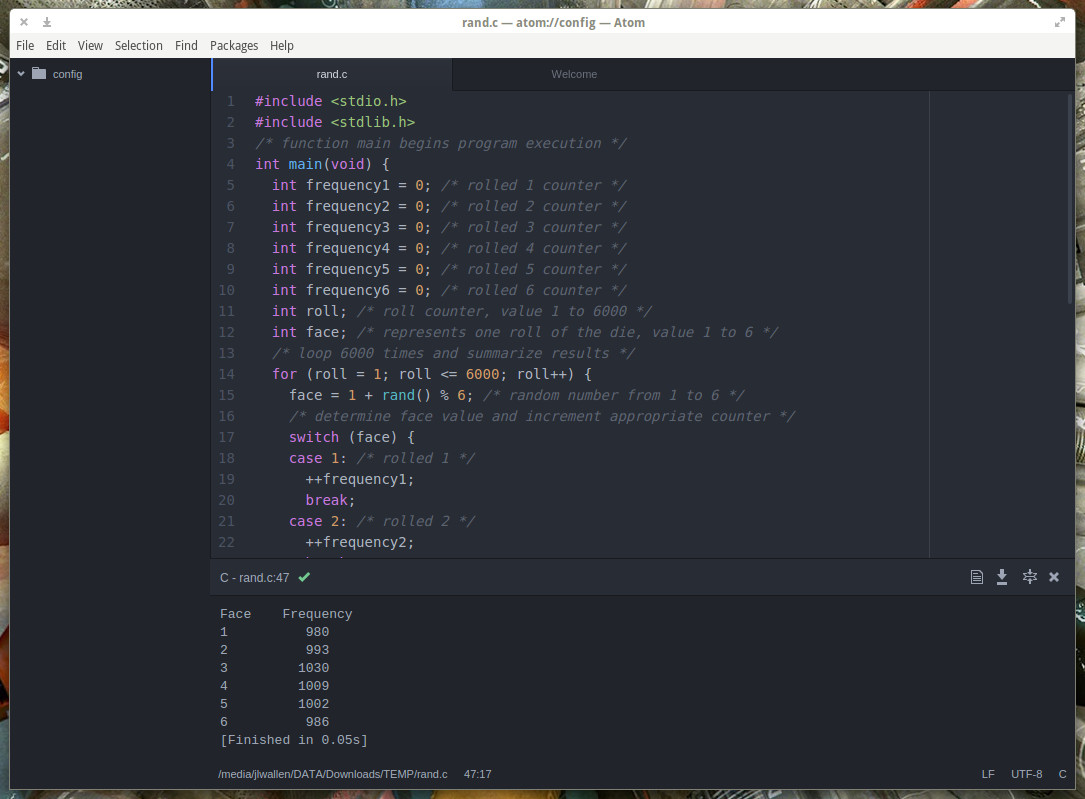
Once the package has been installed, click File > New File and either enter your code or copy/paste it. Once you’ve added your code, click File > Save and make sure to give the file a proper extension (such as .c). Once the file saves, proper color-coding will appear (Figure 3) and you’re ready to run the script.
I’ve added a C++ script for random number generating. Click Packages > Script > Run Script and (if the code works) the results of the run will appear in a pane at the bottom of the window (Figure 4).
Figure 4: Running the random number generator.
It’s the Little Things
Atom is filled with some pretty amazing features and tools. There are also several little additions that make this text editor spectacular. For example, say you’re looking for a matching bracket in a large snippet of code. All you have to do is click on one of the brackets and then click Packages > Bracket Matcher > Go to matching bracket. The cursor will be immediately teleported to the matching bracket, so you won’t have to go on a hunt for that missing character.
Another nice feature exists in the bottom right corner of the window. After you save a file, the bottom right corner will display:
Line break type
Encoding
Syntax highlighting
Figure 5: Changing the syntax highlighting in Atom.
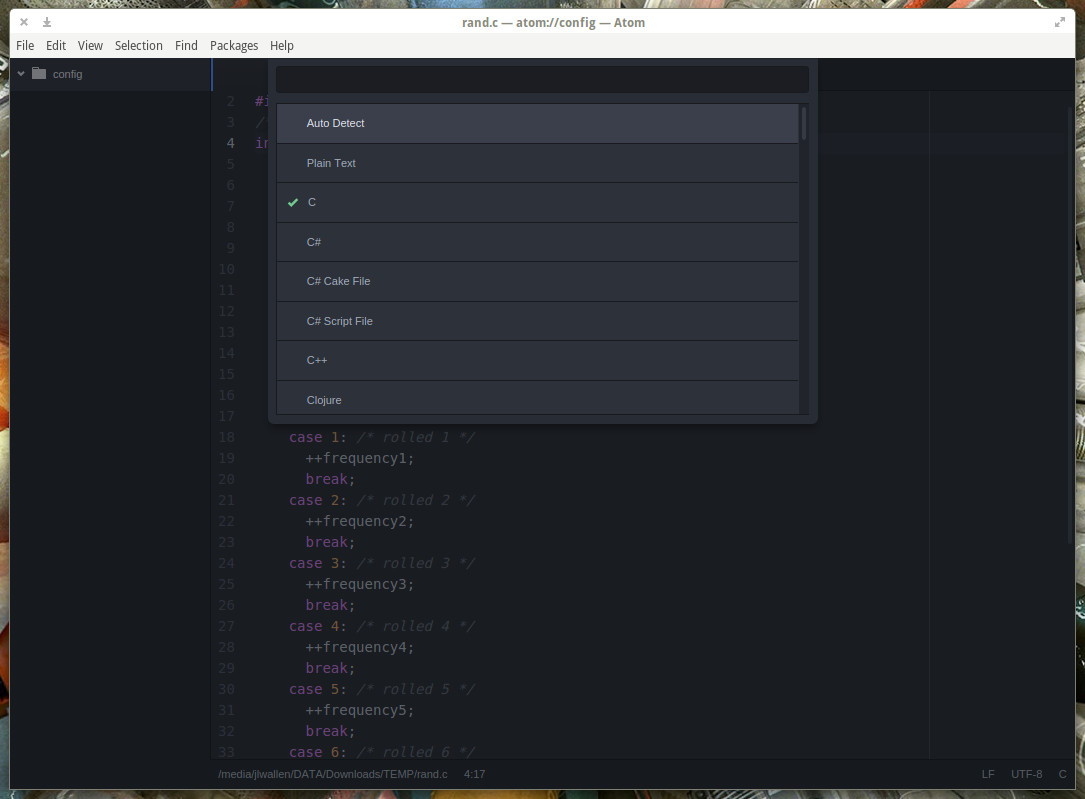
Say, for example, the syntax highlighting associated with your C++ file is set to C. If you click the C, you can then select the proper highlighting from the popup menu (Figure 5).
Atom offers something for just about everyone. I’ve just scratched the surface here of what this powerful text-editor can do. If you’re looking for the perfect combination of features and ease of use, Atom is ready to become your go-to text editor.
Computer security researchers warn security shortcomings in Android/Playstore undermine the security offered by all SMS-based two-factor authentication (2FA).
The issue – first reported to Google more than a year ago – revolves around an alleged security weakness rather than a straightforward software vulnerability. The BAndroid vulnerability was presented at the Android Security Symposium in Vienna last September by Victor van der Even of Vrije Universiteit, Amsterdam. In the BAndroid microsite (featuring a video and FAQ), the Dutch researchers explain the cause and scope of the alleged vulnerability.
If attackers have control over the browser on the PC of a user using Google services (like Gmail, Google+, etc.), they can push any app with any permission on any of the user’s Android devices, and activate it – allowing one to bypass 2-factor authentication via the phone.
Curious about what the new Linux subsystem in Windows 10 can and can’t do? Here’s what we’ve learned about its first release. What sounded like an April Fools’ joke turned out to be anything but: Core Linux tools, including the shell, are now available to run natively inside Windows 10 thanks to an official Microsoft project that translates Linux system calls.
If you using the Linux command line at all, odds are you consider yourself a pro. Consequently, the Linux subsystem in Windows is hidden behind a “for pros only” side entrance that you can only get into if you’re running Windows 10 from the Fast Ring developer builds numbered 14316 or greater, via the Windows Insider program.
Google has updated its key Android development tool, Android Studio, to version 2.0 and added cloud test integration, a GPU debugger, and faster emulation and resource allocation. [VIDEO]
Mountain View touts the instant run feature as just about the most important new feature in the upgrade, as it analyses Android app code as it runs and determines ways it can be deployed faster, without requiring app re-installation.
The tool’s Android emulator is three times faster too. Connections over command line tool Android Debug Bridge are 10 times faster than the previous version.
Last month at GCP Next conference, Google announced the public beta of Stackdriver cloud monitoring and logging service. It is designed to be a hybrid monitoring service spanning both Amazon Web Services and Google Cloud Platform.
After launching Compute Engine in 2012, Google moved fast in adding new infrastructure services required by ops teams. To add monitoring capabilities to its cloud platform, Google acquired Stackdriver in May 2014. A year later, it surfaced as the preview of Google Cloud Monitoring service for Compute Engine, App Engine, Cloud Pub/Sub, and Cloud SQL. As expected, Google conveniently dropped the support for AWS. Like most of the GCP services, Cloud Monitoring had its own set of APIs.
Stackdriver is Googles answer to Amazon CloudWatch and CloudTrail. The service has the potential to become the core DevOps platform for applications and workloads deployed in Google Cloud Platform.
The Linux Foundation has posted slide presentations from this week’s Embedded Linux Conference, which featured the first ever ELC keynote by Linus Torvalds. In case you missed this week’s North American Embedded Linux Conference and OpenIoT Summit in San Diego, you’ll be happy to know that videos of the live streamed event will be released in the coming weeks. Meanwhile, the Linux Foundation has posted slide presentations from the event…
This year’s event marks the first time Linux creator and kernel overseer Linus Torvalds gave a keynote at an Embedded Linux Conference (ELC). His appearance reflects the growing importance of embedded in the Linux universe, especially of the IoT variety.
This week in Linux news, The Linux Foundation launches the Civil Infrastructure Project (CIP), Skype for Linux users are disappointed, and more! Catch up on the latest in Linux news with our weekly digest.
1) The Linux Foundation launches a new Collaborative Project to help expand civil infrastructure.
The goal with Mitaka is to help enable easier integration and management of all the projects in the OpenStack Big Tent model.
Mitaka, the first OpenStack cloud platform release of 2016, is now out after six months of development and the participation of a global community of 2,336 developers from 293 organizations. OpenStack Mitaka is the 13th release from the open-source cloud effort, which Rackspace and NASA began in June 2010.