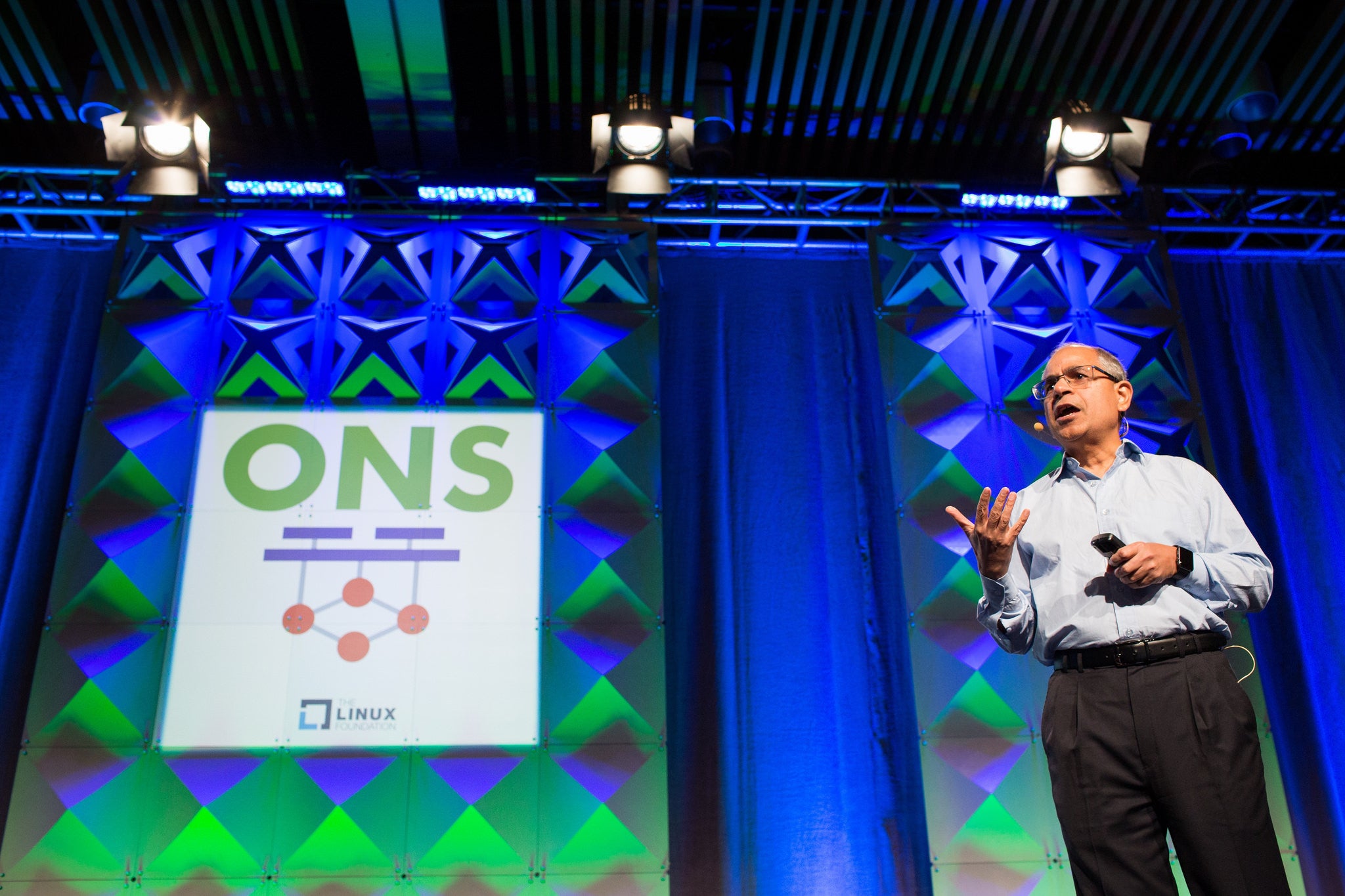
This is the year of open source in networking, The Linux Foundation Executive Director Jim Zemlin told a packed room at Open Networking Summit (ONS) in Santa Clara earlier this month. The industry is gaining momentum, as more network players such as China Mobile profess to adopting SDN, and use open source software to meet their needs.
“2016 is really the confluence of projects up and down the stack,” Zemlin said. “What we’re seeing now is open source projects covering the gamut of technology that’s required to run modern service provider networks and enterprise datacenter networks.”
Nowhere was this breadth of technology more evident than ONS, which featured more than 175 talks covering every aspect of open networking for developers, technologists, operators, service providers and executives. Managers and practitioners alike came together at the event to listen, present, and interact — all with the aim to accelerate development and transform the networking industry.
We’ve collected some of the first day’s keynote highlights, below. Videos are available of more than 20 keynote and plenary sessions from ONS 2016 — watch them now.
3 Challenges Facing Open Networking
Guru Parulkar co-founded Open Networking Summit with Nick McKeown and Dan Pitt in 2011 to highlight the latest developments in software defined networking (SDN), and to accelerate SDN adoption by network operators and service providers.
Parulkar, Executive Director at ON.Lab, said that over the past few years the industry has made amazing progress, overcoming many technological and business barriers. Now we can safely say that a new era of networking is here. According to him this era of networking is defined by three things: disaggregation, software and virtualization, and open source.
He said that open source communities have made much progress in creating technologies that are being adopted by the industry. However, they cannot quite claim success because they have also created new problems and many vendors still use proprietary solutions.
“We are at point where we started with closed and proprietary and we are at risk of ending up with closed and proprietary solutions unless we are careful,” Parulkar said. “We are at risk of winning the battles and losing the wars. and that is what we don’t want as a community after working so hard for it.”
He pointed out three challenges facing the networking industry:
1) In addition to a disaggregated disaggregated and open source platform that brings lot of value, we have to build and support integrated open source solutions for scalability, high availability and ease of deployment for service providers. If open source solutions don’t bring these to service providers, then the industry will continue to be dominated by closed and proprietary solutions.
2) As we build an open source integrated solution, as well as end-to-end solutions for service providers and network operators, we do need standards — in protocols, at a minimum. We need to guarantee interoperability and prevent vendor lock-in.
3) Business leaders often view open source as a strategic weapon to gain competitive advantage. Companies that focus on this approach will often open source one piece of their solution or enlist a lot of contributors to an open source project in order to steer the outcome to their own advantage. This behavior should be discouraged. Focusing entirely on competitive advantage can be counter-productive to the overall project goals and inhibit progress and innovation.
Finally, Parulkar, pointed out the need for increasing candid dialogue to avoid undue corporate influence in open source.
AT&T Becomes a Software Company
John Donovan, chief strategy officer and group president at AT&T Technology and Operations talked about new data challenges facing operators and service providers. As more and more data intensive services and apps grow in popularity companies have to change their approach.
“The traditional hardware approach is too slow. The only way to stay ahead of that kind of demand curve is software. We are all-in in virtualizing our network,” he said.
AT&T plans to virtualize 75 percent of its network by 2020, Donovan said, “We committed last year here to 5 percent in 2015 which is the hardest 5 percent, laying the foundation, and we beat that. We did 5.7 percent,” he said. “We are accelerating tremendously to 30 percent by 2016. We have 14 million wireless customers today on our fully virtualized mobile packet core, with millions more being migrated in 2016.”
He announced that AT&T is releasing a white paper on the work it has done internally; he called it ECOMP: Enhanced Control Orchestration Management and policy. It’s the foundation of AT&T’s SDN work.
“We are opening the hood of our network and showing you the engine,” said Donovan.
The ECOMP white paper is available for download and AT&T is seeking feedback on it. Based on the interest around the work AT&T has done internally the company will decide whether to release that work as open source or not.
The company aims to maintain a balance between open sourcing everything and keeping some secrets, he said. “We should retain some secret sauce but it shouldn’t be in a bucket, it should be like tabasco sauce. in a very small vial and be very potent and powerful.”
He said that AT&T is already a heavy user and contributor to open source projects including OpenStack, OPNFV, OpenDaylight, OpenContrail, ON.Lab, the Open Container Initiative, Cloud Native Computing Foundation and the Open Compute Project, among others.
“We doubled our usage of open source software in just the last year going from 5 to 10 percent and that number will continue to grow,” he said
He also addressed one question from the audience how software companies like Google, Facebook, or Amazon are becoming competitors to telcos such as AT&T. Donovan said that software lowers the barrier of entry to the industry and the only thing companies like AT&T can do to control their fate is to make this transition to SDN as fast as they can.
“The foundations of that have been laid out today. The cultural change that we will make as a company is as important as investments we are making technology wise,” he said.
He added that he was moving closer and closer to explaining AT&T’s software transformation in past tense and telling people that “AT&T has become a software company.”
Keynote Panel
The keynote panel “All Together Now: Integrating Networking Open Source Projects,” moderated by Zemlin, included Jonathan Bryce, OpenStack; Neela Jacques, OpenDaylight; Heather Kirksey, OPNFV; Guru Parulkar, ONOS.
The panel dealt with issues like how open source drives innovation, disrupts old business models and create new ones; how standards and open source work together; and how governance provides a level of trust and also ensures that one party won’t dominate a project.
“Historically, whenever there is a really solid open source option, whether it’s Linux or MySQL or the Apache Web server, what you see is an incredible amount of innovation that gets driven when the fundamental building blocks are open,” Bryce said “When someone can work on standard foundation pieces it frees everyone to go to the next level to do amazing things.”
Project Updates
Keynotes were followed by plenary sessions where Changhoon Kim, Barefoot Networks; Chris Price, Ericsson; Neela Jacques, OpenDaylight Project; and Thomas Vachuska, ON.Lab gave project updates on OpenDaylight, OPNFV, ONOS and P4.
Later Ayush Sharma of Huawei talked about “The New ICT Software Stack – A Collaborative platform for Business and Technology Innovation.” He mentioned how wireless carriers are using open source technologies and joked that “open source is in the air.”
The last plenary session of the day gave an overview of the Open CORD Project. The panel was joined by Tom Anschutz, AT&T; Xiongyan Tang, China Unicom; Zsolt Haraszti, PhD, Ciena; Larry Peterson, ON.Lab; Bryan Sadowski, Radisys; Kang-Won Lee, SK Telecom; and Gagan Puranik, Verizon.
Watch all the keynote and plenary sessions from ONS 2016, now available online.


 This week in Linux news: The Linux Foundation’s R Consortium is prepping several new projects to advance the R language, Google issues an emergency Android vulnerability patch, and more! Catch up on this week’s Linux headlines with our weekly digest below:
 Animators aspiring to be the next Hayao Miyazaki are now one step closer to their dreams, as the animation software used by