Every hard disk, however large it may be, is filled up to capacity after some time. Then it’s about time to find out where all that disk space has gone, and to reclaim some of it.
This is what KDirStat was all about. The original KDirStat was a KDE 3 application. Now, there is the brand-new QDirStat, based on the same code, but with most of it rewritten with newer technology based on the latest Qt 5. It no longer depends on KDE; rather, it’s now desktop agnostic, running just as well under GNOME, Xfce and all thoser other X11-based Linux/BSD desktops.
Aside from the up-to-date underlying framework, QDirStat has a number of new features compared to KDirStat. To name a few:
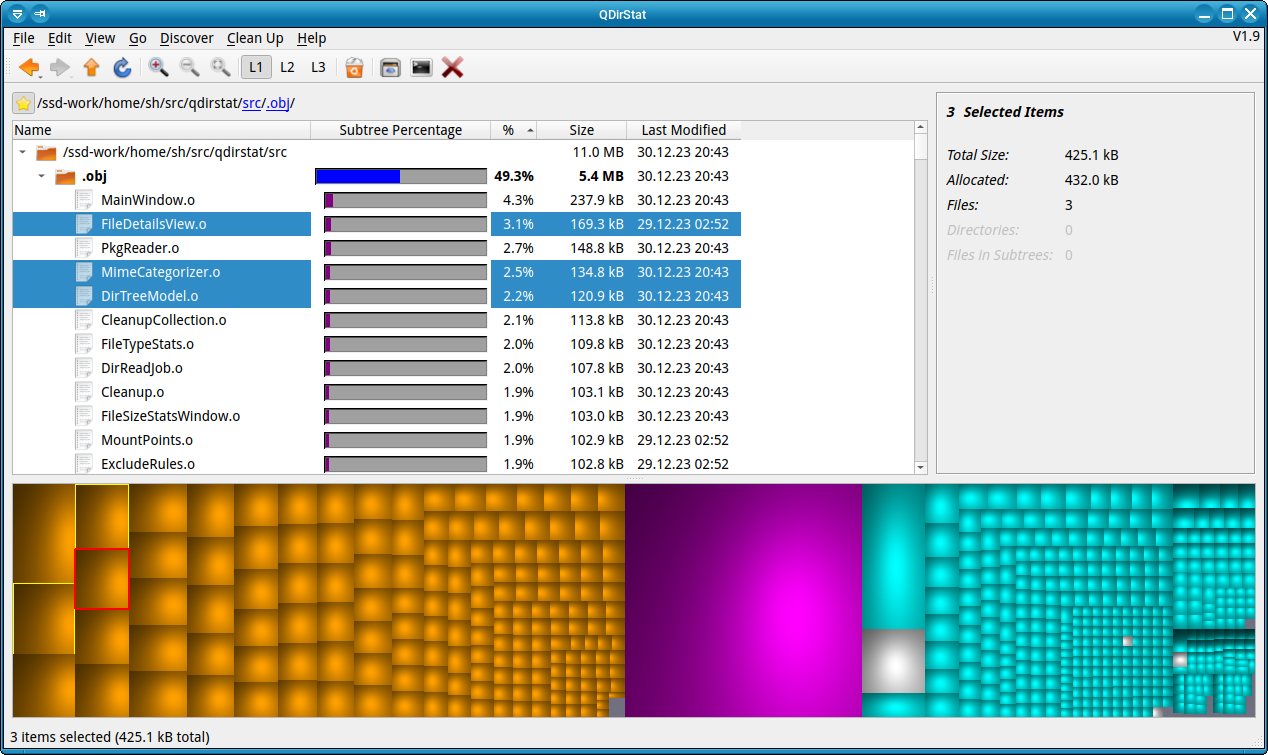
Multi-selection in both the tree and the treemap.
Unlimited number of user-defined cleanup actions.
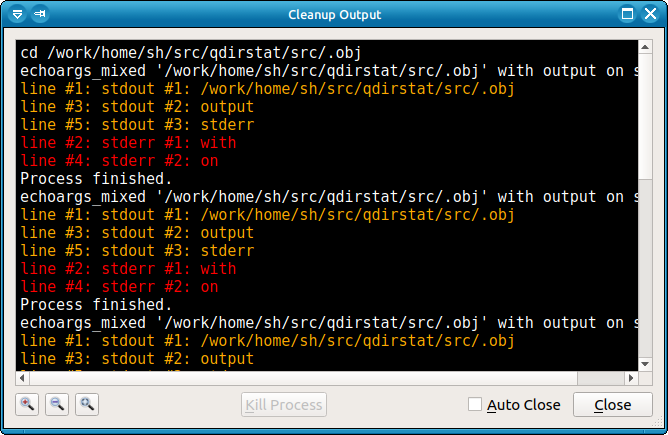
Properly show errors of cleanup actions (and their output, if desired).
File categories (MIME types) and their treemap color are now configurable.
Exclude rules for directories are easily configurable.
Desktop-agnostic; no longer relies on KDE or any other specific desktop.
Screenshots:
QDirStat main window (notice the multi-selection in the tree and in the treemap)
Output during cleanup actions.
This window is purely optional. It can be configured to be shown when there is error output (shown red), if a cleanup action takes longer than a configurable amount of time, always, or never.
For more details, more screenshots and ready-made packages, see
Today we will see how to list USB devices in Linux and their properties such as speed, BUS, class, type details etc. This is part of our on going hardware detection series. We already covered following stuff.
USB(Universal Serial Bus) is a stranded developed to replace different types of BUS’s available. This is a solution devices to eliminate vendor lock-down of hardware ports, so that BUS’s will be identical across different devices from different vendors. USB devices solve one more problem i.e. speeds. USB devices can reach up 5GB/s as of this writing where as PCI and serial devices have less speeds. Depending of USB firmware, its categorize in to USB 1.0, USB 2.0, USB 3.0. USB have competitor in the from of Thunderbolt interface.
As a Linux User/administrator we should know USB bus details as well as devices connected. In this post we will see how to use lsusb command to display different USB properties.
Learn lsusb command with examples
Example 1: List all the USB ports available
lsusb
Output:
	Bus 001 Device 002: ID 8087:0024 Intel Corp. Integrated Rate Matching Hub
	Bus 002 Device 002: ID 8087:0024 Intel Corp. Integrated Rate Matching Hub
	Bus 001 Device 001: ID 1d6b:0002 Linux Foundation 2.0 root hub
	Bus 002 Device 001: ID 1d6b:0002 Linux Foundation 2.0 root hub
	Bus 001 Device 003: ID 05c8:021e Cheng Uei Precision Industry Co., Ltd (Foxlink)
	Bus 001 Device 007: ID 0cf3:3005 Atheros Communications, Inc. AR3011 Bluetooth
	Bus 002 Device 003: ID 0781:5567 San Disk Corp. Cruzer Blade
Let us try to understand above output in detail.
Bus 002Device 003: ID 0781:5567SanDisk Corp.Cruzer Blade
Bus 002 : This is bus number where SanDisk USB stick is attached.
Device 003: This is the third device attached to bus 002, the other two devices are “Linux Foundation 2.0 root hub” and ” Intel Corp. Integrated Rate Matching Hub”
ID 0781:5567 is the number given to this SanDisk, The number before : indicates the manufacture ID and number after : indicates device ID. To get more info on this visit Linux-USB site.
SanDisk Corp. Cruzer Blade is the name of manufacture and device name.
Example 2: Check how many USB ports available in your machine so that we can connect USB devices to these ports.
This week in Linux news, Russia announces a possible switch to Linux, Jack Wallen ponders the importance of the Linux Desktop in 2016, and more! Get up-to-date on the Latest Linux news with our weekly digest.
1) Russia announces a possible switch to Linux in retalliation against Western business embargo on Crimea.
Servers connected to the internet are seeing a constant level of attacks and scans all day. While a firewall and regular system updates are a good first defence to keep the system safe, you should also check regularly that no attacker got in. The tools described in this tutorial are made for these sanity checks, they scan for malware, viruses and rootkits.
Few things in this life are more frustrating than trying to provide tech support to loved ones. If you’re reading this, odds are you’ve run into this experience yourself at some point in your life. Now, I should point out that no operating system is completely free from bugs. Even the most locked down devices, such as tablets or Chromebooks can still experience challenges due to connectivity.
I believe today’s popular Linux distributions are a far better option in the long run. Using a Linux distro often means you can work with existing PC hardware instead of buying new stuff. And unlike Google’s Chromebook, you’re not providing remote access help over wifi – the older PC running Linux happens to have a wired connection. This alone is enough to save one’s sanity. (Read the rest)
The chip industry is no longer going to treat Gordon Moore’s law as the target to aim for. Moore’s law has died at the age of 51 after an extended illness.
In 1965, Intel co-founder Gordon Moore made an observation that the number of components in integrated circuits was doubling every 12 months or so. Moreover, as this site wrote extensively about in 2003, that the number of transistors per chip that resulted in the lowest price per transistor was doubling every 12 months. In 1965, this meant that 50 transistors per chip offered the lowest per-transistor cost; Moore predicted that by 1970, this would rise to 1,000 components per chip, and that the price per transistor would drop by 90 percent.
With a little more data and some simplification, this observation became “Moore’s law”: the number of transistors per chip would double every 12 months.
Rackspace’s latest managed cloud offering delivers OpenStack-as-a-Service backed by a 99.99 percent API uptime guarantee.
Rackspace today announced the release of Rackspace Private Cloud powered by Red Hat, which delivers OpenStack private clouds-as-a-service using the Red Hat Enterprise Linux OpenStack Platform.Announced at the Rackspace::Solve event here, the new offering expands the Rackspace OpenStack-as-a-service product portfolio, further extending the company’s strategy to deliver reliable and easy-to-use OpenStack private and hybrid clouds.
One of the most basic tasks in Linux is setting file permissions. Understanding how this is done should be considered a must-know, first step in your travels through the Linux ecosystem. As you might expect, such a fundamental issue within the operating environment hasn’t changed much over the years. In fact, the Linux file permission system is taken directly from the UNIX file permission (and even uses many of the same tools).
Figure 1: The format of the permissions file created by acl.
But, don’t think for a second that understanding file permissions is something you’ll wind up having to spend days and days studying…it’s actually quite simple. Let’s walk through what you need to know and how to put it all together.
The Bits and Pieces
The first thing you need to understand is what file permissions apply to. Effectively what you do is apply a permission to a group. When you break it down, the concept really is that simple. But what are the permissions and what are the groups?
There are three types of permissions you can apply:
read — gives the group permission to read the file (indicated with r)
write — gives the group permission to edit the file (indicated with w)
execute — gives the group permission to execute (run) the file (indicated with x)
To better explain how this is applied to a group, you could, for example, give a group permission to read and write to a file, but not execute the file. Or, you could give a group permission to read and execute a file, but not write to a file. You can even give a group full permission to read, write, and execute a file or strip a group of any access to a file by removing all permissions.
Now, what are the groups? There are four:
user — the actual owner of the file
group — users in the file’s group
others — other users not in the file’s group
all — all users
For the most part, you will only really ever bother with the first three groups. The all group is really only used as a shortcut (I’ll explain later).
So far so simple, right? Let’s layer on a bit of complexity.
If you open up a terminal window and issue the command ls -l, you will see a line-by-line listing of all files and folders within the current working directory (Figure 1 above).
If you look in the far left column, you’ll notice listings like -rw-rw-r–.
That listing should actually be looked at like so:
rw- rw- r--
As you can see, the listing is broken into three sections:
rw-
rw-
r–
The order is quite important…for both permissions and for groups. The order is always:
User Group Others — for groups
Read Write Execute — for permissions
In our permissions listing example above, the User has read/write permission, the Group has read/write permission, and Others has only read permission. Had any of those groups been given executable permissions, it would have been represented with an x.
Numerical Equivalent
Let’s make this even more complex. Each permission can also be represented by a number. The numbers are:
Read — 4
Write — 2
Execute — 1
The numerical substitution isn’t an apples to apples change. You can’t drop in:
-42-42-4--
Instead, what you do is add up the numbers you want for each group. Let’s stick with our example above (-rw-rw-r—). To give the User group read and write permission, you would add up 4+2 to get 6. For the Group, you need the same permissions, so they get the same number. You only want Others to have read permissions, so they get 4. The numerical equivalent is now:
664
So, if you want to give a file 664 permissions, you’d issue the chmod command like this:
chmod 664 FILENAME
where FILENAME is the name of the file.
Changing Permissions
Now that you understand the actual permissions of files, it’s time to learn how to change those permissions. This is done with the chmod command. One of the first things you must understand is that, to be able to change the permissions of a file, either you must be the owner of the file or you must have permission to edit the file (or have admin access by way of su or sudo). Because of that, you cannot just jump around in the directory structure and change permissions of files at will.
Let’s stick with our example (-rw-rw-r–). Suppose this file (we’ll name it script.sh) is actually a shell script and needs to be executed…but you only want to give yourself permission to execute that script. At this point, you should be thinking, “Ah, then I need the permission listing to read -rwx-rw-r–!”. To get that x bit in there, you’d run the chmod command like so:
chmod u+x script.sh
At this point, the listing will be -rwx-rw-r–.
If you wanted to give both User and Group executable permission, the command would look like:
chmod ug+x script.sh
See how this works? Let’s make it interesting. Say, for whatever reason, you accidentally give all groups executable permissions for that file (so the listing looks like -rwx-rwx-r-x). If you want to strip Others of executable permissions, issue the command:
chmod o-x script.sh
What if you want to completely remove executable permission from the file? You can do that two ways:
chmod ugo-x script.sh
or
chmod a-x script.sh
That’s where all comes into play. This is used to make the process a bit more efficient. I prefer to avoid using a as it could lead to issues (such as, when you accidentally issue the command chmod a-rwx script.sh).
Directory Permissions
You can also execute the chmod command on a directory. When you create a new directory as a user, it is typically created with the following permissions:
drwxrwxr-x
NOTE: The leading d indicates it is a directory.
As you can see, both User and Group have executable permission for the folder. This does not mean that any files created in the folder will have the same permissions (files will be created with the default system permissions of -rw-rw-r–). But, suppose you do create files in this new directory, and you want to strip Group of write permissions. You don’t have to change into the directory and then issue the chmod command on all the files. You can add the R option (which means recursive) to the chmod command and change the permission on both the folder and all the containing files.
Now, suppose our example is a folder named TEST and within it is a number of scripts — all of which (including the TEST folder) have permissions -rwxrwxr-x. If you want to strip Group of write permissions, you could issue the command:
chmod -R g-w TEST
If you now issue the command ls -l, you will see the TEST folder now has a permission listing of drwxr-xr-x. Group has been stripped of its write permissions (as will all the files within).
Permission to Conclude
At this point, you should now have a solid understand of the basic Linux file permissions. There are more advanced issues that you can now easily study, such as setuid and setgid and ACLs. Without a good foundation of the basics, however, you’d quickly get lost with those next-level topics.
Linux file permissions haven’t changed much, since the early days. And, they most likely won’t change much going into the future.

 This week in Linux news, Russia announces a possible switch to Linux, Jack Wallen ponders the importance of the Linux Desktop in 2016, and more! Get up-to-date on the Latest Linux news with our weekly digest.
 The chip industry is no longer going to treat Gordon Moore’s law as the target to aim for. Moore’s law has died at the age of 51 after an extended illness.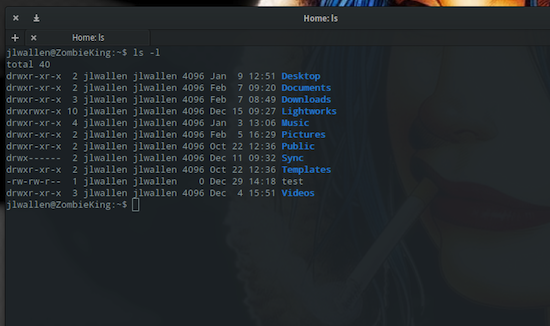
 Here are ten of the best and often cheaper VR alternatives we have found for a virtual reality experience that does not involve Oculus Rift.