Use SUSE Studio to build your own perfectly tailored SUSE Linux in multiple release formats.
SUSE Studio is SUSE’s excellent free custom-build service for creating your own customized openSUSE or SUSE Linux Enterprise (SLE), and packaging it in multiple formats:
-
Live CD/DVD/USB
-
Installation .iso image for CD/DVD
-
USB installation image
-
.vmdk and .ovf virtual machine images
-
Xen guest (.img)
-
Hyper-V Virtual Hard Disk (.vhd)
-
SUSE Cloud, OpenStack, KVM (.qcow2)
-
IBM zSeries DASD and zFCP
-
Cloud images: SUSE Cloud, OpenStack, QEMU, KVM (.qcow2)
-
Amazon EC2, Azure
SUSE Studio comes in two forms: the free online builder, and the standalone premises builder that you install on your own hardware, which costs money. Naturally, we are going to use the free online builder. Start at https://susestudio.com/ and create a new login, or recycle one of your existing logins such as Google, OpenID, or Facebook.
After you log in, SUSE Studio doesn’t mess around but gets right down to the business of building a nice new custom SUSE for your very own, and you must pick a base template. You can choose from openSUSE Leap, openSUSE 13.2, and various SUSE Linux Enterprise versions (Figure 1). Use JeOS — Just Enough Operating System — for building stripped-down specialized servers.
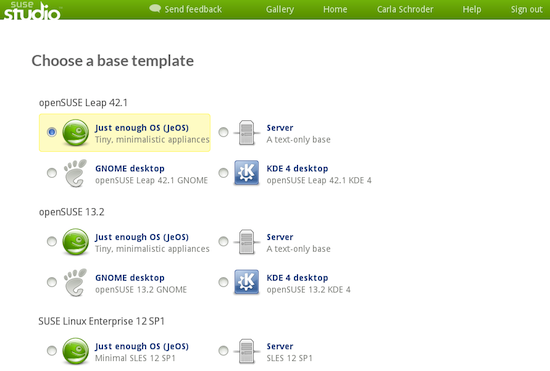
A brief digression: What, you ask, is openSUSE Leap? It is a new hybrid that is based on SLE source code, plus community code. The idea is increased stability and synchronization with SLE releases. openSUSE 13.2 — the good old-fashioned 100 percent community SUSE — is also still available.
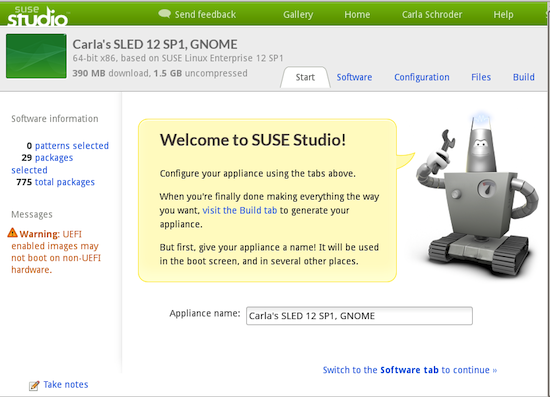
Now, getting back to our base template: Let’s go for the big time and use SLE 12 SP1. I choose the GNOME desktop just for giggles, and the builder names my new appliance “Carla’s SLED 12 SP1, GNOME”. I can change this if I feel like it. I don’t feel like it, so the next step is to click the “Create appliance” button, which, naturally, is colored SUSE Geeko green.
It takes a few minutes, and then you see the screen for configuring your new appliance (Figure 2). Note the useful information on this screen: It displays the current size of your build, the numbers of patterns and packages, and version information. Look at the bottom left for a note-taking widget.
Software
Allrightythen, Tipster the robot tells us what to do next, which is click the Software tag. The Software page contains a wealth of build information, and easy point-and-click software selection. There is even a Banned category, although sadly it is empty.
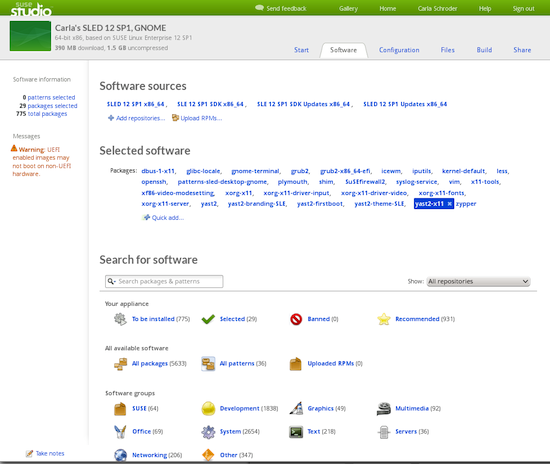
Now the real fun begins. The Software tab is wonderfully flexible. You can choose from All Packages, Software Groups, and Patterns. Patterns are metapackages; for example, patterns-sled-laptop installs software for laptops, and patterns-sled-apparmor installs everything you need to run AppArmor. Click on any package or pattern name to see information about it. You may also upload any RPM you want and add more software repositories (Figure 3).
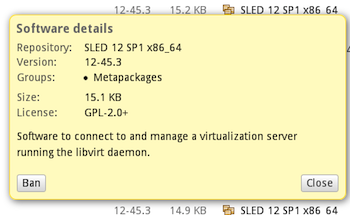
Remember the empty Banned category? You can fill that yourself. When you click on any package you have a ban option (Figure 4). Banning packages is how you list the ones you do not want installed under any circumstances. For example, to prevent dependency conflicts.
Configuration
As you select software to add to your build, the final size is continually updated on the top left of your screen. After selecting the software you want, go to the Configuration tab. (You must find your own way there, without help from Tipster.) This is where you set up your system. The Configuration tab contains multiple pages, and includes General, Personalize, Startup, Server, Desktop, Appliance, and Scripts:
-
The General tab includes: Locale, Network, Time Zone, Firewall, and Users and Groups.
-
The Personalize tab lets you configure a custom logo and background, and generates a live preview.
-
Startup configure your default runlevel and EULA, if you want one.
-
Server sets up PostgreSQL or MariaDB.
-
Desktop has the option to automatically log in one user, and set up whatever programs you want to start at boot.
-
The Appliance tab has options for virtual machine images and UEFI secure boot support.
-
Use the Scripts tab to add your own custom scripts.
The Files > Overlay Files tab is an especially useful feature, because it is used for adding files to your build after you test it, without having to start over.
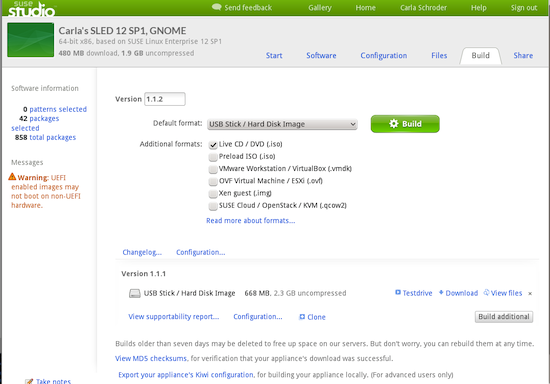
At last, we come to the Build page. This is where you choose your final package format. I want a live USB image, and I am calling it version 1.1.1, because why not? Click the Geeko green “Build” button, and in a few minutes the new image is built. While you’re waiting, you can read the auto-generated Changelog and Configuration report (Figure 5).
Testdrive
This is my favorite feature, among many favorites: Use Testdrive to try out your new appliance in your web browser, without downloading and installing or running it on another PC. When you are satisfied with your new build, you can download and play with it, clone it, or share it in the Gallery.
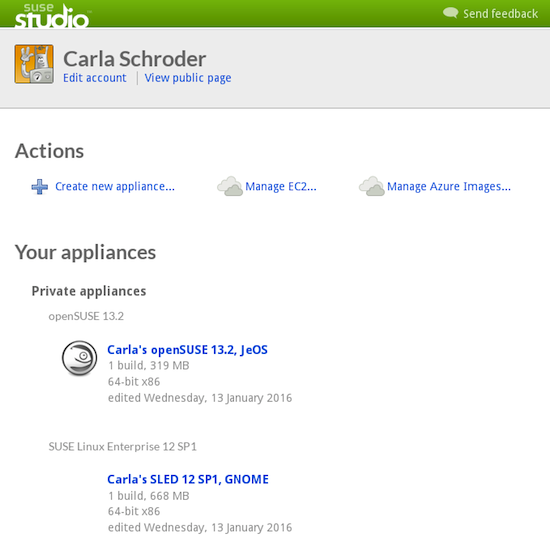
Go to your Home page (Figure 6) to see all of your appliances, clone them, delete them, and create more. You are limited to 15GB of storage, and builds older than 7 days are automatically deleted, so remember to download any builds that you want to keep.
Once again, we come to the end just when the party is really starting. It costs nothing but time to try out SUSE Studio, and the excellent documentation will help you over rough spots and show you advanced features.

 Opensource.com asked readers a few months ago:
  The Tor Project proudly announced the release and immediate availability for download of the first stable Tor Browser 5.5 web browser for all supported operating systems, including GNU/Linux, Mac OS X and Microsoft Windows.