Home Blog Page 941

Tips and Tricks to Get the Most out of Your Linux WiFi

jack wifi a
Regardless of your operating system, wireless can sometimes be a headache. Either you drop a signal, your wireless connections flakes out, your connection is slow, or your wireless device winds up MIA. Either way, there are times you’ll wind up having to troubleshoot or tinker to get the most out of that connection.

Everyone using Linux knows that wireless problems aren’t limited to our favorite open source platform. As with printers, all operating systems can succumb to the woes of wireless. Fortunately, with Linux, there are plenty of ways to prevent or fix the problems.

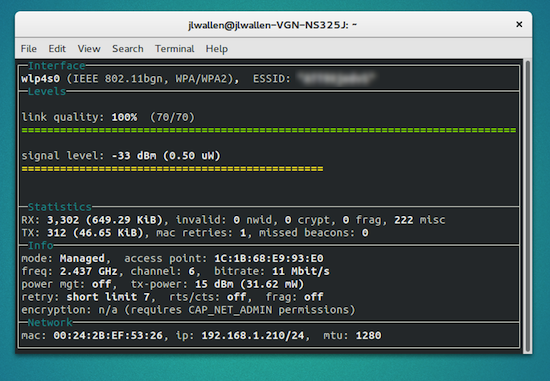
For those that like to eke out the most power and functionality from their system, I will provide a few tips and tricks specific to wireless connectivity. Hopefully, one of these tips will be exactly what you need to get the most out of your own wireless connection (see Figure 1).

I will be demonstrating these tips using Ubuntu GNOME 15.10 and elementary OS Freya. If you’re using a different distribution, you’ll only need to make minor alterations to the command structure for this to work (such as, su’ing to root instead of using sudo).

Enable Disabled Wireless Device

You may run into this issue. You’ve done something to your desktop or laptop (such as, switch off the wireless with the machine’s built-in WiFi adapter on/off switch — which can save battery) which causes WiFi to show up as disabled in the Network manager. No matter how many times you reboot, wireless simply won’t turn on. Why this happens is the adapter gets hardblocked by rfkill.

If you open a terminal window and issue the command rfkill list and you see your wireless adapter listed as either hard or soft blocked, you’ll need to unblock it. To do this, issue the command rfkill unblock all. This should unblock your wireless adapter from rfkill and allow you to re-enable it (it might automatically re-enable without your interaction). If the wireless adapter doesn’t re-enable after this, reboot the machine and it should be fine.

Force Disable 802.11n

Even though 802.11n offers better data speeds, many older routers simply don’t support it. One way to gain an increase in speeds is to disable the 802.11n protocol on your wireless Linux machine — especially if your machine uses the iwlwifi driver (Intel wireless chips), because that particular driver does a poor job with the 802.11n protocol. To do this, you only need to disable the protocol to gain some speed. Here’s what you need to do:

  1. Open up a terminal window

  2. Find out what driver your wireless card uses with the command lshw -C network

  3. Locate the section driver= and note the name of the driver

  4. Change to super user with sudo su

  5. Issue the command echo “options DRIVER_NAME 11n_disable=1” >> /etc/modprobe.d/DRIVER_NAME.conf (Where DRIVER_NAME is the name of the driver being used)

Note: The above change is permanent. The only way to change it would be to issue the command echo “options DRIVER_NAME 11n_disable=1” >> /etc/modprobe.d/DRIVER_NAME.conf (Where DRIVER_NAME is the name of the driver being used).

Disable Power Management

Some wireless cards support power management. This feature can sometimes get in the way of the card’s connection quality (which also affects connection speeds). If your card happens to support it, you can turn off the power management feature with a simple command:

iwconfig wlp4s0 power off

The problem with the command is that, as soon as you reboot, it will reset to the default on setting. To get around this, you’ll have to create a short script that will run the command at boot. Here’s how:

Create the script (we’ll call it wifipower) with the following contents (you will substitute the name of your wireless card where mine says wlp4s0):

#!/bin/sh
/sbin/iwconfig wlp4s0 power off

Save the script and give it executable permissions with the command chmod u+x wifipower. With the permissions in place, move the file to /etc/init.d and issue the command update-rc.d wifipower defaults. Now the power management feature will turn off at boot. The only caveat to this is ensuring your card supports the feature. If it doesn’t, the power off command will report back to you that the feature isn’t supported.

Set the BSSID

Did you know that the Linux Network Manager rescans the network every two minutes? This can actually cause problems with your wireless connection. If you happen to work with your wireless in the same, familiar locations, you can set the BSSID to the MAC address of your router which will prevent Network Manager from scanning for access points on that particular wireless connection. Here’s how:

  1. Open up the Network Manager (usually found in the system tray of your desktop)

  2. Select the wireless connection you want to work with

  3. Click Edit

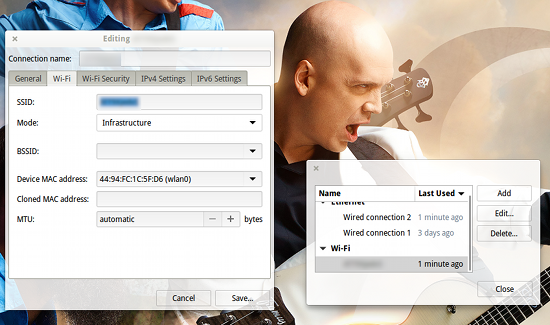
  4. In the Wi-Fi tab, click the drop-down associated with BSSID (Figure 2)

  5. Select the MAC address for your router (if it does not appear, you’ll have to locate it on your router and enter it manually)

  6. Click Save
    jack-wifi b

Dual-Boot Blues

If your Linux box dual boots with Windows, you may find that, after booting into Windows, your machine can no longer get an IP address. This situation is most likely caused by the fact the router thinks it already handed an IP address out to the MAC address associated with your network card.

There are a few ways around this issue. What you do will depend on how you use your machine. If you spend the vast majority of your time dual booting at home, you can simply set a static IP address for one of the operating systems. By doing this, the router will not fail to hand out a dynamically assigned IP address to the other operating system.

If you want to set the static address on the Linux side, follow these steps:

  1. Open up Network Manager

  2. Select your wireless connection from the list and click the settings icon (or Edit, depending on your desktop)

  3. Go to the IPv4 section

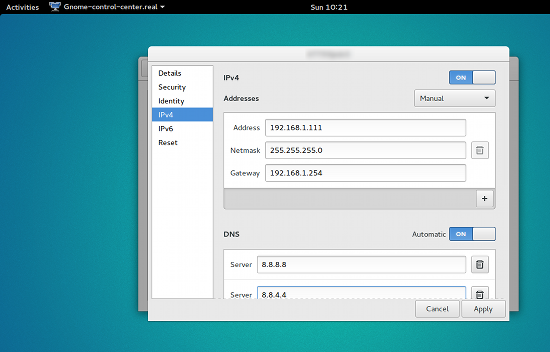
  4. Select Manual from the Addresses section

  5. Enter the necessary information (Figure 3)

  6. Click Apply

  7. Close Network Manager

jack-wifi c
If you don’t want to set a static address on either side (or you cannot do so because you’re on someone else’s network), your best bet is to have Windows release the IP address before you reboot into Linux. This is done (within Windows), with the command:

ipconfig /release

Once Windows has released the IP address back to the router, it will assume the MAC address will need an IP address the next time it checks in. Reboot, and then Linux shouldn’t have any problems with wireless.

There are plenty of other wireless situations that call for other solutions, but what I’ve outlined here should go a long way to help you get the most out of your wireless connection on Linux.


How to connect your Android device on Ubuntu Linux

Buying a media device that needs a special driver and/or connectivity suite to navigate and update its contents is a common case nowadays, and has been ever since manufacturers decided that it would be a good idea to just limit the access that users can have on the products that they bought. This may not be a huge problem to Windows and Mac OS users who can simply download the manufacturer’s suite and use it to connect to their device, but Linux is often (if not always) left unsupported in that part. The first time I encountered this problem was with the first generation of iPods and Creative Zen players that refused to show any contents on the File Manager when connected via the USB port, and then came the newest generations of Android devices which do the same. In this quick guide, we will see how we can overcome this problem, and connect our media device on our Linux system.

Read more at HowtoForge

Fake Steam Trading Websites Distribute Backdoors

Cyber-crooks are taking advantage of the new Steam trade escrow system introduced yesterday and are spreading malware using websites that promote a workaround for the trading limitation. 

Since mid-November, Steam has been touting its new trade escrow system designed to limit scams and fraudulent trade operations. The system, which went live yesterday, introduced a few changes in how regular Steam trades take place. If two users want to make a trade, the exchanged objects are held in escrow (set aside) for three days. 

Read more at Softpedia

Mounting Windows Share on Ubuntu 14.04

First of all need to install cifs on ubuntu:

$ sudo apt-get install cifs-utils


After successful installation, we can mount windows share from command line:

$ sudo mount //WINSRV/SHARE -t cifs -o uid=1000,gid=1000,username=winuser /mnt/path

where ‘winuser’ is the windows domain user, and optionally we can supply domain using domain=windomain with options.


to find out linux user’s uid and gid use:

$ id


TPP Trade Act Threatens Open Source on IoT and Beyond, EFF Says

Should governments be able to force source code to be open? Arguably, yes. But the Trans-Pacific Partnership (TPP) agreement prevents authorities from requiring that, as the Electronic Frontier Foundation warned recently. As a result, the TPP places severe restrictions on open source software. The TPP, which was finalized this October, is a trade agreement between a dozen countries in the Pacific region. Among its many stipulations is an interesting one regarding open source code.

Read more at The VAR Guy

Hot New BunsenLabs Linux Eases Pain of CrunchBang Loss

bunsen 500x281-smallBunsenLabs Linux does a bang-up job of picking up where CrunchBang Linux left off. Developer Philip Newborough retired the popular minimalist distro earlier this year. In a world of feature-packed operating systems and bloated Linux distros, he felt his CrunchBang alternative served no further purpose.

BunsenLabs is one of three CrunchBang replacements that mimic the lightweight but highly functional OS. CrunchBang++ and CrunchBang-Monara are the other two.

Read more at LinuxInsider

Introducing Hypriot Cluster Lab: Docker Clustering As Easy As It Gets

Today we wanna share something with you that we have been working on for the last couple of weeks. And we are pretty exited about it, too. It is based on our beloved HypriotOS and makes it dead simple to build Docker clusters. Until now it was not exactly easy to get started with Docker clustering. You would have needed specific knowledge and lots of time to manually configure the cluster and its individual nodes.

Well, that’s now a thing of the past. May we introduce to you the newest member of the Hypriot family: The Hypriot Cluster Lab!

Read more at Hypriot Blog

LibreOffice 4.4.7 Officially Released, the Last One in the Series

libreoffice-4-4-7-officially-releasedThe end of life for LibreOffice 4.4.x is approaching fast. The Document Foundation announces that LibreOffice 4.4.7, the final point release for the 4.4 branch of the official suite, has arrived and is now ready for download. 

At any given moment there are two different major branches of LibreOffice: one that’s more oriented towards conservative users and enterprise deployments, and the other one targeting early adopters, people who want the latest features.

Read more at Softpedia Linux News

Why Real-World Experience Is The Key to Success in Tech

istock000051368982mediumMuch of what you need to know to become a top IT leader cannot be taught in the classroom — which is why time on the job counts for so much.

Rob Threadgold, global head of IT infrastructure and operations at ICBC Standard Bank, has taken a very different route into technology leadership than some of his c-suite peers. Rather than attend university and complete a graduate training scheme, Threadgold left school after finishing his A-levels and went straight into full-time employment. “Experience counts,” he says, reflecting on his best practice advice to other IT professionals looking to take a vocational route to the top. Here, he shares his experience and lessons with ZDNet.

Read more at ZDNet News

Linux on Microsoft Azure: An Introduction

microsoft-azure-logoMicrosoft Azure is a collection of cloud services — often referred to as platform or infrastructure as a service (PaaS or IaaS). Such PaaS solutions are designed to allow customers to quickly build, deploy, and manage cloud applications and to integrate those applications with their existing IT environment. Microsoft Azure is one of the biggest players in this space, along with Amazon AWS, Google, and IBM.

Azure also increasingly supports Linux, with features including a command-line interface, MySQL clustering, LAMP stack, and Docker containers. Azure supports Linux distributions including Ubuntu, SUSE, openSUSE, CoreOS, FreeBSD, and most recently Red Hat. This support for Linux, by providing greater choice and flexibility, has opened up Microsoft Azure to developers and administrators who use Linux and is especially useful to those who use both Windows and Linux.

In a recent blog post, Nicole Herskowitz, Director of Product Marketing, Cloud Platform, said, “At Microsoft, our vision for Azure is to enable every developer to be able to create, deploy and manage any application in the cloud, regardless of the tools, technology, architecture or platform they prefer.”  

How to Get Started with Linux on Azure

Microsoft Azure is a complex collection of tools and services that can be overwhelming to those new to PaaS or just getting started with Azure. To help, Microsoft offers documentation and tutorials on its website, as well as training and certification. The Introduction to Linux on Azure page, for example, “provides an overview of some aspects of using Linux virtual machines in the Azure cloud.” According to the website, “deploying a Linux virtual machine is a straightforward process using an image from the gallery.” To get started, check out the tutorial for creating a virtual machine.

You can deploy many open source and community-driven software solutions on Azure. For example, you can choose from Linux distros like Ubuntu and SUSE and automation tools like Chef and Puppet. Azure also lets you build apps with Python, PHP, Java, and Node.js and run Linux containers with Docker integration.

Additionally, Azure offers services including analytics, computing, database, mobile, networking, storage, and web. It provides automatic patching and updates, includes built-in load balancing, and lets you scale applications and provision resources quickly so you can shrink or expand your resources as needed.

Using Docker on Linux for Azure

In an interview with ZDNet, Azure CTO Mark Russinovich said, “The container revolution — this microservices delivery of software inside containers for reliable execution of software moving from a dev-test environment to a production environment, where you get high density and high utilisation out of compute — is one that for sure is the trend for platform as a service and compute in general.”

Docker lets you package an application with all of its dependencies into a standardized unit so that it will run the same, regardless of environment. The Azure documentation says, “Docker is one of the most popular virtualization approaches that uses Linux containers rather than virtual machines as a way of isolating data and computing on shared resources…”

According to the Azure website, “you can deploy a full Docker host on a virtual machine in minutes.” For example, you can create an Ubuntu server virtual machine in Microsoft Azure and then install a Docker Engine via a VM Extension using images from the Azure Marketplace or by using the Azure command-line interface. For more information, check out the Docker Virtual Machine Extension for Linux on Azure.

More Linux Resources for Azure

The Azure Marketplace offers a wide range of Azure-endorsed Linux distributions — including Ubuntu, SUSE, openSUSE, CentOS, and CoreOS. There, you can download preconfigured software images for Linux or Windows server VMs. If you don’t find what you’re looking for, VMDepot — a community managed repository of Linux and FreeBSD virtual machines — offers many more images, or you can use your own custom Linux distro by following these guidelines.

Additionally, the new Azure DevTest Labs provides resources for DevOps teams wanting to develop, deploy, and test software. According to the Getting Started page, DevTest Labs lets you easily create development and test environments with reusable templates to facilitate continuous integration and delivery: “In few clicks, you can create the environments where the last good build of your application is already installed and get working right away…”

Microsoft Azure offers a powerful array of services with which to deploy and manage applications in the cloud and, with its growing support for Linux, provides increased choice and flexibility.

If you want to learn more and expand your skills, you can now become certified in Microsoft Azure on Linux through the brand-new Microsoft Certified Solutions Associate (MCSA) Linux on Azure certification. This certification will be awarded to individuals who pass both the Microsoft 70-533 exam (Implementing Microsoft Azure Infrastructure Solutions) and the Linux Foundation Certified System Administrator (LFCS) exam. These exams combine Linux administration and Microsoft Azure skills and will help you demonstrate your ability to build and manage complex cloud solutions.