 I must confess that I’m a big fan of the Chromebook. I do all initial drafts of my novels on a Pixel (the screen/keyboard/trackpad are simply the best) and use an Acer C720 as a “grab and go” device. However, as much as I enjoy working with Chrome OS, there are some things that simply cannot be done with Google’s platform. For example—working with an editor on Google docs is cumbersome. Editing or creating images with Pixlr is like working with half of GIMP’s power. If I want to record, forget having the flexibility and performance of Audacity.
So, when I want those tools available to me, at full strength, what do I do? One option is to install Linux on a Chromebook. And why not? This allows you to take advantage of low cost hardware by installing a full-blown, powerhouse platform that is ready to undertake any task you can throw at it. Of course, if you happen to have a standard piece of hardware lying around, and you want a Chrome OS experience, you can always install CloudReady (see my piece “Neverware’s CloudReady Brings a Chromium-Fueled Chromebook OS to Standard Hardware”).
I’ve outlined the installation of Bodhi Linux on a Chromebook (see “How to Install Linux on an Acer c720”). To some Bodhi is a great platform for the Chromebook. To others, the quirkiness of the distribution leaves a bit to be desired. That’s where GalliumOS comes into play. Gallium is an ideal Linux-to-Chromebook platform because:
-
It is based on Xubuntu, which is already an incredibly lightweight and performance-centric desktop environment.
-
It offers a much faster boot time than other Chromebook-ready Linux distributions.
-
It offers an integrated ChromeOS touchpad driver for better performance/responsiveness.
-
Kernel watchdog timer has been disabled for improved power saving.
-
Kernel has been further optimized to gain as much performance as possible.
-
Zram is used for swap for higher performance.
Under normal circumstances, I’ll install Linux on my Acer c720, use it for a few days, and then return the device back to Chrome OS. After testing Gallium OS for a couple of weeks, I have decided to keep the Linux distro running on the little Chromebook. Why? Because Gallium OS is that good.
Interest piqued yet? Good. Let’s install Gallium OS.
NOTE: Before you install Gallium, I highly recommend you install the Chromebook Recovery Tool and create a recovery USB drive. Without this recovery drive, you’ll have a hard time reverting back to Chrome OS.
Hardware considerations
Before you jump into creating the bootable USB drive, there are a few considerations you must make. First is hardware compatibility. The developers of Gallium OS have released a compatibility matrix that lists out all devices known to work with the distribution, as well as their included chipset (an important bit of information you’ll need later on). Check through the list to ensure your hardware is included (and note the chipset of your device).
The next consideration is the chipset. If your device has a Haswell chipset, you’re good to go (the only thing you have to do for preparation is to enable a couple of boot flags). If, however, you have either a Broadwell or Bay Trail chipset, you’ll need to follow these instructions in order to prepare your device for Gallium OS. My Acer c720 is a Haswell-powered device, so I will walk you through the steps of getting Gallium OS installed and running.
Creating the USB drive
The first thing you must do is create the bootable USB flash drive. Download the correct image for your device on your Linux machine (keeping in mind the proper chipset), to the ~/Downloads directory, and follow these steps:
-
Open up a terminal window
-
Change into the Downloads directory with the command cd ~/Downloads
-
Rename the downloaded file to galliumos.iso
-
Plug in your USB drive
-
Issue the command lsblk and locate the name associated with the USB device (it will be something like /dev/sdj
-
Unmount your USB drive (if mounted) with the command umount /dev/sdX (Again, where X is the name of the drive)
-
Create the bootable drive with the command sudo dd bs=1M if=galliumos.iso of=/dev/sdX (Where X is the name of the USB drive)
-
Allow the process to complete.
NOTE: If you use a desktop distribution that doesn’t take advantage of sudo, you will su to the root user and issue the dd command without sudo.
You can now remove the USB drive and plug it into your Chromebook.
The next step is to reboot your device in developer mode. This is done by holding down the Escape and Refresh button and then tapping the Power button. When the device reboots, you will be greeted by a screen with a warning. Tap CTRL+D to continue on. You now have access to the developer mode and can enable the necessary boot flags. Here’s what you need to do:
-
Press CTRL+Alt+T
-
In the bash screen, type shell and hit Enter
-
Enable to necessary flags with the command sudo crossystem dev_boot_usb=1 dev_boot_legacy=1
You can now insert your USB drive and reboot your Chromebook. When you are presented with the same warning screen as earlier, hit CTRL+L and the device will boot from the USB drive.
Installing Gallium OS
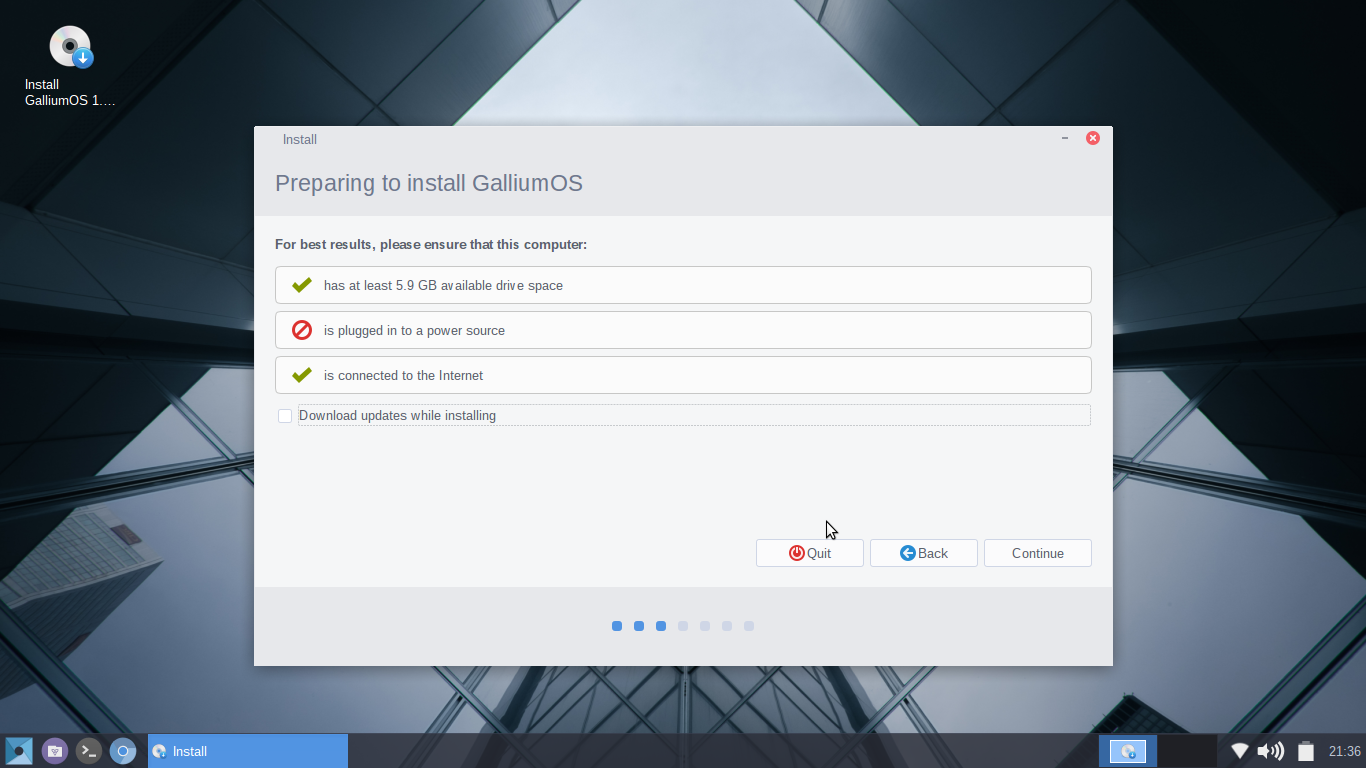
At this point, you should be in familiar territory, as Gallium OS will have booted into a live instance of the OS. You will want to connect to your wireless network and then double-click the Install Gallium OS icon. This will fire up an all-too familiar installation wizard (Figure A).
The installation wizard is the standard fare, so anyone who has installed Linux will zip through this with ease. When you finish the installation, reboot and enjoy a full-blown Linux distro on your Chromebook.
Usage
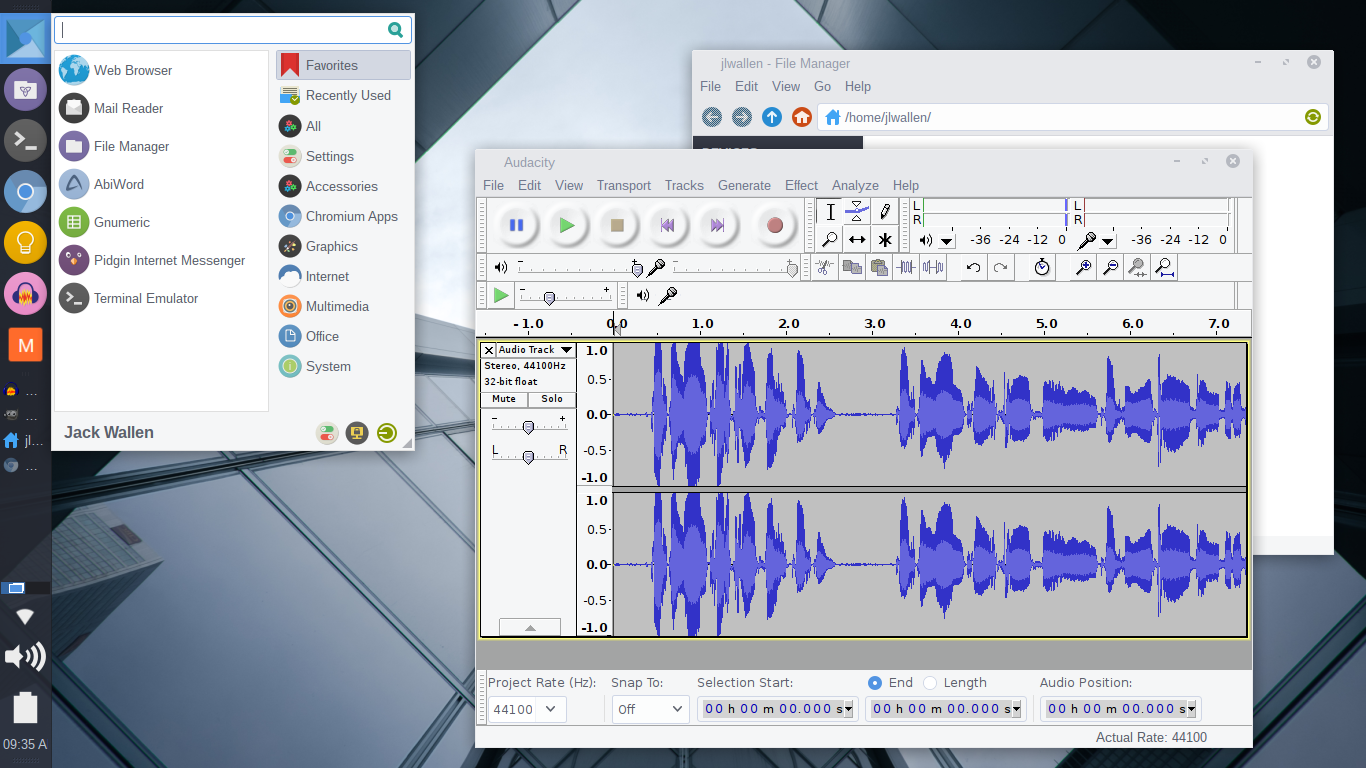
Fortunately, the desktop environment will be immediately familiar. By using Xfce, Gallium has a very shallow learning curve. It also offers up a bit of flexibility in the layout of the desktop. In the end, however, this is all about getting the most out of your portable hardware. One of the first things I did with Gallium on my Acer C720 was to install Audacity to create a portable recording studio (Figure B).
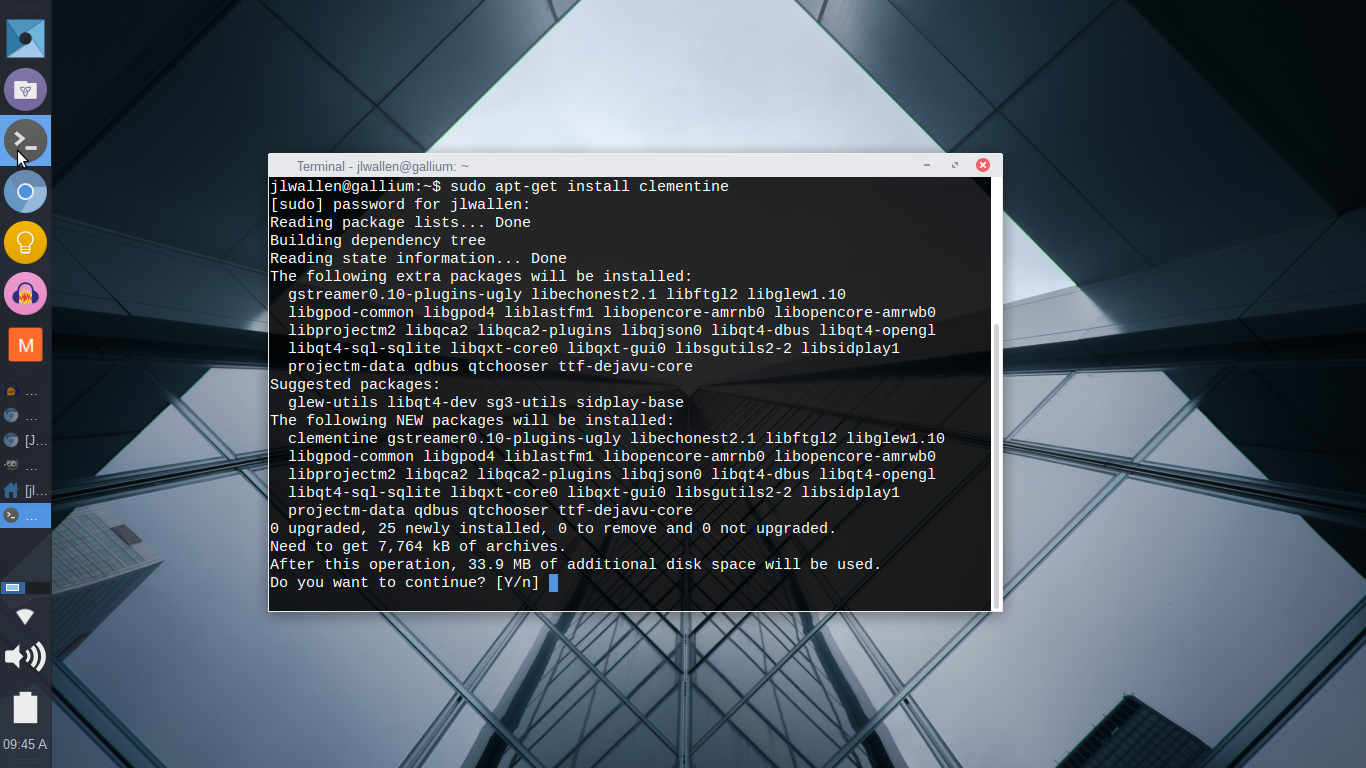
You’ll find installing applications as simple as opening up Synaptic, search for the app, and installing. Or, if you prefer the command line, you can open up a terminal window, and issue the command to install the desired app (Figure C).
Limited storage
The one caveat to take into consideration is the limited storage space on your Chromebook. Gallium does such a great job of making you feel right at home using Linux on your device, you might be tricked into thinking you have far more storage space than you really do. Keep that in mind when installing apps and you’ll do just fine.
Gallium OS might well be the ideal platform for those wanting to get more out of their Chromebook devices. The installation isn’t terribly challenging and what you gain by installing Linux is beyond impressive. Give this full-blown Linux distro a try and see if it doesn’t greatly expand your Chromebook usage.

 This week in Linux news, Apple ports its programming language to Linux, industry leaders will support Hour of Code during Computer Science Education week, and more! Don’t miss these top headlines from the past week in Linux news