Twitter is a social networking service that is a bit of a conundrum to many. At any given time it can be used to connect with people of a like mind, and at another it’s an exercise in frustration, thanks to the never-ending stream of data. But for those that depend upon the service as a means to either stay connected, promote a product or service, or even (on certain levels) research a given topic, it’s a boon.
But for Linux users, the client side of things has lagged behind for some time. Thankfully, you can now find solid clients that do the job and do it well. Back in “the day” amazing tools like Tweetdeck were client-based tools for Windows and Mac. Running the best of the best required you install WINE and download the .msi installer and cross your fingers. That was then…this is now. Most services like Tweetdeck now run flawlessly in nearly every browser (even Midori).
But even though the browser has become King of the apps, there are still desktop and command line clients for the likes of Twitter available—each of which offers a variety of features. But if one of those desktop clients won’t do it for you, I’ll show you a handy trick to help make one browser-based client behave a bit more like a desktop client.
Let’s first look at what I consider to be the two best in breed Twitter clients for Linux.
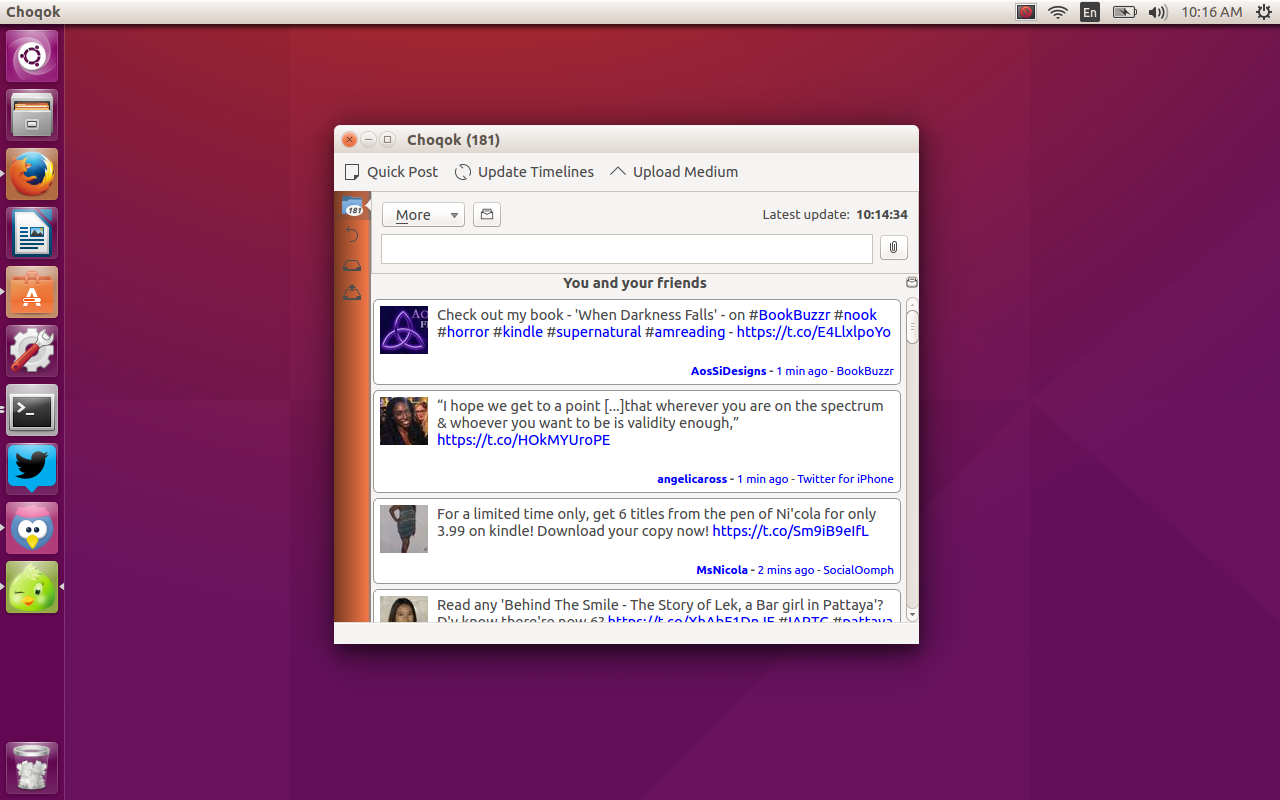
Choqok is the Persian word for sparrow and is a Twitter client that has an impressive list of features. Although it is a KDE-centric app (and does run a bit better in its native environment), Choqok will perform splendidly in nearly all desktop environments and it supports the latest Twitter API. Choqok also enjoys panel integration (even with Ubuntu Unity), where you can do quick posts, update your timeline, and configure the app. But what is most impressive about this desktop client is its interface. Unlike Tweetdeck or Hootsuite (which can both very quickly become overwhelming), Choqok simplifies the Twitter experience and even helps to curtail the insanely fast flowing stream of tweets (that can cause you to miss out on 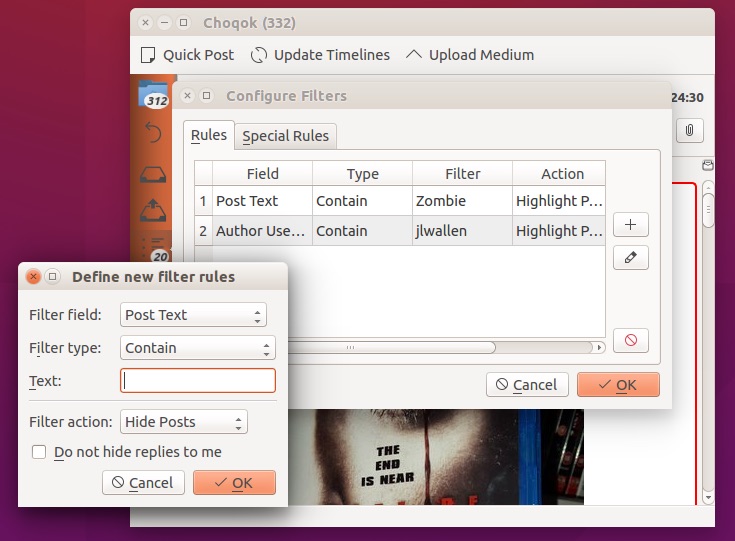 something you actually want to see).
Installing Choqok is actually very simple, as it is found in your standard repositories. You can open up the Ubuntu Software Center (or whatever you happen to use—AppGrid, Synaptic, etc.) and, with a single click, install the client. The nice thing about installing from the Ubuntu Software Center is that this is one instance where you actually get the latest release.
Once you’ve installed it, I recommend logging into your Twitter account using the desktop’s default browser. With that out of the way, fire up Choqok and then (when prompted) request an authentication token. Once you have the token, copy/paste it into the requesting Choqok window and grant the app permission to your Twitter account. You will finally be greeted by the Choqok main window (Figure A).
Beyond the interface, one feature you will want to make use of is the Choqok filtering system. With the help of this filtering system you can make it far easier to see exactly what you want from your Twitter feeds. This is actually one area where Choqok excels. Here’s how it works.
Open up Choqok and then click Tools > Configure Filters. When the new window opens, click the + button to open the filter definition window (Figure B).
At this point you have to make a few choices. The first is the Filter field. There are four options:
-
Post Text: filter the text of a post
-
Author Username: filter the name of a Twitter user
-
Reply to User: filter replies from a user
-
Author Client: filter through the client used by the author.
Let’s say you want to set up a filter for posts containing the keyword linux. To do that you would set the following options:
-
Select Post Text from the Filter field
-
Select Contain from the Filter type
-
Enter linux in the Text field
-
Select Highlight Posts from the filter action.
Once you’re done, click OK and the filter is ready. These are considered quick filters, so they are applied immediately. How do they work? Simple. Since we selected Highlight Posts from the Filter action, all posts that match a filter will be highlighted with a red box as your timeline updates (Figure C).
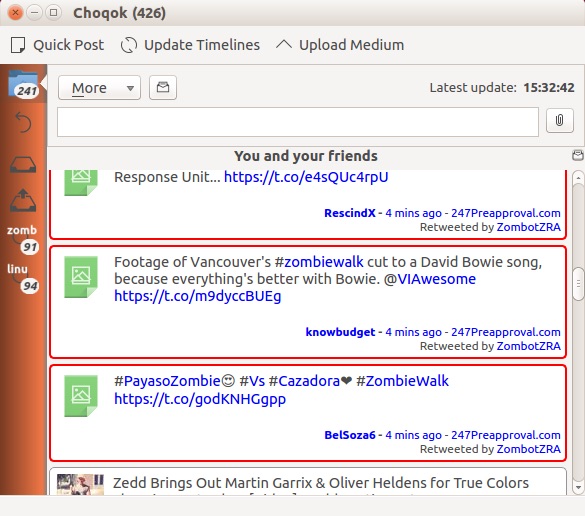
This makes it incredibly easy to scan through your main Twitter feed to find posts related to your filters.
Here is another simple-to-use Linux Twitter client with an eye for outstanding interface. Once again you won’t be inundated with a blinding fast timeline that’s nearly impossible to follow. Corebird is to GNOME what Choqok is for KDE…and it does so with a bit more zip. It offers a very similar feature set to Choqok and can be installed from a specific PPA. Here are the steps for installation:
-
Open up a terminal window
-
Add the PPA with the command sudo apt-add-repository ppa:ubuntuhandbook1/corebird
-
Update apt with the command sudo apt-get update
-
Install Corebird with the command sudo apt-get install corebird
-
Allow the installation to complete
-
If you run into dependency errors during installation, solve the errors with the command sudo apt-get install -f
One of the best features of Corebird is the inclusion of lists. This makes following a collection of users so much easier (especially when you have thousands of people you follow). Say, for example, you follow a number of users interested in (or posting about) linux and you want to be able to quickly see what they’ve posted on a regular basis. You can create a list for these users by doing the following:
-
Open Corebird
-
Click on the list icon in the left navigation (third up from the bottom)
-
Enter a name for the list
-
Click Create.
Now that the list is created, you have to add users. To do this, simply find a user in your timeline (there’s a handy search function for that) and then, from the drop-down in their profile, select Add to/Remove from list. In the popup window, locate the newly created list(s), select the list, and click Save (Figure D). The user has now been added to the list. Continue adding users until your list is complete.
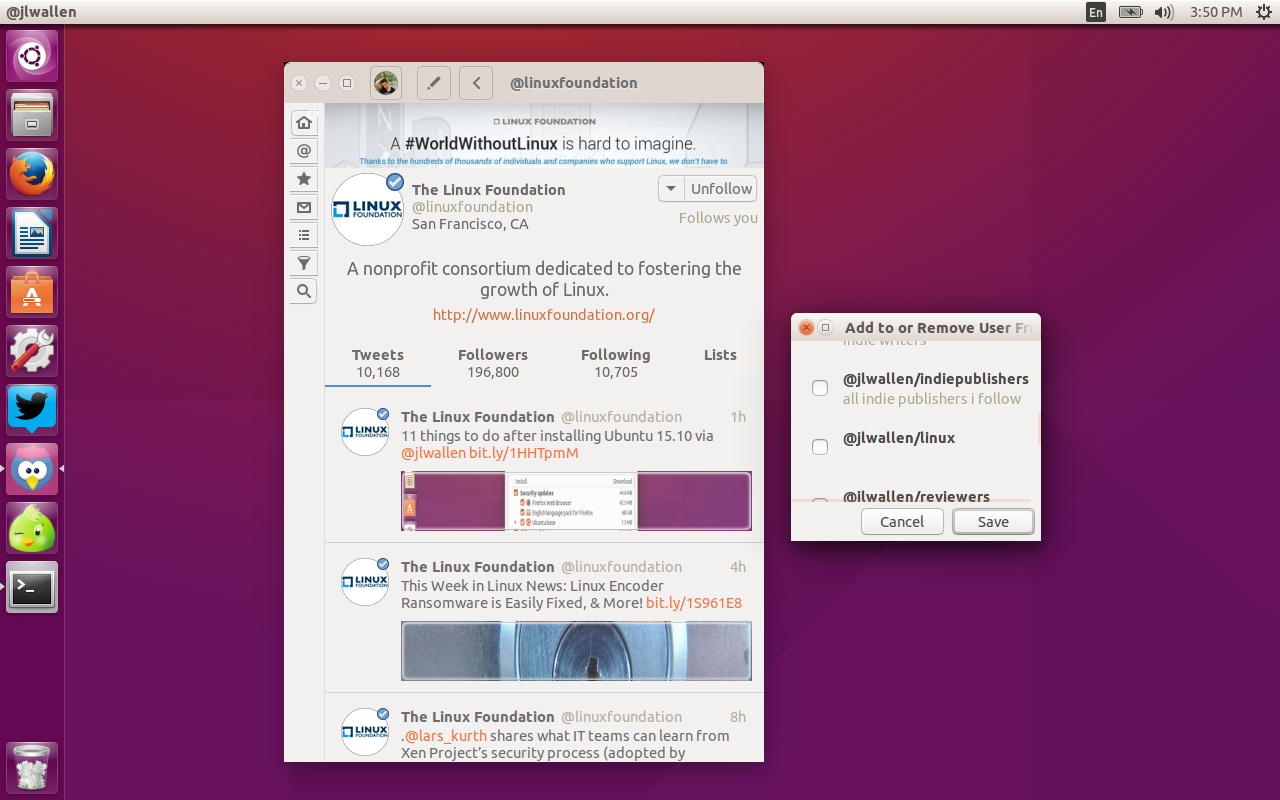
To read posts associated with that list, click on the List icon, locate the list in question, and double click its name. All posts from users on the list will appear in the feed.
At one time, the only way you could enjoy Tweetdeck was to install the Chrome addon and view it from your browser. Now, however, Tweetdeck works perfectly from within Firefox. However, if you happen to be a Chrome (or Chromium) user, here’s a cool trick. You can create a launcher for Tweetdeck such that it will open the webpage in its own app-like window (without the extraneous web browser bits and pieces). I’ll demonstrate how to do that in Elementary OS Freya.
-
Install the Tweetdeck addon to Chrome (or Chromium)
-
From within Chrome, click the Apps button
-
Locate the Tweetdeck icon
-
Right-click the Tweetdeck icon
-
Click Create Shortcuts
-
De-select Desktop
-
Right-click the Tweetdeck icon again
-
Select Open as window
-
Click on the desktop menu (aka Slingshot Menu)
-
Locate and click the Tweetdeck entry to open the “app”
That’s it. You should see Tweetdeck open in its very own app-like window (Figure E).
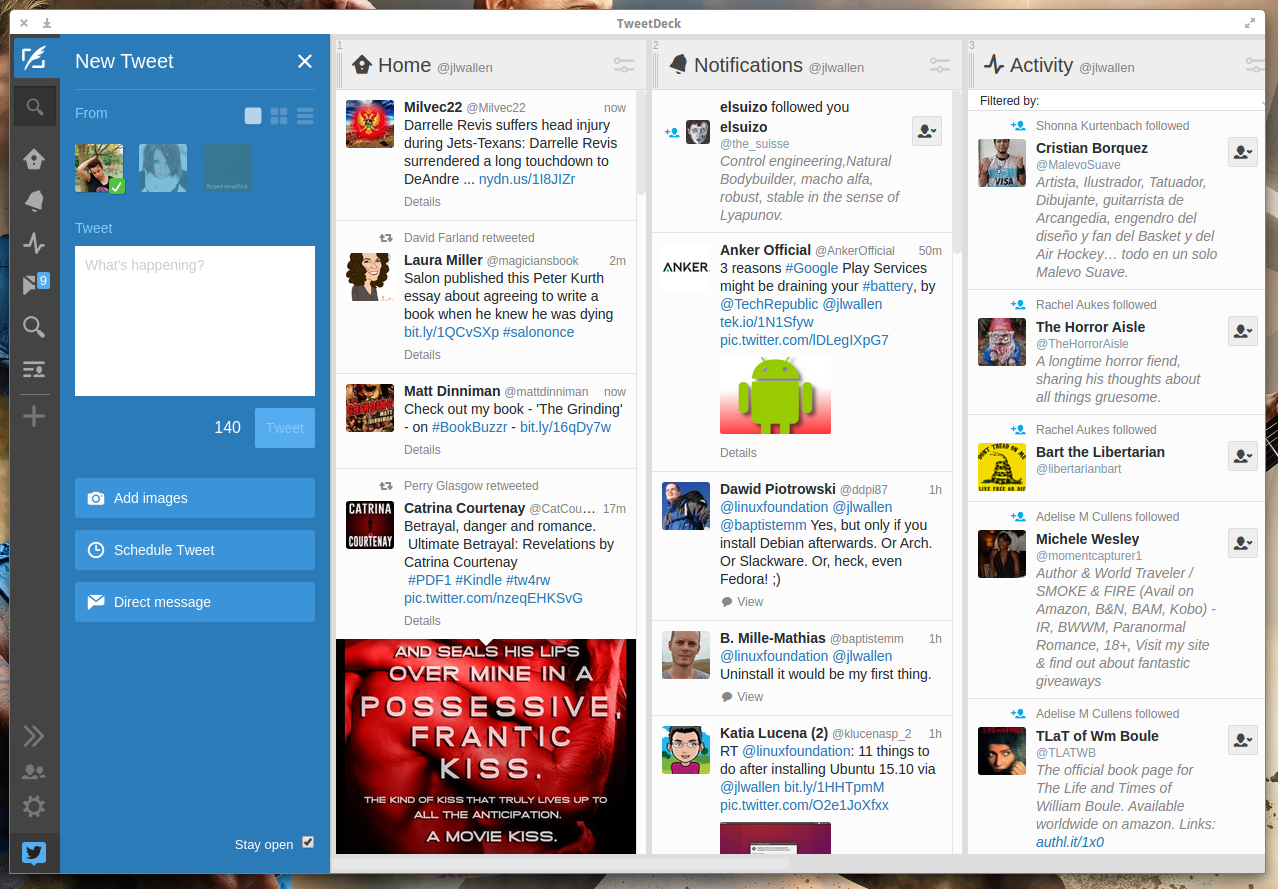
While the Tweetdeck window is open, you can right-click its icon on the dock and select Keep In Dock to add a launcher on the dock.
For those who prefer the command line over a GUI, you’re in luck. The TTYtter application is a simple tool you can use to quickly post to Twitter from the command line. It’s easy to install, a bit tricky to set up, and very simple to use.
To install TTYtter, do the following:
-
Open a terminal window
-
Issue the command sudo apt-get install ttytter
-
Type your sudo password and hit Enter
-
Type y to continue
-
Allow the installation to complete
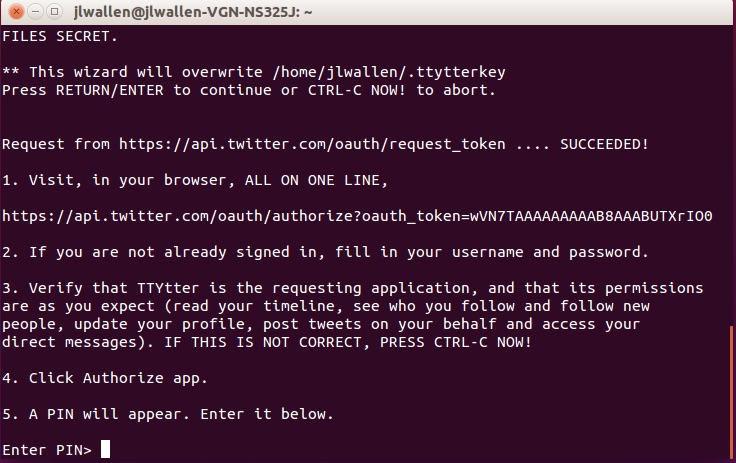
Once installed, you run the app with the command ttytter. On first run, the app will request a token and then return a URL that you then must paste into a browser (one that has already logged into your Twitter account). When prompted (in your browser) click the Authorize App button which will present you with an authorization PIN. Enter that PIN into the waiting command prompt (Figure F) and hit Enter. Run the ttytter command again and you will be logged on with your Twitter account.
To post to your account with TTYtter, you simply issue a command as such:
ttytter -status=”The Linux Foundation rocks!”
You can also issue the command ttytter and then hit Enter to get a TTYtter prompt, where you can post status simply by typing your post and hitting Enter (without having to add ttytter -status=””). To exit out of TTYtter, hit CTRL+c.
Personally, of the three GUI options, Tweetdeck is by far the best—but it’s not truly a desktop client. If you’re looking for a straight up desktop Twitter client for Linux, you can’t go wrong with either Choqok or Corebird. If you’re okay with a web-based client, you can always trick Tweetdeck into behaving like a desktop app with my handy little trick (which also works for most desktop environments).
Happy tweeting!

 The Linux Foundation regularly awards scholarships as part of its
  testing.