

Home Blog Page 963

Linux Foundation Scholarship Recipient: Erich Noriega

Erich Noriega is a Linux Foundation Training scholarship recipient in the Sys Admin Superstar categoryThe Linux Foundation regularly awards scholarships as part of its Linux Training Scholarship Program. In the five years that the Linux Foundation has hosted this program, it has awarded 34 scholarships totaling more than $100,000 in free training. In conjunction with this program, we are featuring recent scholarship recipients in the hope that their stories will inspire others. In this installment of the series, we talk with Erich Noriega, a recipient in the Sys Admin Superstar category.

Apply by June 30 for a  2016 Linux Foundation Training (LiFT) Scholarship. Learn more.

Erich lives in Canada, where he works as a consultant and a Software and Integration Architect. He has worked with Linux in web servers, databases, application servers, and virtualization. Additionally, he worked on an e-government initiative using Linux as the operating system for running load balancers, DNS round robins, databases, and content management applications to deliver very demanding service level agreements in terms of concurrency and availability. For that work, he and his team were recognized by the United Nations in the 2005 Public Service Award.

How did you become interested in Linux and open source?

By exposure and curiosity at the Tec de Monterrey Campus Hidalgo university back in 1993. There, we had some *NIX-like computers, some AIX and one NeXT, so my first exposure must have been with Unix, we had fast Internet access (a DS-0!) at the time, browsing newsgroups using Lynx and then Mosaic. It all began after realizing I could download, compile, and install software to have a page similar to the ones I visited, my own webpage… So, I got an early version of Linux kernel — somewhere in the range of 0.5 to 0.9 kernel version — read a lot, learned a lot, and then after many, many trials succeeded in compiling the operating system, and set up an HTTP server and started to serve the seventh webpage in Mexico.

What Linux Foundation course are you planning to take with your scholarship?

I believe I will pursue the Linux Foundation Engineer Certification through the LFS230 course.

How do you expect to use the knowledge you gain from the course?

I continue to learn new things on a daily basis, I am always eager to understand different perspectives to the same problem, find multiple solutions, and how can they mix and match, or act together in an orchestrated symphony. I am naturally curious, and I ended up in the information technology domain without really thinking about it. I just love to solve problems; sometimes solutions come naturally from previous experiences, but more frequently solutions impose a challenge. To learn and then to solve, those are my expectations from this formal training.

What are your career goals? How do you see a Linux Foundation course helping you achieve those goals?

I am 37, I have been doing this since I was 17. I have been lucky enough to have witnessed and undergo deep transformations in the organizations I have collaborated with in both private and public sectors. I believe it is in my interest to keep learning, keep maturing, and keep sharing the experience gained from practical real life. Fortunately, I am in a domain where I will never stop learning and playing with new things, and I will continue to task myself as an agent of change — not only to influence technology supported and informed decisions but to steer the organization’s internal debate in asking the right questions.

What other hobbies or projects are you involved in? Do you participate in any open source projects at this time?

I am not participating in open source projects as a contributor; however, I use open source software every day. I work as a consultant and a Software and Integration Architect in the Québec city region, and I use different technology stacks all the time (open source and closed), I also have been exploring open source technologies and working on a prototype for embedded Pi hardware, along with some pressure and temperature sensors, to solve some problems on the maple syrup plantation of my partner’s family.

Read more:

Linux Foundation Scholarship Recipient: Eva Tanaskoska, Women in Linux

Linux Foundation Scholarship Recipient: Enrique Sevillano, SysAdmin Superstar

Linux Foundation Scholarship Recipient: Anthony Hooper, Whiz Kid

Linux Foundation Scholarship Recipient: Yashdeep Saini, Developer Do-Gooder

Linux Foundation Scholarship Recipient: Kiran Padwal, Kernel Guru

Red Hat Enterprise Linux 5 and CentOS 5 Receive an Important Kernel Update

The latest Red Hat Bug Fix Advisory (RHAB) informs users of the Red Hat Enterprise Linux Server (RHEL) 5.x and Red Hat Enterprise Linux Desktop 5.x operating system about a new kernel update that fixes multiple vulnerabilities.
According to the kernel bug fix advisory, two security flaws have been discovered and patched in the Linux kernel 2.6.18 packages. The first one is related to the incorre… (read more)

Neverware’s CloudReady Brings a Chromium-Fueled Chromebook OS to Standard Hardware

cloudready installationI have been a Chromebook user for a while now. I find their ease of use, simplicity, and reliability something that is unmatched by most standard laptops or desktops. As someone who spends a vast amount of their PC time writing words, Chrome OS makes perfect sense. The added bonus of Chrome OS being powered by the Linux kernel makes it all the better.
Point in fact… I like the Chrome OS platform so much, I became the proud owner of a Pixel—probably the single most amazing piece of mobile hardware I have ever experienced. But not everyone wants to shell out the cash for such a machine. In fact, some would rather make use of the hardware they already have.

That’s where the likes of Neverware’s CloudReady comes into play. However, this relatively new platform isn’t just a tinker’s toy. Yes, the claim that CloudReady will turn any hardware into a Chromebook is spot on. However, CloudReady isn’t just for individual users. Neverware is putting this platform to good use for educators, individuals, and even enterprises. That Neverware is taking on the educational system is telling. Primary and secondary school systems across the globe are staring down financial burdens that don’t allow them to purchase new hardware or operating systems. By allowing those same institutions to repurpose aging hardware and turn them into efficient, reliable machines, educators are able to squeeze far more out of less.

CloudReady has already found major success in over 100 U.S. school districts with thousands of deployments.

But before you make the connection between your educational district and Neverware, you probably will want to kick the tires first. Or maybe you’re a single user that wants to take an aging piece of hardware and get a bit more use of it. Or… maybe you love the idea of having a Pixel-like machine, but don’t want to shell out the premium for the hardware (and you happen to have an ultrabook lying around, ready to take on the task).

Regardless of why, CloudReady is there to serve. It’s incredibly easy to install and even easier to use. For those individuals who want to run a Chromium-based Chrome OS-like platform on standard hardware (or educators/enterprise users who want to kick the tires and see if it’s the right fit), here’s what you’ll need:

  • Laptop or desktop machine (NOTE: There are over 125 certified models, guaranteed to run CloudReady, listed here*)

  • A USB flash drive of 5 Gb or greater capacity (NOTE: All contents of the USB drive will be erased…so make sure you have all data backed up)

  • The CloudReady free image (download link)

  • A Google account

  • Either a Chromebook running Chrome OS or a machine running Linux. 

*I successfully installed CloudReady on a Sony Vaio, which is not listed in the certified hardware. Chances are, CloudReady will run on your machine. The good news is you can fire it up and run it live, so it’s pretty easy to tell if it will work on your configuration.

Copying the image

There are two ways to copy the CloudReady image onto your USB drive:

Since we’re coming at this from a Linux perspective, let’s copy the image to the flash driving using the dd command. Here are the steps: 

  1. Download the CloudReady image and save it to your ~/Downloads directory

  2. Open a terminal window

  3. Change into the ~/Downloads directory with the command cd ~/Downloads

  4. Unzip the image with the command unzip cloudready-free-XXX.bin.zip (Where XXX is the release number) 

  5. Plug in your USB device

  6. Issue the command sudo fdisk -l to determine the device name of your USB (It will be listed as /dev/sdX where X is the unique identifier)

  7. DOUBLE CHECK THE ABOVE, ELSE YOU COULD ERASE THE WRONG DEVICE

  8. Once you are certain you have the correct device, issue the command sudo dd if=cloudready.bin of=/dev/sdX bs=4M (Where X is the identifier for your USB drive) 

  9. Wait for the command to complete

  10. Unmount the device when the copy completes.

NOTE: If you are using a Linux distribution that doesn’t require sudo, you will have to su to the root user and then issue the dd command, minus sudo. You now have a bootable USB drive, ready to fire up CloudReady.

Installing CloudReady

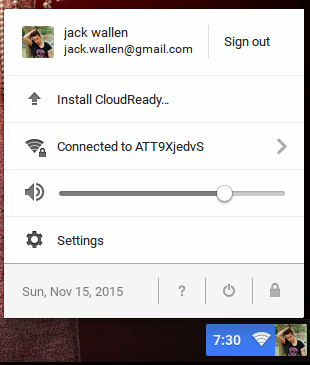
When you boot your system with the CloudReady USB flash drive, you will first find yourself staring at a very Google-like network connection tool. Connect to your network and then, when prompted, log into your Google account on the CloudReady desktop. What you need to do, while logged in, is check to make sure everything works (video, sound, bluetooth, etc). Once you’ve discerned if the hardware works, log out and then click the system tray. You should now see an entry labelled Install CloudReady (Figure A, above). Click that and the installation will begin. If you attempt to install CloudReady while logged into your Google account, the install will fail.

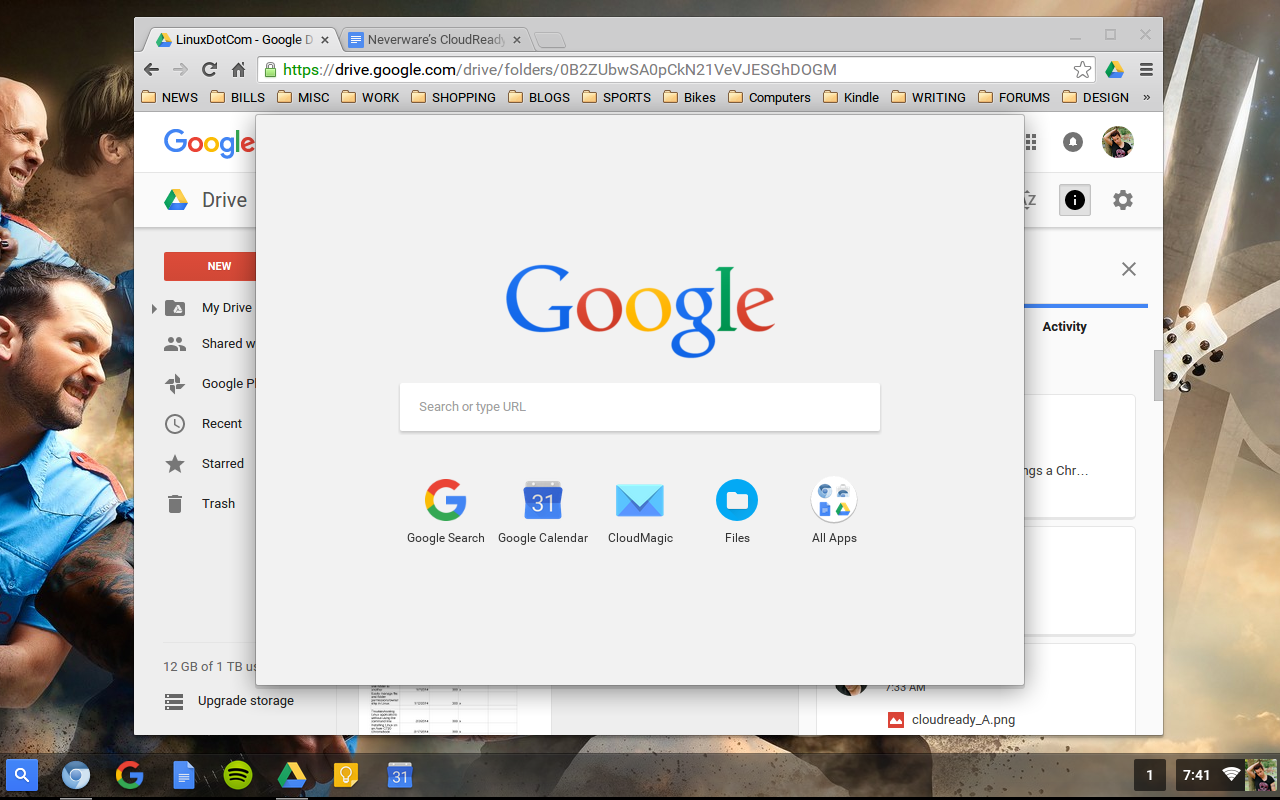
The installation should take roughly twenty(ish) minutes (depending upon your hardware). Once it is complete, the machine will automatically shut down. Remove the USB device and boot the machine. You should then be prompted to log into your CloudReady device and enjoy the full-blown Chrome OS experience, thanks to Neverware and Chromium (Figure B).

cloudready desktop

At this point, everything will behave exactly as you would expect from a Chromebook. You can also take the USB drive with you and always have a CloudReady desktop ready to boot.

So long as you don’t expect Chromebook-like boot times, you will find the CloudReady experience to be a fantastic replica of the official Google Chrome OS. This is, without a doubt, the closest take on Chrome OS, for standard hardware, that you will ever experience. If you want a Chrome OS platform for your aging laptops and desktops, CloudReady is what you want. And any educational institution looking to keep hardware relevant for as long as possible, this might well be the solution you need.

Scale Testing Docker Swarm to 30,000 Containers

Swarm is the easiest way to run Docker app in production. It lets you take an an app that you’ve built in development and deploy it across a cluster of servers. Recently we took Swarm out beta and released version 1.0. It’s being used by people like O’Reilly for building authoring toolsthe Distributed Systems Group at Eurecom for doing scientific research, and Rackspace who built their new container service, Carina, on top of it.

But there’s an important thing that Swarm needs to be able to do to take your apps to production: it needs to scale. We believed Swarm could scale up tremendously, so we looked around for a benchmark and found one here. We decided to recreate the Kubernetes test with Swarm. Like the team at Google, we wanted to make sure that as we launched more containers it would keep scheduling containers quickly.

Read more at the Docker Blog.

KDE Plasma 5.5 To Have Secure Lockscreen On Wayland

Bhushan Shah has shared the recent work he’s been doing on KDE’s KWin to have proper screenlocker integration on Wayland…

Read more at Phoronix

Docker Doubles Down on Security With Nautilus, Hardware Encryption

Docker introduces multiple new security efforts in a bid to help make containers safer than ever before.

Read more at eWeek

Intel Hatches Architecture to Make High Performance Computing an Enterprise Staple

Dell is among the first enterprise vendors to launch systems based on Intel’s Omni-Path Architecture.

Read more at ZDNet News

AMD Working On CUDA Source Translation Support To Execute On FirePro GPUs

Early this morning I wrote a brief article about AMD working on an LLVM-based Heterogeneous Compute Compiler and since then more details have come to light…

Read more at Phoronix

How to safely wipe your data with Dariks Boot and Nuke bootable live CD

Sometimes, we need to completely and irreversibly wipe all data contained in a disk to keep them from falling into the wrong hands. This may not be something we are doing on a day to day basis, but if you want to do it, you should do it right and ensure that the data cannot be recovered by experts. One of the many ways of doing this is through Darik’s Boot and Nuke bootable live CD. This tool is made from the same team that develops the professional-grade Blancco data eraser, only it is available for free and without guarantee or support. The reason I like DBaN is because it is very simple to use and does the job fast.

Read more at HowtoForge

Minibian “Jessie” Is a Small and Powerful OS for All Existing Raspberry Pi Versions

Minibian “Jessie,” a Linux distribution developed for all the available Raspberry Pi devices, has arrived and is now ready for download.

There are a lot of Linux distributions for the Raspberry Pi (first and second generation), so you might think that there is not a lot of room for another one, although this pun is intended as you’ll immediately see.

Many of the available distributions are just recompiled and resized operating systems from the X86 platform, but Minibian … (read more)