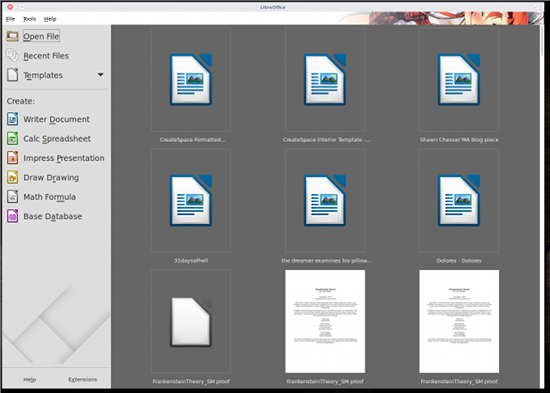
 If you’re a LibreOffice power user, you’ve probably ventured into the realm of templates. But, if you’ve upgraded to LibreOffice 5, you’ve probably noticed a few minor changes to the way this feature is managed. It’s not a profound or game-changing shift, but a shift nonetheless.
Because many people overlook the template feature in LibreOffice, I thought it would be a good idea to approach template management for LibreOffice 5 as if it were a new feature…and one that should be considered a must-have for all types of users. So, sit back and prepare to discover that feature which will make your time with LibreOffice exponentially easier.
Why Use Templates?
You might be wondering why you would need to use templates in the first place. The answer to this question is simple—because you have certain types of documents, all of which follow the same formatting and similar information data, that you frequently create. For this, you should be using templates. When you need to create that document again, you open up the template, add your data, and you’ve just saved yourself from having to reinvent the wheel.
Where Does LibreOffice Save Templates?
When you open up LibreOffice 5, click Ctrl+Shift+E and the template manager will open (see Figure 1 above). From this window, you can see all of the available templates. The My Templates section is special, as it is all of the templates you have created (more on that in a moment).
If you happen to be using the Linux platform, there’s a particular folder in your home directory (aka ~/) called Templates. That folder happens to hold a bit of “magical” properties within certain desktop environments. If you use a desktop like Ubuntu Unity, Elementary OS Freya, KDE, GNOME 3, etc, you’ve probably noticed a handy menu entry when you right-click within a folder in your file manager called New. If you click New > Templates, you should see any templates you’ve saved to the My Templates section in the Templates Manager. You can select from that list and a new file will be created, from that template, in that working directory.
Adding a New Template
There are two ways to add templates to LibreOffice: You can create them on your own or you can download templates from the Templates Repository. I will warn you on the Templates Repository…many of them haven’t been updated for a very long time, so some of the styles may or may not render correctly in LibreOffice 5. On the off chance you find a template you really want to use, but it doesn’t render correctly, you can always save it, fix it, and then save it again as a template. There may be some older templates that will either not open and some might even crash LibreOffice—so use them with caution.
When you download a template from the repository (or any other location), there are two ways to save it. The first, and easiest, is to save it to that “magical” folder ~/Templates. Doing this will cause that template to appear in the My Templates section of the LibreOffice Template Manager.
But, what if you want to save that template to a specific section (or create a new section)? Here’s what you need to do: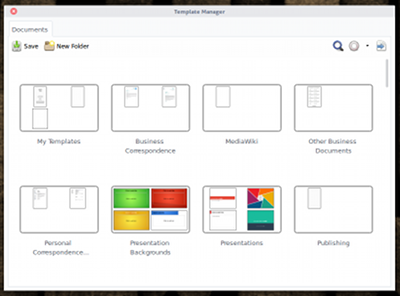
-
Open the template in the correct LibreOffice tool
-
Click File > Templates > Save as Template
-
Double click the folder (aka Section) that you want to house the template
-
Click Save
-
Give the template a name
-
Click OK
If there isn’t a section within the Template Manager that suits your needs, all you have to do is click the New Folder button (Figure 2), give the folder a name, and click OK.
Using Templates
Once you’ve added those templates to the manager, how do you use them? Fortunately, the developers of LibreOffice have made this process quite simple. There are two ways to use a template—from the LibreOffice home window or from each tool (Writer, Calc, etc).
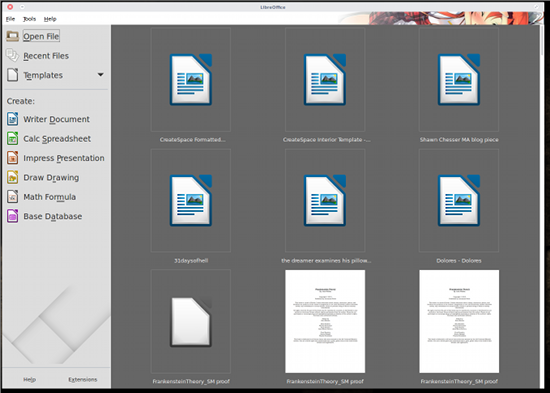
If you’re in the LibreOffice home window (Figure 3), click Templates, click in the section housing the template, and then double-click the template you want to use. That template will open as an untitled document, ready for data entry.
The second route to opening a template for use is from within each individual tool. We’ll use Writer as an example. Open up Writer and click File > Templates > Manage. This will open the Templates Manager where you can find your template and open it with a double-click.
You’ll also notice, when you select a template within the Template Manager, a row of icons appears at the top of the window (Figure 4).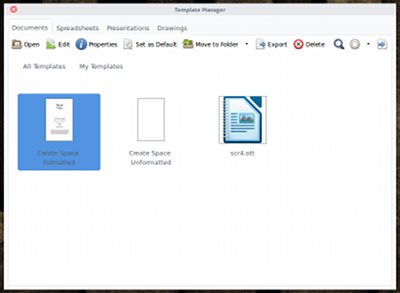
Once selected, you can:
-
Open a template
-
Edit a template (this will open the template up for editing)
-
View the properties of the template
-
Set the template as the default for that tool
-
Move the template to another folder
-
Export the template
-
Delete the template
If you happen to select a template as the default, you cannot unset it. The only way to revert to a blank document as the default template is to create a blank document, save it as a template, and set it as the default. The nice thing about this is that you can then set the styles exactly as you like so that every time you open a new document, you won’t have to go through and set the styles to suit your needs.
You should now have as complete an understanding of the LibreOffice 5 template manager as an end user should have. And, with this understanding comes a certain level of power—as in you powering up your LibreOffice usage to the next level.
Have you become a recent convert to templates? If so, how have they helped your usage?

 Ruarí Ødegaard from the Vivaldi team has had the pleasure of announcing the release and immediate availability for download and testing of a new snapshot build of the upcoming cross-platform web browser.

 This week in Linux news, Linux Foundation executive director Jim Zemlin speaks about the new frontier for OSS, Microsoft Azure CTO Mark Russinovich shares love for Linux, and more! Stay in the know with these top Linux headlines of the week.
  One of the world’s largest scientific organization is using OpenStack to understand what makes up everything in our universe.