Home Blog Page 990

Ada Lovelace Day: Celebrating the Achievements of Women in Technology

lovelaceHappy Ada Lovelace Day!  Please join us in commemorating the life of Ada Lovelace by celebrating the achievements – past and present – of women in science, technology, engineering, and mathematics.

Ada Lovelace was born two centuries ago this year, and is widely recognized as a visionary who saw the potential of computational machines long before the development of the modern computer – a prescience often credited to her devotion to metaphor-heavy â€œpoetical†science. Lovelace’s mother provided her daughter with a thorough mathematical education, both to dissuade her from following in the footsteps of her father – the famed poet Lord Byron – and to provide her with intellectual and emotional stability. 

Read more at Electronic Frontier Foundation

DYI: Create Linux User by Hand

You know how to create Linux user account with useradd and passwd.But do you know, how to create it without using them? No, you can’t use adduser which is nothing but an symlink to ‘useradd

Why we need this? We believe Linux System-Admin should posses in-depth knowledge on things, rather than just depending on few binaries! So If you want to know what’s going on behind the scenes. Here we go:  Our task is to create user named  giis  and setup password. Lets first update the /etc/passwd  file with below entry 

echo "giis:x:25000:25000:Giis:/home/giis:/bin/bash" >> /etc/passwd

As you can see there are  7 fields separated by : where  each field refer to   


Field1:    giis - Login name   
Field2:    x    - Password place holder 
Field3:    25000  - Unique User id 
Field4:    25000  - Group id 
Field5:     giis  - Real name 
Field6:    /home/giis - Home directory 
Field7:    /bin/bash - Shell type

The summary of this entry would be – after verifying password for user giis in the /etc/shadow file, allow user  giis  to login  and place him under /home/giis with bash as the shell type. For a valid login, these fields must be sane. Above entry takes care of Field 1,3,5 and 7.  We need to restore sanity for Field 2, 4 and 6. 

We can setup Field-4 (group-id) by creating group-id under /etc/group file like 

echo "giis:x:25000" >> /etc/group

Above places an entry into group file which assigns, group name giis with Group-Id (aka gid ) 25000   Now we need to bring some sanity to field-6 (home-dir) by running a command : 

mkdir /home/giis

 which creates home directory and we set its permission appropriately with chown 

chown giis:giis /home/giis

As you can see below, new created home directory has rwx for own giis and non-writable to group/others.

 # ls -ld /home/giis drwxr-xr-x. 2 giis giis 4096 Sep 25 22:38 /home/giis

Finally we take care of field-2. It’s little complex than others.For any valid user password, it needs to be stored in encrypted format. Lets use below python statement to create a password secret897 and encrypted with sha256 algorithm using salt $6$salt1234  The end result will be encrypted string of secret897 with slat, which will be stored on /etc/shadow file. We stored encrypted password on temporary shell variable named pass 

pass=`python -c 'import crypt; print crypt.crypt("secret897", "$6$salt1234")'`

  change the permission of shadow file as writable by root 

    chmod 600 /etc/shadow

and just append the encrypted password along with username giis into the shadow file 

  echo "giis:${pass}:::::::" >> /etc/shadow

then revert the permission 

chmod 000 /etc/shadow

Now its time to log into the newly created account giis with password secret897 . Goto login prompt type your username and password, then it should place you under /home/giis with bash prompt like  bash-4.2$   Now verify your login identity using  whoami  and home directory using  pwd  
Everything Fine!  right?

Open Document Format: Using Officeshots and ODFAutoTesting for Sustainable Documents

One of the many benefits of open source software is that it offers some protection from having programs disappear or stop working. If part of a platform changes in a non-compatible way, users are free to modify the program so that it continues to work in the new environment. At a level above the software, open standards protect the information itself. Everybody expects to be able to open a JPEG image they took with their digital camera 5 years ago. And, it is not unreasonable to expect to be able to open that same image decades from now. For example, an ASCII text file written 40 years ago can be easily viewed today.

Many formats exist for storing text documents with rich markup, spreadsheets, and presentations, and the Open Document Format (ODF) is an open standard describing how office documents are stored in files. Many applications support the ODF standard including LibreOffice, OpenOffice, Calligra, AbiWord, WebODF, Google Docs, and Microsoft Office.

Having an office file standard is all well and good. For this to be useful, however, you have to be able to see how well various office applications support it. Knowing that many applications are dedicated to supporting — and improving their support for — a file standard is a good way to try to ensure that the office document you save today can be properly opened in 40 years’ time.

Officeshots and ODFAutoTests provide insight into how various office applications on various platforms deal with ODF files. With these tools, you can see if a particular feature will be presented properly when using an office application that you do not have a license for on an operating system that you are not running. You can also see how well a feature of the format is currently supported, and what minimal version of software is needed so that you do not lose features when you update an office file.

Officeshots

Not every application implements a standard to the same level, which is important to know. For example, a mobile app might only allow you to capture paragraphs with text formatting such as bold, italic etc. Thus, if you try to load a more complex document, you will be aware that some information will likely be lost by the app.

The Officeshots.org website lets you upload a document and see how it will be rendered and saved with a variety of office suites. The office suites available can include those that you do not have access to and which run on operating systems that you are not using. Some office suites do not allow many versions to be installed at once. You might be interested in how an older (or newer) version of your favorite application handles a file you are working on.

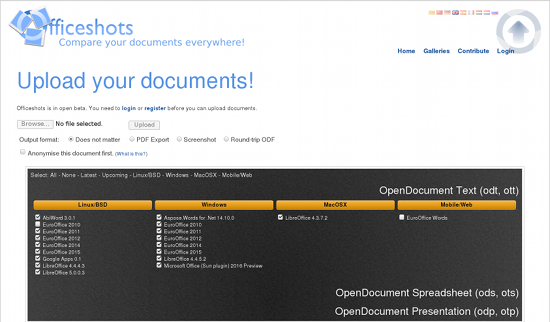
With Officeshots, you can define a project or company-wide standard regarding which ODF features are acceptable for use in documents. Thus, you can ensure that everybody who might be opening these files — with a minimal version of a selection of office suites on various platforms — will be able to see the documents as they are intended to be seen (Figure 1).
officeshots

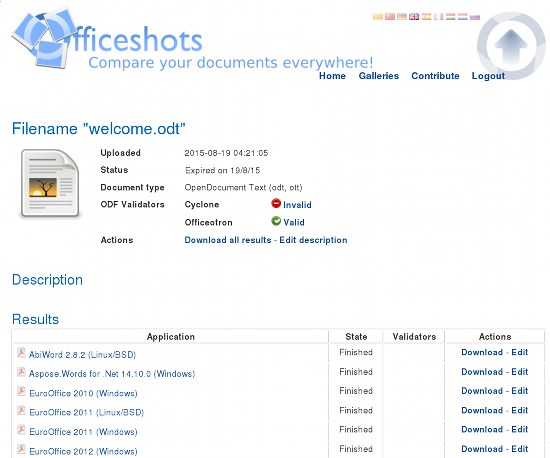
Using Officeshots is simple, you first register for an account — just name, email, and password are required. The home page for Officeshots then allows you to upload an ODF file, and you can select which applications you want to load it with. You can also select whether you would like those applications to save back to an ODF or whether you would like a PDF showing how each program presents the ODF you have uploaded (Figure 2).
officeshots-processed

The Officeshots server itself is open source software. So, you could set up your own personal server if you do not wish to upload your ODF files to the main Officeshots server. If you would like to help the Officeshots project, you can run an Officeshots Factory. The factory is responsible for taking a document and processing it in a specific version of a specific office application.

The processing normally involves loading and saving the ODF or generating a PDF from the given ODF file. Recently, a script was introduced that can detect known office applications and set up the factory configuration file for you. It is hoped that the factory setup process will be further slip-streamed in the future. The more people and organizations contribute, the more useful the service will become for all.

ODFAutoTests

Officeshots is great if you want to see how a specific ODF will appear to a user or if you want to examine the output ODF file that the application will produce when saving an update to the file. On the other hand, you might like to quickly be able to see if a feature is supported in a specific application, such as LibreOffice 4.3.x. The ODFAutoTests project aims to provide a methodical test of each attribute for each important document element for many versions of many office suites.

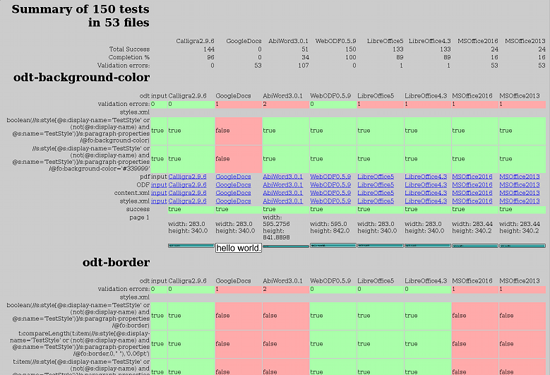
Currently, about 10 major document elements are included in the test results. For each feature tested, a screenshot of how that feature renders is presented along with an investigation into the output ODF produced and whether that feature has been preserved in the output document (Figure 3).
odfautotests

Some projects like WebODF aim first and foremost for clean document preservation. So, although a feature might not currently render in WebODF, for example, the information will be preserved when you save the ODF file back to disk. For a different application, however, you might see that something appears to render properly — for example, you may see a background color in the screenshot — but that background information is not preserved when you save an ODF from the application.

The ODFAutoTests project will likely be expanded to include more features, including the preservation of RDF inside ODF files. With the right application support, embedding RDF inside of ODF files has the potential to bring the Semantic Web to everybody through document computing. It is also planned to have ODFAutoTests use Officeshots to perform the tests, so the range of office suites tested will be greatly expanded in the future.

Final Words

Some ODFAutoTest results show that contemporary office applications lack support for many interesting features of ODF. This is both good and bad news. It is currently bad in that some features will require recent versions of specific applications to be preserved. However, it is good news because discovering which features could be improved in various applications allows developers to know which areas to work on for the next release. Knowing exactly what to improve and understanding the expected outcome are two golden pieces of information for software developers.

You might be interested in the Officeshots factory code even if you have no intention of running a factory yourself. With the factory code, you can run document conversions to ODF and PDF from the command line. This conversion can use any software that you have configured your factory to use — such as, using Google Docs to render and ODF file to a PDF. This allows you to know how an email recipient, for example, will see a file if they open it in Google Docs.

If you are writing software that processes ODF files or are concerned about preserving ODF files, you might additionally be interested in attending the ODF Plugfest. Perhaps future Plugfest events will open up the ODFAutoTest results to include problematic sample ODF files that have caused issues with specific versions of office applications in the past. If a particular ODF feature is a little bit tricky, it is likely to be an issue in more than one office application.

ONOS Project Joins Linux Foundation in Strategic Partnership

onosONOS’ community and The Linux Foundation today announced a strategic partnership that is expected to have an enormous impact on the future of networking by helping ONOS to realize its full potential as an open source SDN and NFV project for service providers. The new Collaborative Project will advance and bring together the community for ONOS to build open source platforms, solutions and ecosystem for service providers to monetize SDN/NFV, while helping vendors and service providers invent new business models. Working together empowers the ONOS project to leverage best practices in community engagement to grow and nurture a larger community, globally enabling developers and contributors to further accelerate the pace of innovation through feedback and contributions to its open source platforms and solutions.

The partnership will focus on creating disruptive SDN solutions featuring open source software platforms, white boxes, a range of network control and management applications and the ability to rapidly create and deploy innovative services.

Read more at The Linux Foundation

Xen 4.6 Released With Many Huge Improvements For Virtualization

The Xen Project has announced version 4.6 of their software this morning, which they describe as the most punctual and highest quality release yet. The Xen 4.6 hypervisor adds new migration support improvements, the memory event subsystem has been reworked and extended, Xen Security Modules have a default policy, …

Read more at Phoronix

LLVM Is Pursuing A Community Code of Conduct

While the LLVM community tends to be very respectful to one another and I’m having a hard time thinking of when things have ever gotten out of hand in their mailing list discussions, they are now pursuing a Community Code of Conduct. This community code of conduct is part of their process in setting up the LLVM Foundation

Read more at Phoronix

LibreOffice 5.0.3 to Bring GTK+, DOCX Fixes, and More

libreoffice-5-0-3The Document Foundation has revealed that the first Release Candidate for the LibreOffice 5.0.3 branch has been released and is now available for download.

The developers from The Document Foundation are not wasting any time, and they continue to greatly improve the 5.0.x branch of the famous open source office suite. Even if LibreOffice 5.0 has been named the best release in the series, it doesn’t mean that it’s perfect.  If anything, the two point releases that have been launched already have improved the suite even more.

Creating A Wifi Hotspot

Wifi connections have become the fancied method to connect to the internet for their versatility and many applications on the road. You can create a wifi hotspot on most modern devices and use them for internet connection with your smartphone, iPhone, Samsung and various android gadgets. However, creating a hotspot can present different levels of difficulty. For instance, using open SUSE has often caused problems for many. Fortunately, it is not an overwhelming task and following a few basic procedures will help you create a hotspot which you can use with your laptop or mobile device. Here is how to create a wifi hotspot on openSUSE Linux for use with a mobile device such as iPhone, Samsung and android.

large image standard

What is needed?

In order to create a wifi hotspot on openSUSE which you can then share with your wifi-enabled device, you need to perform a couple of procedures to ensure you have all the requirements. Creating wifi hotspot on Linux machine requires the following at its basic;

  • Switch the wifi card to AP (master) mode – This is basically needed to make the AP secure and can only be achieved by running the hosapd with WPA2-PSK Auth or above.
  • Ensure your host is a NAT (Network address translation) -enabled router – this requires some form of coding. Simply use – iptables -t nat -A POSTROUTING -s INPUT_CIDR -o OUTPUT_INTERFACE -j SNAT –to YOUR_PUBLIC_IP and sysctl net.ipv4.ip_forward=1; – to make the host NAT-enabled.
  • You need a DHCP server and a DNS forwarder – You can always use dnsmasq which will do both.

Creating a hotspot in Linux based system may require a bash of scripts which will seem ambiguous to people with no scripting knowledge. However, they are simple codes that can be found online and added to given files and lines of codes then run for smooth internet connectivity. Hostapd is the small daemon that helps you create a hotspot on Linux. It creates a virtual NAT table between your device and the internet using tables from Linux.

Creating the hotspot

You will need dnsmasq which is often pre-installed (on most Linux distributions). You will also need hostapd for AP provisioning. You must first install hostapd before hotspotd which is done by running commands;
sudo apt-get install hostapd for Ubuntu based terminals and yum install hostapd for RHEL based distros.
It only takes 2-3 seconds to install hotspotd. After installing hostapd, the remaining step is to install hotspot app. Download hotspotd package from the wget command and uncompress the zip to extract the tar file;(tar xvf hotspotd-0.1.tar.gz cd hotspotd-0.1/)

The setup command is sudo python setup.py install which should allow you to install hotspotd safely. To use the hotspot, you will be required to set SSID values and password among other basic requirements. Start the hotspotd by running (sudo hotspotd start) and stop it using (sudo hotspotd stop).

Troubleshooting the network

In order to enjoy seamless internet connectivity and sharing with other wifi enabled devices, there are a few other things to be done. The first thing is to make sure that you have installed all dependencies paying keen attention to dnsmasq, hostapd and python 2.7. Hotspotd will create the virtual NAT by manipulating Linux iptables rules. This means any other program that manipulated these tables (iptables) will create problems with the network. If any software (such as fedora firewalld) that manipulates the table rules is installed, simply deactivate it or disable it completely. You must also ensure the wifi supports AP mode otherwise the connection will not be successful. Find the kernel driver module that is currently in use by giving the following command;

:lspci -k | grep -A 3 -i network(example module: ath9k)

Next, find your wifi capabilities using the following command;:modinfo ath9k | grep depend
The command simply replaces the ath9k on your kernel driver. If you see an output that includes “mac80211” after running the given command, is should be a good sign that shows your wifi card will now support AP mode.

Conclusion

Creating a wifi hotspot on SUSE is definitely more involving when compared to Windows systems. However, most of the commands needed are already provided in the installation packages that you will download and once everything is set up, the network will be effortlessly shared with any wifi-enabled device including your Samsung smartphones and iPhone. It may be necessary to find a video tutorial that illustrates all the steps.

One Year Later, Hundreds of Tor Challenge Relays Still Active

As of this month, 567 relays from our 2014 Tor Challenge are still up and running—more than were established during the entire inaugural Tor Challenge back in 2011. To put that number in perspective, these nodes represent more than 8.5% of the roughly 6,500 public relays currently active on the entire Tor network, a system that supports more than 2-million directly connecting clients worldwide.

Tor is a tool that protects privacy on the Internet by routing web traffic through a series of nodes, or “relays,†creating a network of servers that act as way stations on data’s journey from point A to point B.

IBM Adds Node.js Debugging to Bluemix

ibm1After building up its Node.js expertise with its StrongLoop acquisition, IBM has added Node.js debugging capabilities to its Bluemix PaaS. 

IBM has introduced new capabilities for its Bluemix platform as a service (PaaS) that make it faster and easier for developers to debug applications in a cloud environment using popular open-source utilities like node-inspector and tty.js.These types of open-source utilities are widely used by developers on their local machines, but connecting a debugging tool or other utility in a cloud environment can be challenging…

Read more at eWeek