
 Linux users don’t need to transcode video files, because they have VLC and many other apps at their disposal that can play almost any media format out there. However, if you want to play videos on mobile devices such as your iPhone or iPad, or if you run streaming servers, then transcoding your videos into supported formats becomes essential.
In a previous article, I wrote about some GUI tools that can transcode videos with ease. There was a demand for CLI (command-line interface) tools for the same job. I confess that even if I ran a headless file server at home, I never really bothered to do it via an SSH session. I would mount the removable drive on my desktop and convert files using GUI tools. It’s never late to do it differently.
In this article, I will share how I transcode video in Linux using CLI tools. Just keep one point in mind: this is just one of the “many” ways you can do it in Linux. There are dozens of such tools out there, and I am covering the one that I frequently use, because it’s easy and I’ve been using it for a long time. Some of the popular tools include ffmpeg, mencoder, and my favorite Handbrake. In this article, I will show how to use Handbrake to convert video files.
Using Handbrake to Transcode
First you need to install the “Handbrake CLI” packages on your system. Most major distributions such as openSUSE, Arch, Fedora, and Ubuntu have this in their main repositories. If not, then you can enable the necessary third-party repo and install the software.
Now that Handbrake is installed, let’s take a closer look. First, open the terminal. This is the command you will need to convert any file:
HandBrakeCLI - i PATH-OF-SOURCE-FILE -o NAME-OF-OUTPUT-FILE --"preset-name"
Ok, this is not the only command you can use; there are different ways of doing it. For example, you can give Handbrake detailed instructions on how it should deal with audio, video, what bitrate it should use, and what codec it should deploy, but that would become intimidating for a new user, and I like to keep things simple. So, I use the above pattern.
In the above command “i” stands for input and “o” stands for output here. It’s self-explanatory that you have to provide the path of the source file and the destination where you want to save the converted file. If you want to keep the transcoded file in the same folder, then just give the name of the file. Keep in mind that you do have to give the name and extension of the output file.
The “Preset Name” option is the reason I use Handbrake over others. If you have used the GUI version of Handbrake (as you can see in this article), it comes with different presets so you can transcode your video for the targeted devices. If you don’t use the preset (and I am not sure why you should not), then you will have to specify every single thing as I explained above and that, in my opinion, is overkill.
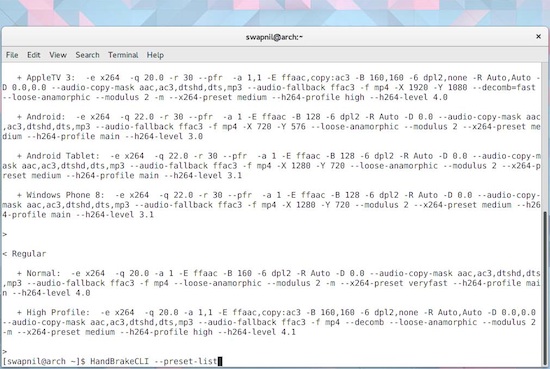
If you want to use the presets, it’s extremely easy to find what you need, just run this command:
[swapnil@arch ~]$ HandBrakeCLI --preset-list
This will give a long and detailed output of all the available presets (see Figure 1 above).
You will notice presets for iPhone, iPod, iPad, Apple TV, and other such devices. I use the last preset — “High Profile” — for two reasons: 1) In my experience, it offers the best quality; 2) It will work across devices — from mobile to HDTV. If you run Kodi instead of Plex server, then I suggest this profile, because Kodi doesn’t transcode videos on the server side.
Let’s Do It
I downloaded the “flv” format of a Linux Foundation video called Distributed Genius and wanted to transcode it into .mp4 format, which is the format that plays everywhere — from Mac OS X to iPad and Kodi (Linux plays everything, so I am not worried about it).
 The file was downloaded to the Downloads folder in my home directory, and I wanted to save the transcoded file in the Videos folder, so this is the command I ran:
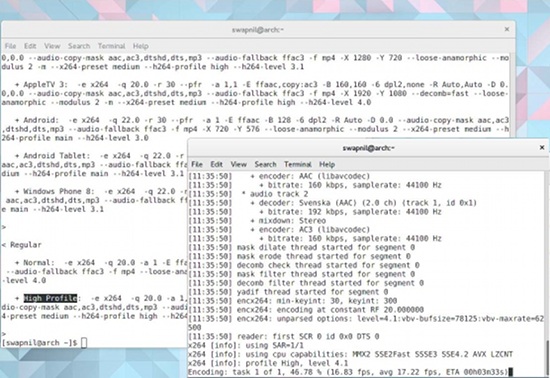
[swapnil@arch ~]$ HandBrakeCLI -i /home/swapnil/The Distributed Genius.flv -o /home/swapnil/Videos/the_dstributed_genius.mp4 --preset="High Profile"
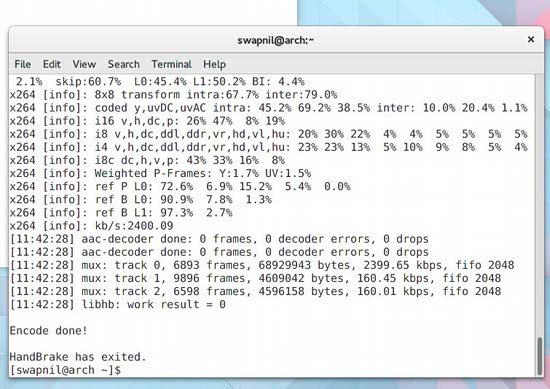
Lo and behold, Handbrake will start transcoding your video (Figure 2). Then, HandBrake will tell you once the transcoding is finished (Figure 3).
So, if you are planning to transcode some video, Handbrake is my easy to use, go-to solution. In the future, I will talk about other CLI tools for performing the same task. Let me know which tools you use, in the comments below.
 The Linux Foundation
 Meet Amelia Lorenz, the Disney animator behind our new #WorldWithoutLinux series.


 Linus Torvalds has just announced that Linux kernel 4.3 RC4 has been released, taking this kernel branch a little bit closer to a final release.
 I’ve been doing graphic design for a long, long time. During that time, I’ve used one tool and only one tool…
 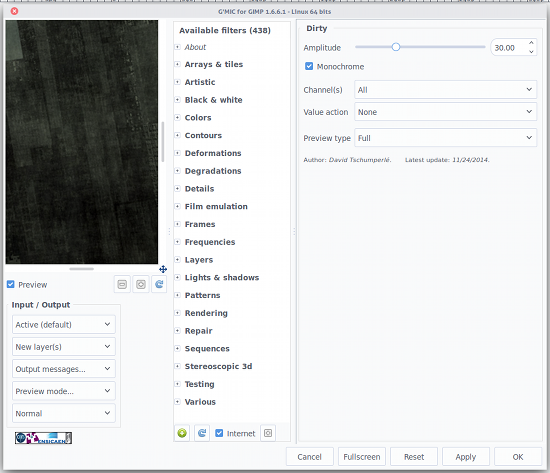 The first thing you need to know is the Input/Output section (bottom left corner). Here you can decide, first, what G’MIC is working on. For example, you can tell G’MIC to use the currently active layer for Input but to output to a brand new layer. This can sometimes be handy so you’re not changing the current working layer (you might not want to do destructive editing on something you’ve spent hours on). If you like what G’MIC did with the layer, you can then move it into place and delete (or hide) the original layer.
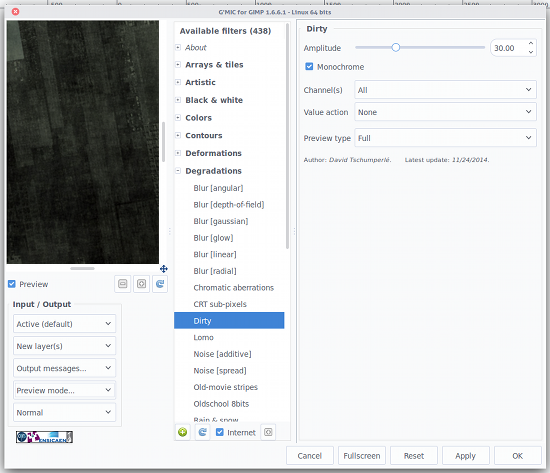 One thing you must get used to is making sure to select the layer you want to work on before opening G’MIC. If you don’t, you’ll have to close G’MIC, select the correct layer, and re-open G’MIC. You also need to understand that some of the filters take much longer to work their magic than others. You’ll see a progress bar at the bottom of the Gimp window, indicating the filter/effect is being applied.
 The Linux community often recognizes two anniversaries for Linux: August 25th is the day Linus Torvalds first posted that he was working on Linux and said “Hello, everybody out there…” and October 5th is the day he released the first kernel.