I run a couple of Linux servers; one at home as a file server and three live servers for my site, my mail, and my cloud storage, respectively. Although I don’t worry about the home server because it doesn’t talk to the external world, the other three servers need to be maintained, all the time. Those who are new to Linux and want to run their own servers must keep a few points in mind…which is the focus of this article.
Install What You Need
If you are planning to run a server, you might think “I have 40GB of SSD storage from Linode so I can install whatever service I want.” That’s true: your server, your software. However, don’t take things for granted. Even the most hardened servers can be hijacked by exploiting any unpatched or vulnerable component running on that server.
So, the first rule is to keep your server lean and mean. Install only those packages that you really need. If there are unwanted packages; purge. The fewer the packages the less chance of unpatched code. Before installing any software and dependent packages (e.g., ownCloud), you should read the documentation for ownCloud and install only those packages that it needs.
Run What You Need
The second rule is to run only those services that you need. Many distros, or packages, may start certain services, running on different ports. That could pose security risk. So, open the terminal and run:
netstat -npl
The output will show you which services are running on which ports. If you spot any service that is not supposed to be running, stop it. You should also keep an eye on the services that are enabled and run at system startup. You can check it by running the following command on systems running systemd:
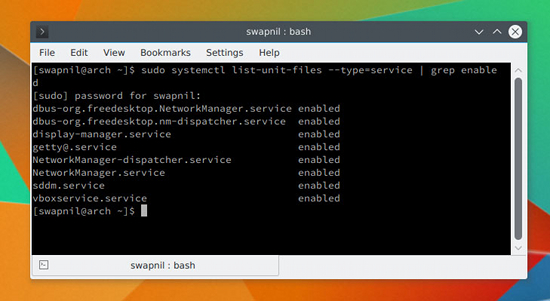
systemctl list-unit-files --type=service | grep enabled
Depending on your system you will get an output like that shown in Figure 1 above. If you spot any unwanted service, you can disable it using the mighty systemctl command:
systemctl disable service_name
Restrict Access to Your Server
In the same way that you would not give your house keys to just anyone you know, you should not give server access to just someone you know. Once this rule is clear, you can restrict access to your server. Keep one thing in mind: None of this will discourage someone who is hellbent on taking your server down. What it will do, however, is add more layers of security to your server to fend off casual offenders.
Never Log In As Root
It’s not a good practice to ssh into your server as superuser. We will be disabling sshing as root user on the server, but before doing so, let’s create a user with sudo powers so that you can ssh into the server and perform administrative tasks. Once you are logged into the server, you can always switch user to root, if needed. If you already have a user on your system, skip these steps; otherwise, stay with me.
Different distributions use different methods to add a new user; Red Hat/CentOS use useradd and Ubuntu/Debian use user adduser.
Create a new user on Fedora/CentOS:
useradd swapnil
Then create a password for the user:
passwd swapnil
It will ask you to provide it with the new password for the user. Now you need to give this user sudo powers. Run the following command:
EDITOR=nano visudo
And look for the following line (Figure 2):
# %wheel ALL=(ALL) ALL
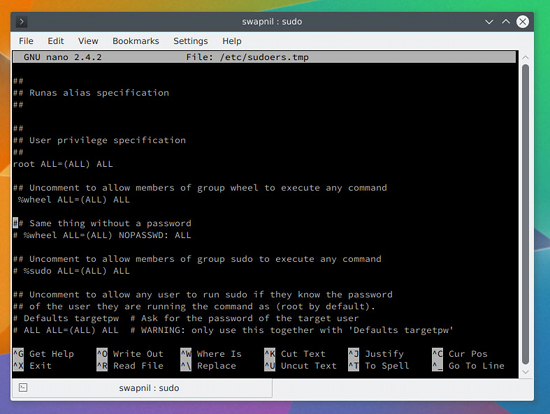
Uncomment the line (the # symbol means it is commented; just remove the symbol to uncomment) so that it looks like this:
%wheel ALL=(ALL) ALL
Now save and close the file. If the user doesn’t belong to the wheel group, you can easily add it to the group by running this command:
# usermod -aG wheel swapnil
On Ubuntu systems, you can add a new user by running:
adduser swapnil
Answer some questions that the system will ask, including creation of the password for this user. Once created, provide the user with sudo powers:
gpasswd -a swapnil sudo
Open another terminal window and try to log into the server as the newly created user and try performing some administrative jobs with sudo. If it works, move to the next step.
Disable root Login
We are now going to disable root login, which means no one can ssh or log into the server as root user. To do so, open the sshd configuration file:
nano /etc/ssh/sshd_conf
Next, look for the commented line that says:
#PermitRootLogin no
Then save and close this file and restart the service:
service ssh restart
or
systemctl restart sshd
Important: Don’t log out of the server yet. You need to test whether you can successfully ssh into the server using the previously created user. Open another instance of the terminal and ssh into the server with user you previously created. You don’t want to be totally locked out of your server. If everything works fine, you can safely log out of the server as root.
Change the Port
The second change that we are going to make to the sshd config file is changing the default port. It’s more about adding a layer of obscurity to keep your server safe instead adding of any real security to the server. Think of it as security services using identical vehicles to transport an important person so that an attacker won’t know which vehicle to take down.
Open the sshd_config file (this time as sudo, because you can no longer log into the server as root.):
sudo nano /etc/ssh/sshd_conf
Then, find this commented line:
#Port 22
Uncomment the line and choose a port number. While choosing a port, do ensure that it’s not used by any other service on your system. You can learn more about which ports are commonly used from this Wikipedia article and avoid such ports. I chose 1977 for my server:
Port 1977
Next, save and close the file and restart the sshd service. Once again, before logging out of the server, check the settings by opening another terminal window and then log in using this pattern:
ssh -p{port_number}@server_IP
Example:
ssh -p1977
This e-mail address is being protected from spambots. You need JavaScript enabled to view it
If you can successfully log in; it’s all set.
Passwordless Login
You can make it easier to ssh into your server via passwordless login and add another layer of security by totally disabling password authentication. Just keep in mind that you will be able to log into your server only from that machine on which you generated the ssh keys.
Let’s generate the ssh key on your local system (Figure 3) using the following command:
ssh-keygen - t rsa
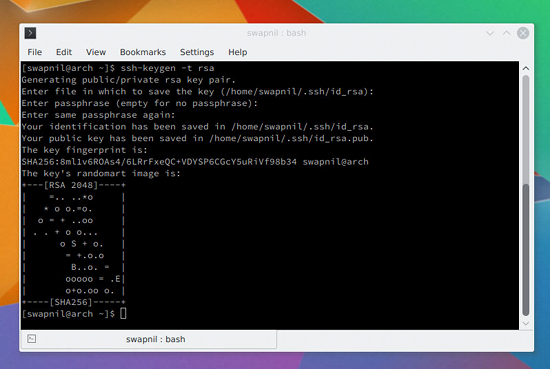
It will ask some questions; you can leave the location of the key to default and provide it with a hard-to-guess passphrase. Next, you need to copy these keys to the server so that the two machines can communicate with each other using the keys.
cat ~/.ssh/id_rsa.pub | ssh -p 1977 swapnil@remote-server ";mkdir -p ~/.ssh && cat >> ~/.ssh/authorized_keys"
Now try sshing into the server from another terminal and, if everything is working fine, it will not ask you to enter the password.
This step was more about convenience than some real security. You can add some security by disabling password authentication for the server. Just open the sshd_config file and look for commented line:
#PasswordAuthentication yes
Uncomment the line and change it from yes to no; save and close the file. Then, restart the sshd service. Once again, don’t close the connection to the server from the current window yet. Open another terminal and log into the server (make sure it didn’t ask for the password).
The flip side of this setting is that you can now ssh into your server only from the machine where you generated the ssh keys. If you often log into your server from different machines, please don’t use this method.
In Closing
These are some of the basic considerations for new users trying to run their own servers. Keep in mind that crackers are always a step ahead; they keep looking for any holes to hack into your server. Therefore, the best practice is to keep an always updated backup of your server. I recommend you take a backup before and after you make any changes to your site. That way, in case your server is compromised, you can always restore from the previous backup.
If you have any questions or suggestions, feel free to share in the comments section below.



 The Document Foundation has finally released LibreOffice 5.0, the next-generation open-source office suite. It’s a new major release in the series, and it brings Windows 10 compatibility and lots of interoperability features.
 Canonical’s Joseph Salisbury reported the summary of the Ubuntu Kernel Team meeting that took place on August 04, 2015, on the official IRC channels of the project.
 On August 4, SUSE announced that its SUSE Linux Enterprise Server for SAP Appplications platform now offers built-in support for IBM Power Systems running the SAP HANA column-oriented, in-memory, relational database management system.
 Steve McIntyre, a renowned Debian developer and leader of the “Debian-CD” team, wrote an
  Ubuntu and Debian developers have been working for some time to make GCC 5.x the default compiler for the project, and they have finally made it. Ubuntu was the first one to achieve this, and now it looks like Debian has joined the party as well.