Home Blog Page 1043

AllSeen Alliance Welcomes Philips as Premier Member

 The AllSeen Alliance, a cross-industry collaboration to advance the Internet of Things (IoT) through an open source software project, today announced that Philips has joined as a premier member. Philips joins more than 170 members of the AllSeen Alliance, including premier members Canon, Electrolux, Haier, LG, Microsoft, Panasonic, Qeo (a Technicolor company), Qualcomm Connected Experiences, Inc., Sharp, Silicon Image (a Lattice Semiconductor company) and Sony.

Philips strives to make the world healthier and sustainable through meaningful innovations and aims to improve the lives of 3 billion people a year by 2025. By joining the AllSeen Alliance, Philips will help advance the AllJoyn open source project as the common software framework used by devices, services and apps within the Internet of Things ecosystem. The investment also affirms the need for collaborative development and ownership of an open platform to overcome the interoperability challenges that impede movement in the Internet of Things.


Read more at AllSeen News

Solus Linux OS Boots in 1.2 Seconds

The Solus operating system is getting closer to a stable release and its developers are showing off some of the capabilities of the distro, including the boot time, which has got to be the most impressive result out there.

It’s been a while since we really cared about boot times for Linux distros. Ever since the appearance of SSD drives, the boot times for operating systems no longer matter all that much. Many users also have copious amounts of RAM, so it’s like it takes al… (read more)

CPU Pinning and NUMA Topology on RDO Kilo upgraded via qemu-kvm-ev-2.1.2-23.el7.1 on CentOS 7.1

Posting bellow follows up CPU Pinning and NUMA Topology Awareness in OpenStack Compute
on RDO Kilo upgraded via  qemu-kvm-ev-2.1.2-23.el7.1  on CentOS 7.1
Recent build on CentOS 7.X qemu-kvm-ev-2.1.2-23.el7.1 enables CPU Pinning and NUMA Topology for RDO Kilo on CentOS 7.1. Qemu-kvm upgrade is supposed to be done as post installation procedure,
i.e. after RDO Kilo deployment on the system. Final target is to reproduce mentioned article on i7 4790 Haswell CPU box, perform launching nova instance with CPU pinning

Complete text of article may be viewed here

Installing Android Apps on Linux with ARChon

android apps on linux

I’ve spent a lot of time on the Google Play Store. During that time I have discovered plenty of really useful apps that would be great on the Linux desktop. Fortunately, thanks to some crafty developers, it is quite possible (and actually easy) to run Android apps on the Linux desktop.

Of course, this statement does come with some caveats. First and foremost, this is all handled with the help of the Chrome browser. To make matters easier, you’ll need to be running the Chrome Developer channel. The second caveat is that not all apps will actually work. That some apps do not function should not surprise you (you won’t be getting an app that requires the functionality of a phone service to run on your desktop). As for other apps, the results can be hit and miss. The third caveat is that, to make this process easier, you’ll also need an Android device to package the .apk file that will be used on the desktop.

With that said, let’s dive into the process of getting Android apps running on Linux. I will be demonstrating on an Ubuntu 14.04 LTS installation.

Installing Chrome

If you haven’t already installed Chrome, let’s walk through that quick process. Remember, you’re installing the dev channel (you can safely install all three channels—stable, beta, and dev—on the same machine). Here’s how this is done:

  1. From the download page, select the installer associated with your package manager and architecture (because I’m using Ubuntu, I’ll download a .deb file)
  2. Click Accept and Install
  3. When prompted, select Open with and make sure /usr/bin/software-center (default) is selected
  4. Click OK
  5. When the Software Center opens, click Install
  6. When prompted, enter your sudo password
  7. Allow the installation to complete.

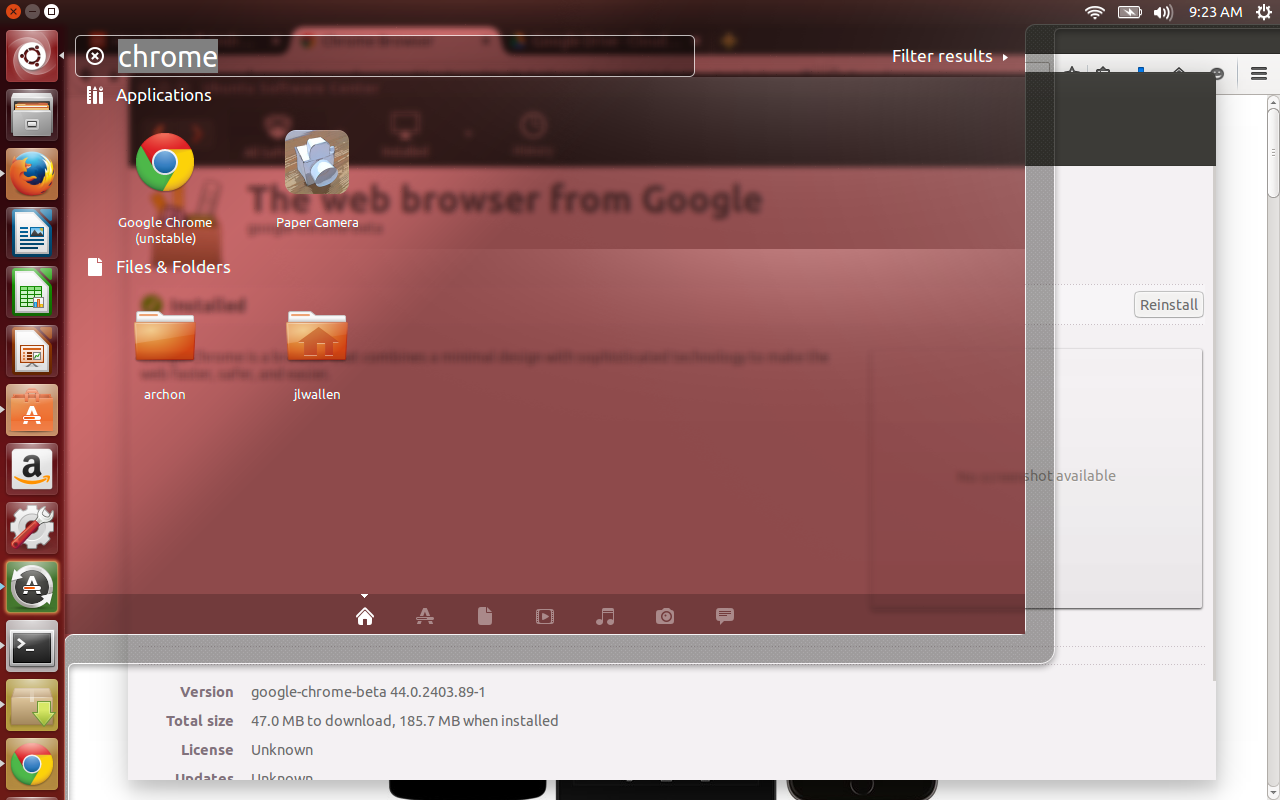
You should now find an entry for Google Chrome (unstable) in your Dash (Figure 1, above).

Installing ARChon

The tool that will do the heavy lifting for this task is called ARChon. This is an Android runtime, created by Vlad Filippov, which brings a specialized version of the Android runtime that works on the desktop version of Chrome. This phase of the process is also quite simple:

  1. Download the ARChon runtime for your architecture—32-bit or 64-bit
  2. Open your file manager and navigate to the Downloads directory (or wherever you have downloaded the .zip file)
  3. Right-click the ARChon zip file and select Extract Here
  4. Rename the newly created folder (right-click and select Rename) to archon
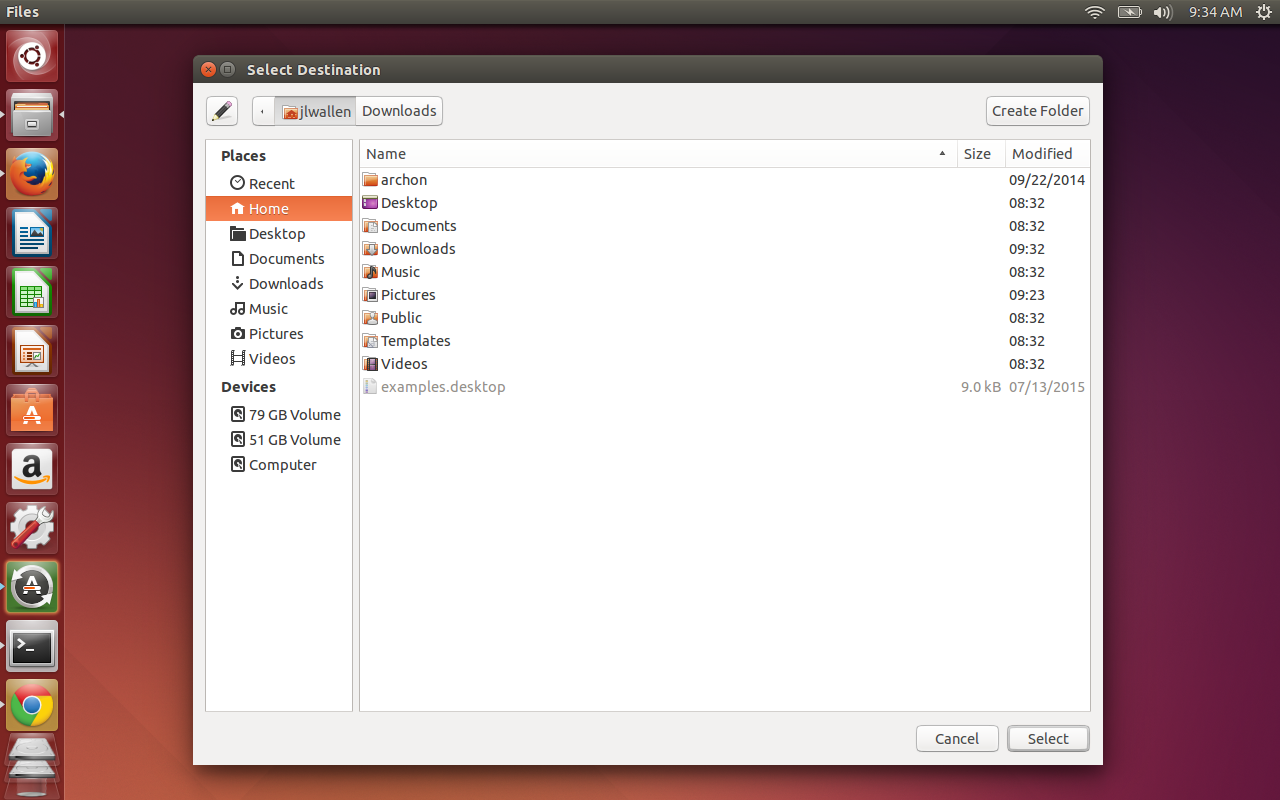
  5. Move the newly named folder to your home directory (right-click on archon, select Move To…, select Home, and click Select (Figure 2).

android

Adding ARChon to Chrome

It’s time to add the runtime to Chrome. This will enable you to finally run those Android apps on your desktop. Here’s how:

  1. Open Chrome
  2. Click on what is often referred to as the Overflow Menu (three horizontal bars in the top right corner)
  3. Select More tools > Extensions
  4. Click to enable Developer mode
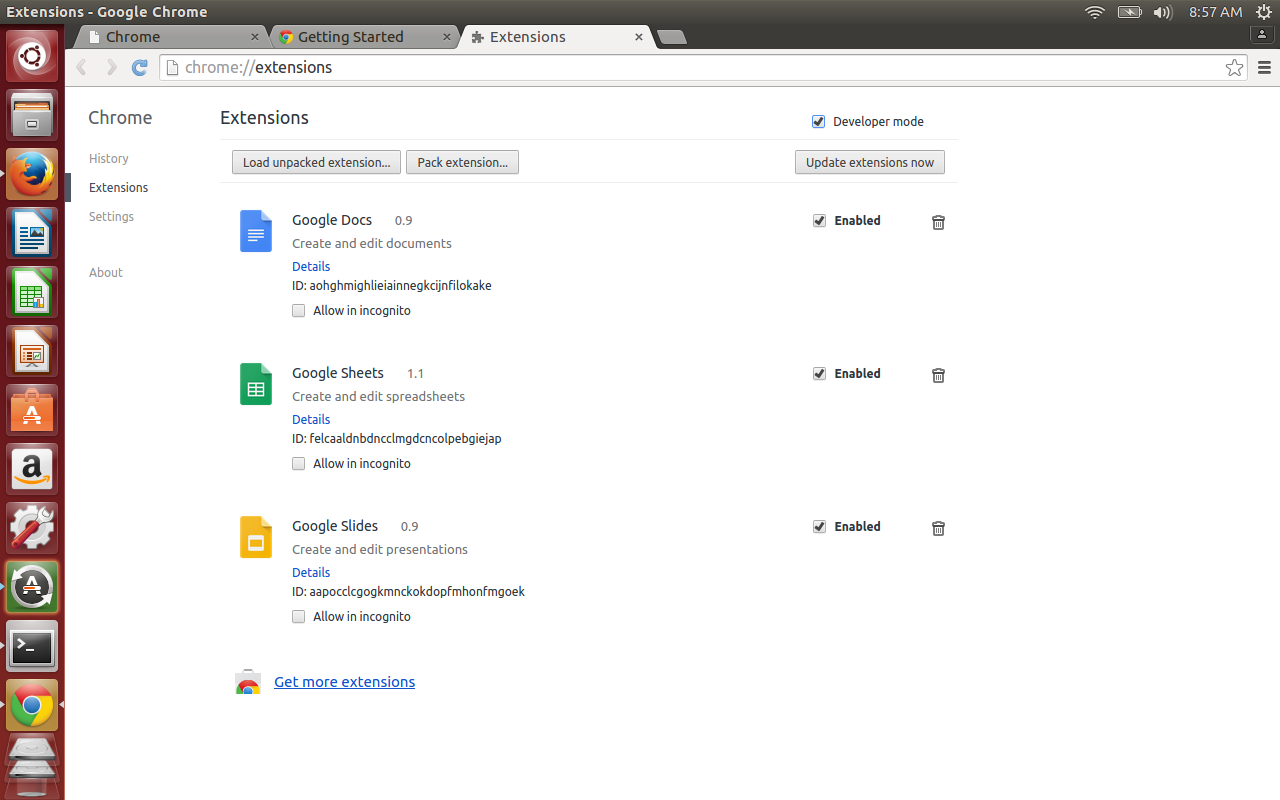
  5. Click Load unpacked extension… (Figure 3)
  6. Navigate to your home directory
  7. Select archon
  8. Click Open. 

android-3

ARChon should now appear in the listing of Chrome extensions.

Generating APKs

Now we move over to the Android platform. It used to be necessary to build APK files manually (which wasn’t always successful). Thankfully, there are now apps for Android that can build APKs with a few taps. The app I prefer is called ARChon Packager and can be installed from within the Google Play Store for free. Install that app, and you’re ready to go.

With ARChon Packager, you can generate APKs from installed apps or from APKs within the phone’s storage. I highly recommend you install the desired app onto your phone and then have ARChon Packager generate the APK from the installed app.

Here’s how to use ARChon Packager. 

  1. Open the app from your Android device
  2. Tap NEXT
  3. Select Installed application and tap NEXT
  4. Select the app you want to install from the pop-up listing
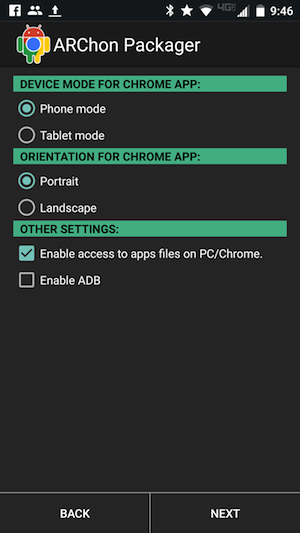
  5. Select the necessary options for the app (Figure 4)
  6. Tap NEXT
  7. When the APK generation is complete, tap SHARE CHROME APPLICATION
  8. Share the file in whatever way will best allow you to save it to your desktop (I opted for Google Drive)
  9. Click FINISH when complete. 

Android-Linux-ARChon-4

Retrieve the file and save it to your ~/Downloads directory on your Linux PC.

Installing the APK

You’re ready to now install the app. This is done in the same manner as was ARChon. Here are the steps:

  1. Open up your file manager
  2. Navigate to the ~/Downloads directory
  3. Right-click the downloaded APK zip file
  4. Select Extract here
  5. Open Chrome
  6. Click the Overflow Menu
  7. Click More Tools > Extensions
  8. Click Load unpacked extension…
  9. Navigate to the ~/Downloads directory
  10. Select the folder for the newly extracted APK
  11. Click Open.

That’s it! Now, if the app is usable on the desktop version of Chrome, it should be ready to run.

Running the App

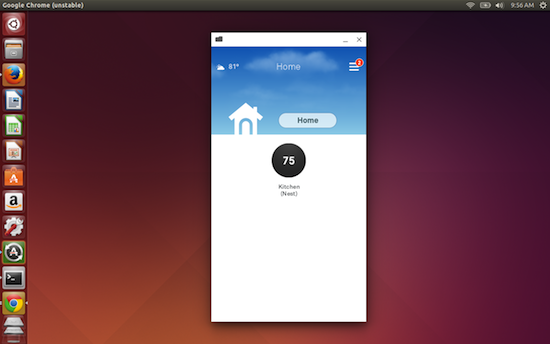
Chrome has a handy tool called Apps. Open Chrome and you should see a button in the upper left corner labeled Apps. Click on that and the newly installed apps will be ready to run. Click on the app you want to run to see how well it functions. To demonstrate, I installed the Nest App from the Google Play Store to find it runs flawlessly (Figure 5). 

Android-Linux-ARChon-5 copy

The ability to easily run Android apps on Linux is a real boon to the desktop. Not only does this functionality extend the reach of the desktop, it empowers it to join the ever-expanding mobile generation. If you happen to enjoy the Android platform, give this a try and see how well your favorite mobile apps perform on the Linux desktop.

As Public Cloud OS Instances Grow, So Do Security Admin Challenges

cloud securityEditor’s Note: This article is sponsored by FoxTechnologies, and was written by Linux.com.

As companies move or extend IT from private to public clouds, and from virtual machines (VMs) to system images, they often use a number of different operating system versions. They run different Linux distributions, different distro releases, and perhaps also non-*nix OSes, along with multiple templates, and the total number of instances can grow.

Some cloud vendors tout that systems deployed within their framework require little or no administration: You create an image with the software and applications that you want it to provide services for, spin it up in a management console, and  Voila! you have an entirely new system online; with minimal cost, no hassle, little work. However, even with newer models for virtualization appearing on the horizon, this is not exactly how things are actually used today, according to David Dingwall, architect and business development manager at Fox Technologies.

With this growth in complexity, says Dingwall, comes greater administration for areas not well covered by the current generation of cloud provisioning tools.

“Having more concurrent OS vendors, versions and instances than you have been used to in your private cloud can have security consequences that aren’t necessarily obvious,” Dingwall says, “and that can be more onerous to address, particularly for SMBs, where IT staff are likely already over-tasked.”

Quis Custodiet the Operating Systems?

While virtualization, the cloud, and more recently containers reduce much of the headline administrative load — particularly in terms of provisioning and maintaining hardware, facilities, power and cooling — “a company’s system administrators are still responsible for building and configuring the virtual machines or system images and their contents,” says Dingwall. “This includes ‘hardening’ the security for the operating system, even if the higher app and related service layers already include adequate security from the cloud vendor.”

When you obtain an OS directly from its vendor, e.g., Microsoft, Red Hat, or SUSE, “the default image is set up with a rather generic security policy,” says Dingwall, “What you’ve downloaded isn’t tailored to any security policy that your company would need in order to run it safely in your own private cloud. Work needs to be done.”

This is also particularly true when building within a public Platform-As-A-Service (PaaS) cloud, stresses Dingwall. “The system image isn’t something you typically build and construct yourself, you tend for convenience to pick it up from the public cloud’s app store. For web-facing instances –the part that may take your order — your organization may spin up as many as needed, and discarded them like a used paper plate when idle.”

For instances that preserve or process data (middleware, databases, live interfaces to business partners) that actually run your business, these act a lot more like the traditional servers that your business used to depend on, according to Dingwall. “For the OSes that are the initial building block of these transactional instances, again, there’s usually only a generic level of OS security in place — and worse, nothing to stop developers from picking up a pre-packaged combined OS/App images from the store, linking them together and going directly to start working on the apps.”

Part of the reason, suggests Dingwall, is that “cloud vendors want SMBs to engage as fast as possible, so they want to make the on-boarding experience go quickly, and make the experience as ‘sticky’ as possible.”

Yes, public cloud providers do spend time on their own security, Dingwall readily acknowledges. “For example, Amazon provides pre-hardened versions of apps and data stores. You can be guaranteed the apps are already secure, and logos are splashed all over presentations with compliance certifications, providing assurances to the business management holding the checkbook.”

But, Dingwall cautions, “Being told how your data and applications are pre-delivered secure and certified may blind you to the reality that the operating systems that your secured apps and data are running on are still relatively poorly configured compared to what you’d have enforced if they were running in your own private cloud.”

“When you try to pin down the Cloud security directors at shows, and ask specifically whether their cloud service provides assurance that the OS is secure, the answer is , ‘That’s always the customer’s responsibility,’” says Dingwall. “Looking at the small print, the OS vendor says something like ‘we provide this OS for use in this Portal/Channel, however it comes with no warranty’ and the public cloud vendor says ‘We take no responsibility for the operating system, that’s your problem.’”

And, says Dingwall, “That blanket lack of warranty for that OS image you’ve picked from the App store isn’t usually highlighted, since calling attention to it conflicts with the onboarding experience their marketing, sales, and consulting teams want to promote their cloud services to net new customers – SMBs.”

Secure That OS

“On a technical side, the click-and-drop experience of ‘I need an OS, here’s the app to go on top of it,’ doesn’t typically include a ‘now go harden your OS image — have an IT admin log on and do some work on it’ step,” says Dingwall. “The danger of moving your environment to the public cloud, if you are a smaller organization, and/or being led by a small consulting house, there’s a chance that this step could be bypassed or omitted completely, because it isn’t part of the workflow provided by the admin and provisioning tool they use.”

“Never deploy into production with an as-delivered system image from a public cloud’s app store,” stresses Dingwall. “Copy it, harden it, and then add any other security software or configuration changes to the image by involving your security admins. Deploy from your copy, which has become your organization’s template, just like you would in a private cloud.”

Using operating system images ‘out of the box’ is a problem, Dingwall points out, “because operating systems typically have rather liberal security policies when you install them out of the box. “It’s up to the system or security admin to do things like change the passwords and maybe add two-factor authentication for some account access. And all this configuration work has to be done before the template is accepted and released to production.”

Doing this for an image straight from a Linux distro provider (e.g. Red Hat, SUSE or Ubuntu) could take a few hours to harden the system to meet a company’s existing standards, according to Dingwall. “Plus it needs to go through release testing, and, depending on a company’s policies, it may have to go to production testing for verification.

“Secure the OS” to-do’s, according to Dingwall, “have not changed much from the time where we were securing a single OS on a single server,” and include:

  • don’t allow the root account to be directly logged into

  • control which support teams can log into the server, using SSH

  • do correct allocation and group set-up

  • do file monitoring and alerting, associated with particular groups

  • if appropriate, add two-factor authentication, (in the public cloud typically as one-time codes sent to mobile devices, rather than smart cards and tokens in private clouds)

  • reset factory-default passwords

  • set password expiration, complexity

  • define SUDO groups and program options.

“If you already have a private cloud running virtual machines, and if you plan to move these VMs to the pubic cloud, start with replicating those templates and then harden them and make them secure to meet your company standards and deal with any additional wrinkles presented by the PaaS cloud,” says Dingwall. And, he points out, this work needs to be repeated in other technology stacks, like using containers in the future.

“Regardless of where the operating system came from — a vendor or an app store — you still ‘own’ — are responsible for — the security model inside it,” Dingwall says. “You have to set up security and make sure it works. No one else is going to do that for you.”

Fox Technologies, Inc. helps companies protect corporate information assets with network security and access management software as well as striving to simplify compliance and streamline administration with anaccess management and privileged account control solution. Fox Technologies’ access management software centrally enforces granular access entitlements in real time across diverse server environments. To learn more about Fox Technologies please visit http://www.foxt.com.

Why Docker is Not Yet Succeeding Widely in Production

 Docker’s momentum has been increasing by the week, and from that it’s clearly touching on real problems. However, for many production users today, the pros do not outweigh the cons. Docker has done fantastically well at making containers appeal to developers for development, testing and CI environments—however, it has yet to disrupt production. In light of DockerCon 2015’s “Docker in Production†theme I’d like to discuss publicly the challenges Docker has yet to overcome to see wide adoption for the production use case. None of the issues mentioned here are new; they all exist on GitHub in some form. Most I’ve already discussed in conference talks or with the Docker team. This post is explicitly not to point out what is no longer an issue: For instance the new registry overcomes many shortcomings of the old. Many areas that remain problematic are not mentioned here, but I believe that what follows are the most important issues to address in the short term to enable more organizations to take the leap to running containers in production. The list is heavily biased from my experience of running Docker at Shopify, where we’ve been running the core platform on containersfor more than a year at scale. With a technology moving as fast as Docker, it’s impossible to keep everything current. Please reach out if you spot inaccuracies.

Read more at Simon Hørup Eskildsen’s Blog.

Amazon’s MySQL Database Challenger Aurora Exits Preview

AWS says its Aurora database engine provides up to five times better performance than the typical MySQL database.

Read more at ZDNet News

Nvidia 352.30 Stable Driver for Linux Has Lots of Fixes and GeForce 910M Support

Nvidia has released a new Linux driver in the stable branch and has fixed a few outstanding issues. The company also provides support for the latest GeForce 910M chipset.

Nvidia maintains a number of branches for the drivers, and it’s getting harder and harder to keep track of them. There is the short-lived branch that gets most of the action, the long-lived branch that usually lands in repositories, and the stable branch, which sits somewhere in the middle.

You might th… (read more)

KDE Reveals Plasma Mobile


There are a lot of interesting developments occurring in the field of Linux smartphones right now. more>>

 
Read more at Linux Journal

Porting HTML5 Mobile Games To Ubuntu Phone

With Ubuntu Phone reviews frequently pointing out the lack of games/apps for Ubuntu Phone compared to other platforms, Ubuntu developers have been working on porting more HTML5 mobile games over to Ubuntu Phone…

Read more at Phoronix