Home Blog Page 1076

15 Interesting Linux Command

http://rworldwonder.blogspot.in/
1. Command: sl (Steam Locomotive)

You might be aware of command ‘ls‘ the list command and use it frequently to view the contents of a folder but because of miss-typing sometimes you would result in ‘sl‘, how about getting a little fun in terminal and not “command not found“.

Install sl

root@tecmint:~# apt-get install sl   (In Debian like OS)
root@tecmint:~# yum -y install sl   (In Red Hat like OS)
Output
root@tecmint:~# sl
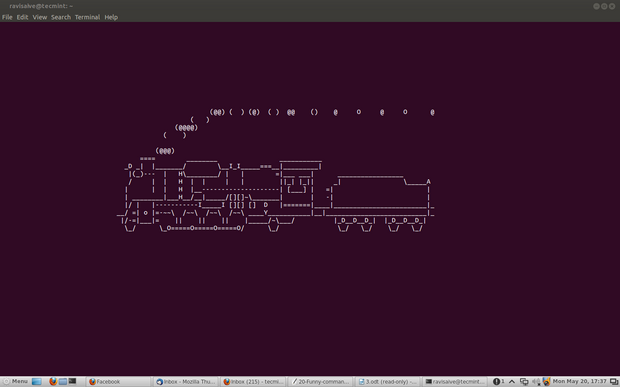
sl funny command

sl command
This command works even when you type ‘LS‘ and not ‘ls‘.

2. Command: telnet

NoNo!! it is not as much complex as it seems. You would be familiar with telnet. Telnet is a text-oriented bidirectional network protocol over network. Here is nothing to be installed. What you should have is a Linux box and a working Internet.
root@tecmint:~# telnet towel.blinkenlights.nl
telnet command

telnet command

3. Command: fortune

what about getting your random fortune, sometimes funny in terminal.

Install fortune

root@tecmint:~# apt-get install fortune  (for aptitude based system)
root@tecmint:~# yum install fortune   (for yum based system)
root@tecmint:~# fortune
You're not my type.  For that matter, you're not even my species!!!
Future looks spotty.  You will spill soup in late evening.
You worry too much about your job.  Stop it.  You are not paid enough to worry.
Your love life will be... interesting.

4. Command: rev (Reverse)

It reverse every string given to it, is not it funny.
root@tecmint:~# rev
123abc 
cba321 
xuniL eb ot nrob
born to be Linux

5. Command: factor

Time for some Mathematics, this command output all the possible factors of a given number.
root@tecmint:~# factor
5 
5: 5 
12 
12: 2 2 3 
1001 
1001: 7 11 13 
5442134 
5442134: 2 2721067

6. Command: script

OK fine this is not a command and a script but it is nice.
root@tecmint:~# for i in {1..12}; do for j in $(seq 1 $i); do echo -ne $i×$j=$((i*j))\t;done; echo;done 
1×1=1 
2×1=2 2×2=4 
3×1=3 3×2=6 3×3=9 
4×1=4 4×2=8 4×3=12 4×4=16 
5×1=5 5×2=10 5×3=15 5×4=20 5×5=25 
6×1=6 6×2=12 6×3=18 6×4=24 6×5=30 6×6=36 
7×1=7 7×2=14 7×3=21 7×4=28 7×5=35 7×6=42 7×7=49 
8×1=8 8×2=16 8×3=24 8×4=32 8×5=40 8×6=48 8×7=56 8×8=64 
9×1=9 9×2=18 9×3=27 9×4=36 9×5=45 9×6=54 9×7=63 9×8=72 9×9=81 
10×1=10 10×2=20 10×3=30 10×4=40 10×5=50 10×6=60 10×7=70 10×8=80 10×9=90 10×10=100 
11×1=11 11×2=22 11×3=33 11×4=44 11×5=55 11×6=66 11×7=77 11×8=88 11×9=99 11×10=110 11×11=121 
12×1=12 12×2=24 12×3=36 12×4=48 12×5=60 12×6=72 12×7=84 12×8=96 12×9=108 12×10=120 12×11=132 12×12=144

7. Command: Cowsay

An ASCII cow in terminal that will say what ever you want.

Install Cowsay

root@tecmint:~# apt-get install cowsay   (for Debian based OS)
root@tecmint:~# yum install cowsay  (for Red Hat based OS)
Output
root@tecmint:~# cowsay I Love nix 
 ____________
< I Love nix >
 ------------
           ^__^
           (oo)_______
            (__)       )/
                ||----w |
                ||     ||
How about pipelineing ‘fortune command‘, described above with cowsay?
root@tecmint:~# fortune | cowsay 
 _________________________________________
/ Q: How many Oregonians does it take to  
| screw in a light bulb? A: Three. One to |
| screw in the light bulb and two to fend |
| off all those                           |
|                                         |
| Californians trying to share the        |
 experience.                             /
 -----------------------------------------
           ^__^
           (oo)_______
            (__)       )/
                ||----w |
                ||     ||
Note: ‘|‘ is called pipeline instruction and it is used where the output of one command needs to be the input of another command. In the above example the output of ‘fortune‘ command acts as an input of ‘cowsay‘ command. This pipeline instruction is frequently used in scripting and programming.
xcowsay is a graphical program which response similar to cowsay but in a graphical manner, hence it is X of cowsay.
apt-get insatll xcowsay
yum install xcowsay
Output
root@tecmint:~# xcowsay I Love nix
install xcowsay

xcowsay command
cowthink is another command just run “cowthink Linux is sooo funny” and see the difference in output of cowsay and cowthink.
apt-get insatll cowthink
yum install cowthink
Output
root@tecmint:~# cowthink ....Linux is sooo funny
 _________________________
( ....Linux is sooo funny )
 -------------------------
        o   ^__^
         o  (oo)_______
            (__)       )/
                ||----w |
                ||     ||

8. Command: yes

It is funny but useful as well, specially in scripts and for System Administrators where an automated predefined response can be passed to terminal or generated.
root@tecmint:~# yes I Love Linux
I Love Linux
I Love Linux
I Love Linux
I Love Linux
I Love Linux
I Love Linux
I Love Linux
I Love Linux
I Love Linux
I Love Linux
I Love Linux
I Love Linux
Note: (Till you interrupt i.e ctrl+c).

9. Command: toilet

what? Are u kidding, huhh no! Definitely not, but for sure this command name itself is too funny, and I don’t know from where this command gets it’s name.

Install toilet

root@tecmint:~# apt-get install toilet 
root@tecmint:~# yum install toilet
Output
root@tecmint:~# toilet tecmint 
mmmmmmm                        "             m                               
   #     mmm    mmm   mmmmm  mmm    m mm   mm#mm          mmm    mmm   mmmmm 
   #    #"  #  #"  "  # # #    #    #"  #    #           #"  "  #" "#  # # # 
   #    #""""  #      # # #    #    #   #    #           #      #   #  # # # 
   #    "#mm"  "#mm"  # # #  mm#mm  #   #    "mm    #    "#mm"  "#m#"  # # #
It even offers some kind of color and fonts style.
root@tecmint:~# toilet -f mono12 -F metal Tecmint.com
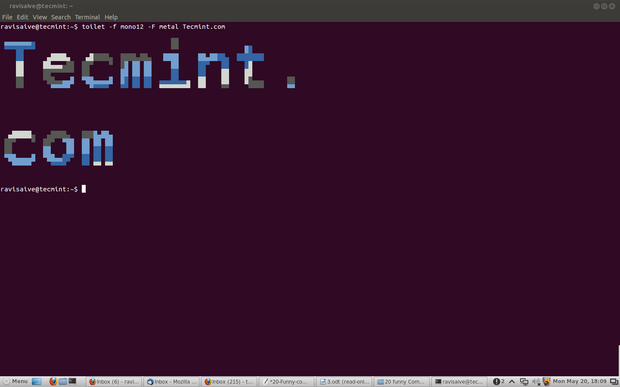
install toilet command

toilet command
NoteFiglet is another command that more or less provide such kind of effect in terminal.

10. Command: cmatrix

You might have seen Hollywood movie ‘matrix‘ and would be fascinated with power, Neo was provided with, to see anything and everything in matrix or you might think of an animation that looks alike Hacker‘s desktop.

Install cmatrix

root@tecmint:~# apt-get install cmatrix
root@tecmint:~# yum install cmatrix
Output
root@tecmint:~# cmatrix
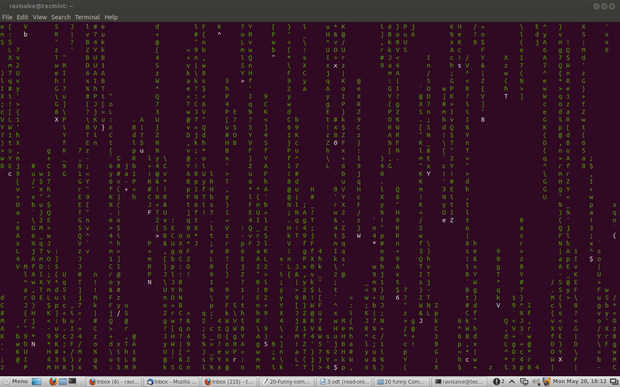
cmatrix command

cmatrix command

11. Command: oneko

OK so you believe that mouse pointer of Linux is the same silly black/white pointer where no animation lies then I fear you could be wrong. “oneko“ is a package that will attach a “Jerry“ with you mouse pointer and moves along with you pointer.

Install cmatrix

root@tecmint:~# apt-get install oneko
root@tecmint:~# yum install oneko
Output
root@tecmint:~# oneko
install oneko

oneko command
Note: Once you close the terminal from which oneko was run, jerry will disappear, nor will start at start-up. You can add the application to start up and continue enjoying.

12. Fork Bomb

This is a very nasty piece of code. Run this at your own risk. This actually is a fork bomb which exponentially multiplies itself till all the system resource is utilized and the system hangs. (To check the power of above code you should try it once, but all at your own risk, close and save all other programs and file before running fork bomb).
root@tecmint:~# :(){ :|:& }:

13. Command: while

The below “while” command is a script which provides you with colored date and file till you interrupt (ctrl + c). Just copy and paste the below code in terminal.
root@tecmint:~# while true; do echo "$(date '+%D %T' | toilet -f term -F border --gay)"; sleep 1; done
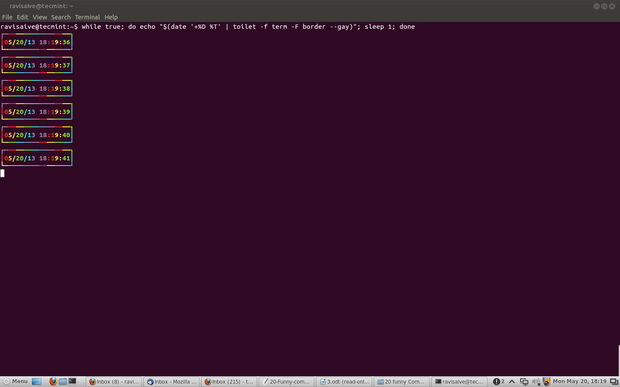
Linux while command

Linux while command
Note: The above script when modified with following command, will gives similar output but with a little difference, check it in your terminal.
root@tecmint:~# while true; do clear; echo "$(date '+%D %T' | toilet -f term -F border --gay)"; sleep 1; done

14. Command: espeak

Just Turn the Knob of your multimedia speaker to full before pasting this command in your terminal and let us know how you felt listening the god’s voice.

Install espeak

root@tecmint:~# apt-get install espeak
root@tecmint:~# yum install espeak
Output
root@tecmint:~# espeak "Tecmint is a very good website dedicated to Foss Community"

15. Command: aafire

How about fire in your terminal. Just type “aafire” in the terminal, without quotes and see the magic. Press any key to interrupt the program.

Install aafire

root@tecmint:~# apt-get install libaa-bin
Output
root@tecmint:~# aafire
install aafire

aafire command

Install Open Source, Cloud Computing Web Desktop EyeOS on Ubuntu Linux 15.04

EyeOS is just like an online operating system, it is based on cloud computing concept and offers an online desktop based system for collaboration and communication among users. It lets you access a desktop environment from within your browser. It is a feature rich application, you can access your web desktop from your tablet, smartphone, laptop or your office computer, you can collaborate with other members of your team and can create groups for better communication. Read more at Linuxpitstop

How To: Install/Upgrade to Linux Kernel 4.0.6 in Ubuntu/Linux Mint Systems

The Linux Kernel 4.0.6 is now available for the users, announced Linus Torvalds. This Linux Kernel version comes with plenty of fixes and improvements. This article will guide you to install or upgrade to Linux Kernel 4.0.6 in your Ubuntu or Linux Mint system.

Read more at YourOwnLinux

Adopt Agile Scrum Development & Enhance your Company Performance

Agile development is a simple and lightweight framework that focuses on rapid delivery of business value. It is often described as iterative and incremental process because in this development process team develops software and gathers requirements simultaneously. This development process reduces the overall risk associated with the software development process.

What is Agile Software Development?

Agile Software Development is the methodology that focuses on keeping the code simple and delivers functional bits of application as soon as they get ready. The most popular agile development life cycle model is Extreme programming .In extreme programming each iterations require testing. When any change is made in code then each component is tested and then integrated with existing code. With the continuous integration changes are easily incorporated continuously into software build.

What is scrum?

Scrum is an effective way to manage product development and complex software by using incremental and iterative practices. It is basically an agile methodology that can be applied to any project .This methodology is well suited for those projects whose requirements are changing rapidly. Scrum is often seen as methodology but actually it is a framework for completing complex projects. It is an agile way to manage any product usually software development. Scrum is basically a lightweight process for agile development. It helps in maximizing the productive that is available for getting the useful work done.

Benefits of Agile Scrum Development

  • Agile Scrum Development saves time and money of the companies
  • This process increases the quality of the product
  • Fast moving developments can be quickly coded and tested using this methodology so that mistakes can be easily corrected.
  • This type of development is iterative in nature and it requires continuous response of the user
  • With agile scrum development product can be delivered on scheduled time
  • Agile Scrum is compatible with any technology or programming language
  • The overhead cost of agile scrum development in terms of process and management is very less
  • Agile Development Scrum enhances the customer and client relationship by giving high quality product
  • It has more predictable release cycle with built-in testing process that leads to product stability.

Conclusion

Agile Scrum Development promote a disciplined project management process to give high quality product to the clients .So if you are looking for agile training for your team members then choose experienced trainers to improve your company performance.

Summary

This article includes information on Agile Scrum Development. Read more to find out the benefits of Agile Scrum Development.

How to Backup Files in Linux With Rsync on the Command Line

rsync cron

One of the advantages of the digital world, compared to the physical world is that you can protect some of your ‘valuables’ from permanent loss. I know friends who have lost all of their photographs, books and documents in fires or floods. I wish they had digital versions of those things which we could have saved. It takes only one click to make a copy of your data and you can carry terabytes of data on a hard drive smaller than your wallet.

Why not cloud?

While working on this story I interviewed many users to understand their data-backup plans and I discovered some used public cloud as their primary backup.

I would not use public or third-party cloud as the primary backup of my data for various reasons. First of all, I have over 3 terabytes (TB) of data and it would be extremely expensive for me to buy 3 TB of cloud storage. I would have to pay over $120 per year for 1TB of data or $100 per month for 10TB on Google Drive. Cost is not the only deterrent; I will also consume huge amounts of bandwidth to access that data which may raise eyebrows from my ISP.

The biggest danger is that then once you stop paying, you lose your data. That’s not the only problem with public cloud, the moment you start using such services your data becomes subject to numerous laws and can be accessed by government agencies without your knowledge. Your service provider gains control over your data and can lock you out of your own data for numerous reasons – most notably some ambiguous copyright violations.

Private cloud like ownCloud or Seafile can be an option but once again, since your data left your network it is exposed to the rest of the world and, as usual, it will incur heavy bandwidth use and storage costs.

I do use private cloud but that’s mostly for the data that I want accessible outside the local network or which is shared with others. I never use it as back-up.

Keep calm and go local

I can buy a 4TB NAS hard drive for under $160 and that will last me 3 to 4 years. I won’t have to worry about paying bandwidth for accessing my own data or fear of being locked out.

Now once I have decided to keep my data local and under my control it becomes increasingly important to ensure that I will not lose a byte of it. The first thing I do is make a backup of my files and configure my systems to make regular backups automatically.

There are many GUI tools; some come preinstalled on many distros, but since I run a headless file server I use command line tools and that’s what I am going to talk about in this article.

I also tend to keep things as simple as possible, so the tool I use for my back-up is ‘rsync’.

What’s rsync

Rsync stands for remote sync which was written by Andrew Tridgell and Paul Mackerras back in 1996. It’s one of the most used ‘tools’ in the UNIX world and almost a standard for syncing data. Most Linux distros have rsync pre-installed, but if it’s not there you can install the ‘rsync’ package for your distribution.

Rsync is an extremely powerful tool and does more than just make copies of your files on your system. You can use it to sync files on two directories on the same PC; you can sync directories on two different systems on the same network; or sync directories residing on machines thousands of miles apart, over the Internet.

The functionality of rsync can be expanded by using different ‘options’, which we will talk about soon.

The basic syntax of rsync is

rsync option source-directory destination-directory

Let’s assume you have a directory /media/hdd1/data-1 on hard drive 1 and you want to make a copy of it on a new hard drive which is mounted at /media/hdd2. 

The following command will create the directory data-1 on the second hard drive can copy the content of the directory to the destination:

rsync -r /media/hdd1/data-1 /media/hdd2/

The option ‘-r’ ensures that it’s recursive and will also sync all directories.

However once the directory data-1 is created on hdd2 then you can start syncing the content of the two directories:

rsync -r /media/hdd1/data-1/ /media/hdd2/data-1/

Don’t forget the backward slash at the end otherwise rsync will create a new directory inside the destination directory.

Alternatively you can create a new directory on destination and then sync it with source. Let’s assume you created a directory data-2 on the second hard drive and want to sync the two without any confusion:

rsync -r /media/hdd1/data-1/ /media/hdd2/data-2/

This command will simply make an exact copy of your files in the data-1 directory inside the data-2 directory.

What if you have symlinks of different permissions of file ownership and you want to preserve them? Just use the ‘-a’ option and it will preserve the date, ownership, permissions, groups, etc. of the files.

Now you have two sets of directories synced with each other. There is a chance that you may delete some files or folders from the source; I do it all the time. How do we ensure that those are deleted from the destination as well? You need to use the ‘–delete’ option which will take care of such cases.The command becomes:

rsync -a --delete /media/hdd1/data-1/ /media/hdd2/data-2/

If you want to see the progress of files in the terminal, add the ‘-v’ option to it:

rsync -av --delete /media/hdd1/data-1/ /media/hdd2/data-2/

It’s also advisable to compress files for transfer so it saves bandwidth over the network, resulting in faster transfer. You should do it if your devices have slower transfer. The option to use is ‘-z’.

rsync -avz --delete /media/hdd1/data-1/ /media/hdd2/data-2/

You can also throw in ‘-P’ option which is for partial progress.

rsync -avzP --delete /media/hdd1/data-1/ /media/hdd2/data-2/

Working on networked machines

As I wrote in an article earlier I run a local file server at home and mount it on all my devices to access my files. I never save any data on my local machine; I always work on files stored on the primary hard drive on the server. That way my files are always up-to-date and I can pick them from any machine and continue to; no need to copy from one machine to another.

I don’t mount the second, or the back-up hard drive. Mounting it and working on files saved on this hard drive will complicate things because when I run the rsync command it will overwrite the changes from the primary hard drive. Though rsync has a trick (or option) up its sleeves to address such issues.  You can use the ‘-u’ option which will force rsync to skip any file which has the modification date later than the source file.

How to sync directories over network

This is where ssh protocol comes into play. I use the following syntax to sync a remote directory with a local directory:

rsync -avzP --delete -e ssh user@server_IP:source-directory /destination_directory_on_local_machine/

Example:

rsync -avzP --delete -e ssh 
 This e-mail address is being protected from spambots. You need JavaScript enabled to view it
 :/home/swapnil/backup/ /media/internal/local_backup/

To sync a local directory with a remote directory the syntax becomes:

rsync -avzP --delete -e ssh source_directory user@server_IP:path_destination_directory

Example:

rsync -avzP --delete -e ssh /home/swapnil/Downloads/ 
 This e-mail address is being protected from spambots. You need JavaScript enabled to view it
 :/home/swapnil/Downloads/

Automate backup

You may want to automate backup so you don’t have to add it to your calendar. It will actually be easier to automate the backup then create a calendar entry.

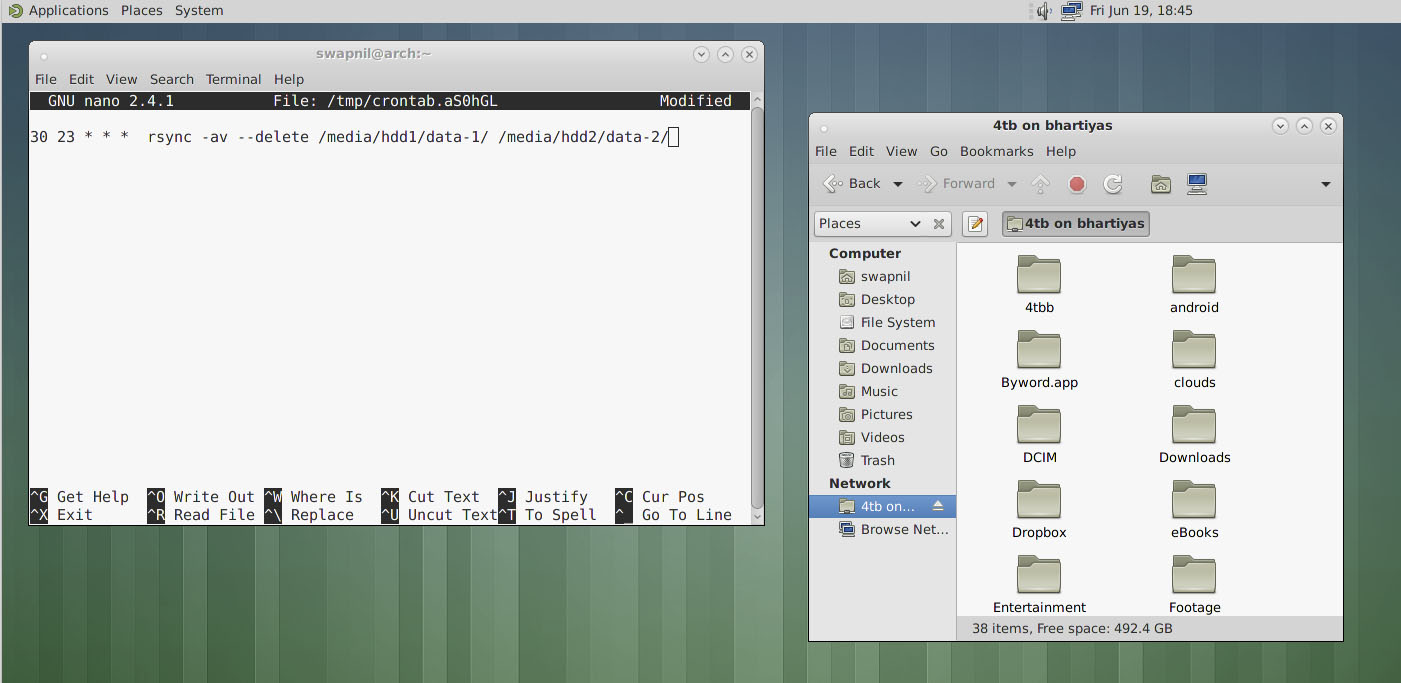
I tend to keep things simple and easy, so I can show new users how easy it is to do such things under Linux. The solution that I use for automation is ‘crontab’. It’s simple, lightweight and does the job well. With Crontab I can configure when I want to run the rsync command: daily, weekly,  monthly, or more than once a day (which I won’t do). I have configured mine to run at 11:30 p.m. every day after work so all of the files that I worked on throughout the day get synced.

Depending on your distro you may have to install a package to get crontab on your system. If you are on Arch Linux, for example, you can install ‘cronie’. You can choose the default editor for crontab; I prefer nano. Run this command and replace ‘nano’ with the desired editor.

export EDITOR=nano

Now run ‘crontab -e’ to create cron jobs. It will open an empty file where you can configure the command that you want to run at a desired time. (See image, above.)

The format of crontab is simple; it has five fields followed by the command:

m h dm m dw command

Here m stands for minutes (0-59); h for hour (0-23); dm for day of the month (1-31); m for month (1-12); and dw for day of the week (0-6 where 0 is Sunday). The format is numerical and you have to use ‘*’ to commend the fields that you don’t want to use.

I run the command every day at 11.30 so the format will be

30 23 * * * rsync -av --delete /media/hdd1/data-1/ /media/hdd2/data-2/

If you want to run rsync only once a month then you can do something like this:

30 23 1 * * rsync -av --delete /media/hdd1/data-1/ /media/hdd2/data-2/

Now it will run at 11:30 p.m. on 1st of every month. If you don’t want it to run every month than you can configure it to run every six months:

30 23 1 6 * rsync -av --delete /media/hdd1/data-1/ /media/hdd2/data-2/

That will make it run every year on June 1. If you want to run more than one command, then create a new line for every command. Rsync is not the only command you can automate with ‘crontab’ you can run ‘any’ command using it.

As you can see both tools – rsync and crontab – are extremely simple and lightweight yet extremely powerful and highly configurable. Linux doesn’t have to to complicated!

Keep one copy remotely

One risk of keeping all your data on local machines is that in case of a natural disaster, fire or flood, your local system will be damaged and you will lose your data. It’s recommended to keep another copy of your data on a machine located elsewhere. I have one server at my in-laws’ place; I call it ‘Server In Law’.

The bad news is ISPs don’t allow static IP and may block forwarded ports so it’s not possible to ssh between two machines and sync data. That’s where TeamViewer and SSH Tunnel comes into play. I log into my Server In Law, open a temporary ssh tunnel and then rsync the files.

Since these are GUI-based tools they are beyond the scope of this cli focused article. I may cover it in the future.

Friends with backup are friends indeed

My friends have created a pool of backup servers where they host each other’s hard drives at their place and keep each other’s data distributed. If there are some extremely private files you don’t want your friends to see, you can always encrypt them.

Security Specialists See Cyber Threats Growing

Following privileged users, contractors and consultants (48 percent), and regular employees (46 percent) were the next biggest threat to businesses.

Read more at eWeek

Linux Vendor Firmware Service Launches

Richard Hughes announced today the Linux Vendor Firmware Service (LVFS) for hardware vendors to be able to upload their firmware files — thus making them redistributable to fwupd users (such as with Fedora 23+) assuming they comply with the AppStream specification…

Read more at Phoronix

How to Benchmark your GPU on Linux

Linux is not famous for its gaming abilities and possibilities, and it is only natural that there aren’t many GPU benchmarking tools available with which users can test their graphics hardware. There are however some benchmarking suites that can help you determine the various aspects of your GPU performance with precision. In this tutorial I will show you GLX-Gears, GL Mark 2 and the benchmarks from “Unigine Benchmark Products”.

Read more at HowtoForge

Most-Powerful Ubuntu Smartphone Yet Goes on Sale from Tomorrow

The Meizu MX4 Ubuntu Edition will be available to buy across Europe for €299 – but only via random invitations to interested buyers.

Read more at ZDNet News

Arno, the First Open Source Platform for NFV

SDN and NFV are part of a transformational shift in the telecom industry towards network and application virtualization, enabling companies’ need to be flexible in order to meet changing demands. Jonathan Gershater explained it well in his recent article, How telecoms can escape vendor lock-In with open source NFV.

read more

Read more at OpenSource.com