
Canonical will be kicking off June by making some announcements with their partners for new Ubuntu Phones in Europe…
Read more at Phoronix
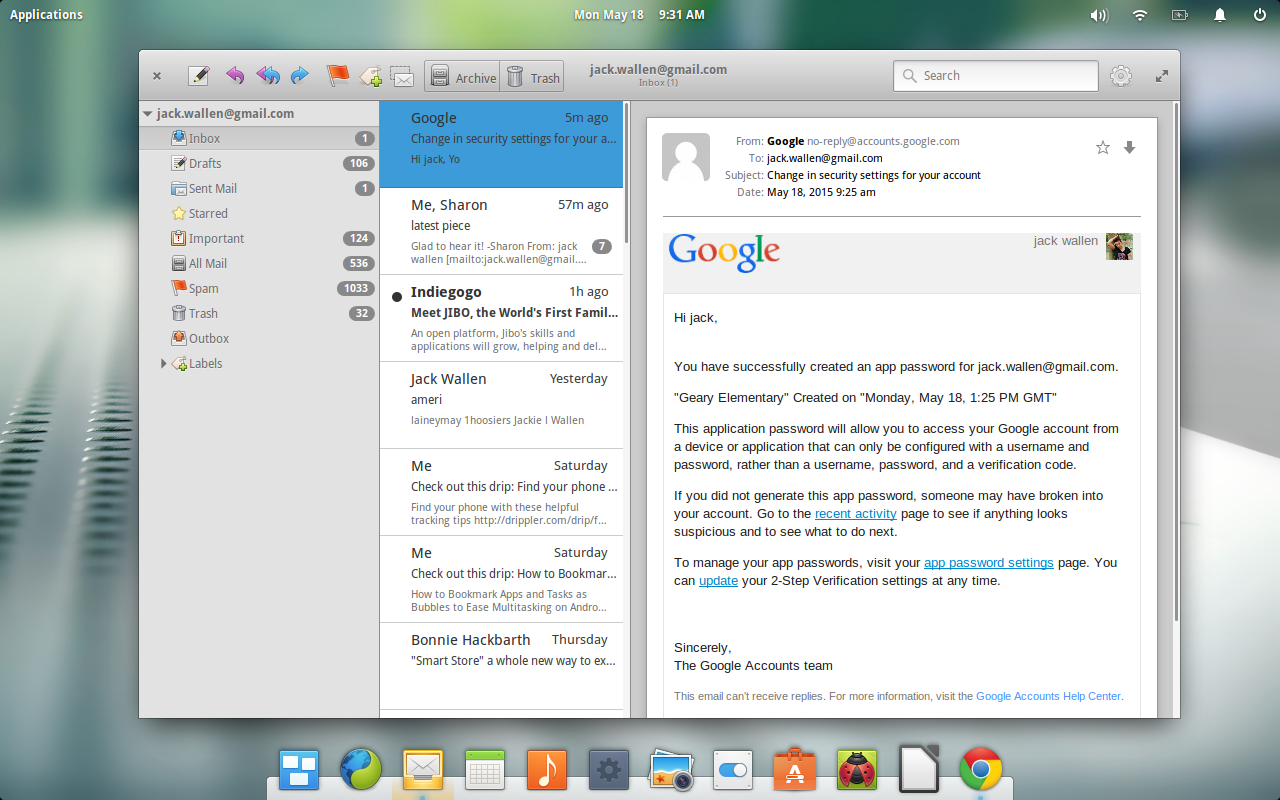
On Linux there are a few open source alternatives to the Thunderbird email client. There’s Evolution, KMail, Claws-Mail, Alpine (if you’re really old-school), and a handful of other clients (most of which, don’t live up to anyone’s expectations). There’s also a new kid on the email block. That kid is the brainchild of Yorba. Meet Geary, the new default IMAP email client for the GNOME desktop (and the likes of Elementary OS Freya).
Geary is an interesting beast. It offers a very low-key interface design ─ similar to what you might see in an Android app. It’s flat, clean, and incredibly easy to use. It doesn’t offer numerous panes or sidebars. There isn’t a plugin system for expansion. You won’t even find much in the way of preferences. What you will find, however, is an email client that gets the job done and does so without the footprint and learning curve of other clients. This is truly a set it and forget email client and it is certainly worth a look.
Geary features:
A modern and straightforward interface
Quick account setup
Support for Gmail, Yahoo! Mail, Outlook.com, and popular IMAP servers (Dovecot, Cyrus, Zimbra, etc.)
Mail organized by conversations
Full-featured HTML mail composer
Fast keyword search
Desktop notification of new mail.
It’s not a huge feature list (especially when compared to the likes of Claws Mail), but it gets the job done and does it well.
Let’s walk through the process of installing, setting up, and using Geary.
What if you don’t use a distribution that defaults to GNOME? Fear not. Geary is found in some distribution default repositories (and for others, it’s easily added). For example, if you use Ubuntu, you can install Geary from the Ubuntu Software Center. If you prefer to install from the command line, you can do so with the following steps:
Open up a terminal
Update apt with the command sudo apt-get update
Install Geary with the command sudo apt-get install geary
That’s it.
If you’re using openSUSE, you can install Geary with the following commands (I’ll illustrate using openSUSE 13.1):
Open a terminal
Add the repo with the command zypper addrepo http://download.opensuse.org/repositories/openSUSE:13.1/standard/openSUSE:13.1.repo
Update zypper with the command zypper refresh
Install geary with the command zypper install geary
For Fedora, depending upon what you have installed, you might wind up with a bit of a dependency issue. Take a look at the official Fedora Geary rpm page (this page is for i686 and Fedora 22. For other versions, check here). Download the Geary .rpm file and attempt to install with the command yum install geary-XXX.AAA.rpm (Where XXX is the release number and AAA is the architecture). If you’re using Fedora 22, the command to install would be dnf install geary-XXX.AAA.rpm.
Once you have Geary installed, it’s time to set it up. How this is done, will depend upon the email service you are using. Let me walk you through the process of connecting Geary to a Google Mail account.
Because of the way Google authenticates, you cannot simply enter your normal account password that you use to log into Gmail. You have to create an app password to be used for Geary. Here’s how to create that app password:
Open up your web browser and log into your Google account
Go to the Google App Password page
From the drop-downs (Figure 2), select Mail and Other (enter Geary when prompted for a name)
Click Generate
When your password is displayed, make note of it.
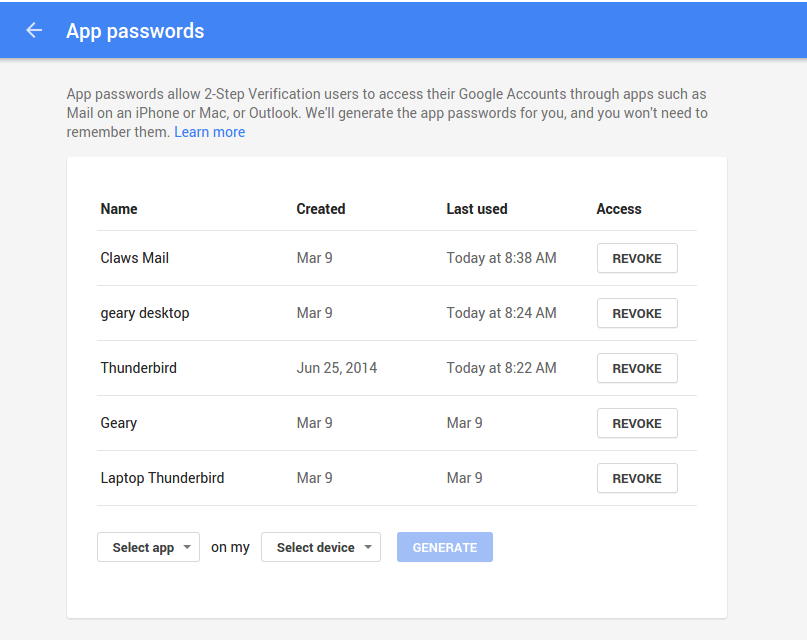
Now that you have your 16-digit app password, here are the steps for connecting Geary with your Google Mail account:
Open Geary
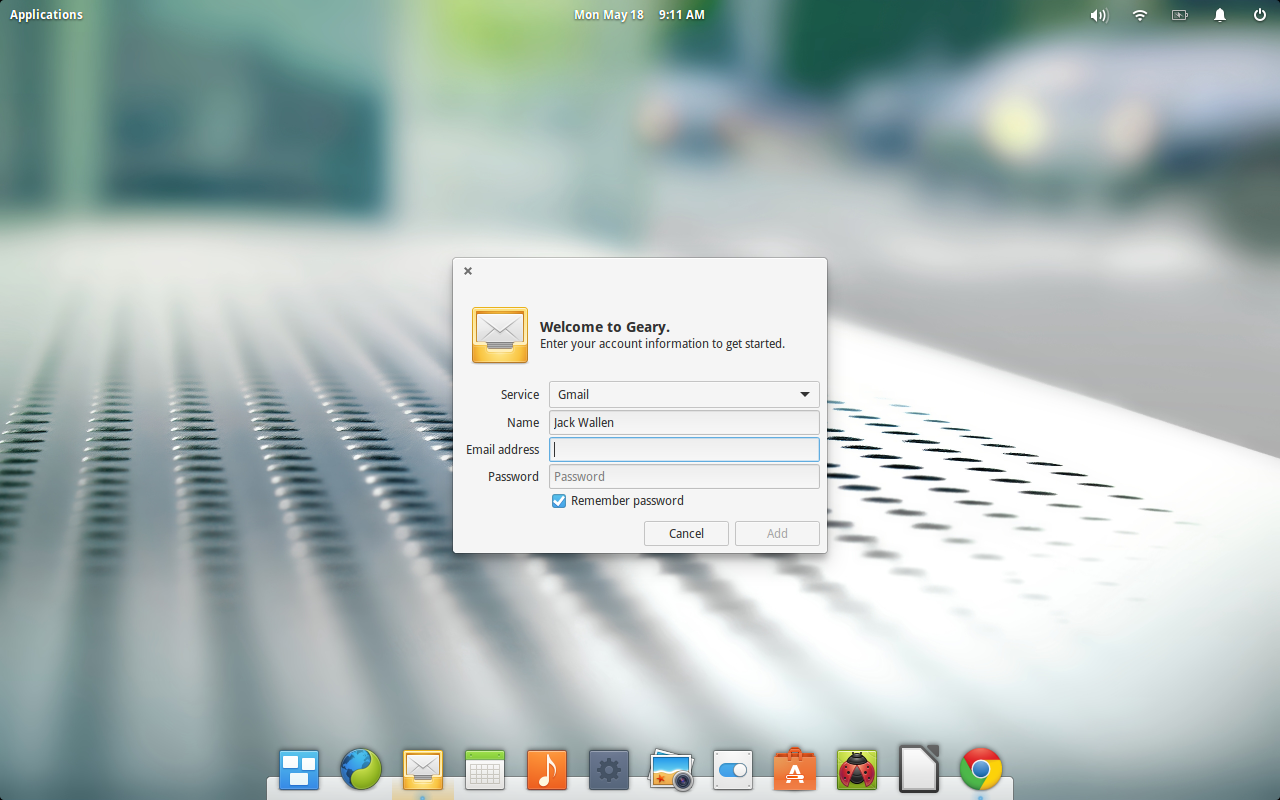
When prompted (Figure 3), select Gmail from the Service drop-down
Enter the details for your Google Mail account (using the app password instead of your standard Google password)
Click Add.
Geary should now automatically open up to your Google Mail account (Figure 1, above), ready for use.
Once you’ve setup an initial account, you can easily add more accounts. Let’s add an IMAP account to Geary. Follow these steps:
Open Geary
Click on the Gear icon (upper right corner)
Click Accounts
Click the + button
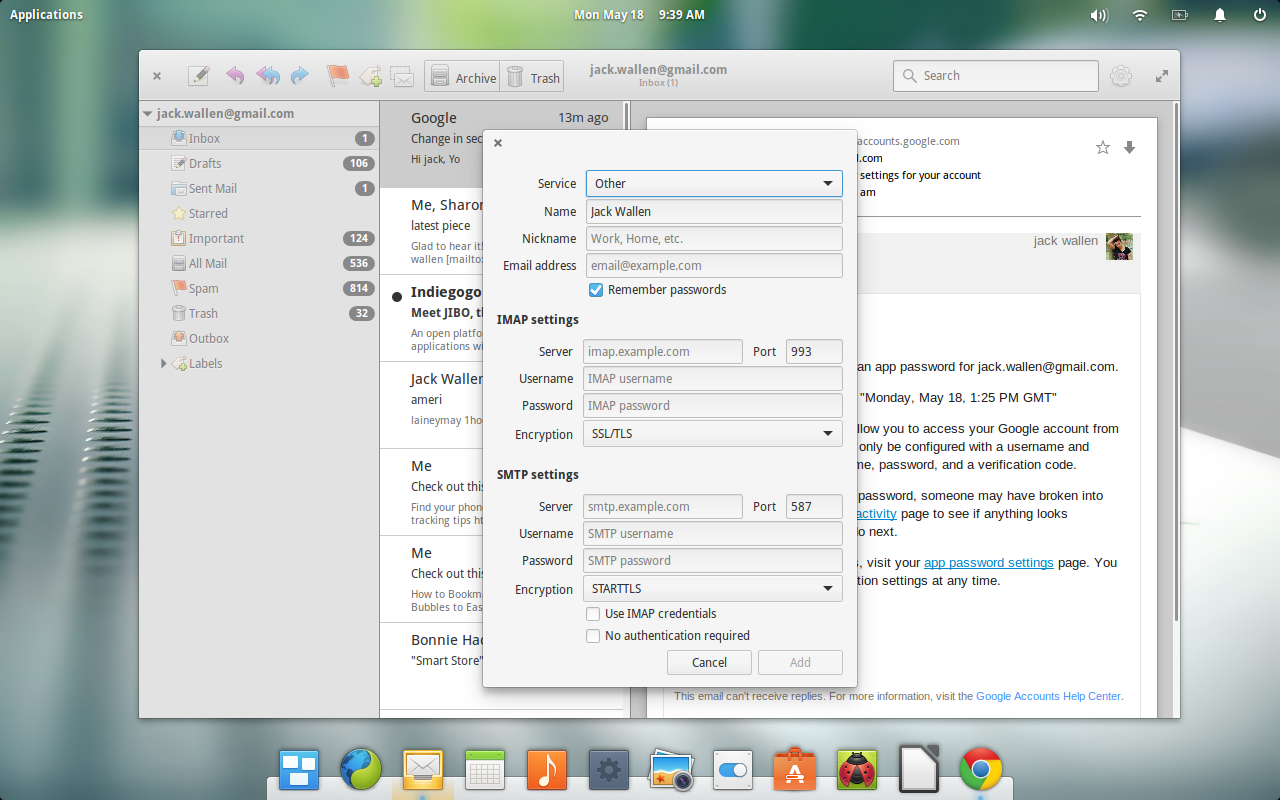
Select Other from the Service drop-down
Fill out the details for your IMAP account (Figure 4)
Click Add when finished
As you might expect, using Geary is about as simple as it gets. There are no surprises, gotchas, or tricks. All emails are viewed in conversation threading (which makes for much easier viewing when an email has gone back and forth numerous times). You can star an email for easier filtering. To do this, simply hover your mouse over a particular email (in the middle pane) and then click the star when it appears (Figure 5).
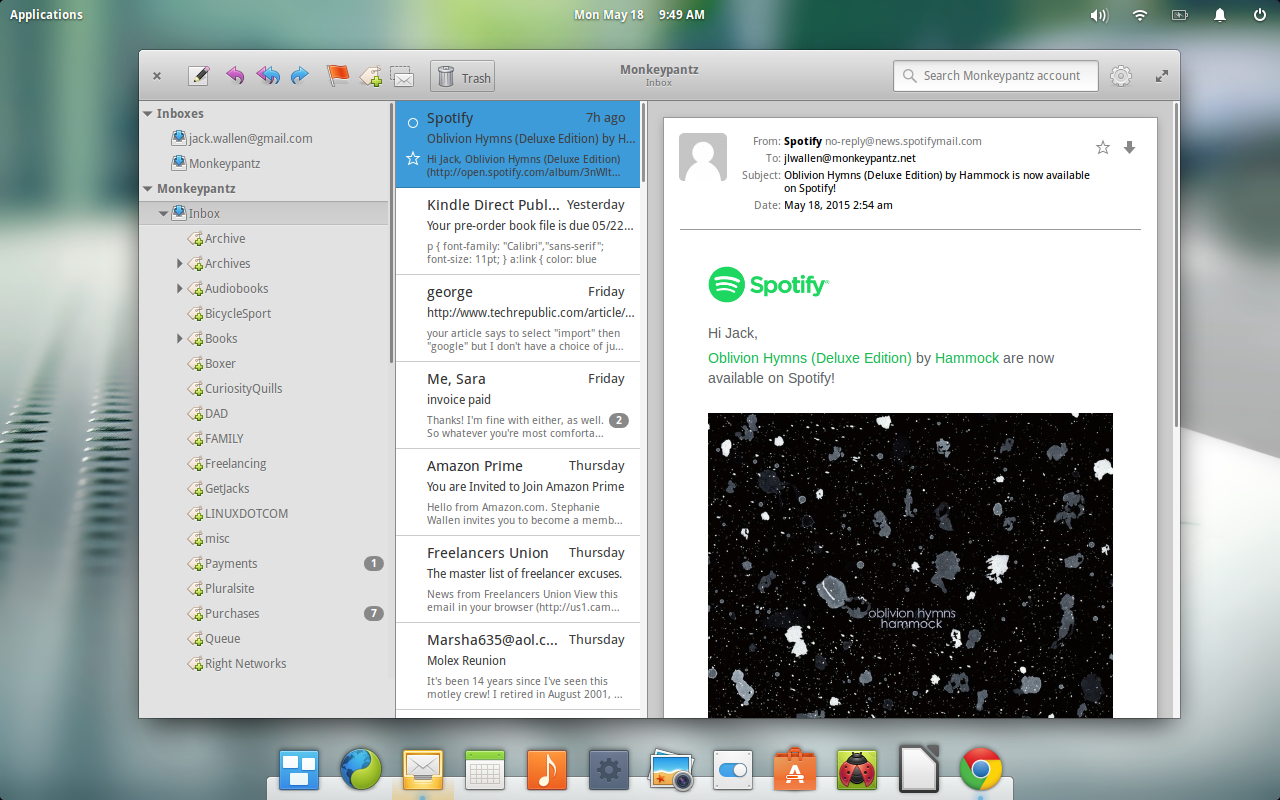
There’s one caveat with the starring system—it only works with supporting services. In other words, your IMAP email probably won’t support starring. If you’re working with Google Mail, you’re in luck. You can star an email and then select the Starred listing under Inbox to display only those emails you have starred.
You’ll find a scant-few more tricks up Geary’s sleeve—but not much more (and it’s all very intuitive).
If you’re looking for a change from the old email client, and you want something that doesn’t require much in the way of thought or effort (outside of creating an app password for Google Mail), give Geary a go. I’m fairly confident, even while still in its infancy, it will quickly win you over as your go-to email client.
When the Large Hadron Collider (LHC) starts back up in June, the data collected and distributed worldwide for research will surpass the 200 petabytes exchanged among LHC sites the last time the collider was operational. Network challenges at this scale are different from what enterprises typically confront, but Harvey Newman, Professor of Physics at Caltech, who has been a leader in global scale networking and computing for the high energy physics community for the last 30 years, and Julian Bunn, Principal Computational Scientist at Caltech, hope to introduce a technology to this rarified environment that enterprises are also now contemplating: Software Defined Networking (SDN). Network World Editor in Chief John Dix recently sat down with Newman and Bunn to get a glimpse inside the demanding world of research networks and the promise of SDN.
Can we start with an explanation of the different players in your world?

Harvey Newman, Professor of Physics at Caltech
NEWMAN: My group is a high energy physics group with a focus on the Large Hadron Collider (LHC) program that is about to start data taking at a higher energy than ever before, but over the years we’ve also had responsibility for the development of international networking for our field. So we deal with many teams of users located at sites throughout the world, as well as individuals and groups that are managing data operations, and network organizations like the Energy Sciences Network, Internet2, and GEANT (in addition to the national networks in Europe and the regional networks of the United States and Brazil).
Read more at Network World.
 Cinnamon developers have just released a new version of the desktop environment today, 2.6.3. The packages are now available for testing in Linux Mint 17.1 and Linux Mint Debian 2, via the Romeo unstable repository.
You might wonder why a stable release of the software is available in the unstable repositories and why it isn’t pushed in the regular repos so that everyone can enjoy it. Well, the short answer is that even if something is dubbed stable, you can’t really know i… (read more)
 The first edition of Linux Mint Debian will reach EOL status (end of life) in January, 2016, and users have been advised to upgrade their systems as soon as possible.
Linux Mint Debian is just another member of the Linux Mint family, but it’s based on Debian (as the name suggests) and not on Ubuntu, like the rest of them. The Linux Mint developers have been working on the Debian edition for some time, but it’s still not as widely used as the regular flavor. That doesn’t mea… (read more)

In my previous article, 8 Linux file managers to try, I compared a number of file managers, but there was not enough space to go into detail about any of the several file managers that I mentioned briefly. This article will delve a bit further into Midnight Commander, and I plan to write more to cover some of the other file managers in more detail.