Home Blog Page 1371

Let VLC be your Media Manager on Ubuntu based systems

VLC is a must-have media player if you are using Linux for your entertainment needs. When it comes to PC entertainment, it’s good to have a program that handles most of your needs. VLC has multiple tools for a good video playback experience. There is something new to learn the more you use it. More importantly, it gives its all when reading removable media.

Options are big sellers and VLC lets the user choose what is best. You will soon find out that VLC does not like to be picky when it comes to using it on different operating systems. Not sure if your file will be readable on more than one system or by more than one application? Use VLC to convert any media file type to another. Instead of just playing movies, create your own movie using VLC’s “Capture Mode” method. The clearer the video that more enjoyable it is. There are options of changing video views using the “Aspect Ratio” function. Audio quality is also important. With VLC, surround sound is just a few clicks away. Another benefit of VLC is its assistance in education. You will soon learn how to recognize physical devices on your system. Like a wallet, don’t go anywhere without VLC.

I have used VLC on Windows during my days with Microsoft. As it was then as it is now, it is rock solid. I was more then pleased when VLC was available for one of my favorites of Linux operating systems, Ubuntu. When it comes to choosing a media player, I look for a program with stability, flexibility, able to read multiple media file formats, has a plethora of configuration options, and can be used on any desktop operating system. With VLC installed, I get just that, all-in-one.
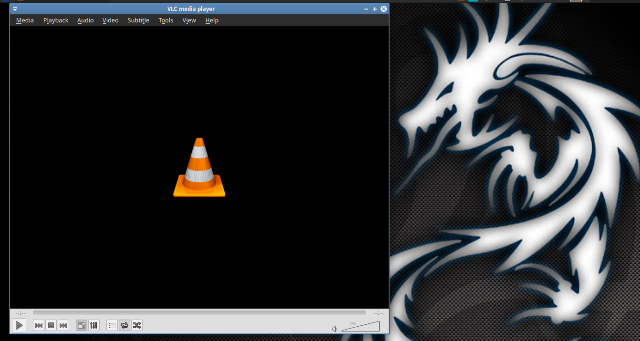
 

VLC installed on xubuntu 14.10 32bitVLC installed on xubuntu 14.10 32bit

 There is nothing wrong with the simple “click-n-play” method. Wish life was as simple as “yes or no”. VLC speaks two languages, the second being, “what else can I do for you?”. If your DVD or Audio CD is detected properly, all is left is a simple click of the play button and chowing down some butter soaked popcorn. If you have videos and music stored in a folder on your hard drive or a flash drive, then open the “Media” menu and navigate to their location.

Once you insert your removable media device (disc or thumb drive), open up VLC, and press the play button. If your media does not play automatically, an “Open Media” window appears asking you to choose the type of file, or removable media to run. 
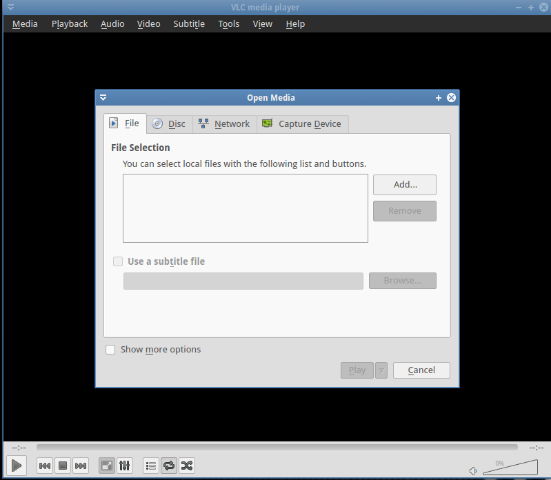
Open media selection windowOpen media selection window in VLC vesion 2.1.4 on Xubuntu 14.10

If you want to play a DVD, click the “Disc” tab and select the type of media disc you have in your disc
drive, DVD or CD-ROM. You will notice that all DVDs, BlueRays and VCDs are labeled as
“/dev/dvd”. Audio CDs are marked “/dev/cdrom”. If your removable media discs are any of these,
you should choose accordingly. If for some reason, VLC cannot find any device files labeled “/dev/dvd” or “/dev/cdrom”, then type “/dev/sr0”, which is your system’s actual physical disc drive, in the “Disc device” textbar.

If you like making videos of yourself, VLC can do that. There is an option under the “Media” menu named “Capture Video”. Facing your PC’s camera, record what you are doing live for a project or just for fun. If you are not comfortable being in front of a video cam, this is be a good way to practice.

The “Capture Mode” drop down menu allows you to choose the types of videos to create. The first selection, “Video for Linux 2”, is where you create a video file using a camera and a sound capture device if you have one.

A hidden benefit of VLC is its commitment to education. For example, you will soon learn where devices are stored on a Linux system and how they are labeled.

To create a video using a camera, you want to choose the “Video for Linux 2” option next to “Capture mode”. Choosing a device to capture video, VLC had the default option “/dev/video0”(this is my laptop’s embedded webcam), and the device to capture audio input “hw:1,0”. I am starting to learn how Linux labels devices.

https://www.youtube.com/watch?v=i3ezD_O2EXo?rel=0″ allowfullscreen=”true” frameborder=”0″ width=”325

A complement to the wide-screen view is the surround sound. You hear everything from the flow of water to the drop of a needle. VLC handles surround sound automatically but there is an option that allows you to experience surround sound using a pair of headphones. Once set, and you have a good pair of earphones, you may make the mistake of thinking you really are at the theater. 

Go to “Tools”, click on “preferences” and select “Audio”. Scroll down until you find “Dolby Surround” and click the option for “Headphone surround effect”. Hope your ears are ready. 
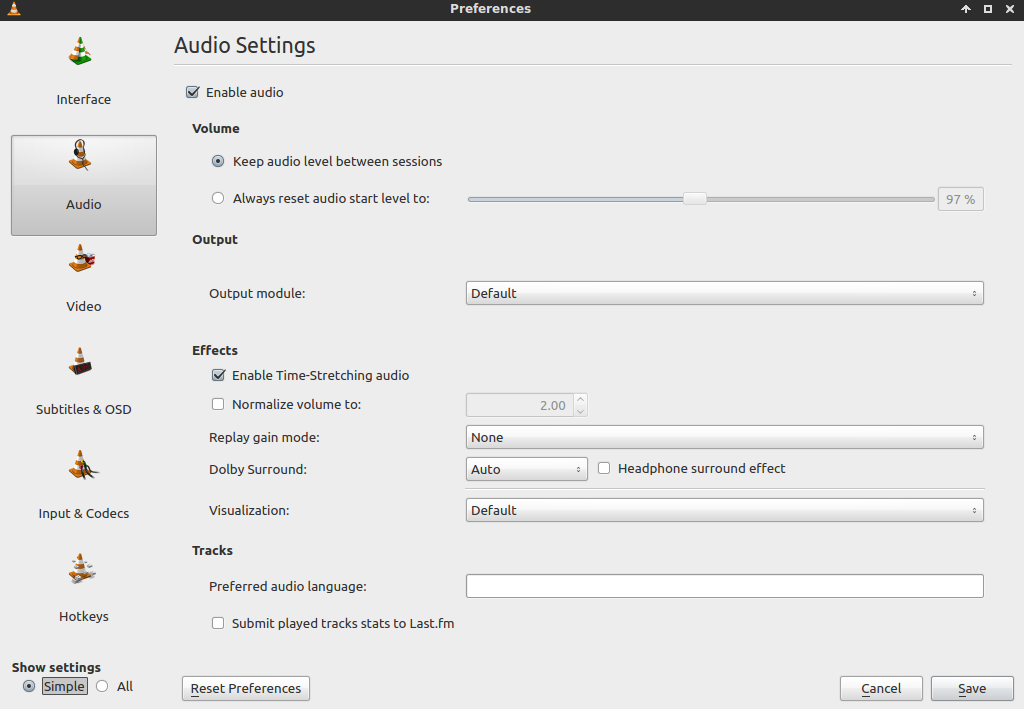
vlc headphone surround sound


This is one of my favorites of VLC. You can convert media files to different types. There are multiple media file formats in daily usage. VLC will allow you to convert media files to different formats for use on different systems.

Click on “Media” and click “convert/save. The “Open Media” window appears. You can choose a file or a media disc to convert. If a file, then navigate to its location. Once selected, click the “convert/save” button at the bottom of the window.   
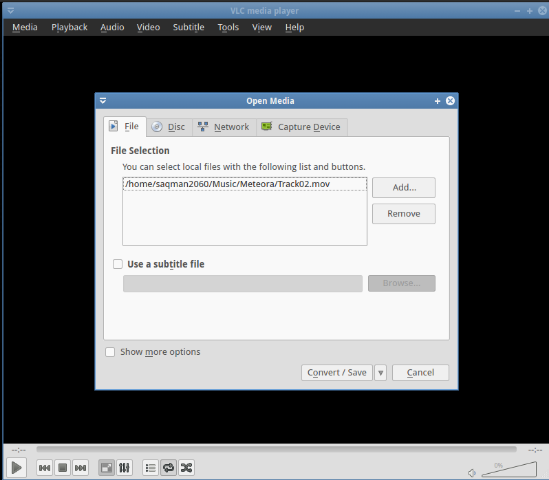
selecting a file to convert


You are then taken to the another window where you choose a new file format. Scroll down the list. You will be surprised at what file formats that you can use. 
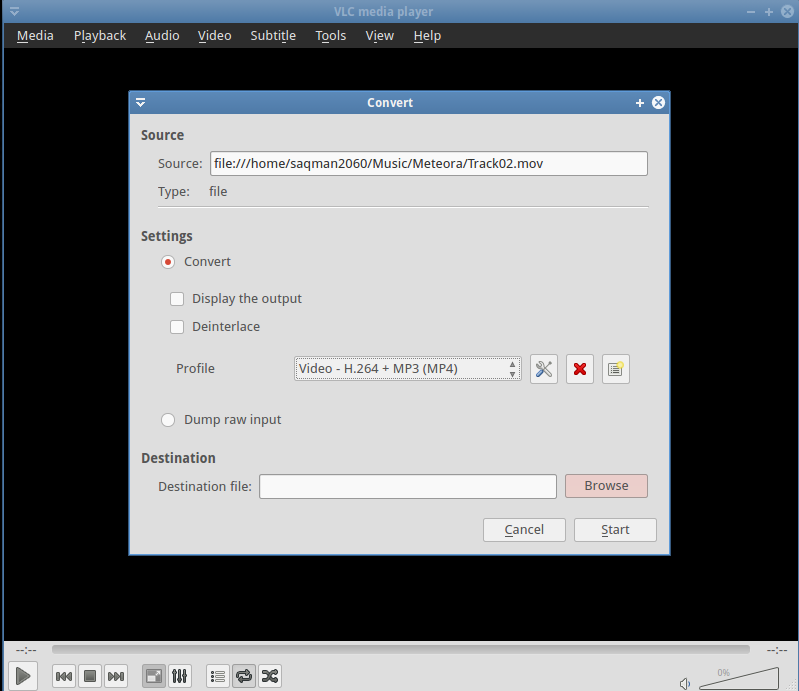
converting the file

Select the type of file format you want next to “Profile”. Select the destination where you want to store the new format and press “Start” . You can convert files to work for Android, iPads, and Youtube for instance. Did I mention All-in-One? Yes I did.

Note: VLC is capable of reading most media file formats.

VLC is loaded with lots of cool functions to make the most of entertainment. Entertainment is at the
preference of the user. VLC is about preference. Life is much better when everyone can enjoy it in their
own way. Having a program that is not flexible and breaks often is not a program worth having regardless of how many controls it has. Putting anything on your system, make sure it is flexible and can stand the test of time. I have been using VLC since 2005, and I have never been more happier. There are a few lessons to learn from VLC when it comes to choosing good multimedia applications. The application must be able to perform at a satisfactory level for the user. The majority of the user’s needs must be met. There should be nothing restricting the user to explore other options. The program should be compatible with other operating systems and able to read more than one multimedia file format. You should always have a solid foundation to stand on. VLC can be such a foundation.

Sony Open-Sources A Universal Game Level Editor

Sony has open-sourced “LevelEditor”, a level editing application for game levels that can be adapted to work with any game engine and uses a nice WYSIWYG interface…

Read more at Phoronix

AMD Releases Updated Catalyst Linux Graphics Driver (v14.30)

Those dependent upon AMD’s proprietary Linux graphics driver have a new Catalyst update to play with today…

Read more at Phoronix

Asus Adds Zen to the Android Wear Smartwatch

Promises, promises. Asus went into this year’s IFA show in Berlin with the immodest pledge of revealing the best looking Android Wear smartwatch to date. Featuring a curved 2.5D design on the front and a stainless cover on the back, its newly announced ZenWatch emphasizes style above all else. Its price also isn’t bad, coming in at 199 euros, and it has a set of high-quality internal components, too — including a 1.6-inch AMOLED display, 4GB of storage and 512MB of RAM, and the same Qualcomm…

Continue reading…

Read more at The Verge

Bringing New Security Features to Docker

In the first of this series on Docker security, I wrote “containers do not contain.” In this second article, I’ll cover why and what we’re doing about it.

read more

Read more at OpenSource.com

IT Jobs’ Big Threat: Robots, Automation; The Solution: More Humanity

For IT workers, the worry of becoming obsolete is constant. Toss in automation, robotics and artificial intelligence and many tech tasks won’t need humans. Is there any wonder why IT is trying to learn more human and interpersonal skills to move up the food chain?

Sony Backs AllSeen Alliance in Internet of Stuff Standards Slap-Fight

Joins Microsoft, Qualcomm against Intel and Samsung so everyone can get along

Sony has cast its lot with the AllSeen Alliance in the ongoing standards squabble over the pervasive-computing future tech known as the Internet of Things (IoT).…

Read more at The Register

Nine Reasons to Attend Xen Project User Summit

Xen-user-summit

Some claim that the age of virtualization is now past. However, nothing could be farther from the truth. And this year’s Xen Project User Summit will highlight many of the newest advances in virtualization. If you use the Xen Project Hypervisor — or if you are simply evaluating your virtualization alternatives — join us in New York on September 15!

This year’s event focuses on a number timely topics, including:

1. The New World of Unikernels

Some of the hottest technologies in the world of virtualization are the unikernels. Small, lightweight, and secure, unikernels will power a new type of cloud. Allowing for hundreds, or even thousands, of VMs per host, unikernels will allow us to develop exciting new visions of the cloud. Hear from the creators of such notable entries like OSv and HaLVM.

2. The Latest about Xen Project in OpenStack and SUSE Cloud

Many organizations are making plans for clouds based on OpenStack. Now is an excellent time to see how SUSE Cloud can leverage Xen Project software to make those plans become a reality.

3. New Features Coming in Xen Project 4.5

Some mature projects slow down development as they age. But not Xen Project! Our upcoming release has the longest list of new features we’ve seen in years! Get the lowdown on what changes are coming, so you can start making plans. Plus, we’ll hear about the latest news from the Board of Advisors.

4. Improving Security

You can’t get serious about the cloud without addressing security. Learn about the Advanced Security features of Xen Project as well as the Zazen security architecture. And hear about the case study describing the deployment of Xen Project-powered security devices.

5. Upcoming From the XenServer Project

Last summer marked the birth of the Open Source XenServer project. For years, XenServer has been a very popular commercial product which leverages Xen Project software. Now learn what’s planned in the next iteration of XenServer.

6. The Newest From Xen Orchestra

There are a number of other software projects in the Xen Project ecosystem. One of the most exciting is Xen Orchestra, a web-based GUI for XAPI and XenServer.

7. The Latest from Xen4CentOS

Last year, Xen Project was re-integrated into CentOS 6 via the Xen4CentOS effort. Learn how to use Xen4CentOS and hear what’s coming in the new CentOS Virtualization SIG.

8. And the Future Development for High Availability

There’s plenty more in development at Xen Project. Still under development is COLO, an effort to bring high availability to VMs using lock-step failover. Hear about the status of this project while it is still cooking.

9. All From the Mouths of Industry Leaders and Innovators

Many of our presenters are from industry leaders like Oracle, Intel, Citrix, Red Hat, and SUSE. But we also have people from up-and-coming organizations like Cloudius Systems, Galois, Vates, Zentific, and Sound Linux Training.

For the schedule and registration information, please visit the Linux Foundation Events website. And we hope to see you in New York!

The GNOME Foundation’s 2013 Annual Report

The GNOME Foundation has put out its annual report for 2013 as a 24-page PDF file. “As you will see when you read this annual report, there have been a lot of great things that have happened for the GNOME Foundation during this period. Two new companies joined our advisory board, the Linux Foundation and Private Internet Access. The work funded by our accessibility campaign was completed and we ran a successful campaign for privacy. During this period, there was a fantastic Board of Directors, a dedicated Engagement team (who worked so hard to put this report together), and the conference teams (GNOME.Asia, GUADEC and the Montreal Summit) knocked it out of the park. Most importantly, we’ve had an influx of contributors, more so than I’ve seen in some time.“

Read more at LWN

How Elizabeth Joseph Became a SysAdmin on HP’s OpenStack Infrastructure Team

Elizabeth Joseph profileBefore Elizabeth Joseph began her career as a system administrator, she was a hobbyist who attended a lot of Linux Users Group meetings in her hometown near Philadelphia. Now she’s an automation and tools engineer at HP, working on the OpenStack infrastructure team and recently co-authored the latest revision of The Official Ubuntu Book.
“I really love it,” said Joseph, one of two winners in the Linux Foundation SysAdmin Day contest, announced in August.

When Joseph started using Linux in 2001 she was working as an accountant who played around with computers in her free time – building websites, setting up Apache servers and email, and writing Linux tutorials. Then in 2006 a tech services provider from her Linux Users Group asked her to take a contracting role as a junior admin. For a while she held down two jobs: accountant by day, admin by night.

“At the time I wasn’t sure if I wanted to be a developer or sysadmin, but it really grabbed my interest,” she said. “I like the engineering – building infrastructure to solve a problem. It’s exciting when you build the system and it works.”

She decided to make the career change and became a full time admin at LinuxForce where her boss allowed her to continue her open source contributions to Debian and Ubuntu. But after six years she felt like she was outgrowing that job and started looking for a position that would combine her two passions: open source software and system administration. She reached out to her contacts in the open source community and heard about an opportunity at HP.

“I didn’t know a lot about OpenStack but I’ve learned a lot in the year and a half I’ve been here now,” Joseph said.

Working on an open infrastructure team

Though there are similarities to her former job, maintaining OpenStack infrastructure is very different. One big change, she says, is that her clients aren’t your average consumer, but developers working on OpenStack.

“Developers tend to be slightly more forgiving when things go down because they understand portions of the openstackinfrastructure and they understand what’s going wrong,” she said.

And when something does go wrong the OpenStack team has admins around the world who can respond; no more middle of the night pager calls.

But perhaps the most significant difference between her old job and the new one at HP is that, just like the OpenStack code itself, the project’s infrastructure is completely open. Anybody can make changes to it by submitting a patch, which then goes through OpenStack’s peer review process using the Gerrit code review tool.

“At my old job, in the morning we’d do basic triage, and have meetings to talk things through, and we’d go off and fix things. We didn’t have a configuration management system; we trusted each other to do things well,” she said. On the OpenStack infrastructure team, “we’re all doing code reviews for each other’s changes and chat about them on IRC; that’s how we communicate everything. We’re all supporting each other’s projects.”

The admins work collaboratively, oftentimes with the project’s developers, to build and maintain new systems. OpenStack’s infrastructure is, she says, “collaborative by default.”

“Since we work with developers, giving them the ability to write patches on our infrastructure has been really powerful – even though they’re not sysadmins they can help us,” she said. “Rather than say “We don’t have time to fix that,” we say “Why don’t you write something and we’ll review it?”

There are a few things they can’t do through code review, such as big upgrades, she said. But even then the team is working together through the upgrade, troubleshooting and suggesting commands over IRC.

How to Get Hired

This open, collaborative approach to IT is becoming more common among open source projects and can be a good way for junior system administrators to gain experience, Joseph said. She recommends becoming a volunteer admin on a project with open infrastructure to help improve your skills and job prospects.

“A lot of people have trouble getting that first experience with actual, real world infrastructure,” she said. “A lot of people who volunteer on these projects end up getting hired.”

Some projects that she recommends for those looking to get involved include:

Debian:https://dsa.debian.org/

Fedora:https://fedoraproject.org/wiki/Infrastructure

Mozilla: https://wiki.mozilla.org/ReleaseEngineering/PuppetAgain

Jenkins: http://jenkins-ci.org/content/come-join-infra-team

And OpenStack http://ci.openstack.org/

For more information on how a system administration career progresses, see the Linux Foundation’s Evolution of a SysAdmin chart.