Most of the buzz around The Cloud is devoted to commercial services such as Google’s online apps, Amazon’s cloud services, and tablets and smartphones that are shortchanged on storage because they want to suck you into commercial cloud services. While commercial cloud services can be convenient, they also have well-known downsides like service outages, and lack of privacy and security. If you live within reach of government snoop agencies (like anywhere on planet Earth), or are subject to laws such as the Sarbanes-Oxley Act (SOX) or Health Insurance Portability and Accountability Act (HIPAA), then you need to keep your data under your control. Which I think is the wisest policy in any case.
ownCloud is the friendliest and easiest private cloud implementation to set up and use. ownCloud 7 was released last week, and this is the most interesting release yet. It is more polished and robust, easier to administer, and the killer feature in this version is server-to-server sharing. This lets you easily connect your ownCloud file shares and build your own private cloud of clouds. And then, someday, rule the world. Or, just share files.
Installating ownCloud
ownCloud is nicely documented, which is nearly all I need to love it. Imagine a software product that actually wants you to be able to use it; an astonishing concept, to be sure. There are multiple installation methods documented in the ownCloud Administrators Manual, including a detailed how-to on installing it from scratch. The nice ownCloud peoples use the openSUSE Build Service to build binary packages for Ubuntu, CentOS, Debian, Fedora, openSUSE, Red Hat, and SUSE, which is what I use. This is how I installed it on my test Ubuntu 14.04 server.
First fetch and install the GPG signing key for the openSUSE repository for your Linux distribution. Note that each command must be one unbroken line, with no newlines:
$ wget http://download.opensuse.org/repositories/isv:ownCloud:community/xUbuntu_14.04/Release.key
$ sudo apt-key add - < Release.key
Now add the repository, update your package list, and install ownCloud:
$ sudo sh -c "echo 'deb
http://download.opensuse.org/repositories/isv:/ownCloud:/community/xUbuntu_14.04/
/' >> /etc/apt/sources.list.d/owncloud.list"
$ sudo apt-get update
$ sudo apt-get install owncloud
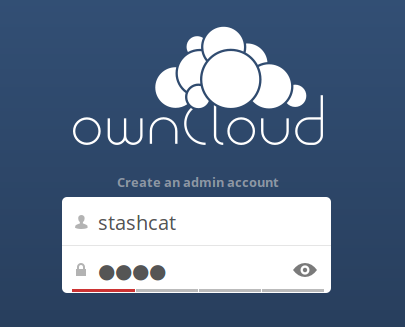
If you don’t already have a LAMP stack installed, the installer will pull it in for you. When installation is complete open a Web browser to http://localhost/owncloud, and you will see the nice blue ownCloud installation wizard. Your first task is to create an admin user, as in figure 1. Click the eyeball to expose your password, which you’ll probably want to do so you know what you typed.
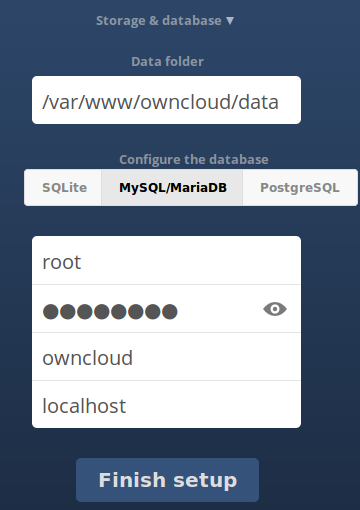
Next, you have some database options. If you go with the default SQLite you don’t have to do anything except click the Finish Setup button. SQLite is fine for lightweight duties, but if you have busier and larger workloads then use MariaDB, MySQL, or PostgreSQL. The wizard displays a button with these databases whether they are installed or not, so make sure the one you want is already installed, and you have an administrator login. I chose MySQL/MariaDB (Ubuntu defaults to MariaDB). You can give your new database any name you want and the installer will create it (figure 2). You must also pass in your database administrator login.
And that’s it. You’re done. ownCloud 7 is installed. Click the Finish Setup button and you’ll be greeted with a cheery “Welcome to ownCloud!” banner, with links to client apps for desktop computers, Android devices, and iDevices. ownCloud supports multiple clients: you can use a Web browser on any platform, or download client apps for more functionality such as synchronization and nicer file, contacts, and calendar management.
Setting up Server-to-Server Sharing
And now, the moment you’ve been waiting for: setting up server-to-server sharing. This works only with ownCloud servers that have this feature, which at the moment is ownCloud 7. You need two ownCloud 7 servers to test this.
Before you can share anything, you need to set your server’s hostname as a trusted ownCloud server domain. Look for this section in /var/www/owncloud/config/config.php:
'trusted_domains' =>
  array (
    0 => 'localhost',
 ),
/var/www/owncloud/config/config.php is created by the installation wizard. See /var/www/owncloud/config/config.sample.php to see a complete list of options.
By default your ownCloud server only lets you access the server via domains that are listed as trusted domains in this file. Only localhost is listed by default. My server hostname is studio, so if I try to log into ownCloud via http://studio/owncloud I get an error message: “You are accessing the server from an untrusted domain.” This example allows connections via localhost, hostname, and IP address:
'trusted_domains' =>
  array (
    0 => 'localhost', 1 => 'studio', 2 => '192.168.1.50',
 ),
If you forget to create and use these trusted domains, you won’t be able to set up network file shares.
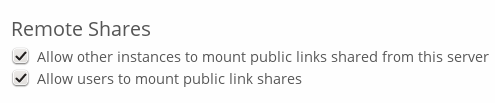
Next, go to your ownCloud administration page, which you can find by clicking the little arrow next to your username at the top right, and click Admin. Make sure that Remote Shares are enabled (figure 3).
There is one more important step, and that is to enable mod_rewrite on Apache, and then restart it. This is what you do on Ubuntu:
$ sudo a2enmod rewrite
$ sudo service apache2 restart
If you don’t do this, your share will fail with a message like “SabreDAVExceptionNotAuthenticated: No basic authentication headers were found” in your ownCloud server log.
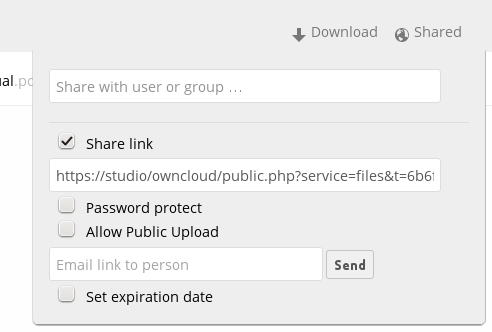
Now you must log into either http://hostname/owncloud, or http://ip-address/owncloud. Create a new directory and stuff a few files into it. Then click on Share. Click the Share Link checkbox, and it creates a nice URL like http://studio/owncloud/public.php?service=files&t=6b6fa9a714a32ef0af8a83dde358deec (figure 4). Remember that bit about trusted domains? If you forget to connect to your ownCloud server with them, and instead use http://localhost/owncloud, the share URL will be also be http://localhost/. Which is no good for sharing.
You can optionally set a password on this share, an expiration date, allow uploads, and send an email notification. Configuring ownCloud to send emails requires a bit of configuration, so please consult the fine Administrator’s manual to learn how to do this.
Connecting to a New Share
The easy way to test connecting to a new share is to open a second browser tab on your first ownCloud server. Copy the share link into this tab, and it will open to your share. Then click the Add to your ownCloud button (figure 5), and enter the address of your second ownCloud server. In my test lab that is stinkpad/owncloud.

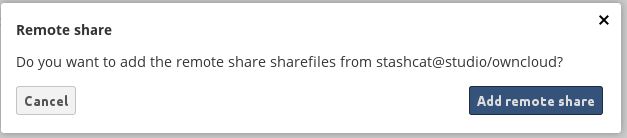
If you’re not already logged in you’ll get the login page. After logging in you’ll be asked if you want to add the remote share. Click Add Remote Share, and you’re done (figure 6).
Congratulations. You have linked two ownCloud servers, and now that the grotty setup work is done, creating more is just a few easy mouse clicks.