
When we consider the Linux desktop, most often GNOME 3, Ubuntu Unity, KDE, Cinnamon, and XFCE come to mind. Those desktops range from the old-school functional to the new-school modern. Each has its strengths and weaknesses along with a vocal following to give it a push into the eyes of the public. For the most part, we use one of those desktops with little thought to making a switch. That’s been my modus operandi for the longest time. Ubuntu Unity has been my desktop. I enjoy its combination of efficiency, powerhouse search, and modern flare.
But then along comes LinuxDeepin, a distribution from China that looks to upturn the Linux desktop with an almost Apple-like sensibility. Linux Deepin offers a keen UI design that outshines most every desktop you’ve experienced. Along with that total redesign of the UI, comes a few bonus apps that might easily steal the show from most default apps.
The second you boot up Linux Deepin, and are greeted with the animated starscape login screen, you know you’re working with something a bit different. But what makes this relative newcomer so special? Let’s examine some of the pieces that set Linux Deepin apart.
There are primarily three aspects of Linux Deepin you’ll want to get to know:
-
Desktop
-
Control Center
-
Deepin Apps.
Let’s look at each.
Deepin Desktop
The Linux Deepin desktop consists of two major parts: Dock and Launcher.
Although each are, fundamentally, straightforward, you’ll find minor additions that make the Deepin Desktop a thing of elegance and simplicity. Before we get into those pieces, let’s look at the whole.
First, the Launcher. If you’ve ever used GNOME 3.x, you’ll be immediately familiar with the Deepin Launcher. However, the Deepin Launcher doesn’t include all of the bells and whistles within GNOME 3. Instead, Deepin opts for ease of use. The Launcher can be opened by either hovering the cursor in the upper left hot corner, or by clicking the Super (or “Windows”) key. When the Launcher opens, you’ll be greeted by the Favorites menu (Figure 1).
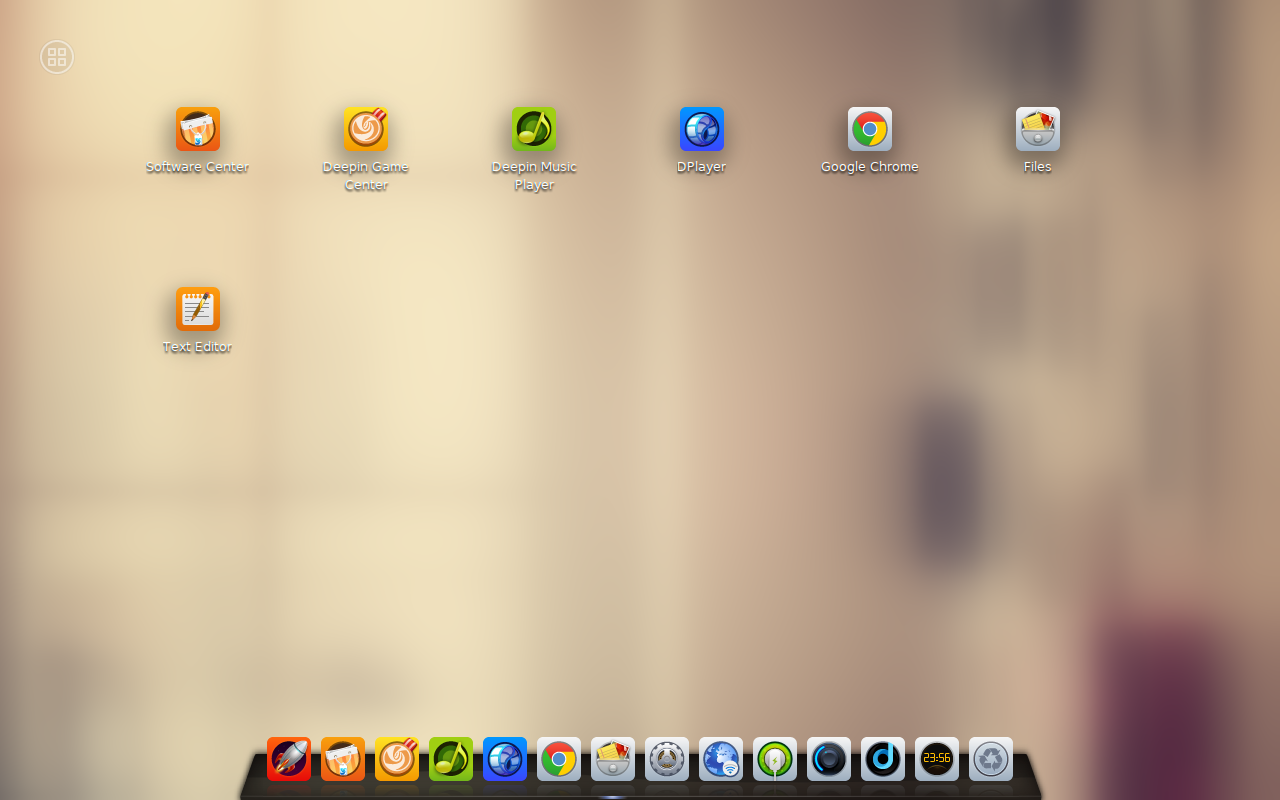
Adding applications to the Favorites menu is a simple matter of right-clicking an app launcher and selecting Add to Favorites. But…how do you reach the installed apps? With the Deepin Launcher opened, click on the upper left corner (four small squares in a circle). This will reveal the app categories (Figure 2).
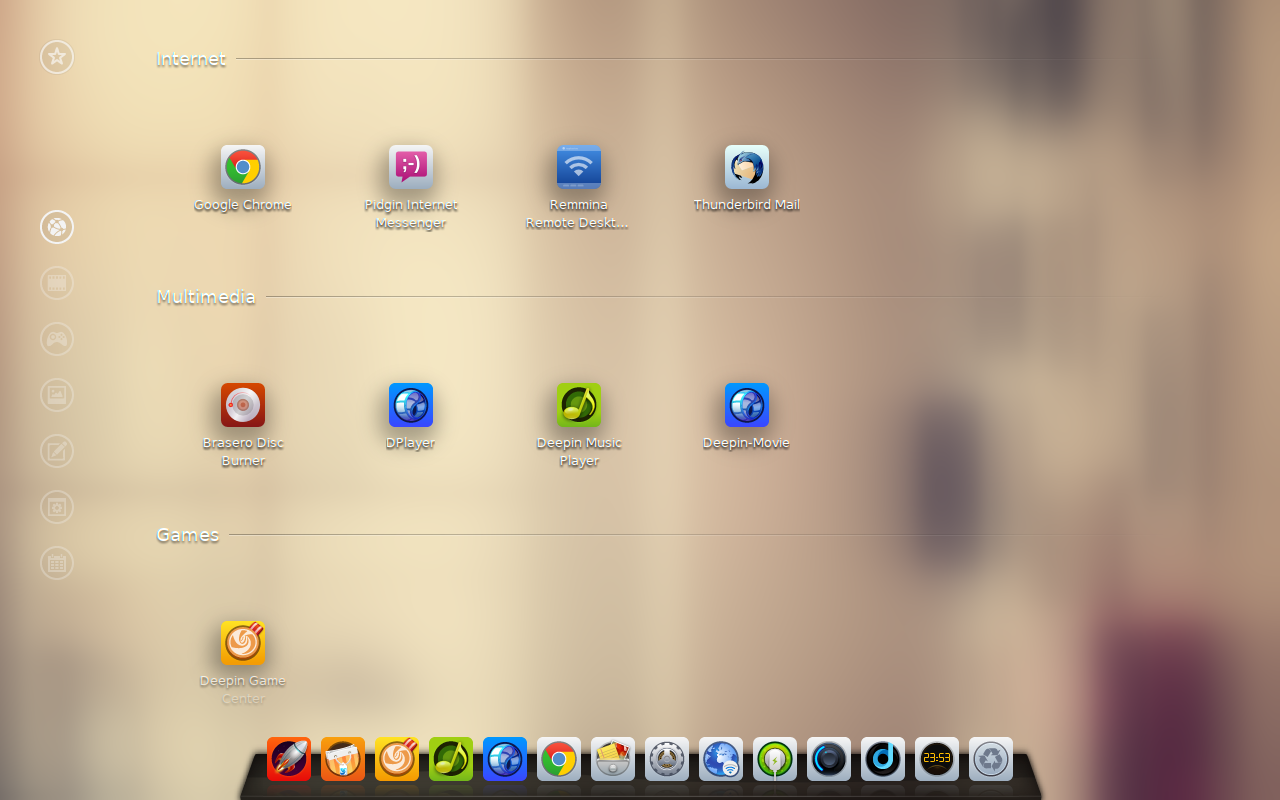
You can either scroll through all of your installed apps, or click on a category on the left edge of the Launcher. The categories are locked (so you cannot edit them). I did a test to see how the Launcher handled newly installed apps. I wasn’t at all surprised icons were automatically added when installing from the Deepin Software Center. I was, however, pleasantly surprised to see the Deepin Launcher automatically add an icon for an app installed via command line (app tested was Calibre).
One added feature to the Launcher is a search. There is no visible sign that a search exists; but if you open the launcher and type the first few letters of an app’s name, the results will immediately appear.
Dock
The Deepin Dock is fairly straightforward. You can add launchers to the Dock from within the Launcher (right-click and select Send to dock). Launchers can be removed by right-clicking a launcher on the Dock and selecting Undock. A launcher can be moved by clicking on a launcher and dragging it to another spot on the dock.
If you right-click a blank spot on the Dock, three options will appear:
-
Keep showing
-
Keep hidden
-
Auto hide.
As of this writing (beta version of Linux Deepin 2014), the functionality of the Dock hiding is a bit off. The only way to get Auto Hide to work is to select Keep hidden. When that option is selected, the Dock will disappear after a moment of inactivity on the Dock. To get the dock back, simply hover your cursor over the bottom of the screen.
Finally, one of the nicest features of the Dock is that some launchers offer interactive pop ups when you hover over the launcher. For example, the Wi-Fi icon will display all available networks when you hover over the icon.
To connect to a different wireless network, hover over the Wi-Fi icon and select a network from the popup.
Control Center
The Deepin Control Center is one of the finest examples of how to set up a central repository for desktop configurations. If you click on the Control Center icon on the Dock a side-bar will open on the right side of the screen (Figure 3). From this Control Center, you can handle nearly every configuration necessary.
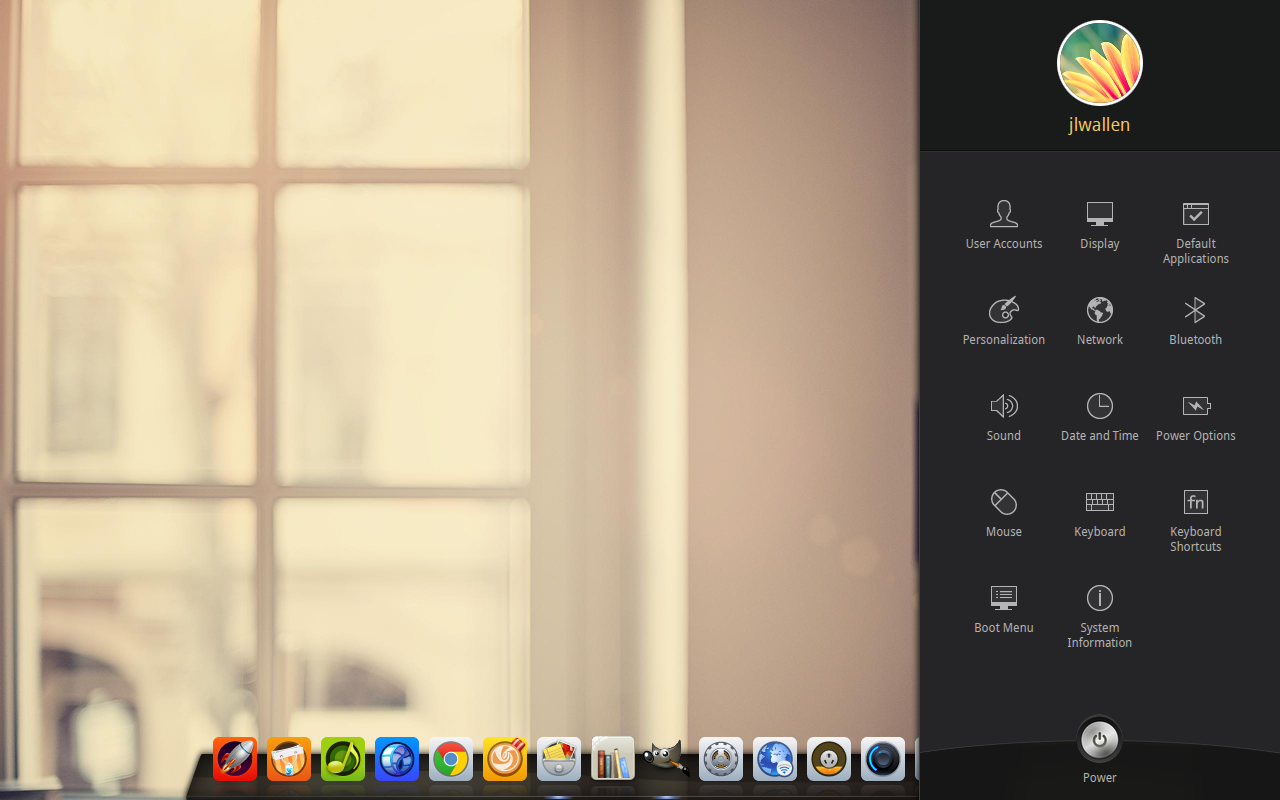
From within the Deepin Control Center, you can configure everything from user accounts to the boot menu. No other distribution (that I have found) offers such a complete control center. You can even drag and drop and image into the Boot Menu for a Startup Screen.
Another incredibly handy tool, within the Control Center, is the Shortcuts tool. From here (Figure 4), you can assign keyboard shortcuts for nearly any action imaginable.
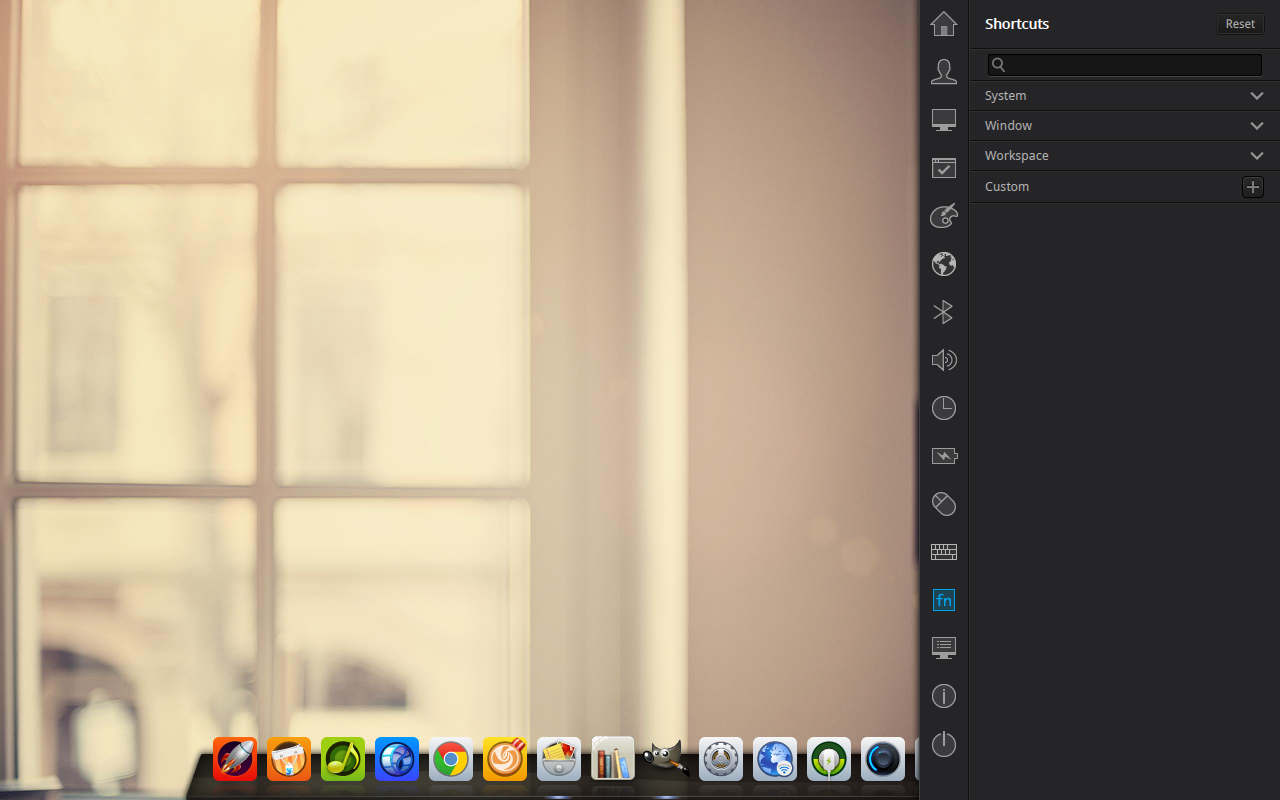
To create a new shortcut, follow these steps:
-
Click the + button associated with Custom.
-
Enter a name for the shortcut.
-
Enter the command for the shortcut.
-
After the shortcut name/command are saved, click Disable.
-
When prompted, input the new shortcut for the command.
-
Test the shortcut.
You can also edit pre-existing shortcuts by following these simple steps:
-
Locate the shortcut in question.
-
Click on the shortcut associated with the app/action/command.
-
Input the new shortcut.
Shortcuts go a long way to make your life far more efficient by eliminating a lot of searching and clicking. Linux Deepin makes creating shortcuts a snap.
Deepin Apps
Finally, we have the Deepin Apps. Included with Linux Deepin you will find the following Deepin-specific apps:
-
Deepin Music Player: Plays Music files
-
Deepin Movie: Plays video files
-
Deepin Game Center: Installs Games
-
DPlayer: Plays DVD/Blue Ray discs
-
DSnapshot: Screenshot tool
-
Deepin Terminal: Terminal app
Surprisingly, each app is of the highest quality and competes with any similar app on any Linux distribution. The one app that you might find a bit spartan in features is the Deepin Music Player. What it lacks in features (such as the ability to connect to external players and connect to streaming music services), it makes up for in usability and stability.
For those that don’t hold the same appreciation for the included apps, a vast repository of ready-to-install apps awaits you in the Deepin Software Center.
If you’re looking for a new Linux distribution, one that combines elegance and user-friendliness, you cannot go wrong with Linux Deepin. When the 2014 release is officially out, I highly recommend you download and install this up-and-coming distribution that is sure to make you question your current choice of desktops.
 While OpenStack tends to draw more buzz among open cloud computing platforms, the Apache Software Foundation