Home Blog Page 1538

Kubuntu 14.04 LTS

Welcome to Kubuntu 14.04 LTS, a brand new Long Term Supported version with the latest KDE software to enjoy.

Long Term Support means bugfixes and security updates will be added for the next 5 years, so you can be safe to use it until 2019. New releases of important KDE Software will also be available from the Kubuntu Updates and Kubuntu Backports PPAs.

Read more at Kubuntu

Six Clicks: Linux Mint Tips and Tricks

Want to get the most out of Linux Mint, one of the most popular of the Linux desktops? Then read on!

How to Install and Try Linux the Absolutely Easiest and Safest Way

In this follow up to Replace the Retiring Windows XP with Linux we’re going learn the easiest and most foolproof way to install and run Xubuntu Linux 12.04 LTS on your old Windows XP computer. The only requirements are that your old computer has USB ports, and that it supports booting from a USB stick. If your computer is too old for USB, then it’s pretty darned old and you really need to think about getting a newer one.

There are but four steps: one, go to OSDisc.com and order Xubuntu Linux on a 32-gigabyte USB stick. Then insert the USB stick into your computer, boot up, and start playing with Linux. It is self-contained and doesn’t change anything on your computer. You can create and save files on the USB stick, install and remove Linux software, and it’s completely portable so you can plug it in and use it anywhere. If you ever get bored with Xubuntu you can delete it and use your USB stick for something else.

Booting to a USB Stick

Ideally your computer is already configured to boot from removable media like USB sticks, CD/DVDs, and even floppy disks if it’s old enough. Boot devices are listed in order in your computer’s BIOS (basic input/output system), for example CD/DVD, USB, and then hard drive. Your computer BIOS is a little program installed in a microchip on your motherboard, and it performs the initial startup before handing off to your operating system. The BIOS goes down this list of boot devices until it finds one that is present, and then uses that.
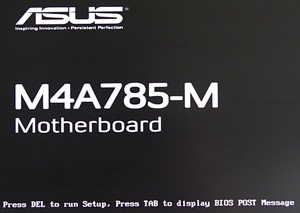
Bios-screen

Watch the boot messages that appear when you first start up your PC and they will tell you how to enter your BIOS, like in figure 1. Then you can see how startup devices are configured. There is no standard way to do this, so you’ll need to press the F1, F2, F11, or Del key to get into your BIOS settings, or possibly even something else; but don’t worry, the startup messages will tell you. Then explore your BIOS settings until you see where to configure the boot device priority (figure 2).
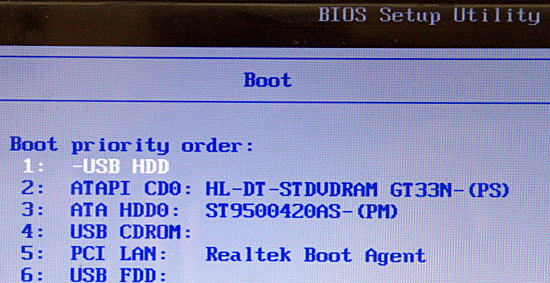
fig-2-boot-order

Don’t worry if your screens don’t look exactly like my examples, because they’re all a little different. Save your changes, if any, and exit, and when your system re-starts it should boot to your Xubuntu stick. The first screen has two choices: Try Xubuntu and Install Xubuntu.
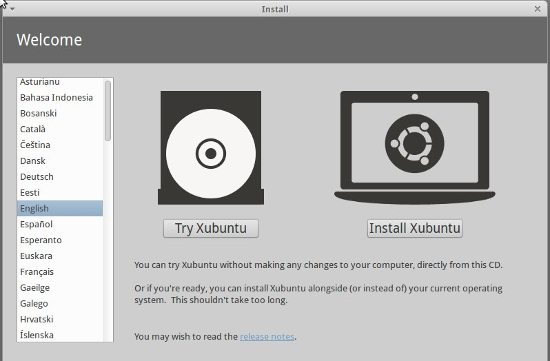
fig-3-try-xubuntu

Click “Try Xubuntu” to run it from the USB stick. When it’s finished booting you’ll see something like figure four.
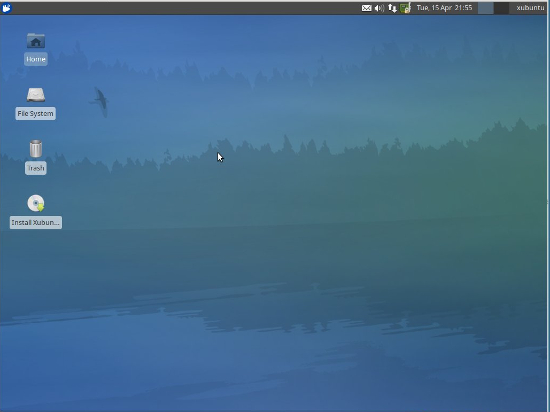
fig-4-desktop-xubuntu

Xubuntu recognizes any other installed operating systems, like Windows and system recovery partitions, and there will be icons for them on your Xubuntu desktop. If you have a recovery partition leave it alone. You can click on the Windows partitions to see your files.

Click the little mouse at the top left to see your application menu (figure 5).
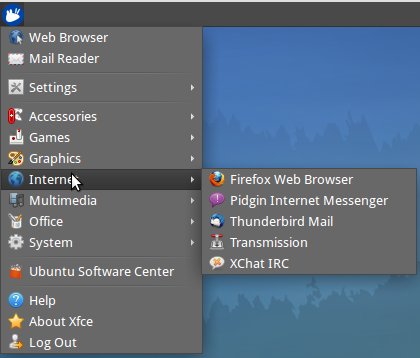
fig-5-app-menu

Hover your cursor at the bottom to see your Xubuntu dock (figure 6). This auto-hides itself when you move the cursor away. If you want it to always be visible, right-click anywhere on the dock, then left-click Panel > Panel Preferences and uncheck “automatically show and hide the panel.”
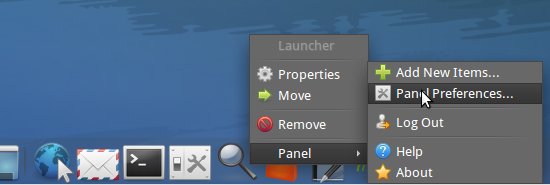
fig-6-panel-prefs

Now that you’re up and running, you’re ready to look at some documentation and learn how to run your nice Linux system. Linux uses right-click menus a lot, so remember this while you’re exploring Xubuntu. Visit Xubuntu.org/help for how to’s and other help resources.

Take your time and be patient. There is no such thing as a dead-easy, no-knowledge-required personal computer. It doesn’t matter what computer you use, whether it’s Microsoft, Apple, Android, Chromebook, Linux, or anything else. They all require knowledge and study. You should know basic computer terminology and components, and basic networking concepts. We still need keyboards, and there are lots of free typing tutors if you need a tune-up. There are zillions of great YouTube videos and online how to articles, and all kinds of books, and maybe some classes in your community. Linux and the free/open source software world offer a vast wealth of high-quality software for free. We’ve had affordable, sophisticated personal computers for over 30 years, and there is a world of knowledge literally at our fingertips. It’s not hard once you move past “I can’t do this.”

About Xubuntu

I chose Xubuntu because it is part of the excellent and popular Ubuntu family of Linux distributions. The 12.04 LTS (long-term support) release, codename Precise Pangolin, receives updates and security fixes until April 2017. The interim releases are supported only for 9-18 months. It’s nice and lightweight for older computers, and it has a good straightforward user interface. The Ubuntu installer is the easiest and most streamlined of any distro, and Ubuntu updates and upgrades are reliable. Ubuntu is popular and has the backing of its parent company Canonical, so it’s not likely to disappear anytime soon. Xubuntu doesn’t look much like Windows XP, but it has the same basic layout: an applications menu, and a panel that shows notifications and open apps. You can find everything with just a little bit of poking around and clicking stuff.

I know, my fellow Linux fans, I know, what about Linux Mint? Mint is a wonderful distro. And so is Mageia, and Fedora, and PCLinuxOS, and openSUSE, and Bohdi, and so many more. Linux is a feast of riches. OSDisc.com offers many Linux distros on USB sticks, so feel free to go nuts and use whatever one you want.


QEMU 2.0.0 Released

The QEMU team has announced the release of version 2.0.0 of the QEMU “open source machine emulator and virtualizer“. New features in the release include support for KVM on AArch64 (64-bit ARM) systems, support for all 64-bit ARMV8 instructions (other than the optional CRC and crypto extensions), support for the Allwinner A10-based cubieboard, CPU hotplug for Q35 x86 systems, better Windows guest performance when doing many floating-point or SIMD operations, live snapshot merging, new management interfaces for CPU and virtio-rng hotplug, direct access to NFSv3 shares using libnfs, and lots more. Detailed information about all of the changes can be found in the changelog.

Read more at LWN

Ubuntu 14.04 LTS Debuts With OpenStack Icehouse and Docker Support

Ubuntu cloudAfter months of widespread anticipation, Canonical on Thursday released Ubuntu 14.04 LTS, a new Long-Term Support version of its popular Linux distribution that promises the extended support often sought by business users, in particular.

Bundled with five years of free security updates, the software aims to deliver a seamless migration path for organizations upgrading from Ubuntu 12.04, the previous Long-Term Support version.

Both desktop and server versions of Ubuntu 14.04 made their debut this week, each chock-full of powerful new features. Ready for some of the highlights? Here’s what you can expect.

On the Desktop

A slicker experience awaits users of Ubuntu 14.04 on the desktop as a result of improvements to the Unity user interface, Canonical says, but there’s also the option to test out convergence-minded Unity 8, which currently runs on Ubuntu phones and tablets. With support for multitouch track pads and touch screens as well as high pixel density screens, Ubuntu 14.04 LTS will be part of the first commercially available Ubuntu tablets.

Launching hard on the heels of Windows XP’s end of life, meanwhile, Canonical is also pitching the new release as a compelling alternative for many businesses. That may not be an unreasonably optimistic proposition, either: A full 70 percent of CIOs will change their technology and sourcing relationships in the next 2 to 3 years, Gartner predicts.

“The 14.04 LTS release offers a solid, intuitive experience which is easy to manage,” said Canonical CEO Jane Silber. “It is a viable and affordable alternative for organizations considering a switch from Microsoft, and specifically those replacing XP or Windows 7 as they come to the end of life.”

Tools enabling the remote delivery of applications are included in the desktop version of Ubuntu 13.04, as is compatibility with Windows file formats, browser-based cloud solutions and the Microsoft Office-compatible LibreOffice suite.

In the Cloud

Of even greater interest to many enterprises, though, is the server version of Ubuntu 14.04, which is Ubuntu’s third LTS cloud release. 

Not only is Ubuntu 14.04 LTS packed with Docker and OpenStack Icehouse, but it also introduces support for IBM Power Systems and POWER as well as for 64-bit ARM servers.

New versions of Juju and MAAS are also added to the mix “to design, deploy and scale services faster than any other platform available today, on cloud or bare metal,” Canonical says. The new release integrates Open vSwitch for networking and Ceph for storage as well.

In short, “Ubuntu is now the enterprise platform supported on the widest range of modern architectures – IBM POWER, ARM64, x86, and x64,” the company says.

Global enterprises including AT&T, Bharti, British Telecom, China Telecom, Comcast, Deutsche Telekom, Korea Telecom, NEC, NTT, Orange France, Time Warner Cable, Verizon, Netflix and Instagram all use Ubuntu, Canonical notes.

“Ubuntu is the primary platform for cloud – public, private or hybrid,” said Ubuntu and Canonical founder Mark Shuttleworth. “In this release, our third LTS with deep roots in cloud, we raise the bar for efficiency and orchestration at scale.”

New Networking Group: Women in HPC

The launch of the Women in High Performance Computing (WiHPC) network will include talks on the obstacles facing women in HPC and how to broaden participation.

 
Read more at insideHPC

OpenStack Deployments Spread Out as the Icehouse Release Arrives

This week, there is a slew of news about major OpenStack deployments going on at enterprises. Red Hat announced that a number of notable organizations, including The Broad Institute of Harvard and MIT, and Midokura, are building out OpenStack deployments based on its platform. And, The Wall Street Journal has been covering some smaller companies, such as DigitalFilm Tree, doing deployments. Meanwhile, Icehouse, the next major release of OpenStack is arriving.

The Broad Institute of Harvard and MIT, a biomedical research institution focused on genomic medicine, has created an on-premise cloud with on-demand compute and self-service functionality. Red Hat Enterprise Linux OpenStack Platform and OpenStack are powering the deployment. Midokura, a global company focused on network virtualization, has built a private internal cloud based on Red Hat’s OpenStack platform. And, PayPal and a number of other companies are expanding their OpenStack plans.

 
Read more at Ostatic

In Intel, Android Has Gained a Mighty Friend

For a couple of years now, efforts to usher in devices that can run both Microsoft’s Windows platform and Android have been  in the works. We’ve written about BlueStacks Player, which runs a virtualized instance of Android that can be used alongside Windows. And we’ve covered Hybrid PCs, which run both operating systems.Now, this trend is set to pick up momentum, as Intel warms up to Android, and puts in place plans to produce chips and platform technology for new generation Android tablets.

Many people think of Intel as permanently married to Microsoft and its operating systems, but Intel has actually become a big player on everything from Apple devices to Windows/Android hybrid computers. Computerworld has quoted Intel CEO Brian Krzanich as saying that its processors will be used in 40 million tablets this year, and 80% to 90% of those will be running Google’s Android OS. “Our mix of OSes reflects pretty much what you see in the marketplace,” Krzanich said on Intel’s earnings call.


Read more at Ostatic

Running The Unity 8 Preview Session On Ubuntu 14.04 LTS

Today Ubuntu 14.04 LTS is being released and you might be tempted to try out Mir with their Unity 8 mobile/converged UI…..

Read more at Phoronix

CliQr Launches Cloud Marketplace Featuring 100 Open Source Apps

The platform helps enterprises provision software on private clouds or in public cloud environments including Amazon Web Services, Google Cloud Platform, HP Public Cloud and Microsoft Azure.