
The last planned X.Org Server 1.15 release candidate is now available ahead of the planned official release next week…
Read more at Phoronix
Jonathan Riddell has announced the availability of the first alpha build of Kubuntu 14.04, one of the five Ubuntu subprojects that have opted to provide images for early testing of “Trusty Tahr”: “Kubuntu 14.04 Alpha 1 is available for testing. Try it out now if you want to….
Read more at DistroWatch
Note: Read more about SteamOS and related hardware on Steam’s site.
Powering all of this and more (keep reading) is Valve’s SteamOS software. This Debian-based operating system slices out much of the overhead from separate OS tasks like you would expect to find in a normal gaming setup and gets straight to Steam. Valve has made the beta version free to download, so let’s take a look at the steps to set it up.
(from Steam’s website: store.steampowered.com/steamos/buildyourown)
Intel or AMD 64-bit processor
4GB RAM
500GB hard drive
NVIDIA graphics card (AMD and Intel support coming soon)
UEFI-boot capable motherboard
USB port (and a 1GB+ USB stick to put in it)
Note: The install method presented here will completely erase your hard drive. USE WITH CAUTION!!!
This happened to be what was available. If I had time and resources, I’d certainly find a better graphics card.
Intel i7
32GB RAM
2TB hard drive
16GB USB drive
NVIDIA GeForce 9800 GTX+
You will need to format your USB disk as FAT32.
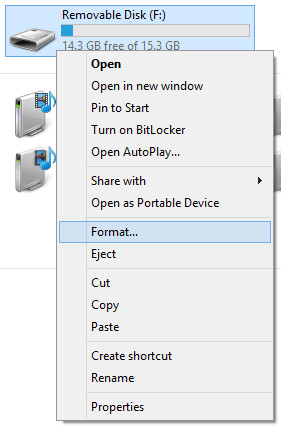
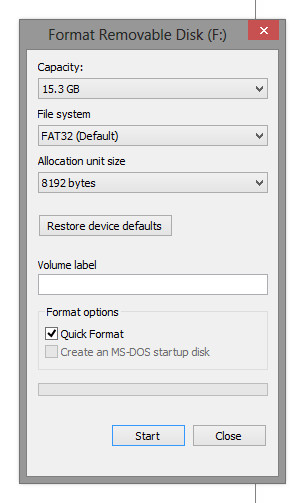
If you prefer to do this from the command prompt the Windows command for this is “format f: /FS:FAT32” where “f” is the drive letter for your USB stick.
Download the custom installer from: http://store.steampowered.com/steamos/download/?ver=custom
Once downloaded extract it (using 7zip or standard Windows tools) and copy the contents to the reformatted USB. If done correctly you should now have a working installer disk.
Insert your USB disk into the computer and boot it up. During the boot process you should be able to get to the “Device Select Menu” by pressing F12 or whatever key your motherboard/BIOS is set to use. This should get you to a menu looking something like this:
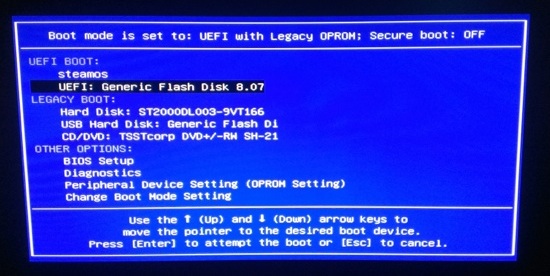
Select the installer disk (highlighted above) with the arrow keys and hit enter. You should now be presented with:
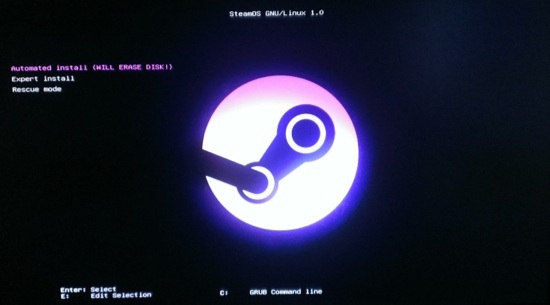
Simply hit enter (assuming the Automated install is selected), and it’ll go off and do its thing. Eventually it will reboot into a Linux environment.
After this process is finished we still need to do a couple of things manually: (1) set up wifi and accept the EULA, and (2) run the post_login.sh script to finish setup.
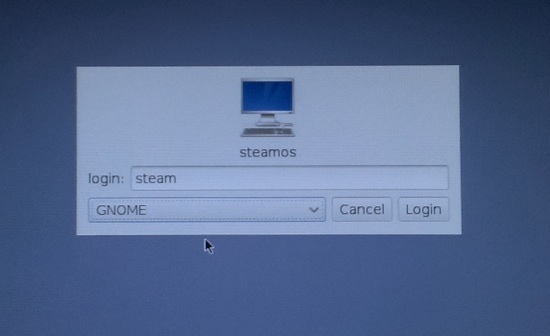
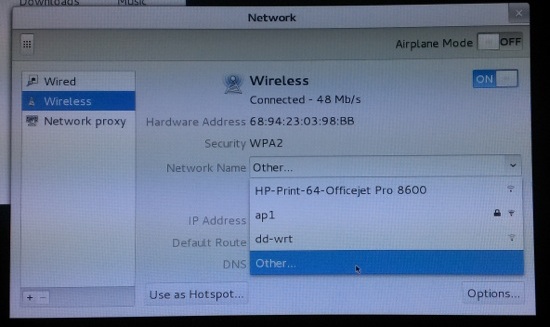
From the login screen (above), select “GNOME” as the environment and login as username: “steam” and password: “steam”. If you’re using wifi like me, you’ll need to connect to the internet at this point. Use the wireless drop-down in the top-right to find and connect to your network.
Note: If you use a hidden wifi network you may need to trick the OS into letting you connect to it. Set up a temporary open wifi network (I used an Android phone to create a fake hotspot) and connect to it. Then use the wifi drop-down on the desktop to get to Network Settings. From here you can edit the wireless connection and select “Other” and then “New” from the drop down menus to manually enter your wifi information.
Once you’ve connected, open a terminal using the activities box in the top-left to search for “terminal.” From here run the command “steam” to launch a regular desktop interface to Steam. After you accept the EULA, install updates, and log in you’re ready to move on.
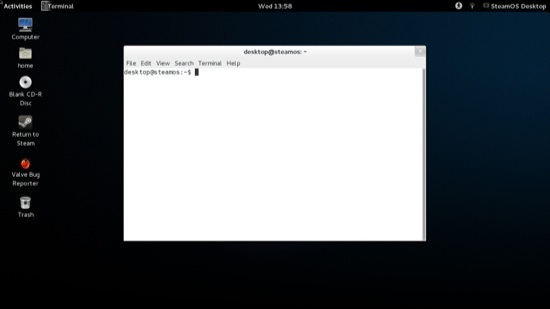
Sign out of the “steam” account and log in using the GNOME option and username: “desktop” password: “desktop”. Once logged in, open terminal again and run the command “./post_logon.sh” to start the post-install script. It will ask for a password (“desktop” again) and for permission to continue (y + enter) and the rest should be automated. When the system reboots again you should have a functioning SteamOS install.
If your audio remains silent after you’ve set up SteamOS, you may have muted devices. Thanks to an error report on github there’s a pretty simple solution. In Steam settings go to “Interface” and enable the desktop mode. Now you can go to Exit -> Return to desktop to get back to the Linux desktop. Launch the browser (iceweasel, again from activities) and download alsa-utils from here: packages.debian.org/wheezy/alsa-utils.
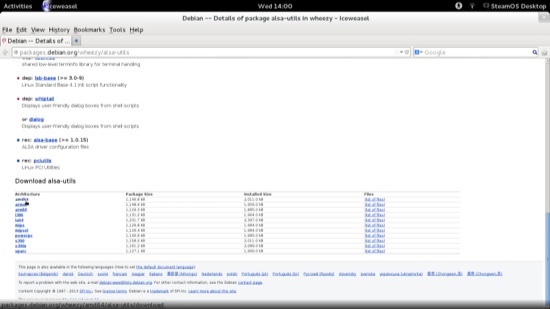
After the download finishes, open a terminal as above and use the following command to get to the file: “cd Downloads”. Once there we need to run a command as root, but for some reason the “desktop” user has a different password after post-install. To fix this run “passwd desktop” to trigger a password update (I just changed it back to “desktop”). After that’s done run “sudo dpkg –I alsa-utils_1.0.25-4_amd64.deb”. When this finishes run “alsamixer” to see your audio devices.
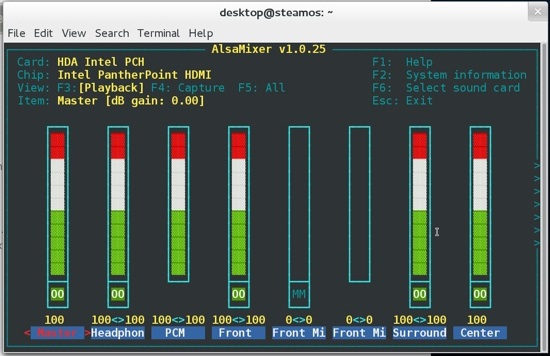
Use F6 to select your sound card and then make sure the volume levels aren’t muted (shortcut is “m”) or too low. In my case, the master volume was muted by default. Once this is changed double-click the “Return to steam” link on the desktop to get back to the regular interface. If all went as planned you should have working sound!
After installation the Big Picture style interface will come up and allow you to log in to your Steam account and download your games. For the moment only Linux compatible games are supported. I tinkered with Half Life 2: Episode 2 and Counter Strike: Source doing side-by-side comparisons with my regular machine and they ran just fine aside from the weak graphics card. Eventually we’ll be able to stream games from existing hardware to a Steam Machine over LAN to combine the power of a custom gaming rig with the convenience of a small gaming console and a good TV. If you want to see what the UI will be like check out the Big Picture feature in Steam on your current machine. The interface is nearly identical.
You can read more on the Steam site, but the short version is that streaming (not just normal media, but all of your games from existing machines on your home network) and family options (restrictions and easier game sharing) are coming to SteamOS in the “near future”. Personally, I’d love to see some kind of dual-boot option and general setup improvements (see wifi and audio above).
It’s been a long time coming, but the Fedora 20 “Heisenbug” release brings ARM to equal status in Fedora with x86 and x86_64 releases. The Fedora 20 release, out just more than a month after the 10th anniversary of the first Fedora release, now boasts ARM as a primary architecture.
It’s not the first release to actually support ARM, but prior to Fedora 20 the ARM support was not considered a blocker for release or necessarily going to receive updates at the same time as its x86/x86_64 brethren.
 Peter Robinson, one of the Fedora contributors who worked on ARM in this cycle, says that ARM support started all the way back in the Fedora 7 release cycle. Robinson says the work was “kickstarted by Marvell, taken over by Seneca and that over the last couple of releases it’s been a small and dedicated team who’ve done the final push to get us over the line to primary.”
Though it’s a major step for ARM on Fedora, Robinson says ARM users were already seeing a quality release. “F-18/F-19 were pretty good and feature complete when secondary so in theory there shouldn’t be too much actual change for the end users as it’s been pretty mature and hence the reason we were promoted to primary.” He also notes that Fedora has been “the lead in adoption and testing of the ‘unified multi-platform kernel’ which allows, like x86, a single kernel to run on hundreds of ARM devices.”
Don’t have an ARM device to test on? No worries, says Robinson. You can still run Fedora for ARM using standard virtualization tools (libvirt). “The Fedora Virt team, and in particular Cole Robinson has made it easier and faster to run ARM emulation on x86.”
You might wonder what all the fuss is about when it comes to ARM processors. Most of the world’s desktops and laptops are still running on x86/x86_64 processors. But you probably have a couple of ARM devices as well – your cell phone if you have a smartphone, and maybe a tablet or even a Chromebook that uses ARM instead of an Intel or AMD chip.
Robinson says that ARM will help bring Fedora to hundreds of new places “through cheap, almost disposable, hardware and that can only be a good thing, both for locations like the developing world, and for Fedora.”
But it’s not just cheap or disposable devices, ARM is starting to look like it might be important for servers too. Low power, high-density systems with lots of ARM chips may be a feature in a server room near you before too long.
Robinson says that “in many cases” the server feature set for ARM is “the same of that for our x86 brothers. We’ve got people testing all sorts of use cases like OpenShift on ARM.”
The “big new feature,” says Robinson, is “initial support for ARM virtualization on the ARM Cortex-A15. “
How’d we get to the point of including ARM as a primary architecture for Fedora 20? Robinson says “lots and lots of QA, and wider testing as people became better aware” of ARM on Fedora. The fact that ARM was treated as a primary architecture in this release meant that package maintainers were seeing ARM-specific errors and dealing with them. Robinson says it’s given the ARM team “more time to focus on polish.”
So what’s next for Fedora and ARM? Robinson says that users can expect “bigger and better hardware support, more optimization tweaking, and ongoing polish!”
Have an ARM device and want to try Fedora on it? Head over to the download page for ARM and grab the image that best suits your device and project. You can also check out the Fedora wiki for specific instructions for special ARM boards and devices.
Guest contributor Joe Brockmeier works on the Open Source & Standards team at Red Hat.