
A few weeks after Amarok 2.8 was released on the KDE side, GNOME’s Rhythmbox 3.0 music player is now available…
Read more at Phoronix
I’m pleased to announce the new calibre package 1.2 for openSUSE.
What’s happened?

English: ({Information | Description= Calibre Logo | Source=http://calibre.kovidgoyal.net/ | Date=02/08/09 | Author= Kovid Goyal }) (Photo credit: Wikipedia)
New Features
VirtualBox is the excellent and user-friendly Type 2 Hypervisor that supports all the major operating systems. A Type 2 Hypervisor requires a host operating system to install on, and VirtualBox can be installed on Linux, Solaris, Mac OS X, and Windows. Then you can run any of these operating systems on VirtualBox as guests in virtual machines.
Virtualization is a big deal on servers for boosting hardware efficiency, and it is one of the foundation blocks of cloud technologies. In this fun era of powerful desktop PC hardware, cheap virtualization opens a vast world of possibilities. I use VirtualBox to keep multiple instances of development sandboxes, so I can freely experiment and blow things up without worrying about losing anything. (Note to the Internets: “losing”. Not “loosing”.) It’s a fast and easy way to test distros and capture installation screenshots. Not that installing Linux is very exciting as it’s been dead-easy for years. But it’s nice to be able to do it.
The more powerful your system the better, because you are running multiple operating systems at the same time. You’ll especially want a lot of RAM and disk storage. My upgraded hotrod Intel system has these specs:
In other words, a perfect system for stuffing a bunch of virtual machines into with horsepower and storage to burn. One other thing you must have, and that is CPU support for virtualization. If you do not have this you can still use Virtualbox, but it will be a lot slower. Chances are you do, and you can easily check with this command:
$ egrep -o '(vmx|svm)' /proc/cpuinfo
vmx
vmx
vmx
vmx
vmx
vmx
vmx
vmx
That is eight results for eight cores. vmx is Intel, and svm is AMD.
 I’m going to skip over installation because it’s easy– just use your favorite Linux package manager.
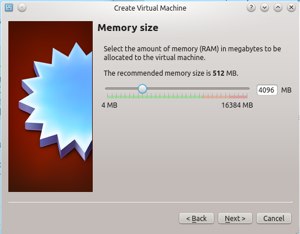
Installing a guest operating system is easy as can be. First download an installation ISO image in the usual way. Fire up VirtualBox, and click the pretty blue New button. You’ll see a window like Figure 1. Just fill out the information and click Next. In the next screen you allocate memory. Virtualbox, for whatever reason, recommends 512 MB, which is not enough for most installations. If you’re installing a headless server with no graphics it’s enough, but if you want graphics then give it more, just as though you were doing a standalone installation. I’m giving CentOS 4GB. This memory will not be available to my host system (Kubuntu) when CentOS is running.
In the next two screens create a new virtual hard drive in VDI (VirtualBox disk image) format. On the next screen you have to choose a fixed or dynamically-allocated hard drive file. A fixed-size is suppose to deliver a little faster performance, at the cost of tying up unused storage space.
On the File Location and Size screen allocate enough space to hold your installation, plus a good buffer for growth. You’ll be returned to the main VirtualBox control panel where you can click the Start button. Don’t be scared by the clumsily-worded Select Start-up Disk screen, because this just means select your installation ISO image, then watch your new OS go into its normal installation screens. If you downloaded a live CD image make sure to select the hard drive installation boot option, rather than booting the live image.
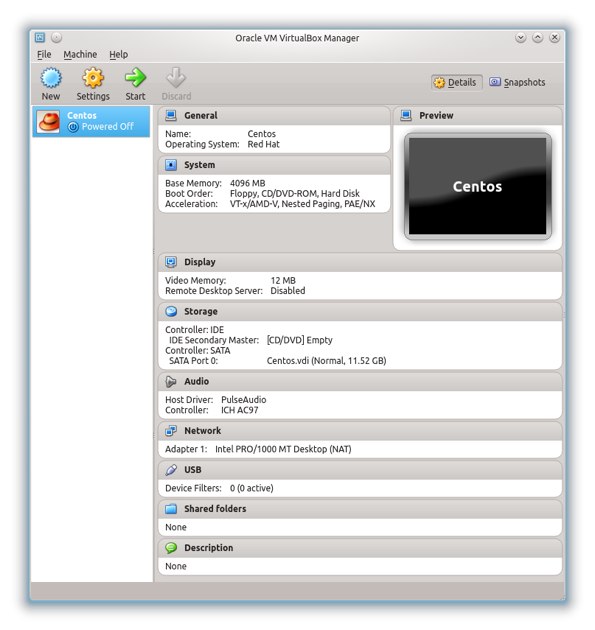
And that’s all you have to do for a basic new operating system installation. One thing that often trips up new VirtualBox users is mouse capture: to release it from the VM window, hold down the right Ctrl key. You can configure this in File > Preferences in your main VirtualBox control panel.
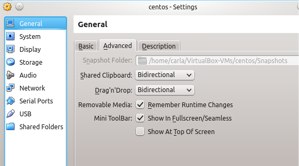
Your muscle memory will take over and create vast vexations by trying to copy and paste between your host and guest systems, but this will not work until you enable it. In the main VirtualBox panel select your guest OS, and then click the Settings button. Go to the General > Advanced tab, and enable Shared Clipboard and Drag’n’Drop. That gives you both the lovely Unix select-to-copy/middle-click-paste, and Ctrl+c/Ctrl+v copy and paste. You’ll also be able to drag-and-drop files back and forth.
Snapshots are an amazing and powerful feature for saving the state of your virtual machines at whatever points in time that you want, and rolling back to any one that you want, and VirtualBox makes it so easy you’ll dance for joy. On the top right of the VirtualBox control panel click the Snapshots button. Then select which guest OS you want to make a snapshot of, click the little camera icon, give it a name and description, and done. Your VMs can be running or not.
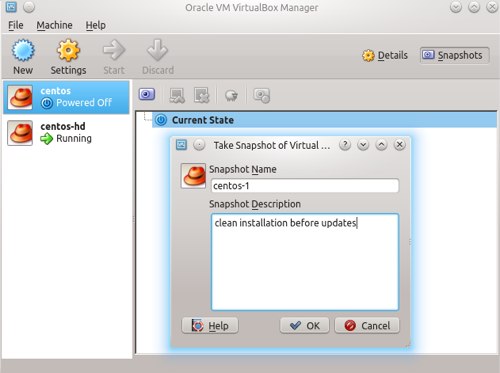
To restore a snapshot right-click on the snapshot you want to roll back to, then left-click the Restore button. Delete snapshots from the same right-click menu. You can also manage snapshots from the Machine menu inside a running VM.
Once you have created a snapshot you can clone it by clicking the little clone icon and following the prompts. You’ll have a choice of a Full Clone or a Linked Clone. A Full Clone is a complete and independent copy that you can move around and perform terrible experiments on without affecting the original image. A Linked Clone shares files with the original, so you cannot move it independently.
This is my favorite feature: set up a VM a certain way, export it as an appliance, and then it can easily be imported by other users into their own VirtualBox systems. For example, I can set up a prefab dev sandbox for a particular project, export it as an appliance, and distribute it to multiple users all ready to go. VirtualBox appliances are created in the standard Open Virtualization Format (OVF), so other virtualizers can import them as well, such as VMWare. Again, it’s just click-pointy. The VM you want to export must not be running. Select it in your VirtualBox control panel and use File > Export Appliance. Answer a few simple questions and you’re done.
VirtualBox is a remarkable piece of software, and I confidently predict you will find a hundred and one useful uses for it.

After yesterday’s NSA codebreaking revelations, there’s some good news for cryptography. A Toshiba research lab has announced a crucial breakthrough in quantum cryptography, the last truly unbreakable form of encryption, which could pave the way for a new generation of private communications networks.
Quantum cryptography uses the properties of light to create effectively unbreakable encryption. Any attempt to tap in affects the signal and can be instantly detected. The system is already in use in some expensive and high-profile setups, most notably in Geneva’s banking sector, but it comes with serious limitations. The laser-based process only works over short distances, and it can only be used to connect two computers at a time.
T…