This is the second article in our Introducton to OpenStack series. If you’re interested in more in-depth professional training, The Linux Foundation offers OpenStack training courses.
Last week we learned what OpenStack is and what it does. Today we’ll install it on a single machine and make it do stuff. This is not how you would set up a production server, but it’s a wonderful fast way to get a testing and learning server running.
There are three fairly easy ways to get your hands on OpenStack and try it out: one is to use a commercial public cloud like Rackspace or Cloudwatt, or the free Trystack. If you’re in a hurry go for one of the paid services, because it can take days to weeks to get approved for a Trystack account. Using a public cloud is a good way to dive right into developing and testing applications.
 If you’re more interested in spelunking into the guts of OpenStack and learning how to administer it then you can build your own server to play with, and that is what we’re going to do with the DevStack installer. DevStack is an amazing shell script that installs the OpenStack components, a LAMP stack and CirrOS, which is a tiny Linux distro built for running cloud guests. (Cirrus? Get it? Finally a good geek pun.) I am going to cover installation in detail, because even though it’s easier than it’s ever been it’s still a bit tricksy.
Getting Started
With most Linux applications it’s safe to install and remove and play with whatever you want to test on your main Linux PC, because Linux is a grown-up operating system that does not keel over when you ask it to do work. Unlike certain overpriced proprietary operating systems that are delicate and full of excuses. But I digress.
Don’t put OpenStack on your main PC because it needs a dedicated system, so for this article I’m running it in VirtualBox on Lubuntu 12.04 on my Linux Mint 13 system. Sure, I know, real server nerds don’t run a graphical environment on their servers, but for testing it’s a nice convenience, and Lubuntu is lightweight. If you elect to run OpenStack server in a virtual machine give it a minimum of 1.5GB RAM and 6GB storage. If you have a multicore system and can spare more than one core, do so because OpenStack, even in a simple testing setup, gets hungry.
First create a user named stack to use for installing DevStack:
$ sudo useradd stack
$ sudo passwd stack
Enter new UNIX password:
Retype new UNIX password:
Then give stack full sudo privileges:
$ sudo visudo
stack ALL=(ALL:ALL) NOPASSWD: ALL
Now logout, and then log back in as stack. If you don’t have git then install it:
$ sudo apt-get install git -y
Then pull OpenStack from Github. This copies it into the current directory, so I cd to /var and then run git:
$ git clone git://github.com/openstack-dev/devstack.git
This puts everything in /var/devstack. cd to devstack, and take a few minutes to look in the various scripts and files. For whatever reason, which I have not figured out, I ran into permissions problems on my first run, so I changed ownership of /var/devstack and /opt/stack to stack:
$ sudo chown -R stack:stack /opt/stack
$ sudo chown -R stack:stack /var/devstack
I also changed /var/www to www-data:www-data; Ubuntu’s default is root, which is not a good practice.
It is good to have logging, so create /var/stacklog, and make it owned by stack.
Configuration
There is one more prerequisite, and that is to create /var/devstack/localrc. localrc always goes in your DevStack root, and it configures networking, passwords, logging, and several other items we’re going to ignore for the time being. This is what mine looks like, just a minimal configuration:
HOST_IP=10.0.1.15
FLAT_INTERFACE=eth0
FLOATING_RANGE=10.0.1.224/28
ADMIN_PASSWORD=supersecret
MYSQL_PASSWORD=supersecret
RABBIT_PASSWORD=supersecret
SERVICE_PASSWORD=supersecret
SERVICE_TOKEN=supersecret
OpenStack uses a lot of passwords, so for testing I make it easy on myself by recycling the same one. The HOST_IP is the ethX inet addr of your OpenStack server, whether it’s virtualized or not, like this example:
$ ifconfig
eth0  Link encap:Ethernet  HWaddr 90:ee:aa:a2:50:aa
      inet addr:10.0.1.15  Bcast:10.0.1.255  Mask:255.255.255.0
Do create a static IP address for your DevStack server, or you will suffer. Networking is rather involved for OpenStack, and we’ll get into that more in the future; for now we’ll keep it as simple as possible.
FLAT_INTERFACE is the server’s Ethernet interface; if you have just one it’s not necessary to include this line. You could have an internal and a public-facing interface, just like on non-cloud servers, and the FLAT_INTERFACE corresponds to the internal interface.
FLOATING_RANGE is a pool of addresses for any OpenStack servers that need to be available to the network. This must not overlap with the server’s IP address, which is why my example is way out at the end of the address range.
 Alrighty then, it’s time to finish the installation. Change to
 /var/devstack and run:
$ ./stack.sh
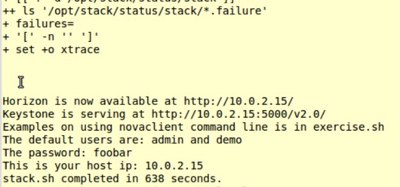
This will run for a while and fill your screen with all kinds of output. Go take a nice break and think about pleasant things. When it completes a successful run you’ll see something like figure 1, above.
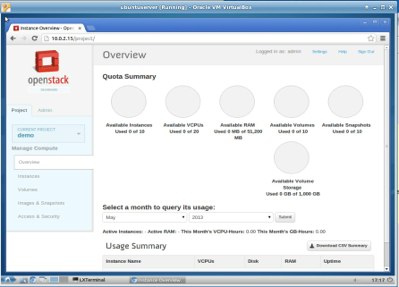
Now fire up a Web browser on your OpenStack server and point it to the IP address it told you, which in my example is http://10.0.1.15. If you see the login page you may congratulate yourself for a successful installation, and for accessing the Horizon dashboard (figure 2.) Go ahead and login as admin with whatever password you set in localrc. You can poke around and explore the different screens without hurting anything. There isn’t much to see yet, but you’ll find a few images and report pages.
If you make a mess, the good DevStack people included a do-over script, clean.sh. This reverses stack.sh and leaves your git clone files in place, so run clean.sh and then stack.sh to re-do your installation.
That’s all for today, so come back next time to learn how to access Horizon from a remote PC, and how to do some basic setup.