
The US National Institute of Standards and Technology (NIST) has certified a number of cryptographic technologies in Red Hat Enterprise Linux (RHEL) 6.2 with the Federal Information Processing Standard (FIPS) 140-2.
Read more at The H
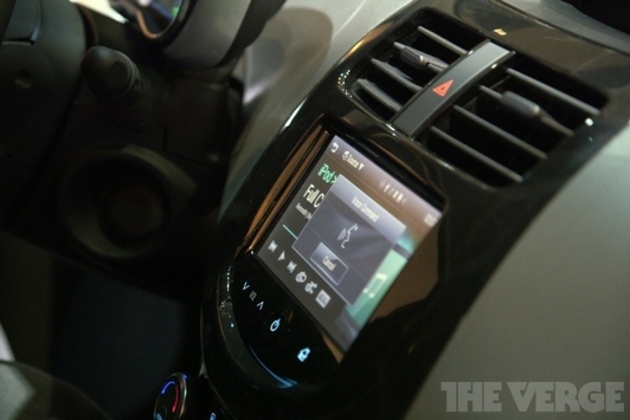
Ten months ago, Apple proudly announced nine partners that were signed up to integrate Apple’s Siri personal assistant into their cars. BMW, Mercedes, GM, Land Rover, Jaguar, Audi, Toyota, Chrysler, and Honda logos were all projected onto Apple’s WWDC screen, with the promise that Siri-integrated cars would be coming within a year. But where are all of those cars? A few models have arrived, but the vast majority of the companies named last year refuse to detail if and when Apple-friendly models will arrive. Why? As Wired reveals, models set for release in 2014 were designed up to five years ago. Infotainment systems are planned years before a vehicle is launched, and typically won’t be upgraded. So more Siri-integrated cars are likely…
Much of the news in the BeagleBone Black open source ARM board release was teased by BeagleBone.org over a month ago. We already knew there would be a faster processor, a doubling of RAM to 512MB, the addition of onboard flash, and best of all, a micro-HDMI port. Yet today’s unveiling of the second generation of the Linux- and Android-based hacker board still held plenty of drama, thanks to a single detail: $45. The halving of the price of the previously $89 single board computer (SBC) makes the BeagleBone cheaper than most Arduino boards and just above the $25-$35 Raspberry Pi.
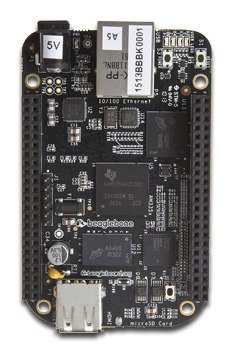 The $45 price is a testament both to the growing competition from the Pi, as well as the large volume of units BeagleBoard.org and its manufacturing partner CircuitCo have pushed out since late 2011 when the BeagleBone arrived as a smaller, cheaper alternative to the BeagleBoard. According to BeagleBoard.org co-founder Jason Kridner, the price cut derived entirely from design decisions and economies of scale. There was no subsidization from any source, including Kridner’s employer Texas Instruments (TI). The chip manufacturer has helped promote the BeagleBoard and BeagleBone, enjoying increased awareness and sales of its ARM-Cortex A8 Sitara processors in return, but has taken a largely hands-off approach.
“The $45 price is mostly due to volume,” said Kridner, who is also Software Architecture Manager for Applications Processors at TI. “We’ve already received large orders for the BeagleBone Black. The distributors came to us.”
Instead of moving to a multicore Cortex-A9 architecture, as have open boards like the Origen, PandaBoard, and Snowball, as well as recent commercial ARM modules and SBCs, BeagleBoard.org cut costs by sticking with Cortex-A8. The board has advanced from a 720MHz Sitara AM3358 chip to an almost identical new 1GHz Sitara AM3359. Performance is further enhanced by doubling memory to 512MB of faster DDR3 RAM, which Kridner noted is now cheaper than DDR2, enabling further savings.
Moving to Cortex-A9 is costly for several reasons, said Kridner. “When you look at these multicore beasts, you not only pay more for the processor, but for the power management, which may require adding a microcontroller,” he said. “Multicore also makes development trickier.”
BeagleBoard.org’s pricing decisions reflect the huge popularity of the low-cost, ARM11-based Raspberry Pi, which along with the BeagleBone, has largely eclipsed other open source boards. Both projects are not only competing for embedded Linux developers, but also for Arduino hackers looking to move up to a more robust Linux environment, as well as other “maker” gadgeteers building everything from robots to 3D printers.
While the more publicized Pi has had the greater momentum and geek chic appeal, Kridner makes a compelling case for the BeagleBone Black, starting with its processor.
“The AM335x sells for $5 in quantity, and has some key advantages for the maker market,” said Kridner. “It offers a unique peripheral mix of serial ports, CAN bus, parallel buses, A/D converters, and analog controls. It stands out with features like pulse width modulation, which helps to do things like controlling robot motors. We’re addressing the needs of the maker crowd and Kickstarter projects, all the way up to professional industrial developers.”
The rich I/O mix remains pretty much the same on the BeagleBone Black, including a 10/100 Ethernet port, USB host and client ports, and expansion headers for the BeagleBone’s “cape” add-ons. The device, which shares the original’s 3.4 x 2.1 footprint, is compatible with over 30 BeagleBone capes available from CircuitCo, including wireless extensions, touchscreens, motors, and I/O breakouts. In addition to the expansion I/O, which includes 65 digital interfaces, both versions of the BeagleBone can also tap the Sitara’s programmable real-time unit (PRU), which combines dual 32-bit RISC microcontrollers to enable reconfiguring and customizing I/O.
The BeagleBone Black has also shed some interfaces. “We removed some less used features like USB-to-serial and USB-to-JTAG, which saves on power and cost, but there’s a serial-header workaround,” said Kridner.
The SBC’s only new interface is a big one: the much-requested micro-HDMI port. Instead of being limited to a touchscreen “cape” add-on or otherwise hacking the 24-bit LCD controller, developers can just plug in. “We’re now totally plug and play on monitors and TVs,” said Kridner.
Almost as welcome is the 2GB of onboard eMMC flash. Preloaded with Angstrom Linux, the flash frees the microSD slot for storage. “You can still boot off the microSD card image to run Ubuntu or something,” noted Kridner.
The BeagleBone Black retains the 3.4 x 2.1-inch profile of the original. Surprisingly, power consumption on the Black appears to be slightly lower, or 210-460 mA@5V compared to 300-500mA@5V. This translates to about 2.3 Watts for peak kernel loading (460 mA@5V).
The ARM11-based Raspberry Pi is still cheaper, but other advantages, such as the HDMI port, have largely been eclipsed by the BeagleBone Black. In addition to its greater I/O, the BeagleBone Black is faster, and supports Android in addition to Linux distros like the pre-installed Angstrom, plus Fedora, Ubuntu, and Arch. “There is tremendous interest in doing Android development on the BeagleBone,” said Kridner. The board also supports OSes like FreeBSD, QNX, and Windows Embedded.
The updated Angstrom release is newly compatible with the Linux Foundation’s Yocto Project code. The BeagleBone distribution also includes Linaro toolchain, a C compiler, Python, Qt, OpenCD, over 200 libraries, various webservers, and the Cloud9 IDE.
The BeagleBone is more open source than the Raspberry Pi, claimed Kridner. “With the Pi, you cannot do anything you want with your design,” he said. “You are not completely free to customize it or alter it.”
The simpler Raspberry Pi may still have the advantage in ease of use, which is important for a platform aimed primarily at public schools. BeagleBoard.org is pushing the BeagleBone as an educational platform, as well. With its “Arduino-like” Bonescript Linux/Javascript language, combined with the device’s faster processor and richer I/O, the BeagleBone Black is better for teaching embedded development than the Pi, argued Kridner.
“Sometimes students need more of a visceral interaction to get engaged,” said Kridner. “You really need all this I/O to do things like robotics, which is one of the best things that we’re doing in early education.” Among other educational initiatives, Kridner noted BeagleBoard.org’s participation in Google Summer of Code 2013, as well as the coming availability of several “college-level and maker-level books” on the BeagleBone.
Kridner sees a particularly compelling role for the BeagleBone in 3D printers. “Without adding an Arduino, people are already building 3D printers with BeagleBones, doing proportional control for the heating element,” said Kridner, perhaps referring to recent “Cape Contest” winner Replicape. “Linux is definitely moving into 3D printers,” he added.
With the BeagleBone Black’s lower price, Kridner expects developers will be more likely to compare the board with the Pi — and like what they see. “At $45, you can put these boards in your projects and forget about them,” said Kridner. “We’re the ones that changed the market, and we continue to engage with the community. I don’t think there’s really a whole lot of room for too many other open source boards.”
We shall see. Meanwhile, the BeagleBone Black ison sale in limited quantities, with volume shipments expected by May.
In the last Android tutorial, we looked at handling a touchscreen event. This only handled a single pointer, though. Android can handle multiple pointers at the same time, reflecting what happens when you have more than one finger on the screen at the same time. This is how multi-touch gestures (like pinch-zoom) work.
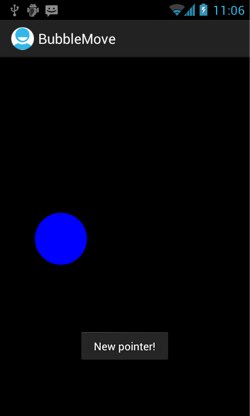 In fact, we can see Android supporting multiple pointers by demonstrating a bug in the last tutorial’s code. Run the BubbleMove app from the last tutorial, and start dragging the bubble around the screen. If you put a second finger on the first screen while you’re doing this, then lift the first finger, the bubble will jump across the screen to the second finger location. This is because the code as it currently stands handles only the default pointer. The first finger down is the default pointer; but when that is taken off the screen, the second finger (as the only remaining pointer) becomes default, and the bubble jumps across to this new default pointer. Let’s look at how to handle multiple pointers explicitly.
One quick note: unfortunately the emulator only has experimental support for multi-touch. To follow along with this tutorial, you’ll need to hook up your hardware device for testing, or experiment with the tethered device option at the previous link.
We’ll start out our journey into multi-touch handling by fixing that multiple-pointer bug. To do this, we need to take pointer ID into account in our code.
The only part of the code for the last tutorial that we need to change is onTouchEvent(). Edit it to look like this (with an additional couple of private class variables):
private static final int INVALID_POINTER_ID = -1;
private int activePointer = INVALID_POINTER_ID;
public boolean onTouchEvent(MotionEvent e) {
  switch (e.getActionMasked()) {
    case MotionEvent.ACTION_DOWN:
      thread.setBubble(e.getX(), e.getY());
      activePointer = e.getPointerId(0);
      break;
    case MotionEvent.ACTION_MOVE:
      if (activePointer != INVALID_POINTER_ID) {
        int pointerIndex = e.findPointerIndex(activePointer);
        thread.setBubble(e.getX(pointerIndex), e.getY(pointerIndex));
      }
      break;
    case MotionEvent.ACTION_UP:
      if (activePointer != INVALID_POINTER_ID) {
        showTotalTime(e.getEventTime() - e.getDownTime());
        activePointer = INVALID_POINTER_ID;
      }
      break;
    case MotionEvent.ACTION_CANCEL:
      activePointer = INVALID_POINTER_ID;
      break;
    case MotionEvent.ACTION_POINTER_UP:
      int pointerIndex = e.getActionIndex();
      int pointerId = e.getPointerId(pointerIndex);
      if (pointerId == activePointer) {
        showTotalTime(e.getEventTime() - e.getDownTime());
        activePointer = INVALID_POINTER_ID;
      }
      break;
    }
  return true;
}
We’re now using getActionMasked() instead of getAction() for the switch statement. getAction() returns only an action if there’s a single pointer, but with multiple pointers, it returns a combination of the pointer action and a shifted pointer index. To avoid us shifting out the pointer index ourselves, we can use getActionMasked(), which simply returns an action (ACTION_UP, ACTION_POINTER_DOWN, etc), and if this is a pointer action, use getActionIndex() to get the pointer index.
Take a look at ACTION_POINTER_UP, which is the crucial part of the new code. An ACTION_POINTER_UP event means that a pointer has gone up, but not the only pointer (if there is only one pointer, and that goes up, an ACTION_UP event is sent), and not necessarily the active pointer. So we get the index of this pointer, and the pointer ID associated with it. If this is the active pointer — the first finger we put on the screen — then we’re done with moving our bubble. In other words, in this version of the code, we only pay attention to that first pointer, and explicitly ignore any further pointers. Nothing else will happen to the bubble until all fingers come off the screen and a new set of touch events happens.
If the active pointer has gone up, then, we show the total time of the drag gesture, and set the active pointer variable to INVALID_POINTER_ID, to show that it is no longer active.
Now take a look at ACTION_DOWN. If this action is sent, then this is the first pointer to go down; so we treat it as the active pointer, and use getPointerId to save the pointer ID as the active pointer.
With both ACTION_UP and ACTION_MOVE, before doing anything, we check that there is a valid active pointer. ACTION_MOVE is sent from any active pointer on the screen, so we only want to handle that data if it comes from our own active pointer.
ACTION_UP is only sent when the final pointer goes up; but that final pointer could be our second pointer, in which case we ignore it. To make that a bit clearer, here’s a possible sequence of pointer actions:
ACTION_DOWN.ACTION_POINTER_DOWN.ACTION_MOVE.ACTION_POINTER_UP.ACTION_MOVE.ACTION_UP.In that list, we only want to respond to the Pointer 1 events. So if we get an ACTION_UP event, we check first whether we still have a valid active pointer. If not, then that ACTION_UP event is coming from Pointer 2, and we ignore it. If the active pointer is still valid, we show the total time Toast message.
What if you want to handle the event of a second pointer going down? This would set a pointer index and pop a Toast message up:
private int newPointer = INVALID_POINTER_ID;
public boolean onTouchEvent(MotionEvent e) {
  // ... code as before ...
  case MotionEvent.ACTION_POINTER_DOWN:
        	  int newPointerIndex = e.getActionIndex();
        	  newPointer = e.getPointerId(newPointerIndex);
        	  Toast.makeText(ctx, "New pointer!", Toast.LENGTH_SHORT).show();
        	  break;
  // ... rest of code...
}
Pretty straightforward. Here’s an interesting wrinkle, though. If you put in code to handle your second pointer just the same way as your first, you’ll fetch up with something like this:
public boolean onTouchEvent(MotionEvent e) {
  switch (e.getActionMasked()) {
    // ACTION_DOWN, ACTION_CANCEL, ACTION_POINTER_DOWN as above
    case MotionEvent.ACTION_MOVE:
   	  if (newPointer != INVALID_POINTER_ID) {
        int pointerIndex = e.findPointerIndex(newPointer);
        thread.setBubble(e.getX(pointerIndex), e.getY(pointerIndex));
      }
      if (activePointer != INVALID_POINTER_ID) {
	    int pointerIndex = e.findPointerIndex(activePointer);
	    thread.setBubble(e.getX(pointerIndex), e.getY(pointerIndex));
      }
      break;
    case MotionEvent.ACTION_UP:
      if (activePointer != INVALID_POINTER_ID) {
        showTotalTime(e.getEventTime() - e.getDownTime());
	    activePointer = INVALID_POINTER_ID;
      }
      if (newPointer != INVALID_POINTER_ID) {
        newPointer = INVALID_POINTER_ID;
      }
      break;
    case MotionEvent.ACTION_POINTER_UP:
      // get pointerIndex and pointerId as before
      if (pointerId == activePointer) {
   	    showTotalTime(e.getEventTime() - e.getDownTime());
   	    activePointer = INVALID_POINTER_ID;
      }
      if (pointerId == newPointer) {
   	    newPointer = INVALID_POINTER_ID;
      }
      break;
    }
  return true;
}
Run this and you’ll see that as you lift a finger or put it down again, the bubble hops between fingers and keeps moving smoothly. However, if you put two fingers down and move both of them, the bubble moves with the first finger. Now, try switching the order of the ACTION_MOVE case, like this:
case MotionEvent.ACTION_MOVE:
  if (activePointer != INVALID_POINTER_ID) {
    int pointerIndex = e.findPointerIndex(activePointer);
    thread.setBubble(e.getX(pointerIndex), e.getY(pointerIndex));
  }
  if (newPointer != INVALID_POINTER_ID) {
    int pointerIndex = e.findPointerIndex(newPointer);
    thread.setBubble(e.getX(pointerIndex), e.getY(pointerIndex));
  }
  break;
Compile and run, and you’ll find that this time, the bubble follows the second pointer around. What’s happening is that it’s nearly impossible to hold a finger still on the screen, so ACTION_MOVE events are being sent by both pointers all the time. They’re too fast for the human eye to follow, so the one that you notice is whichever is evaluated second. If you want something more complicated to happen — for example, for the bubble to bounce visibly between the two pointers, or to follow an average of both of them — you’ll need to do more complicated processing to track and average both pointers.
If you want to do complicated things with multiple fingers, you’ll probably want to handle your pointers directly, as in this tutorial. But a lot of the time, you might want to handle one of a set of standard gestures, such as pinch zoom. In this case, a GestureDetector — a filter object that turns MotionEvents into gesture events — is likely to be helpful. In the next tutorial, we’ll look at using GestureDetector and OnGestureListener to handle multi-touch events.