
GParted is an essential system administration tool. Learn to use it wisely.
Read more at Linux Magazine
One of the best features of Linux is its flexibility, and nowhere is that more obvious than the desktop. Your Linux desktop can have the look and feel of any desktop environment you want. One reason for this flexibility is the ability to add and remove small applications to better the desktop experience, like desktop docks Cairo-Dock and Avant Window Navigator.
What’s a dock? A desktop dock is a launch bar where you can add and remove launchers for applications as well as small applications that serve various purposes. If you’ve seen or used Mac OS X, then you get the idea. A dock does a great job of extending the usefulness, functionality, and even the “cool” factor of the desktop. The nice thing about AWN and Cairo-Dock is that they’re much more extensible than the Mac OS X Dock.
Most distributions do not ship with a dock configured by default, though, so I’m going to introduce you to both docks and how to get started with them. Both of these fantastic tools are easily installable on nearly every distribution. For that reason I will demonstrate both on Fedora 13.
 I have to confess that, of the three, Cairo-Dock is my favorite. Cairo Dock is a fully OpenGL supporting application that will add some real dimension to your desktop. It’s easily themeable as well as one of the more flexible of the docks. Cairo Dock can run in GNOME, KDE, and XFCE, has magnification (and other special effects), as well as the ability to create launchers for applications on the fly.
Installing Cairo-Dock (on any distribution) is very simple. Just follow these instructions:
Open your Add/Remove Software Utility (in Fedora 13 click System > Administration > Add/Remove Software).
Search for “cairo” (no quotes).
Mark Cairo-Dock for installation.
Click Apply to install.
Accept any dependencies required.
Enter your root user password when prompted.
When the installation is complete, close the Add/Remove Software utility.
Cairo-Dock is ready to start. To do this click Applications > System Tools > Cairo-Dock and the dock will open up on the bottom of your screen (see Figure 1). If you already have a GNOME panel at the bottom you can either configure that panel to auto-hide or you can get rid of it all together.
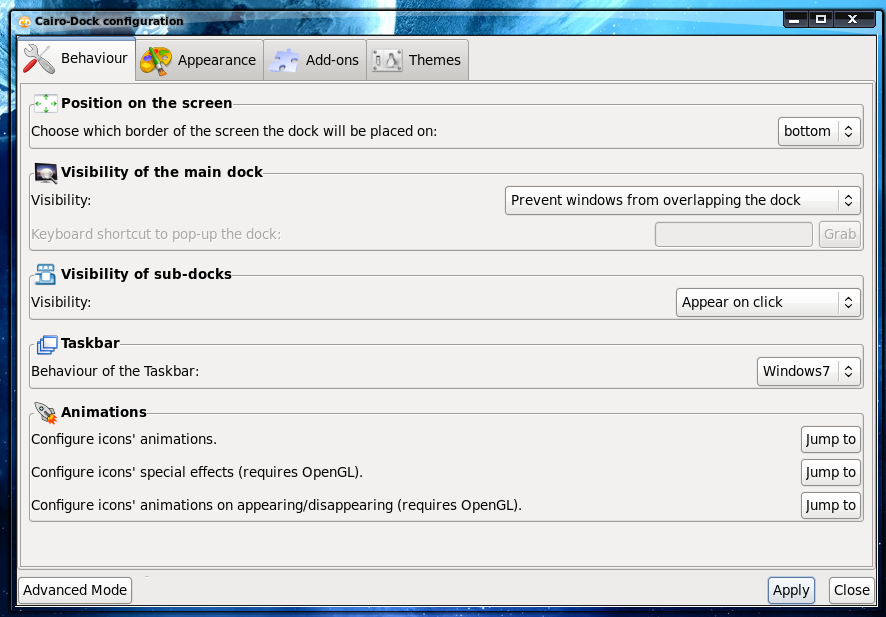 You can configure Cairo-Dock by right-clicking anywhere on the dock and selecting Cairo-Dock > Configure. You will also notice, in that same sub-menu an entry for Managing themes. This is where you can select from any of the pre-installed themes.
From this configuration window you can take care of the following:
Behavior: This includes position, visibility, and animations.
Appearance: Here you can configure your icons, and the style of the dock (3D plane, Carousel, Curve, Parabolic, Rainbow, or Slide), and default view for sub-docks.
Addons: Here you can add or remove different addons to the dock.
Themes: As the title would imply, you can select your theme for the Cairo-Dock here. The included selection should impress.
Creating a launcher
Creating a launcher in Cairo-Dock is very easy. All you need to do is follow these easy steps:
Open up the application you want to create the launcher for.
In the Dock, right click the icon for the application.
Select “Make it a launcher”.
That’s it! You now have a launcher for your application.
One last word about Cairo-Dock. If you want this handy tool to start at login, all you need to do is right-click anywhere on the dock and select Cairo-Dock > Launch Cairo-Dock on startup. The next time you log on to your desktop Cairo-Dock will be there.
It’s a tight race to decide which of these applications is better. The both perform remarkably well, they both have a great look, and are highly configurable. Avant Window Navigator is nearly the equal to Cairo-Dock (Cairo-Dock getting the edge ONLY because it includes more themes and has more included applets). Avant Window Navigator offers nearly the same features as Cairo-Dock, so I won’t bore you with those details. Instead, let’s get right down to the installation and configuration.
The installation of Avant Window Navigator is equally as easy as is the Cairo-Dock installation. Just follow these steps:
Open your Add/Remove Software Utility (in Fedora 13 click System > Administration > Add/Remove Software).
Search for “avant” (no quotes).
Mark Avant Window Navigator for installation.
Click Apply to install.
Accept any dependencies required.
Enter your root user password when prompted.
When the installation is complete, close the Add/Remove Software utility.
 You are now ready to start AWN by clicking Applications > Accessories > Avant Window Navigator. When you do this AWN will appear at the bottom of your screen (see Figure 1). By default AWN will show icons for the applications you have open. If you have nothing open there will be but one icon – the Settings button.
You’ll add launchers to AWN in the same way you do for Cairo-Dock. Open up an application, right-click the applications icon on AWN, and select Add as launcher.
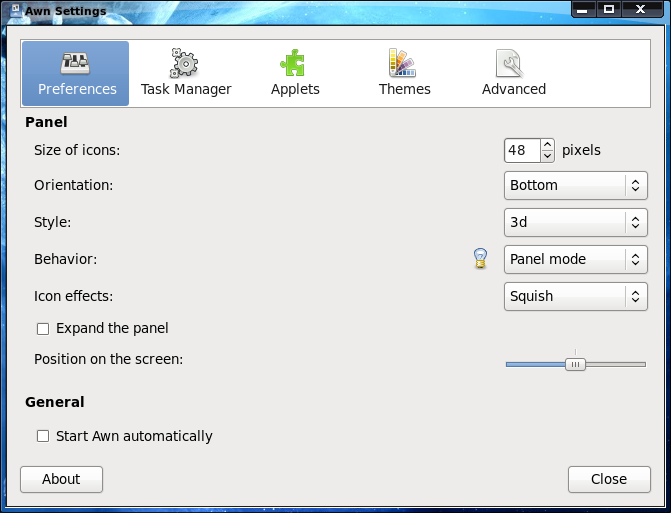 To configure AWN click the Settings icon (far left icon) and the Settings window will open (see figure 4). In the settings window you can configure the following:
Preferences: Here you can configure the size, orientation, style, behavior, icon effects, and position of the panel.
Task manager: Here you can configure the order of launchers, grouping of windows, and add launchers.
Applets: Here you can add and remove applets to the panel.
Themes: In this tab you can select which theme you want to use.
Advanced: In this tab you can set the panel offset, click-through, monitor height/width as well as X/Y offset, and reflection/alpha offset of special effects. You can also add repositories for more applets and themes.
One final note about Avant Window Navigator. Like Cairo-Dock, if you want AWN to start at login you have to set this option. To do so open up the AWN Settings window, click on the Preferences tab, and check the box for “Start Avant automatically”.
You can be the judge and jury to decide which desktop dock best suits your needs and style. Both Cairo-Dock and Avant Window Navigator are outstanding tools to help make your Linux desktop more user-friendly as well as give it a bit of extra pizazz. And, if you have Mac friends out there, you can use either of these (in conjunction with GNOME) to create them a very OS X-like desktop.
The Linux desktop is one of the most extensible and user-friendly desktops available. These two little tools help to prove that very statement. If you don’t like the way your desktop looks and behaves, you have and endless amount of tools and configurations in order to make it perfect… just for you.