Everyone loves the convenience of Skype and other voice-over-IP (VoIP) applications, but the official tools still tend to focus on making simple one-to-one phone calls. One of the most common limitations mentioned is how difficult it is to record the digital audio stream on your computer. Podcasters, teams holding conference calls, and reporters doing interviews (among others) all need to record calls for later use. There are a few stand-alone tools built to work with specific applications, but with just a little additional time you can set up a system capable of recording audio from any application — Skype, various Session Initiation Protocol (SIP) clients, group chat tools, and many more.
Single-App Recording
If you only use the popular — but closed and proprietary — Skype service, then you have a plug-and-play solution to call recording via the open source Skype Call Recorder (SCR) application. SCR can record calls to WAV, MP3, or Vorbis format, and has several nice features, such as conditional auto-recording, so that you can tell to always record calls with specific other users. SCR supports the latest versions of Skype released for Linux, the 2.1 series, however it is dependent on Skype’s proprietary APIs for its functionality, so there is always the possibility that an update to Skype will render SCR nonfunctional until a fix is found.
Among the various audio chat applications for Linux, two have built-in support for recording calls: the closed-source SIP client Gizmo5, and the open source SFLphone, which can use both the SIP protocol stack or the IAX2 stack used by Asterisk. The others, SIP Communicator, Mumble, QuteCom, Twinkle, KPhone, Ekiga, and Linphone, include no recording support at this time.
The Asterisk telephony server platform supports call recording through its Monitor command. Although Monitor is designed to listen to a channel server-side (and thus without human intervention), ever since version 1.2, it has been possible to configure Asterisk to enable per-call recording as well. There are some tools to bring this feature to desktop softphones, such as Astguiclient, but by and large Asterisk’s call-recording function is still meant to be managed by the Asterisk administrator.
If you don’t use any of the easily-recorded client apps, or if you want the flexibility to switch between them and still be able to record calls, then you will need to set up an external recording solution.
Call Recording Basics, and Why They Won’t Work
Once you step outside of the app-specific recording tools, it ought to be obvious that it makes no difference whether a program uses, SIP, H.323, or IAX — recording the call is a matter of tapping into the audio layer and saving a copy of it to disk. The best place to do that is at the sound server.
Most major desktop Linux distributions today use PulseAudio as a sound server — including Debian, Fedora, openSUSE, Mandriva, and Ubuntu. PulseAudio’s core makes for a good call recording point-of-interception for two reasons. First, because it sits beneath several different compatibility libraries; applications that call libalsa APIs, KDE’s aRTS, and even GNOME’s EsounD all get routed to PulseAudio in a uniform manner, just like newer applications written directly for PulseAudio APIs. Second, PulseAudio has a strong system of “virtual” input and output devices that enable you to chain audio streams together and re-route them entirely, without ever needing explicit support from the applications themselves.
Of course, that does not mean that PulseAudio’s documentation or tools make it entirely clear how to do any of this, which is often the problem that new users encounter. To get the hang of things, we will look at how to record a single audio stream from one application, then deal with the complexities of two-way voice communication.
Begin by installing the PulseAudio Volume Control application, pavucontrol. Although the distros listed above use PulseAudio, most do not install this package by default, and the major desktop environments each have their own simple “volume control” tool. To be blunt, there is a bit of naming confusion here; those desktop volume control tools do little more than let you move a slider from 0 to 100 on your default output. In contrast, pavucontrol should probably be called something more descriptive like PulseAudio Router, because it exposes far more of PulseAudio’s internal functionality.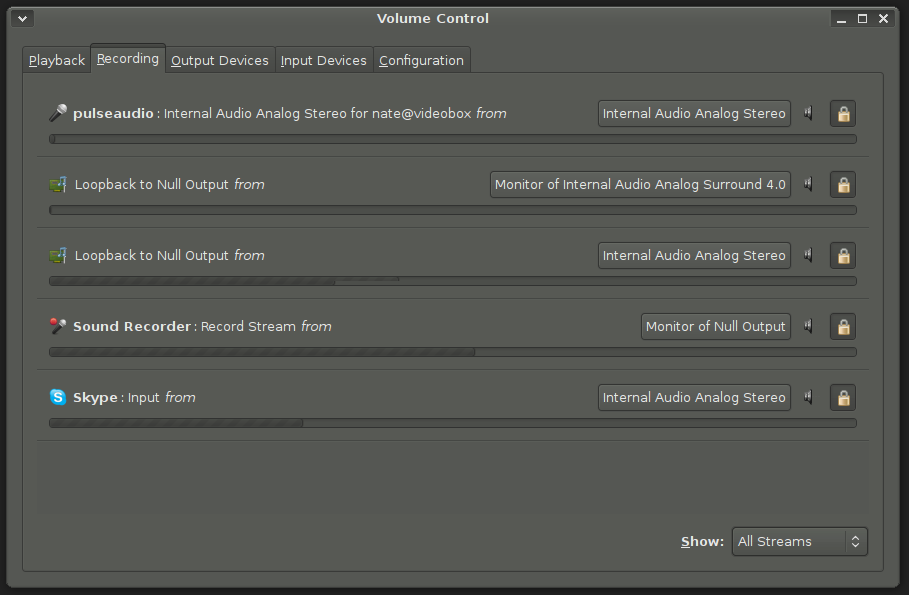
Launch pavucontrol from the command line, and start Skype or your other preferred voice app. Select “Show All Streams” in pavucontrol’s Playback tab. What you will see is a list of all of the applications that have connected to PulseAudio to open a playback channel. Similarly, the Recording tab shows all applications that have connected to PulseAudio expecting audio input.
When you make a call with your voice app, you will see the application name appear at the bottom of the pavucontrol Playback tab with a label like “Skype: Output on” … next to a button. Clicking on the button opens up a drop-down list showing all of PulseAudio’s configured “sinks” — both the actual sound cards and any virtual devices. At the moment, it probably just lists Internal Audio Analog Surround 4.0 or something like that, representing the default output sink. The Recording tab will also show the voice app, labeled “Skype: Input from” … followed by the name of the default audio input device, hopefully your microphone, which will also be labeled with a generic name like Internal Audio Analog Stereo from a similar drop-down list of the running PulseAudio “sources.”
While the voice application is on the call, open up any audio recording application (Krecord, GNOME Sound Recorder, Audacity, etc.), and start recording. In pavucontrol’s Recording tab, the recording app will appear in the list. Here is where it gets tricky. Whichever source you select from the drop-down list next to the recording app is what the recording app will capture. To record the audio being produced by the voice app, choose “Monitor of Internal Audio Analog Surround 4.0” or whichever sink was listed in the Playback tab (this “Monitor” is a virtual source that PulseAudio creates automatically based on the real-life sink). To record a copy of your voice from your own microphone, choose Internal Audio Analog Stereo or whatever the voice app is also connected to.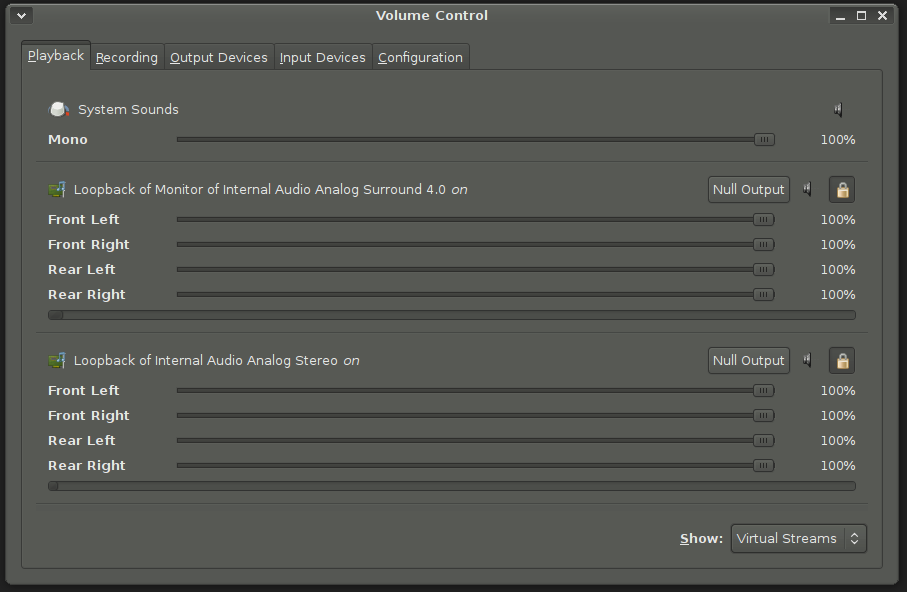
The problem is that the audio streams are separate, and you can only connect your recording app to one or the other, either capturing your end of the conversation or the other party’s. You certainly could fire up two recording apps simultaneously, and connect one to the Monitor virtual source and one to the input device, but you would subsequently have two separate tracks and would spend a lot of time trying to synchronize and mix them in an audio editor.
Calling All Ninjas: Full-Duplex Recording
The real solution to capturing both sides of the call is to construct a virtual PulseAudio device that connects to both of them. Unfortunately, PulseAudio does not have a built-in command to merge a sink and a source or two sinks into one virtual device, so we will actually need three pieces: a “null sink” and two “loopback” devices.
The “null sink” is like a set of virtual speakers, and each “loopback” is a virtual source-to-sink connector. We can connect the loopbacks to the voice app’s real audio source and sink, essentially cloning a second copy of each one, and route both of them into the null sink. Then we record the null sink, capturing the merged audio in a single file.
Create the null sink and give it a friendly name from a terminal with pactl load-module module-null-sink sink_name=mywiretap, then create two loopback devices with pactl load-module module-loopback; pactl load-module module-loopback. Loopbacks do not have names, but as you will see that does not really affect things.
Now go to the Playback tab in pavucontrol. PulseAudio will have attached each loopback to the default device; connect both of them to the “Null Output” sink from the dropdown menu instead — this is the null sink created earlier, despite the slight difference in terminology.
Both loopbacks will also appear in the Recording tab, where again PulseAudio will have attached them to the default device. In this case, what we want to do is connect one of them to the microphone source (Internal Audio Analog Stereo in the above example), and one of them to the “Monitor” source for the default audio sink (“Monitor of Internal Audio Analog Surround 4.0” in the example). It does not matter which you connect to which source, because in the Playback tab, both of them are routed to the Null Output anyway.
Finally, switch back to the Recording tab. Start the recording app, and when it appears in the list, connect it to the “Monitor of Null Output” source in the drop-down list. Voila. Both your voice and the other callers are routed to the voice app and “cloned” by a loopback device, and the duplicate audio streams are captured at the null sink.
Calling All Double-Ninjas: The CLI Approach
You might wonder why it was important to give that freshly-created null sink a memorable name, when it did not appear in pavucontrol’s GUI interface. The answer is that while pavucontrol is a great tool for setting up the system the first time, when the peculiarities of your sound card might mean it takes a couple of tries to find the right options in the drop-down menus, in order to make your setup persist on reboots you will have to replicate it in your PulseAudio configuration file.
First, run pacmd info from a shell prompt. This will print out the basics of your current configuration. You will need to refer to it in just a minute.
Next, from a different window, make a personal copy of your system-wide PulseAudio configuration file by running cp /etc/pulse/default.pa ~/.pulse/default.pa, then open it in your favorite editor. At the end of the file, we will add the commands that correspond to steps we took earlier, including the CLI commands issued with pactl and the options set in pavucontrol. Your stanza will look something like this:
# set up null sink and loopbacks to record voice calls

	load-module module-null-sink sink_name=mywiretap

	load-module module-loopback source=alsa_output.pci-0000_00_06.1.analog-surround-40.monitor sink=mywiretap

	load-module module-loopback source=alsa_input.pci-0000_00_06.1.analog-stereo sink=mywiretap
As you can see, to specify these commands in default.pa, you must supply source and sink names as arguments to the loopback module-loading lines. We did not start off using those arguments on the command line because those long source designations are not easy to guess. Instead, we got to the configuration we needed using the GUI first, then we ran pacmd info. The output of that info command lists the exact source name arguments we need, so all we have to do is copy and paste them into the file.
What’s extra nice about this setup is that PulseAudio stores the application connection details automatically, so the next time you log in, you will not have to repeat the process of connecting the recording app to the Null Output Monitor — just fire up your audio recorder, phone your conspirators on Skype, and start plotting the next Watergate cover-up with reckless abandon. Yes, it would be nice if PulseAudio also remembered the whole null-sink and loopback process, rather than requiring us to save it in default.pa, but there’s no such thing as a free lunch.
Extra Credit: Pulse Troubleshooting, Video
The above solution will work for any application on a working PulseAudio system — Skype, Google Chat, Ekiga, or any of several others. But it goes without saying that if your voice app is not working correctly, going through the null-sink/loopback setup steps will not enable you to record from it. The best place to get help if you cannot debug why your voice app is not picking up your voice or playing audio correctly is probably a distribution-specific discussion forum. In my experience, although Skype and several other services may have Linux-specific help forums on their own sites, the percentage of people with troubleshooting experience is far higher on the distro forums.
That especially holds true when you occasionally stumble across a voice app that is not set up to use PulseAudio by default. More and more are, Skype included since 2009, but there are a lot of VoIP programs with overlapping feature sets. For example, only two, Twinkle and SFLphone, support the secure ZRTP end-to-end encryption protocol designed by the creator of PGP. If your distro does not properly configure these apps out of the box, you could face additional time getting them to work with PulseAudio. Start by doing that; don’t complicate matters right from the start by setting up the null-sink/loopback configuration.
Finally, if you got your recording solution working like a dream, you may also have gotten your hopes up that recording the video portion of a call is just as easy. Unfortunately, it is not. So far there is not a simple, works-everywhere way to capture incoming and outgoing video content during a video call. Or if there is, most of the world does not know about it. If you’ve found that solution, share it with everyone else so they’ll all have something to look forward to next weekend.

